
Guest Wi-Fi and Useroam Connection
This page covers two guest-network screens: Guest Wi-Fi, the network guests connect to, and Useroam Connection, which shows whether sign-ins are reaching Useroam.
1. Guest Wi-Fi
How do I open it? MikroTik Management → GUEST NETWORK → Guest Wi-Fi.
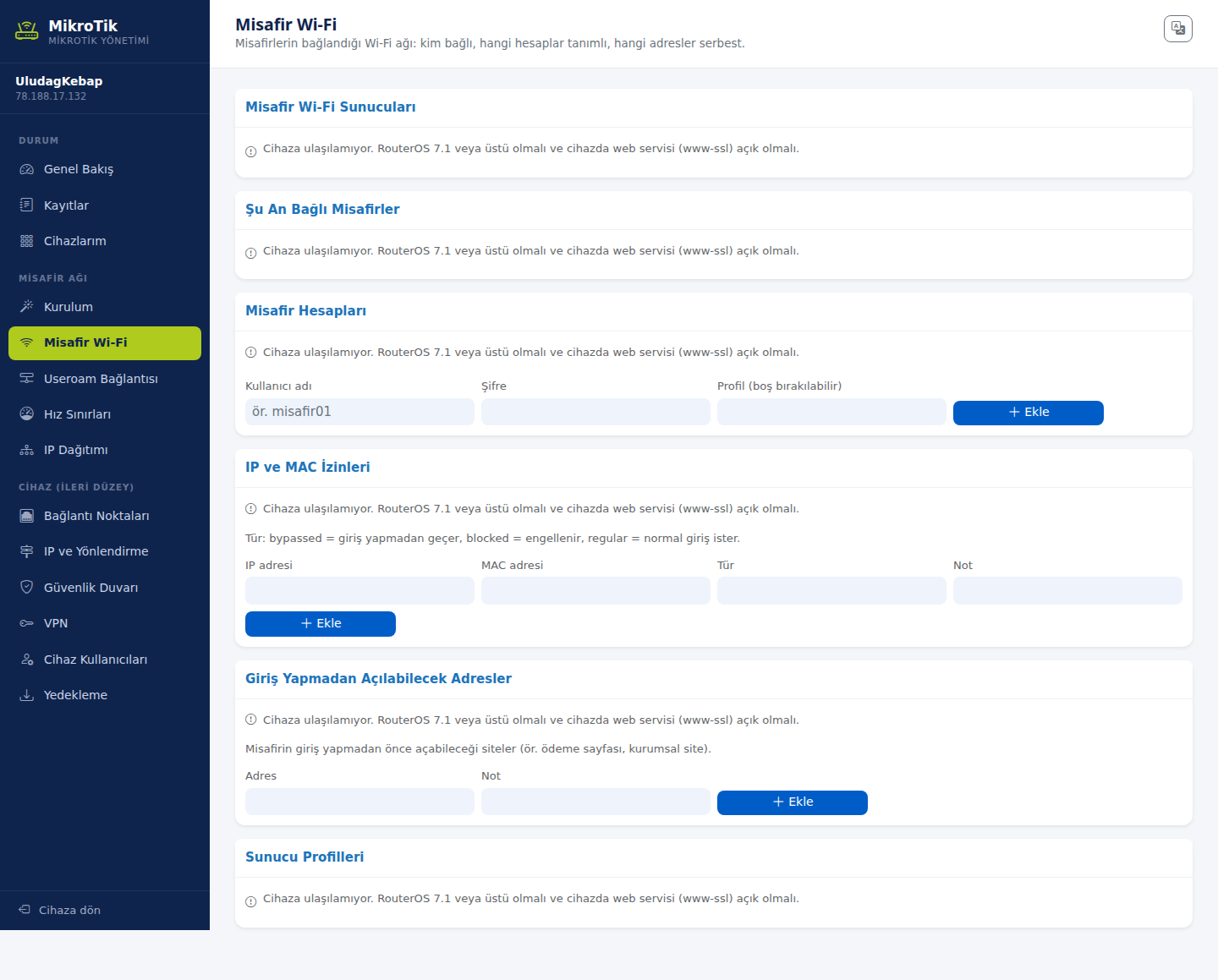
The screen has four sections:
Guest Wi-Fi servers
The hotspot servers defined on the device.
Guests connected right now
Devices currently on the network. When you want to block a guest, this is where you copy the MAC address from.
Guest accounts
Hotspot users defined on the device. A new account takes three fields:
- Username
- Password
- Profile (may be left empty)
IP and MAC permissions
Sets how specific addresses behave on the network. Type takes three values:
- bypassed: Passes through without signing in.
- blocked: Blocked.
- regular: Normal sign-in required.
A separate Addresses reachable without signing in section holds the addresses a guest may reach before authenticating (a payment provider or your own site, for instance).
2. Useroam Connection
How do I open it? MikroTik Management → GUEST NETWORK → Useroam Connection.
The screen where you check whether guest Wi-Fi sign-ins are reaching Useroam's records. If the device is unreachable, the top reads "Status could not be read — the Useroam connection could not be checked because the device could not be reached."
RADIUS servers
Lists the RADIUS servers defined on the device. A new server takes three fields:
The shared secret is never displayed, for security. If you lose it, you have to enter it again.
Guest Wi-Fi profiles
Lists the hotspot profiles, so you can confirm which profile RADIUS is working through.
Related pages: MikroTik Management → Setup Wizard, Overview; Captive Portal → Portal Settings.