
Guest Wi-Fi and Useroam Connection
What is it for?
This page describes the two screens in the console's GUEST NETWORK group:
- Guest Wi-Fi: The Wi-Fi network guests connect to: who is online, which accounts exist and which addresses are open.
- Useroam Connection: Check here whether guest Wi-Fi logins are reaching Useroam records. This is the most important Useroam check; if guest logins do not reach Useroam, 5651 records and guest lists stay incomplete.
When do you use it?
- You want to see how many guests are online right now and how much data they use.
- You want a device such as a menu tablet or payment terminal to reach the internet without logging in.
- You want to add a site guests can open before logging in (a payment page, your company site).
- Guests log in but do not appear in the panel; you will check the Useroam connection.
Before you start
- The device must be connected to the panel and the guest network set up. If it is not, the screen reads No guest Wi-Fi (hotspot) is configured on this device.; run the Setup Wizard first.
- Changes on these two screens are written to the device immediately.
Step by step: Guest Wi-Fi
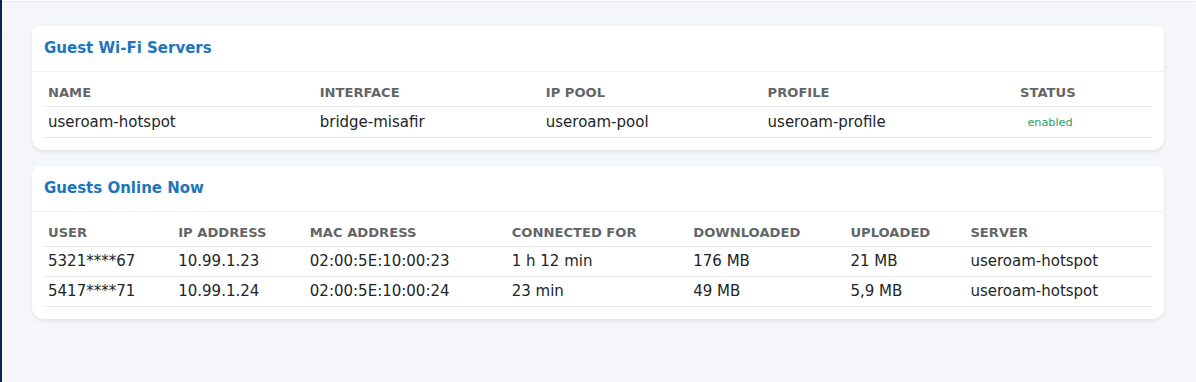
Open the section and see who is online. In the left menu press GUEST NETWORK > Guest Wi-Fi. The Guest Wi-Fi Servers card shows which port the guest network runs on (Interface), with which IP pool and Profile, and its Status. The Guests Online Now card lists each guest's User (the phone number or username used to log in), IP address, MAC address, Connected for, Downloaded, Uploaded and Server. With nobody online it reads No guests are connected right now.
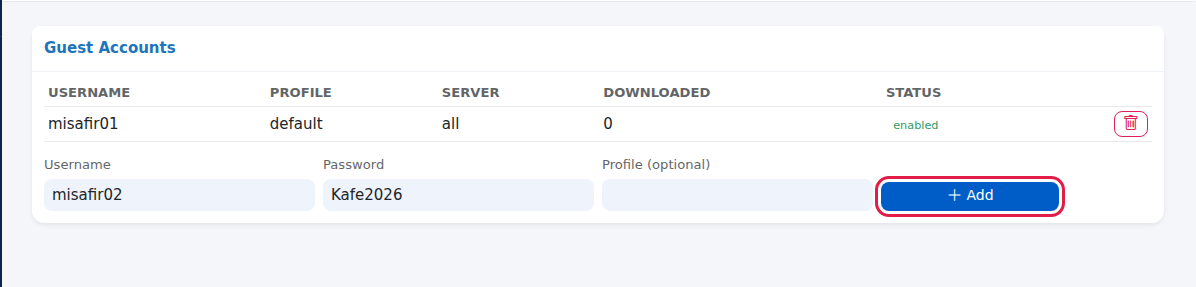
(Optional) Add a guest account. The Guest Accounts card lists accounts stored on the device itself (Username, Profile, Server, Downloaded, Status). Guests who log in through Useroam do not appear here; Useroam keeps them. To create a local account on the device enter Username (e.g. guest01), Password and optionally Profile (optional), then press Add. With no accounts it reads No guest accounts defined.
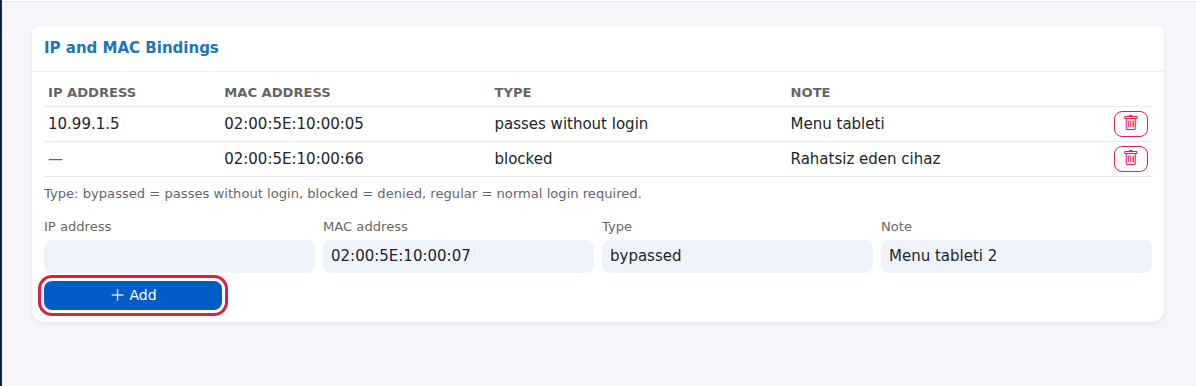
Let a device through without login, or block it. The IP and MAC Bindings card lists devices with special treatment (IP address, MAC address, Type, Note). The text below reads Type: bypassed = passes without login, blocked = denied, regular = normal login required. In the list the types appear as passes without login, blocked and normal login. For a new entry enter the IP address or MAC address, type bypassed, blocked or regular in Type, add a Note and press Add. To remove an entry press the bin on its row. With no entries it reads No bindings defined.
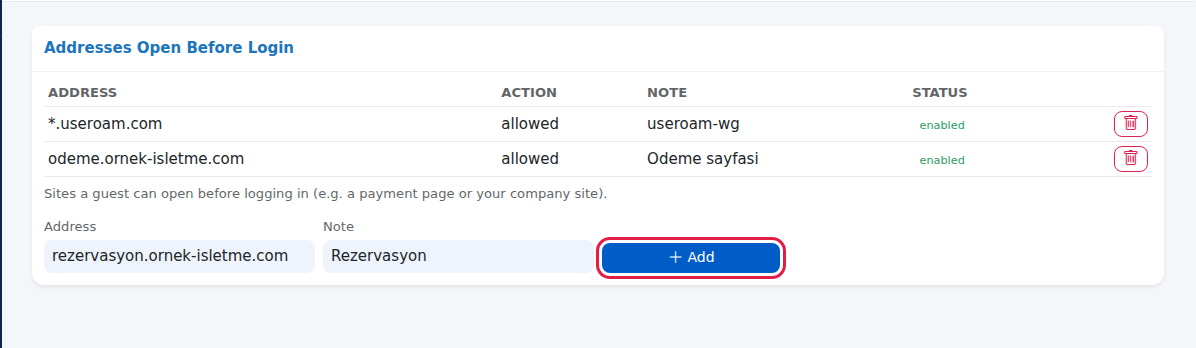
Add an address open before login. The Addresses Open Before Login card lists what guests can open before logging in (Address, Action: allowed or denied, Note, Status). The text reads Sites a guest can open before logging in (e.g. a payment page or your company site). Enter the domain in Address (e.g. payment.example-business.com), a description in Note and press Add. Do not delete the Useroam addresses added by the setup; otherwise the welcome page may not open. With no entries it reads No addresses defined.
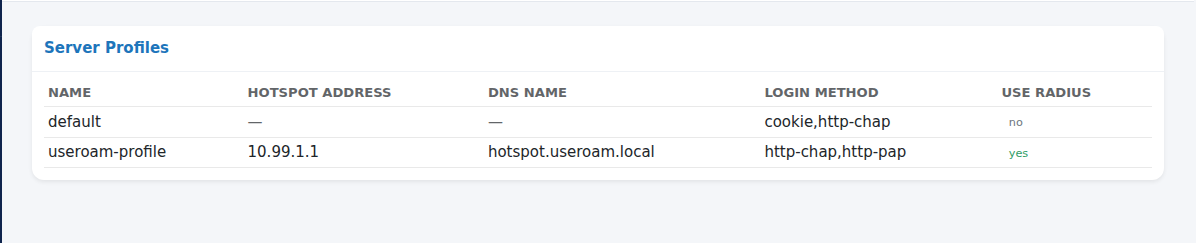
Check the server profiles. The Server Profiles card shows each profile's Name, Hotspot address, DNS name, Login method and Use RADIUS. The profile used with Useroam must have Use RADIUS set to yes. If none are found it reads No profiles found.
Step by step: Useroam Connection
Open the section and read the result at the top. In the left menu press GUEST NETWORK > Useroam Connection. The top card checks two things on the device: is there an active RADIUS server for hotspot, and is Use RADIUS on in the guest Wi-Fi profile. On a correctly set up device it reads, in green, The Useroam connection appears to be in place with RADIUS is enabled on the guest Wi-Fi profile and a RADIUS server is defined for hotspot. below.
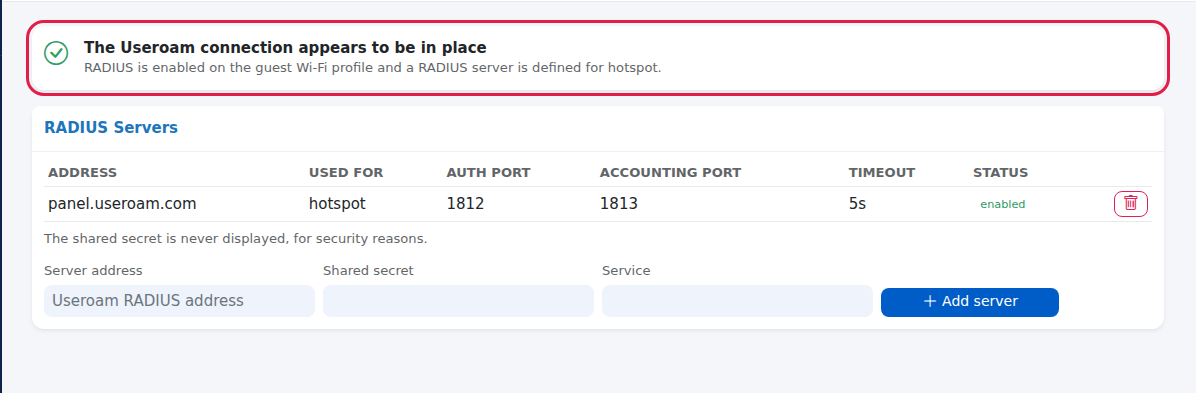
If the result is yellow or grey, see what to do. The five possible results and what to do are in the table below. The quickest fix is usually to run the Setup Wizard again.



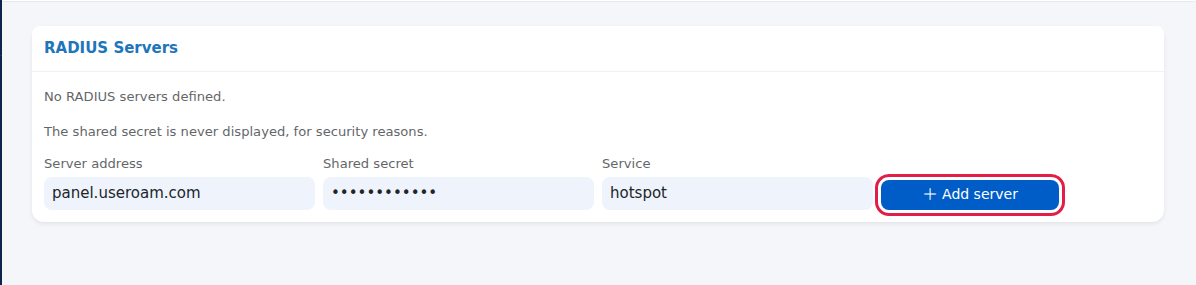
(If needed) Add the RADIUS server by hand. The RADIUS Servers card lists the defined servers (Address, Used for, Auth port, Accounting port, Timeout, Status). Below it reads The shared secret is never displayed, for security reasons. To add one by hand, enter panel.useroam.com in Server address, the Device Password from the panel's Device Settings > General tab in Shared secret and hotspot in Service, then press Add server. We recommend using the Setup Wizard instead; it writes the correct settings itself. With no servers it reads No RADIUS servers defined.
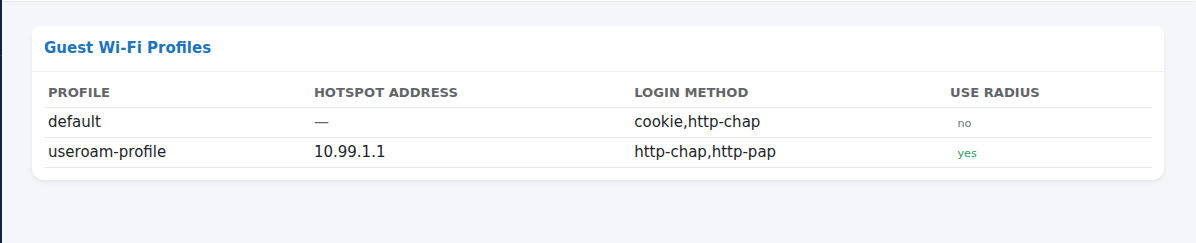
Check the profiles. The Guest Wi-Fi Profiles card shows Profile, Hotspot address, Login method and Use RADIUS. The profile used by the guest network must have Use RADIUS set to yes.
Useroam Connection results
| Result | Explanation (on screen) | What to do |
|---|---|---|
| The Useroam connection appears to be in place (green) | RADIUS is enabled on the guest Wi-Fi profile and a RADIUS server is defined for hotspot. | Nothing. If logins still do not appear in the panel, contact support. |
| A RADIUS server exists but guest Wi-Fi is not using it (yellow) | Use RADIUS is turned off on the hotspot profiles. As it stands, guest logins will not reach Useroam records. | Run the Setup Wizard again. |
| Guest Wi-Fi expects RADIUS but no server is defined (yellow) | Use RADIUS is enabled on the profile, but no active RADIUS server was found for the hotspot service. | Run the Setup Wizard again or add the server by hand. |
| The Useroam connection is not set up (grey) | This device has no RADIUS definition for hotspot. Guest logins will not reach Useroam records. | Run the Setup Wizard. |
| Status could not be read (grey) | The Useroam connection could not be checked because the device is unreachable. | Check the device connection (error table on MikroTik Management). |
This check only looks at the device settings; it does not guarantee that the server address is right or the secret matches. For a definite answer, connect a phone to the guest network, log in and check that the guest appears in the panel.
Frequently asked questions
A guest logged in but is not in the Guests Online Now list.
Reload the page; the list is read when it opens. If still missing, check the Useroam Connection screen.
We do not want our menu tablet to log in every day.
Add the tablet's MAC address to IP and MAC Bindings with type bypassed. This device never logs in to Useroam, so it does not appear in guest lists.
The welcome page does not open; I deleted the Useroam addresses.
Run the Setup Wizard again; it adds the Useroam addresses back.
I cannot see the shared secret.
For security the console never shows it. The correct secret is on the panel's Device Settings > General tab.
Related pages
- Setup Wizard
- Overview (block a guest)
- Active Guests