
Automation
What is it for?
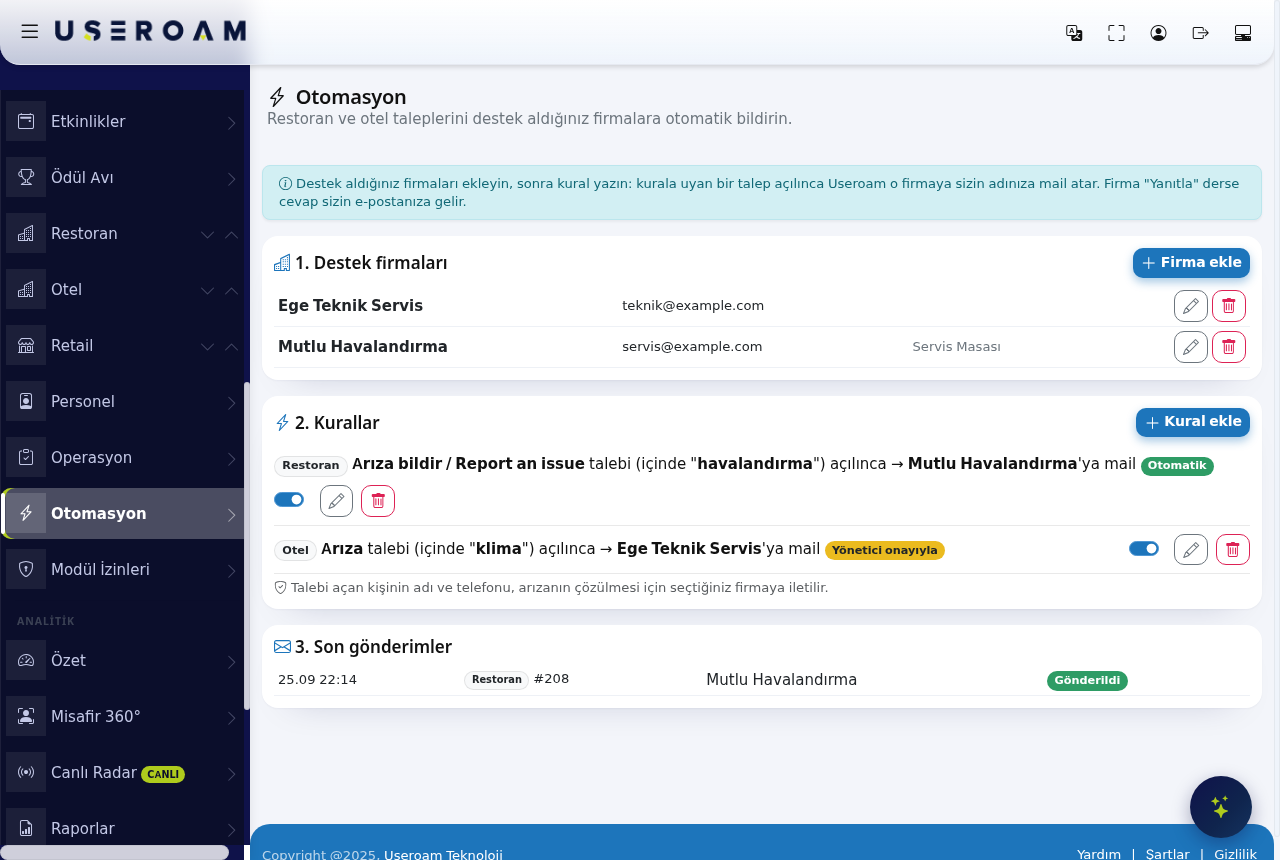
Automation (Otomasyon) reports faults toe-mails your servicesupport company for you.you when a fault or job is opened. For example, when a ventilationhood fault is opened in the kitchen, your ventilation service gets an e-mail goes to your ventilation company on your venue's behalf. If the company clicks Reply, the answer comes to your e-mail address. The subtitle reads "Automatically notify your support companies about restaurant and hotel requests." The screen is shared by the restaurant and hotel modules.
How do I open
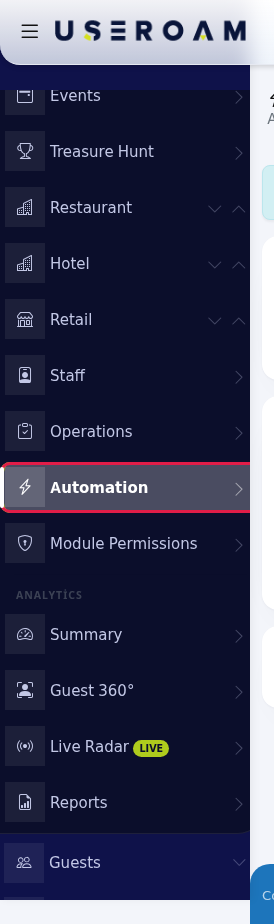
it?this screen? In the Business section of the left menu,go toclickVenue →Automation (İşletmeunder→ Otomasyon)Operations).
When do I use it?
- When an outside company services your refrigeration, hood, electrics or air conditioning.
- When the company should know the moment a fault is opened (automatic).
- When a manager should check first before the company is contacted (manager approval).
Before you start
- The venue needs an active restaurant or hotel module. Otherwise it says "Automation needs an active restaurant or hotel module in this venue."
- Replies from the company go to the e-mail address on your account (company details on My Profile). If that address is not valid, replies go back to Useroam.
- The e-mail is always sent in Turkish. Demo accounts do not send e-mail.
Page layout
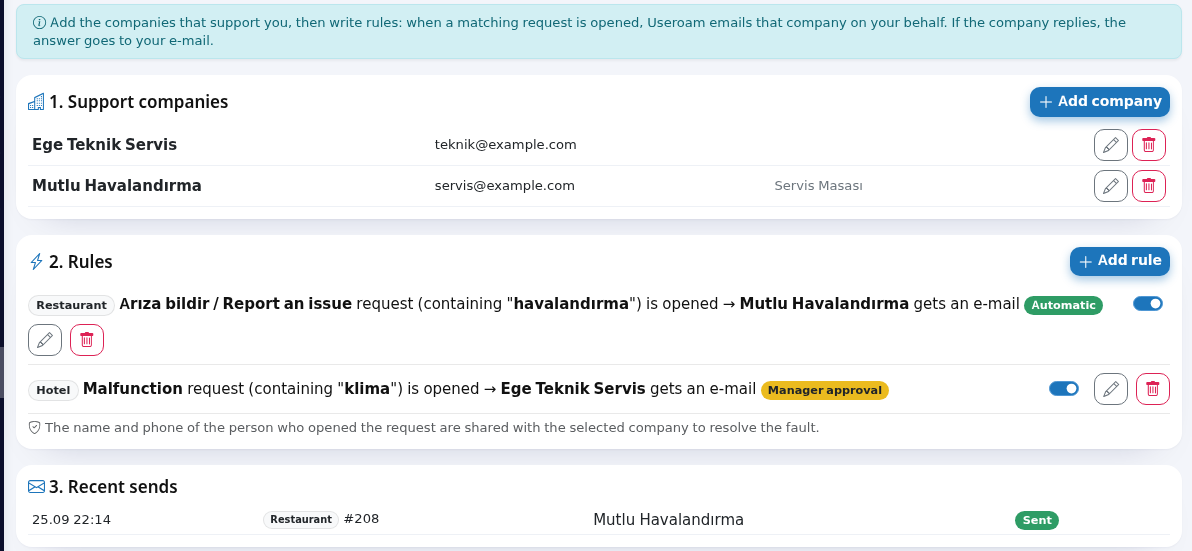
A blue info box at the top: "Add the companies that support you, then write rules: when a matching request is opened, Useroam emails that company on your behalf. If the company replies, the answer goes to your e-mail." Below it, three numbered cards: 1. ServiceSupport companies, 2. Rules, 3. Recent sends.
Step by step: set up your first automation
PressIn 1. Support companies click + Add company.- Enter
theCompanycompany'sname (for exampleCool Service Ltd),nameE-mail (separate several addresses with commas), and if you like Contact person (optional) ande-mail address. Both are required. - Phone
and(optional),contactthenperson are optional. Pressclick Save. The top says "Saved."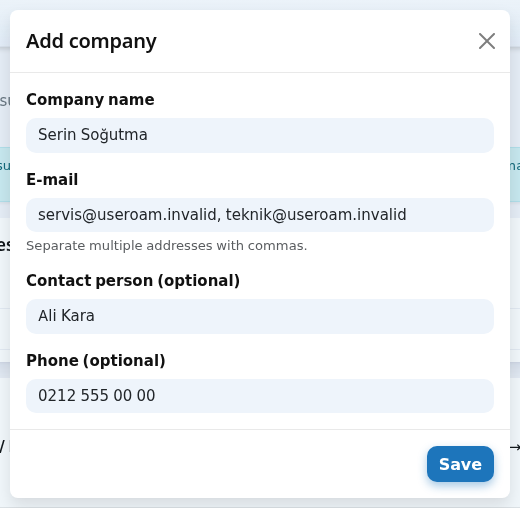
2. Rules
A rule answers "when which request is opened, which company should be told?" and reads like a sentence on screen: Restaurant · Report an issue request (containing "havalandırma") opened → mail to Mutlu Havalandırma.
Pressclick + Add rule (with no company the button is disabled and it says "Add a company first to create a rule."). Fill in the window and click Save:- For which part? If the venue has both a restaurant and a hotel, Restaurant or Hotel. With one module this question does not appear.
Pick1. Which request? For restaurants, one of your request types; for hotels Malfunction, Room Cleaning, Extra, Room Service, Late Check-out, Early Check-in, Reservation. Any request covers them all.- 2. Where? For restaurants, the
section:listRestaurantofor Hotel. Pick thepoints;requestAnytypeplace covers all. Hint: "If you pick a parent spot (e.g.Fault).Kitchen), its sub-spots are included." For hotels, type a room number in Room no (empty = everywhere); leave it empty for all rooms.Optionally narrowIf itwithcontainsaplaceand akeyword. The keyword is athis wordthat(optional): for examplehood. Hint: "The rule runs if the word appears in the place name or the requestdescription (e.g.air conditioningnote.").Pick3. Which company gets thecompanye-mail?toOnenotify.of your companies.Pick4.howWhen should itruns:beAutomatic:sent?the mail goesAutomatically, as soon as the request isopened.Manager approval:openedtheormail waits. It goes whenWhen a managerpressesclicks "Notify company".
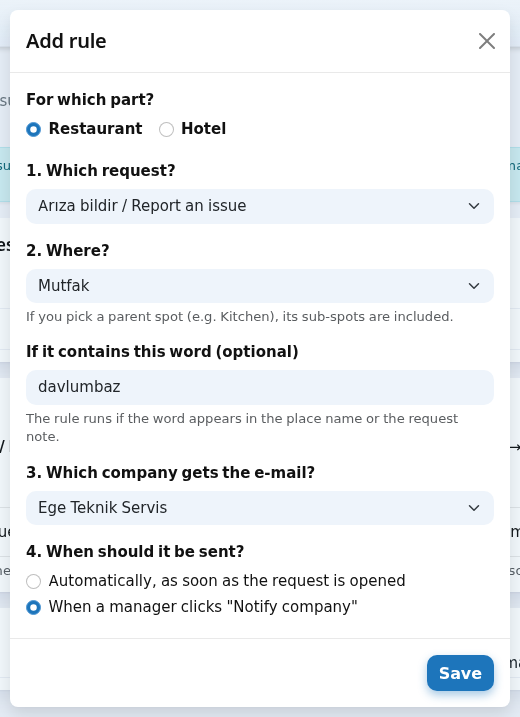
- The rule shows in the list as a sentence, for example: Restaurant · Malfunction request (containing "hood") is opened → Cool Service Ltd gets an e-mail, with a green Automatic or yellow Manager approval badge. When a matching request is opened, a row appears in 3. Recent sends, and a company badge shows under the request in the Requests list. For an approval rule, click Notify company on the
pendingrowunder(theRecentsamesends.button
on PresstheSave.RequestsYoulist);cantheswitchtopasaysrule"E-mailoffsenttemporarilytowiththeitscompany."toggle.
3. Recent sends
Lists which company was written to, for which requestCompanies and when.rules Pending, sent and failed sends appear here.
How the mail is sentlist
TheAmailcompanyisrowsenton behalf of your venue. Ifshows thecompanyname,pressese-mail addresses and contact person; the pencil edits and the bin deletes it ("Delete this company? Rules linked to it are also turned off.").- A rule row shows the part badge (Restaurant /
ReplyHotel), theanswerrulecomessentencetoandyourthee-mailrunaddress.badge; on the right an on/off switch (stops the rule without deleting it), a pencil (edit) and a bin ("Delete this rule?"). - The
mailnotecontainsunder therequestcard:subject, place, description and photo if there is one. In the request list, a reported request shows✉ Company name · Sent. To send a request that matches no rule, use theNotify companybutton on its row.In the staff app, managers see the same information as a badge on the request card.
Privacy note (KVKK):"The name and phonenumberof the person who opened the request arepassedshared with the selected company to resolve the fault."
The e-mail the company receives
Subject: [Venue name] Request type, place. The body (in Turkish) contains: venue name and company title, address (if any), subject (Konu), place (Yer), description (Açıklama), who opened it (Kaydı açan: the staff name and phone; if opened by a guest or from the panel, the source: guest QR/portal, business management panel, daily task out-of-range reading, staff app), time (Zaman) and, if any, a link to view the photo. A company gets at most 20 e-mails per hour.
Recent sends
Each row shows the time, the part and request number (for example Restaurant #208), the company and a status badge:
| Badge | Meaning and what to do |
|---|---|
| Green Sent | The e-mail was queued and goes out within a few minutes. |
| Yellow Awaiting approval | An approval rule. Click Notify company on the row. |
| Red Not sent | A short reason follows (shown in Turkish): gecerli e-posta yok (no valid e-mail; fix the company address), saatlik sinir (hourly limit: 20 e-mails went to the same company |
| Grey | The notice was cancelled. |
With nothing sent yet it says "Nothing sent yet."
Every field and button
| Field / Button | What it does | Example |
|---|---|---|
| + Add company | Opens the company | - |
| Company name | Required. Shown in rules and the e-mail. | e.g. Happy Ventilation |
| Required; several addresses with commas. | servis@firma.com | |
| Contact person (optional) | The e-mail greets this | Ali Kara |
Phone (optional) | A note for you. | 0212 555 00 00 |
| Opens the rule window. | - | |
| Rule window fields | Malfunction, Kitchen, hood | |
| Switch (rule row) | Turns the rule on or off. | On |
| Pencil / bin | Edit / delete. | - |
| Notify company | Sends a notice awaiting approval. | - |
Messages you may see
| Message | Meaning and what to do |
|---|---|
| Saved. / Deleted. | Done. |
| Company name and a valid e-mail address are required. | Check the name and e-mail (every comma-separated address must be valid). |
| Please select a company. | Choose a company in the rule; if it was deleted, add it again. |
| E-mail sent to the company. | The approved notice was sent. |
| E-mail could not be sent. | See the reason under Recent sends. |
| No company yet. For example, add your hood, refrigeration or electrical service. | Add your first company. |
| No rules yet. Start with "Add rule". | Add your first rule. |
Frequently asked questions
I set up a rule but no e-mail went out.
Rules apply only to requests opened after you set them up. Request Managementtype, place and word must all match. Check 3. Recent sends for a row; if it says Awaiting approval, click Notify company.
Does a guest calling a waiter from the QR menu reach the company?
No. Waiter calls and bill requests are calls on the Operations Screen, not requests. Automation works on requests (from the panel, the staff app, point status changes, out-of-range readings and hotel guest portal requests).
What happens if the company replies?
The reply comes to the e-mail address on your account.