
Request Types
What is it for?
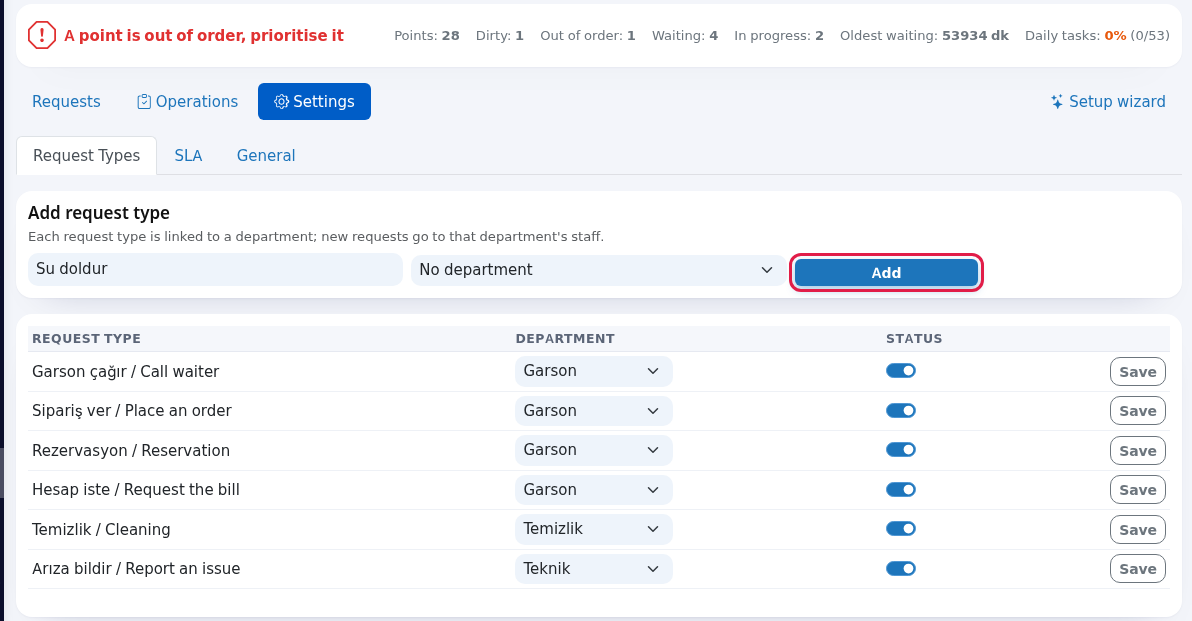
Request Types is where you set the job headings that can be opened in your restaurant (for example Call waiter, Cleaning, Fault) and which department each heading goes to. Routing is set up here: request type → department → that department's staff.
How do I open this screen? In the left menu go to Restaurant → Request Types. Or on Restaurant Management click the Settings tab, then the Request Types sub-tab.
When do I use it?
- When you first set up the restaurant, to link the 4 ready types (Call waiter, Request bill, Cleaning, Fault) to departments.
- To add a new job heading (for example
Refill water,High chair). - To send a job to a different team.
- To take a type you no longer use off the list (make it inactive).
Before you start
- Departments are defined on the Staff screen or in the setup wizard. With no departments the screen shows "You have not defined any departments yet." and an Add them on the Staff page link.
Step by step: add a new request type
- In the Add request type card, type the name in e.g. Take order (for example
Refill water), choose the department next to it (for exampleWaiter) and click Add. The top says "Request type added." and the type is added at the end of the list.
Step by step: change the department or turn a type off
- On the type's row, choose the new department in the Department box. To stop using the type, switch off the Status toggle. Then click Save on the same row. The top says "Saved."

An inactive type cannot be chosen for new requests; past requests and reports are unaffected. There is no delete button for types on this screen; switch off the ones you do not use.
Every field and button
| Field / Button | What it does | Example |
|---|---|---|
| Add request type card, e.g. Take order box | Name of the new type (up to 120 characters). | Refill water |
| Department box | Where the type goes. With No department the request goes to the least busy person among all staff. | Waiter |
| Add | Adds the type. | - |
| List: Request type | The type's name (it cannot be renamed; add a new type and switch the old one off). | Call waiter |
| List: Department | The type's department. | Waiter |
| List: Status toggle | On: usable. Off: hidden from new requests. | On |
| Save | Saves the row. | - |
The note under the card: "Each request type is linked to a department; new requests go to that department's staff."
Messages you may see
| Message | Meaning and what to do |
|---|---|
| Request type added. | The new type is on the list. |
| Saved. | The row change was saved. |
| Request type name cannot be empty. | Fill in the name. |
| No request types yet. | Add your first type, or use step 3 of the wizard. |
| You have not defined any departments yet. | Create departments with the Add them on the Staff page link. |
Frequently asked questions
Where do guests see request types?
They appear when staff open a request in the app and in 1. What happened? in the panel's New request window. Automation rules also use them. The Call waiter and Request the bill buttons in the QR menu are separate from this list; they arrive as calls on the Operations Screen.
Why can't I rename a type?
The name stays fixed so past requests and reports keep it. Add a type with the new name and switch the old one off with Status.
Can several types go to the same department?
Yes. For example Call waiter, Request bill and Refill water can all go to Waiter.