
Operations
What is it for?
Operations is where you run the daily routine of your venue from one place: which job is done at what time (Daily Tasks), the places where work happens (Points), and a record of everything that was and was not done (Report). The subtitle reads "Daily tasks, points and reports (shared by restaurant and hotel)". If your venue has both a restaurant and a hotel, their tasks and points appear in one list.
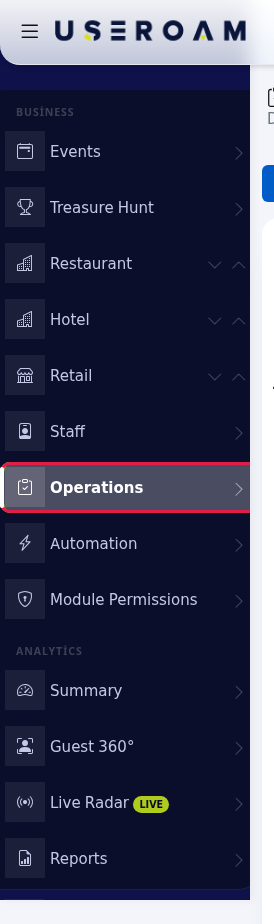
How do I open this screen? In the Business section of the left menu, click Operations. Under it are the Daily Tasks, Points and Report links. The Operations tab on Restaurant Management and the Board link in the Restaurant menu also come here.
When do I use it?
- To define jobs that repeat every day: opening, closing, temperature checks, restroom rounds.
- To see at a glance whether tables, restrooms, kitchen, pool and other places are clean, dirty or out of order.
- To set who looks after a point (a department or a person).
- To report which tasks were not done last week or how long each request took.
Before you start
- The venue needs a restaurant profile or an active hotel module. Otherwise the screen says "Operations needs a restaurant or an active hotel module at this venue."; start with the setup wizard.
- Staff do the tasks and update points in the Useroam Go app. The panel has no button to mark a task done; it plans and tracks.
- Staff without a department cannot see department tasks and points in the app. In venues with a hotel the page then shows "2 staff members without a department cannot see department tasks and points in the app." with an Assign departments to staff link.
1. Daily Tasks
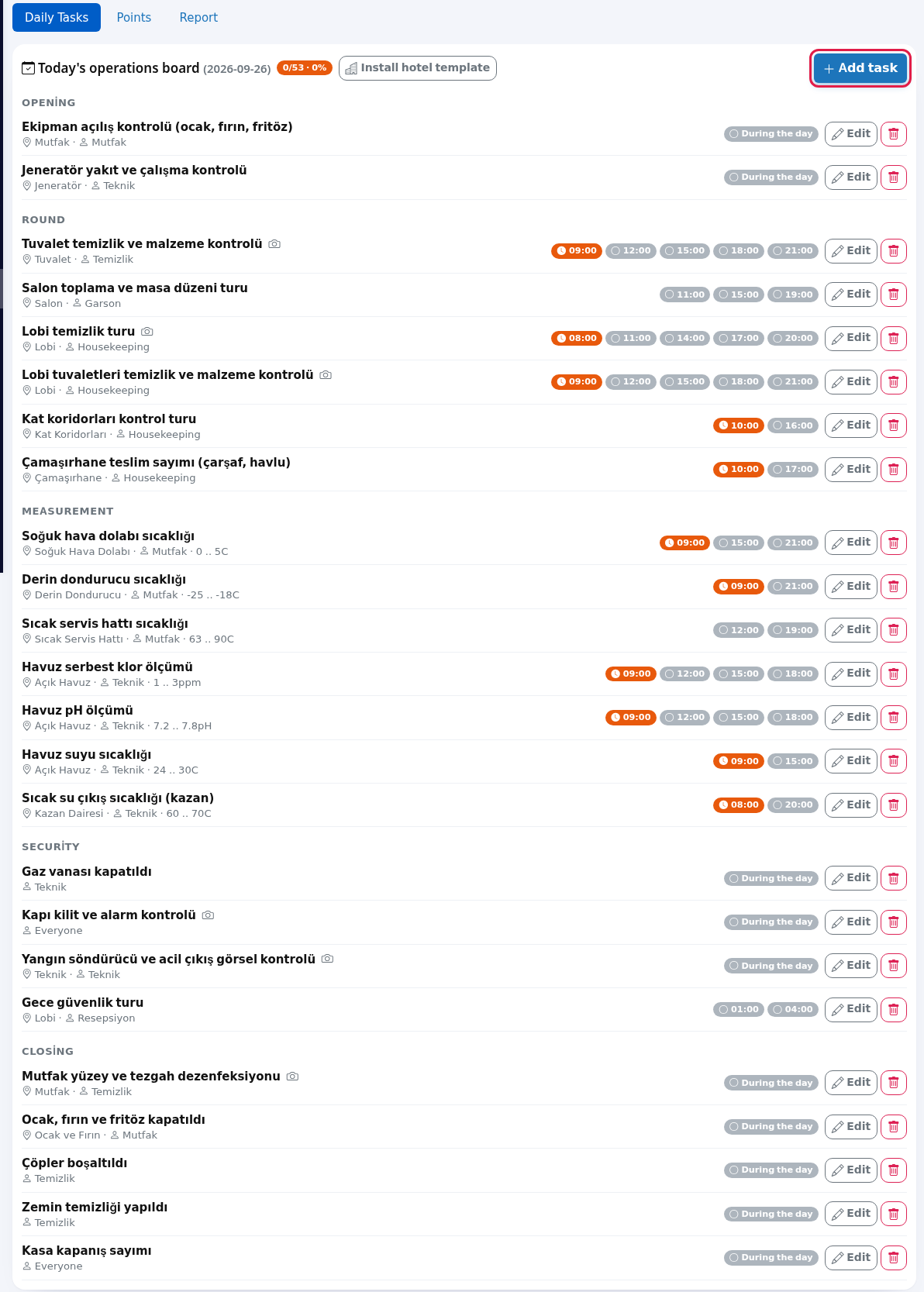
The tab starts with Today's operations board and the date; the badge next to it shows how many time slots were done today and the percentage (for example 12/53 · 23%). Tasks are grouped by type: Opening, Round, Measurement, Security, Closing.
Each row shows the task name (a camera icon if a photo is required), then its place, who does it (a person, a department or Everyone) and, for measurements, the limits (for example 0 .. 4°C). On the right there is one badge per time slot:
- Green tick: done. Hover to see who did it, when, and the reading.
- Red exclamation: reading out of range.
- Orange clock: the time passed and it was not done (overdue).
- Grey circle: not due yet. A task with no times shows During the day.
When the day changes all badges go grey again; past days stay in the Report. So that closing tasks done after midnight count for the previous day, the board moves to the new day at 06:00.
Step by step: add a task
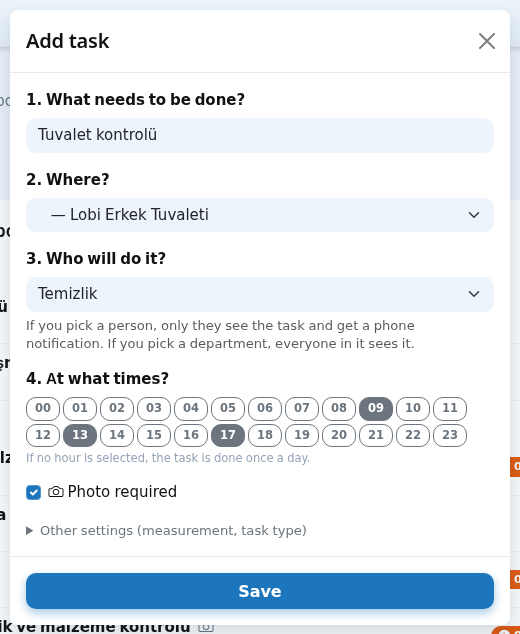
- Click + Add task at the top right. Fill in the window in order, then click Save; the top says "Task added."
- 1. What needs to be done? The task name (required), for example
Restroom check. - 2. Where? Pick a point or leave No specific place. If it is not listed, choose + Add a new point and type a name (
E.g. Terrace). - 3. Who will do it? Everyone, a person from the People group or a department from the Departments group. The hint: "If you pick a person, only they see the task and get a phone notification. If you pick a department, everyone in it sees it."
- 4. At what times? Tap the 00-23 boxes (for example 09, 13, 17). The hint: "If no hour is selected, the task is done once a day."
- Photo required: if ticked, staff cannot finish the task without a photo.
- 1. What needs to be done? The task name (required), for example
- For a measurement task (temperature, chlorine) open Other settings (measurement, task type) at the bottom: choose the task type (Opening, Round, Measurement, Security, Closing), type the unit in Unit (e.g. °C) and the lower and upper limits in min and max (for example
0and4). If staff enter a value outside the limits, that slot turns red and a fault request is opened automatically.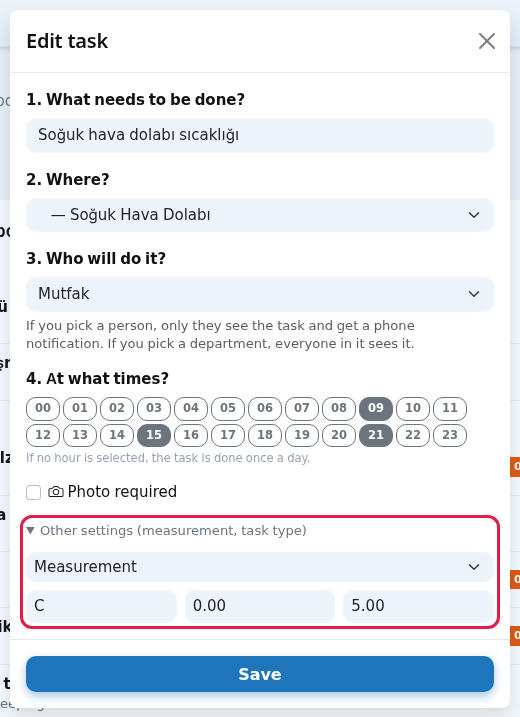
Edit on a row opens the same window with the task's values (titled Edit task). The bin deletes the task after "Delete this task? Past reports are kept."; it leaves the board and its past records stay in the Report.
Ready templates
- Install ready restaurant template: shown only when there are no tasks. It is already installed when the restaurant is created. The result reads like "Template installed, tasks added: 13".
- Install hotel template: always shown when the venue has an active hotel. It asks first: "Install the hotel template? Pool, technical and lobby points and 11 daily tasks will be added; you can edit the reading ranges later." It adds pool, technical, lobby, laundry and floor corridor points and 11 tasks (pool chlorine and pH, pool water and boiler temperature, lobby and restroom rounds, fire extinguisher check, night security round and so on). The template is never installed by itself. Clicking twice adds nothing new; the message becomes "Hotel template installed: 0 new points, 0 new tasks".
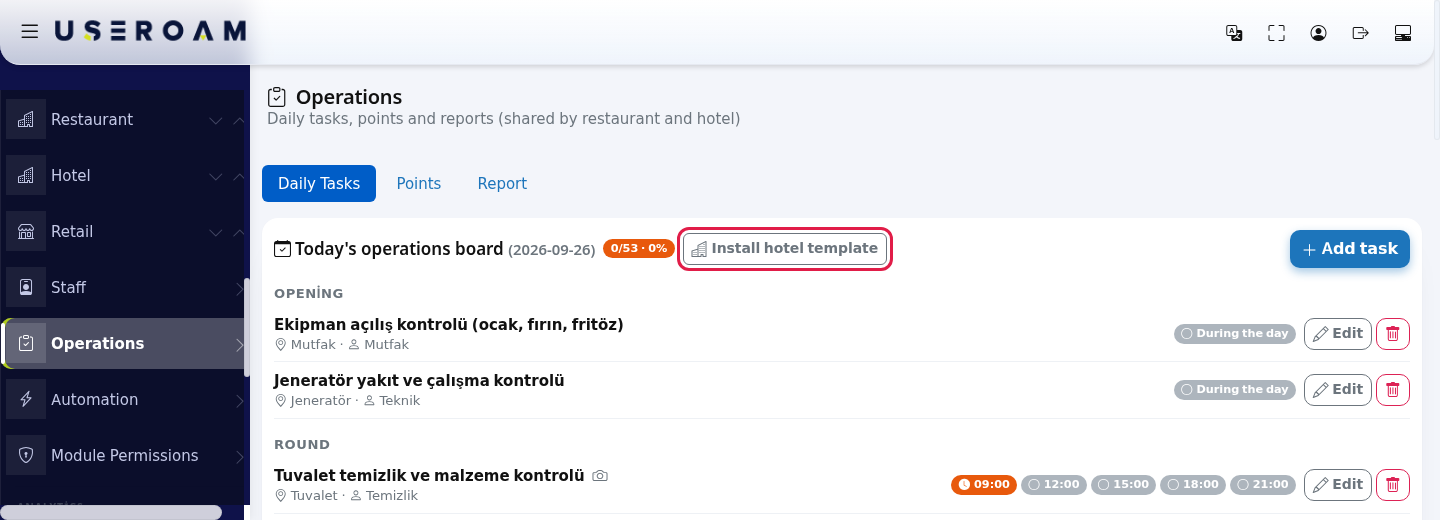
With no tasks at all you see "No tasks defined yet. You can install the ready template or add your own tasks below."
2. Points
A point is a place where work happens: table, restroom, stove, pool, lobby. Points can be nested: Kitchen with Stove and Oven and Cold Room under it. A parent point shows as a navy header strip (with the number of points under it, dirty and out-of-order counts, task count and owner); child points are coloured boxes. Stand-alone points are listed at the bottom.
Colours (legend at the top):
- Green All good.
- Orange Needs work (dirty or overdue task).
- Red Urgent (out of order or failed measurement).
Each box shows the name, status (Clean, Dirty, Out of order), today's task count at that point (for example 0/2) and the owner. Tasks linked to no point are collected in the General tasks strip at the top ("Tasks not linked to a point (you can pick a point in the Tasks tab)"); clicking the strip opens Daily Tasks.
Note: the demo venue's point names in the pictures were entered in Turkish.
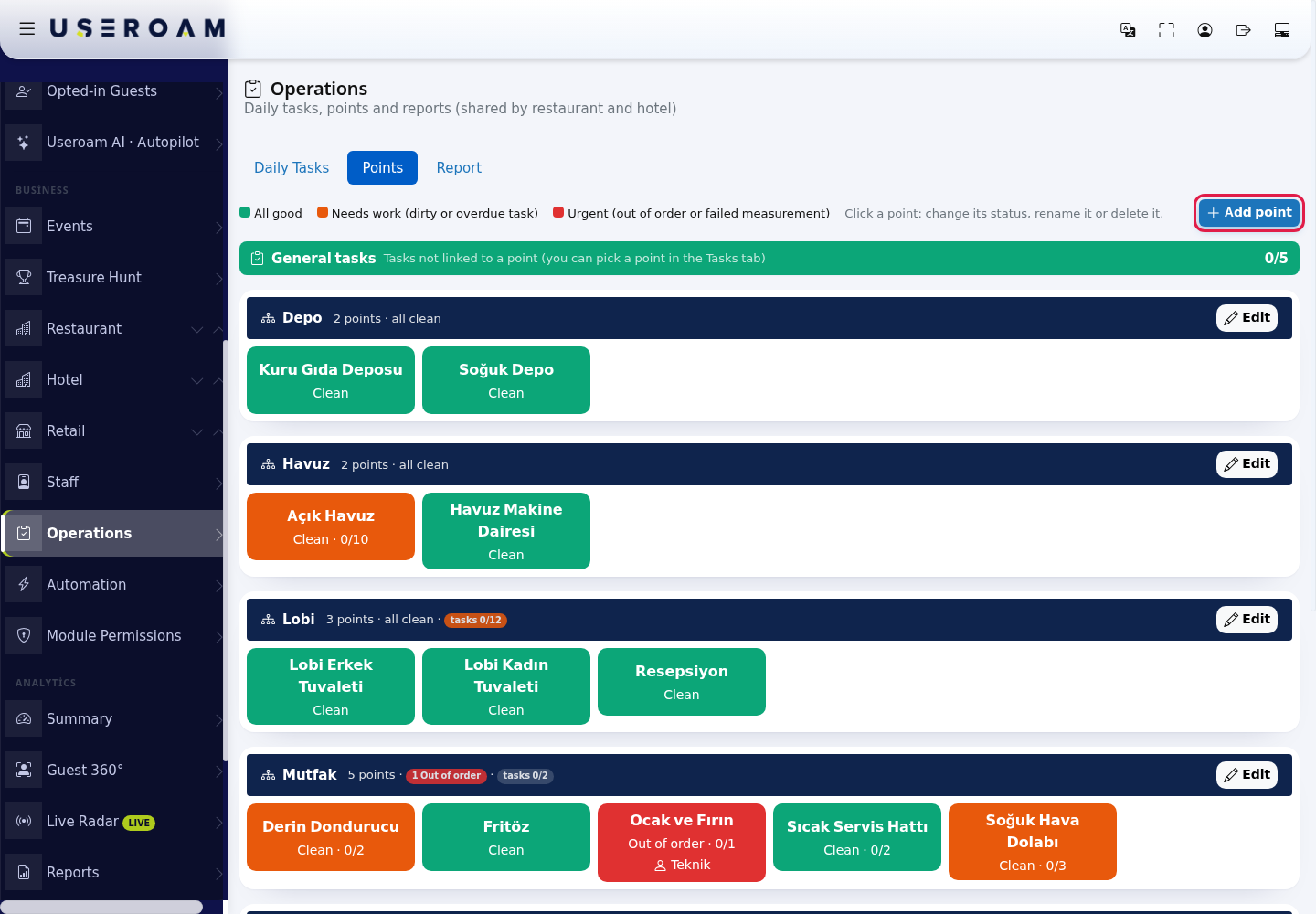
Step by step: change a point's status or owner
- Click the point's box (or Edit on a parent point). Change what you need in the Edit point window and click Save; the top says "Point saved."
- Current status: Clean, Dirty, Out of order. Hint: "If you choose Dirty or Faulty, a request is opened automatically and sent to the least busy staff member." When the job is closed, the point goes back to clean by itself.
- Point name, Under which point? (None (main point) or a parent). A point that has points under it cannot be moved under another; the box is then locked with an explanation.
- Which department looks after it? and Which person looks after it? (optional): the owner. Hint: "In the app, staff only see and change spots of their own department and spots given to them. If nothing is selected, staff don't see it; only managers do. Leave a sub-spot empty to use its parent's owner."
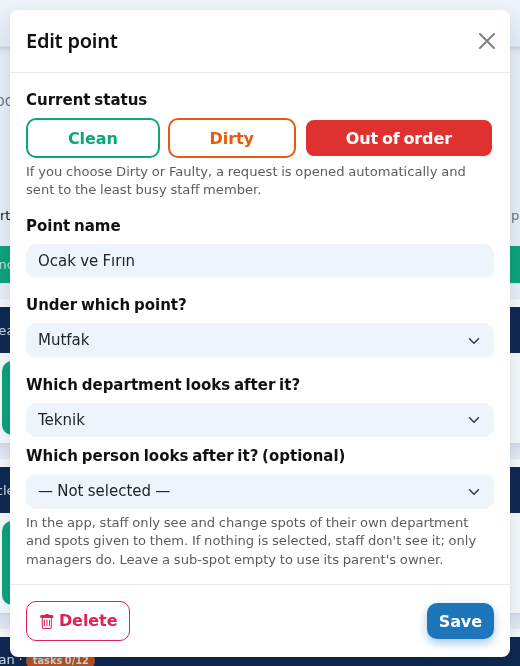
Delete on the left of the window deletes the point and its sub-points after "Delete this point? Points under it are deleted too." Tasks linked to them are not deleted; their place becomes empty.
Step by step: add a point
- Click + Add point at the top right. Type the name in Point name (for example
Terrace), choose a parent and owner if needed, and click Save. A new point has no status box; it starts as Clean.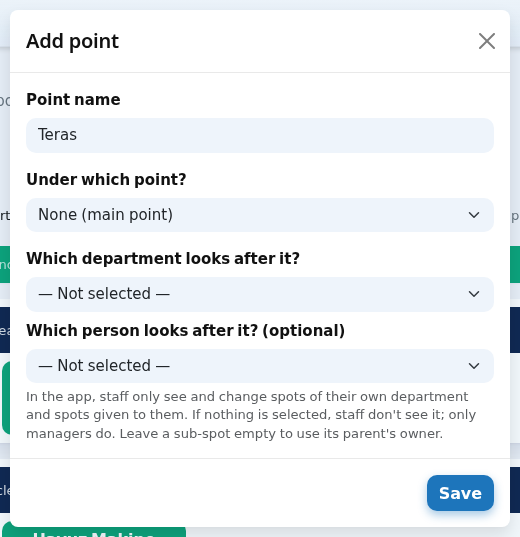
With no points at all you see "No points defined yet." with Set up standard restaurant points (restaurant) and Install hotel template (hotel).
3. Report
The report combines requests, completed tasks and missed tasks in one table. The default range is the last 7 days; up to 63 days can be chosen.
- Choose filters and click Filter: From and To dates, Type (All, Requests, Tasks), Person, Job (request types and tasks in two groups), Point (a parent includes its children), Status. The cross button (Clear) resets filters.

Count badges above the table: Total and one per status. Statuses: Completed, Open, Not done (a task whose time passed with no record), Out-of-range reading, Cancelled.
| Column | What it shows |
|---|---|
| Time | When the request was opened or the task was done (for a missed task, its scheduled time). |
| Type | Blue Request or grey Task. |
| Job | Request type or task name, with photos and notes if any. |
| Where | Point name. |
| Who | Who did it (for a missed task, the person, department or Everyone responsible). |
| Status | The statuses above. |
| Duration / Reading | For requests, minutes from open to close (for example 12 min); for measurements, the value entered (for example 3.5°C). |
Search this list above the table searches the results, with the record count below. With no results you see "No records match these filters." For venues with a hotel, only hotel requests tied to a point (not a room) appear in the report.
Every field and button
| Field / Button | What it does | Example |
|---|---|---|
| Daily Tasks / Points / Report | Tabs. | - |
| + Add task | Opens the task window. | - |
| Edit / bin | Edits / deletes a task. | - |
| Install ready restaurant template | Installs ready restaurant tasks (when there are none). | - |
| Install hotel template | Adds hotel points and 11 tasks. | - |
| Task window fields | 1. What needs to be done?, 2. Where?, 3. Who will do it?, 4. At what times?, Photo required, Other settings (measurement, task type). | Fridge temperature, 09 and 15, °C, 0-4 |
| + Add point | Opens the new point window. | - |
| Point window fields | Current status, Point name, Under which point?, Which department looks after it?, Which person looks after it? (optional), Delete, Save. An empty choice shows as Not selected. | Terrace |
| Set up standard restaurant points | Installs ready restaurant points (when there are none). | - |
| Report filters + Filter / Clear | Narrows / resets the report. | Last 7 days, Tasks, Not done |
| Search this list | Searches the table. | boiler |
Messages you may see
| Message | Meaning and what to do |
|---|---|
| Task added. / Saved. / Task deleted. | Done. |
| Task name is required. | Fill in 1. What needs to be done?. |
| Point saved. / Deleted. | Point action done. |
| Point name cannot be empty. | Type a name. |
| A point with this name already exists. | Use a different name (names are unique within the venue). |
| This point has points under it; it cannot be moved under another point. | Move the sub-points first or keep it as a parent. |
| Points added: ... | Standard restaurant points were installed (existing names are not added again; they are grouped under Restroom, Kitchen and Storage parents). |
| Template installed, tasks added: 13 | Ready restaurant tasks were installed. |
| Hotel template installed: 12 new points, 11 new tasks | The hotel template was installed. Adjust reading ranges to your own values. |
| 2 staff members without a department ... | Use Assign departments to staff. |
| Operations needs a restaurant or an active hotel module at this venue. | Set up the restaurant or hotel first. |
Other on-screen texts
The hints, counters, waiting and status texts below appear on screen as written (numbers and names are examples; "..." is replaced with your data).
- Hotel template installed: ... new points, ... new tasks
- Malfunction (before)
- Resolved (after)
- E.g. Check the restrooms
- Malfunction
- Room Cleaning
- No records match your search.
- Click a point: change its status, rename it or delete it.
- all clean
Frequently asked questions
Staff cannot see a task in the app.
If the task is given to a department or person, the staff member must be in that department. For tasks tied to a point, staff only see points they look after. Staff without a department do not see department jobs. Details: Useroam Go: Tasks.
I have a hotel and a restaurant. Do I define tasks twice?
No. Tasks and points are one list per venue. In a venue that also has a restaurant, requests created from tasks or points go to restaurant requests; in a hotel-only venue they go to hotel requests.
Why are rooms not in Points?
Hotel rooms are managed on the Room Board; points are the areas outside rooms (pool, lobby, boiler room and so on).
I cannot set a point to Clean.
From the panel you always can. In the app, staff cannot tap Clean while the point has an open job; when the job is closed the point goes back to clean by itself.
Where are the old "Daily Tasks", "Points", "Report" pages?
These Restaurant Management tabs moved to Operations; the old addresses redirect here.