
Retail Request Monitor
What is it for?
Request Monitor shows, live, the "Call Staff" and "Ask Size / Stock" requests of customers who scan the QR in a fitting room or aisle. A staff member takes the request, helps the customer and completes it.
When to use it
- If you use fitting room or aisle QRs, keep this screen open on a tablet or the till computer.
- When you want to review the day's recently closed requests.
Before you start
- Requests only arrive if you define a QR point of type Fitting Room or Aisle / Shelf on Store & QR Registration, print it and put it in place.
- The screen refreshes itself every 25 seconds. There is no sound alert or phone notification; the screen needs to be visible.
Step by step
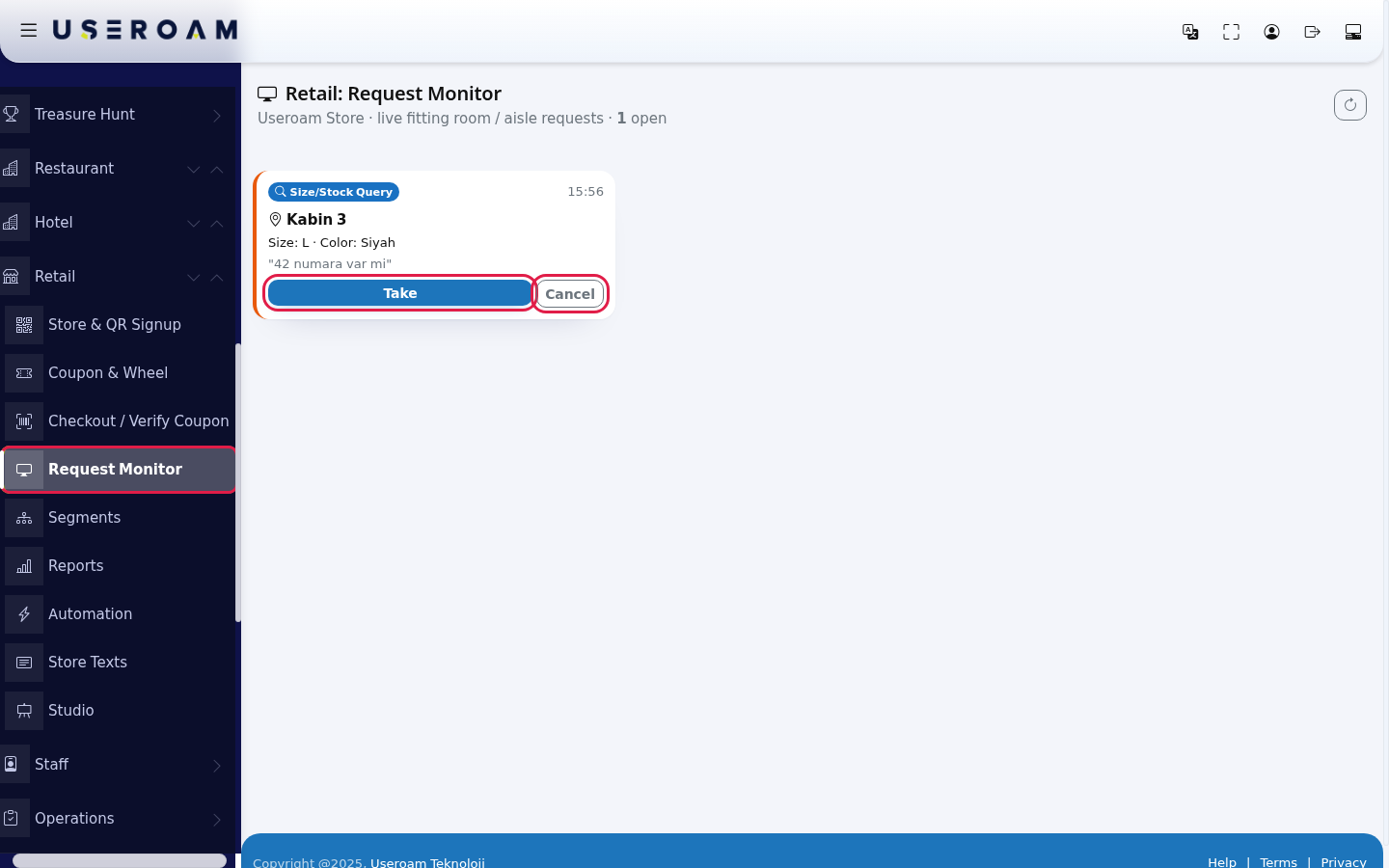
- Open Retail > Request Monitor in the left menu. Each open request is a card: the request type badge, the time, the QR point name (example: Kabin 3), and the product code, size, colour and note the customer entered. A new request has an orange left edge. Press Take before you go to the customer.
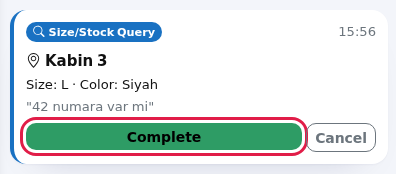
- A taken card becomes In progress; its edge turns blue and the button changes to Complete. After helping the customer press Complete. Close an unnecessary or accidental request with Cancel.
- Closed requests appear below in the Recently Closed table (last 30).

Every field and button
| Field / Button | What it does |
|---|---|
| Number under the title | "X open": waiting and in-progress requests. |
| Refresh button (top right) | Refreshes the screen now. |
| Type badge | Call Staff (orange), Size/Stock Query (blue), Fitting Room Help (purple). |
| Point | The QR point the request came from. |
| Product · Size · Color | What the customer entered (hidden if empty). Text in quotes is the customer's note. |
| Take | Sets the request to In progress. |
| Complete | Closes the request as Completed. |
| Cancel | Closes the request as cancelled. |
| Recently Closed: Time, Type, Point, Detail, Status | Closed requests; status green Completed or grey Cancel. |
| No open requests. | Nothing waiting. If the table is also missing, no request has been closed yet. |
Frequently asked questions
Can I see who took a request?
No. The screen shows the status only; it does not record who took it.
Two calls came from the same fitting room but there is one card.
A second request from the same QR point within 25 seconds does not open a new card (protection against double taps).
Are staff notified?
No. The Store Staff list currently sends no notifications; keep this screen open.
Where does Fitting Room Help come from?
The customer page only has "Call Staff" and "Ask Size / Stock" buttons; the Fitting Room Help badge is not currently created from the customer page.
Related pages
- The Store Page Your Customers See (fitting room/aisle screen)
- Store & QR Registration
- Retail Reports (Open requests box)