
Retail Reports
What is it for?
Retail Reports shows everything the store page collected on one screen: how many sign-ups came, how often the wheel was spun, how many coupons were issued and used, loyal customers, open requests and the sign-up list itself. You can filter the list and export it.
The subtitle under the screen title reads "Store name · all collected data on one screen".
When to use it
- When you want to see how many sign-ups and coupon redemptions a campaign brought.
- To compare which QR point brings more sign-ups.
- To take the (masked) sign-up list into Excel.
Before you start
- The screen and the exported file show names, phones and e-mails masked for KVKK. Full details cannot be taken from this screen.
Step by step
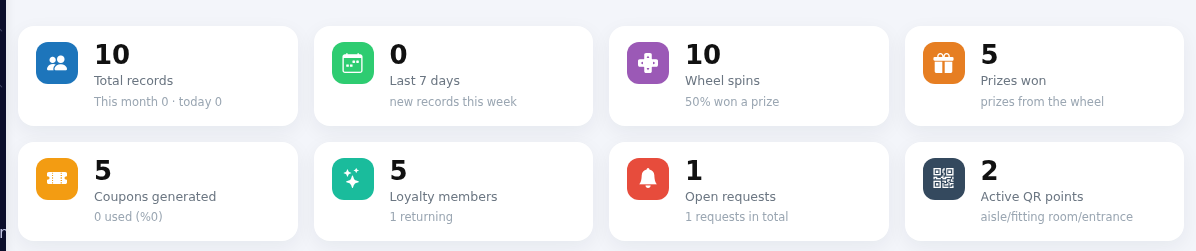
- Open Retail > Reports in the left menu. Eight indicator boxes are at the top (table below). Download records at the top right downloads the records as a CSV file; Store returns to the store screen.
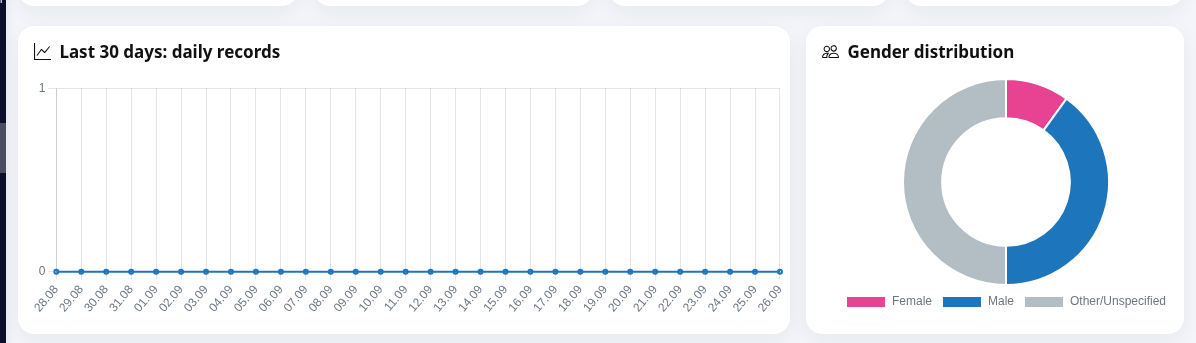
- Look at the charts: Last 30 days: daily records and Gender distribution (Female, Male, Other/Unspecified).
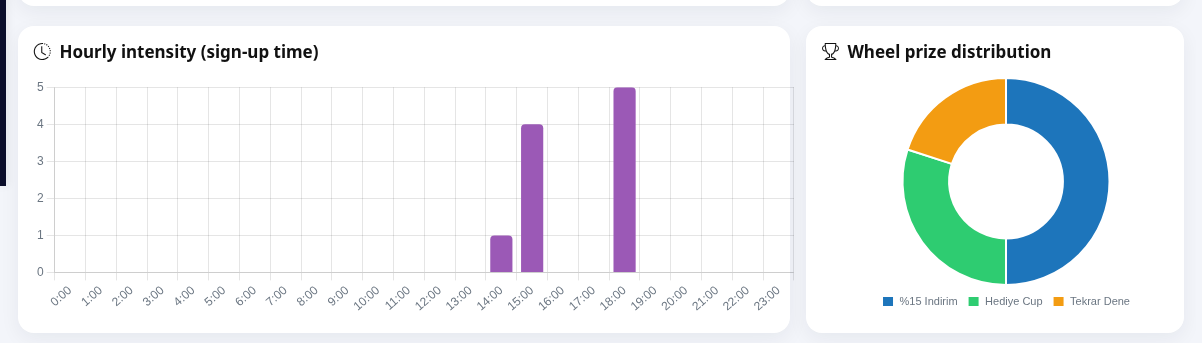
- Hourly intensity (sign-up time) shows at which hour of the day sign-ups arrive; Wheel prize distribution shows how often each slice came up.
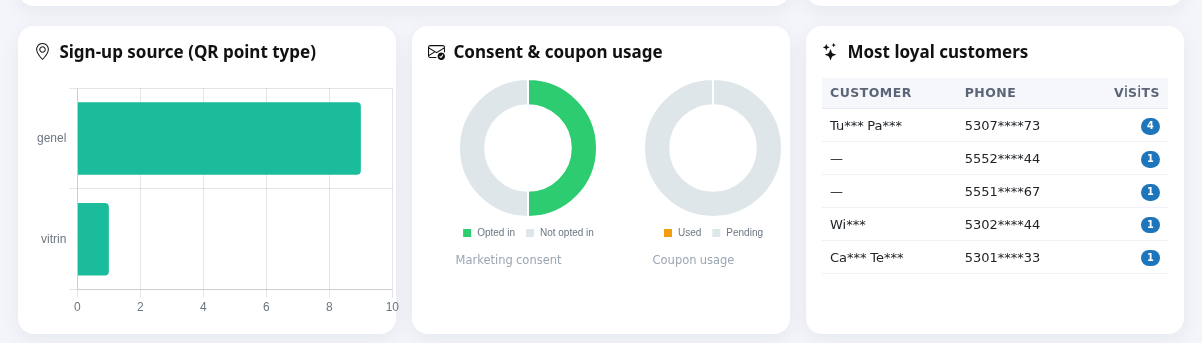
- Sign-up source (QR point type) shows which QR type the sign-ups came from (storefront, entrance, checkout, general); Consent & coupon usage shows the marketing consent rate (Opted in / Not opted in) and coupon usage rate (Used / Pending); Most loyal customers lists the 8 most frequent customers with Customer, Phone and Visits columns.
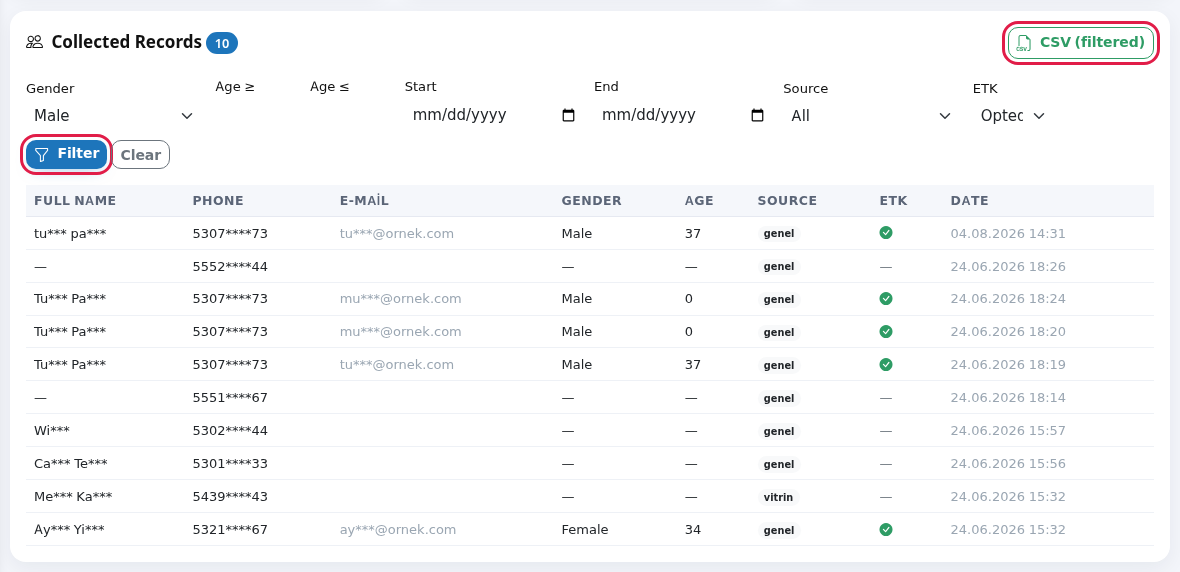
- At the bottom is the Collected Records list. Set Gender, Age ≥, Age ≤, Start, End, Source and ETK and press Filter. To download the filtered list press CSV (filtered). Clear removes all filters.
Indicator boxes
| Box | What it counts |
|---|---|
| Total records | All form sign-ups. Below: "This month X · today Y". |
| Last 7 days | New records this week. |
| Wheel spins | Total spins. Below: share that won a prize. |
| Prizes won | Below: "prizes from the wheel". Spins that created a coupon code (prize slices without a coupon, such as "Hediye Cup", are not counted). |
| Coupons generated | Codes issued from all coupons. Below: number used and share. |
| Loyalty members | Distinct customers signed up with a phone. Below: "X returning". |
| Open requests | Fitting room/aisle requests waiting or in progress. Below: "X requests in total". |
| Active QR points | Number of defined QR points (below: "aisle/fitting room/entrance"). |
Record list and filters
| Field / Column | What it does | Example |
|---|---|---|
| Gender | All, Female, Male, Other. | Female |
| Age ≥ / Age ≤ | Age range for records with a date of birth. Records without one are left out by the age filter. | 18 / 35 |
| Start / End | Sign-up date range. | 01.09.2026 |
| Source | The QR type the sign-up came from (vitrin, giris, kasa, genel as stored). General: came through the store link without a QR point. | vitrin |
| ETK | All, Opted in, No: commercial message consent. | Opted in |
| ETK column (list) | Green tick: the customer gave commercial message consent. If the consent was verified with the code sent to the customer's phone, a Verified badge sits next to the tick; hovering over it shows the channel the code went through (whatsapp or sms) and the verification time. A green tick without the badge is consent taken without a code before 26 September 2026. A dash: no consent. | Verified |
| Full name, Phone, E-mail | Masked details. | Ay*** Yı*** |
| Age, Date | Age and sign-up date and time. | |
| Number in the list title | Records matching the filter. At most 500 are shown; above that, "Showing the first 500 records; download the CSV for all of them." appears. |
The downloaded file
Download records and CSV (filtered) give a CSV file Excel can open. Columns: First name, Last name, Phone, E-mail, Birth date, Age, Gender, KVKK, ETK, Source, Language, Date. Name, phone and e-mail are masked. The Verified information is not in the CSV; it only shows in the on-screen list. Download records also applies the filters on the screen; with no filter it downloads everything.
Messages you may see
| Message | Meaning |
|---|---|
| No records found | No record matches the filter; remove filters with Clear. |
| No loyalty members yet | No sign-up with a phone yet. |
| Showing the first 500 records; download the CSV for all of them. | The list was shortened; download the CSV for all. |
Frequently asked questions
I cannot see the Verified badge.
The badge is currently drawn in white text on a light background, so it may not be visible. Hover over the empty space right of the green tick in the ETK cell to see the channel and date. This is a display fault; it does not affect how the consent is recorded.
A customer who ticked the consent box shows as not opted in.
The customer continued without entering the verification code sent to their phone; in that case the sign-up is saved but the consent is not. Details: The Store Page Your Customers See.
Can I get full phone numbers?
No. For KVKK this screen and file give masked data. To message consenting customers use Segments or Automation; the numbers stay inside the system.
The same person appears several times.
Each form sign-up is a separate row. If the same number signed up more than once, each shows; in loyalty it counts as one person.
The charts look empty.
With no sign-ups in the period, a chart shows a flat line or an empty ring.