Retail Request Monitor
What is it for?
The Retail Request Monitor shows live customer requests raisedshows, insidelive, the store."Call WhenStaff" aand customer"Ask scansSize / Stock" requests of customers who scan the codeQR in a fitting room or anaisle. aisleA staff member takes the request, helps the customer and askscompletes "do you have this in a 42?", the request lands here.it.
How do I open this screen?From the left menu, goWhen to
Bumeranguse→ Retail → Request Monitor.
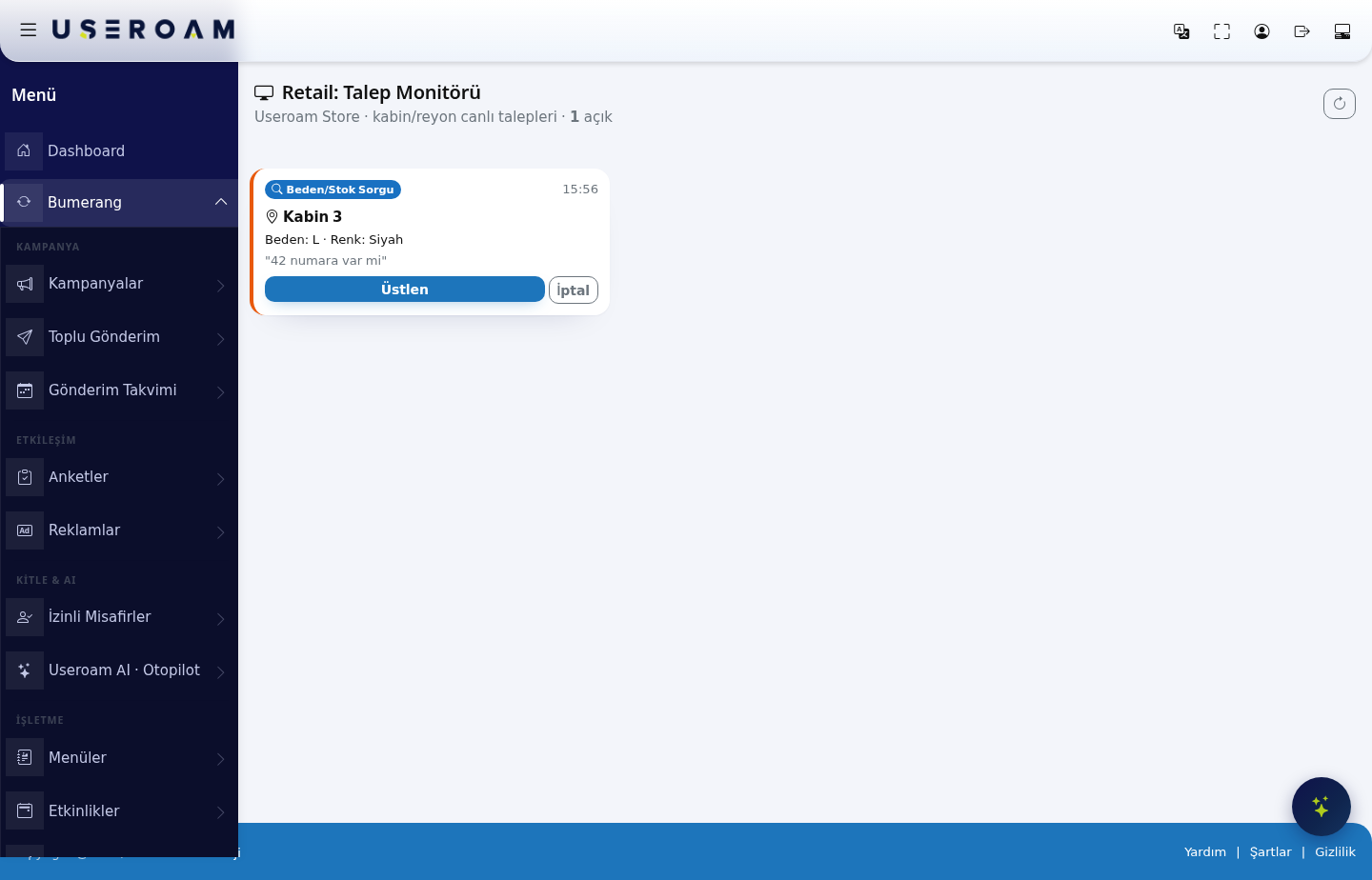
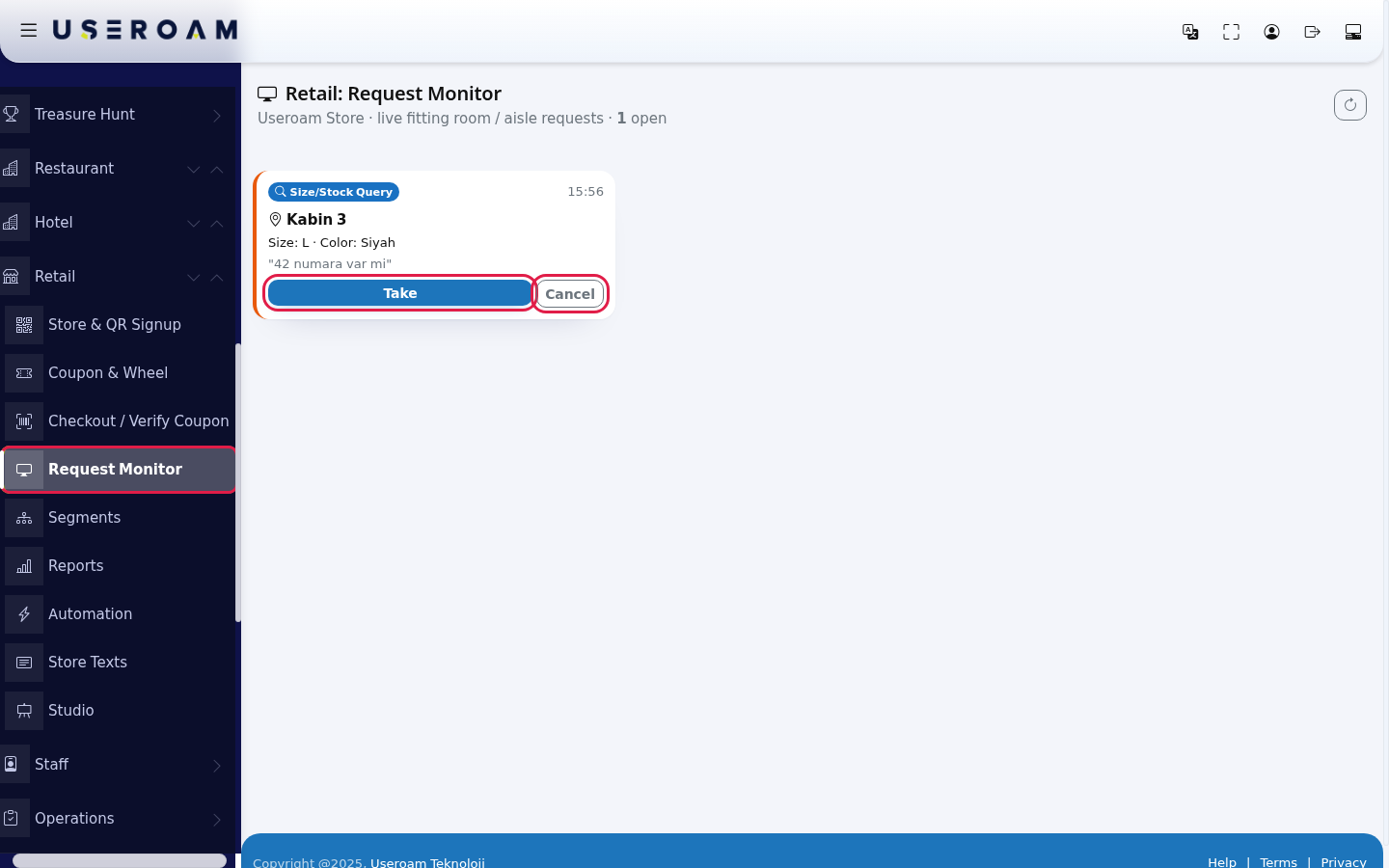
The heading shows the store name and the number of open requests (for example "1 open").
What a request card showsit
Request type— for exampleSize/Stock Enquiry.Time— when the request arrived.Point— the QR point it came from (for exampleCabin 3). This line tells staff where to go.Product detail— for exampleSize: L · Colour: Black.Customer note— the free text the customer wrote (for example"doIf youhaveuseafitting42").
Action buttons
Take:claims the request, so two people do not run for the same one.Cancel:closes the request — used when the customer has moved onroom ortheaislerequestQRs,iskeepa duplicate.
Before you start
- Requests only arrive if you define a
customer waiting in a fitting room for several minutes.
itDefining request points:which cabins and aisles can raise a request is set in theQRPointssectionpoint ofthetypeRetailFitting→Room or Aisle / Shelf on Store & QR Registration,screen.
and
put
Relateditpages:in place.The screen refreshes itself every 25 seconds. There is no sound alert or phone notification; the screen needs to be visible. Step by step
- Open Retail
→> Request Monitor in the left menu. Each open request is a card: the request type badge, the time, the QR point name (example: Kabin 3), and the product code, size, colour and note the customer entered. A new request has an orange left edge. Press Take before you go to the customer.
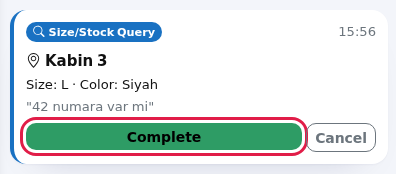
- A taken card becomes In progress; its edge turns blue and the button changes to Complete. After helping the customer press Complete. Close an unnecessary or accidental request with Cancel.
- Closed requests appear below in the Recently Closed table (last 30).
Every field and button
Field / Button What it does Number under the title "X open": waiting and in-progress requests. Refresh button (top right) Refreshes the screen now. Type badge Call Staff (orange), Size/Stock Query (blue), Fitting Room Help (purple). Point The QR point the request came from. Product · Size · Color What the customer entered (hidden if empty). Text in quotes is the customer's note. Take Sets the request to In progress. Complete Closes the request as Completed. Cancel Closes the request as cancelled. Recently Closed: Time, Type, Point, Detail, Status Closed requests; status green Completed or grey Cancel. No open requests. Nothing waiting. If the table is also missing, no request has been closed yet. Frequently asked questions
Can I see who took a request?
No. The screen shows the status only; it does not record who took it.Two calls came from the same fitting room but there is one card.
A second request from the same QR point within 25 seconds does not open a new card (protection against double taps).Are staff notified?
No. The Store Staff list currently sends no notifications; keep this screen open.Where does Fitting Room Help come from?
The customer page only has "Call Staff" and "Ask Size / Stock" buttons; the Fitting Room Help badge is not currently created from the customer page.Related pages
- The Store Page Your Customers See (fitting room/aisle screen)
- Store & QR Registration
,- Retail
→ReportsAutomation(Open requests,Bumerangbox)→ Staff.