
Retail Studio
What is it for?
Retail Studio ischanges where you change the visual design ofhow the store page. Aslooks youon adjustyour customers' phones: primary colour, light or dark background, font, corner rounding, logo and background image. Every change is saved instantly and shows in the settings on the left, the livephone preview on the right updates instantly.right.
When
HowtodouseIitopen
- When you want your own logo and colour on the store page.
- When you want a seasonal background image for a campaign.
- When you want to hide the logo or image that comes from your guest Wi-Fi portal on this
screen?page.Before you start
- A store must exist first. Without one this screen sends you to Store & QR Registration.
- If you upload nothing, the logo, background and button colour come from your guest Wi-Fi portal.
- There is no Save
Frombutton on this screen. Each choice is saved as soon as you make it.Step by step
- Open Retail > Studio in the left
menu,menugo(ortothe purpleBumerang → Retail →Studio or Logo · Color · Background button on the store screen).
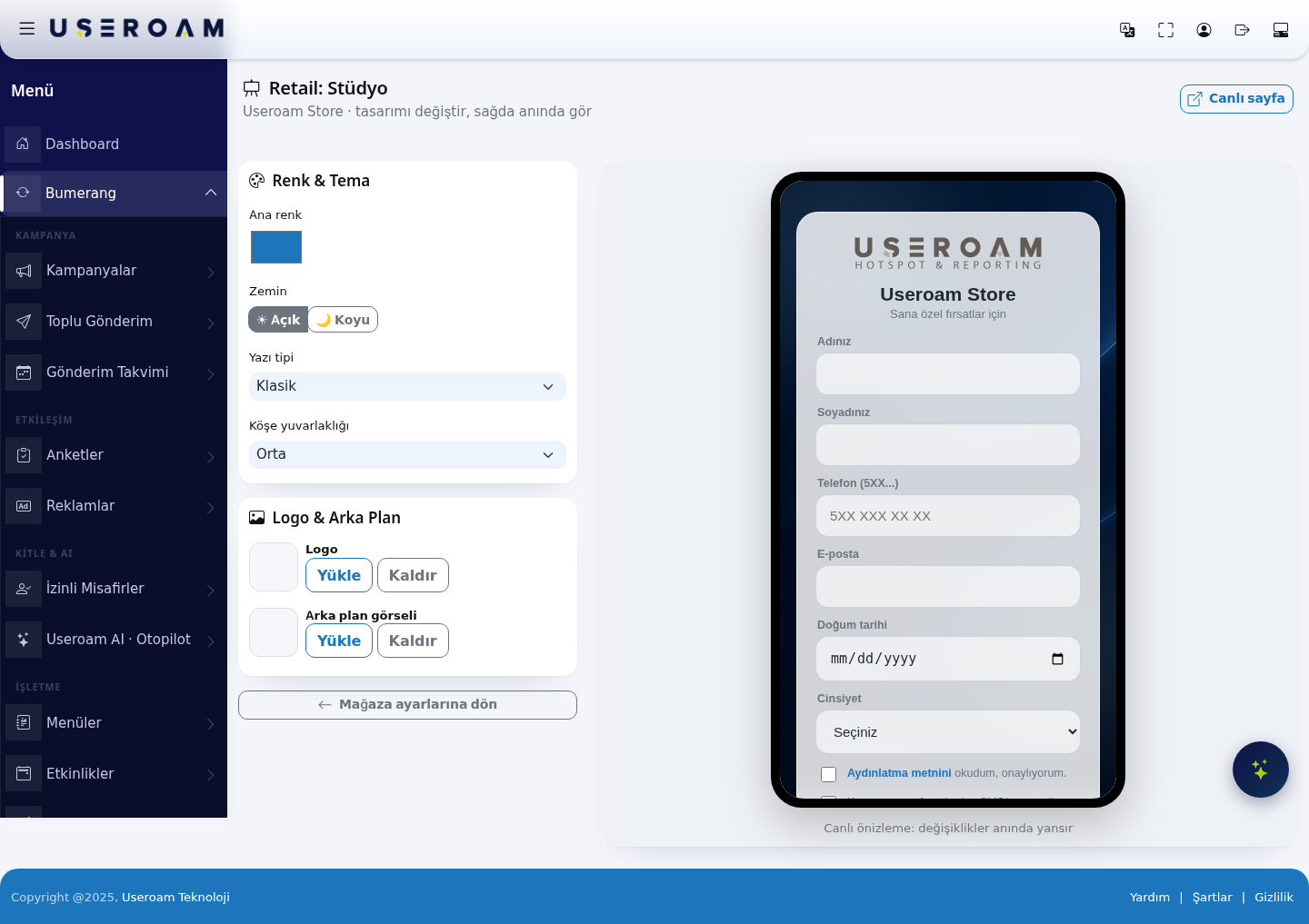
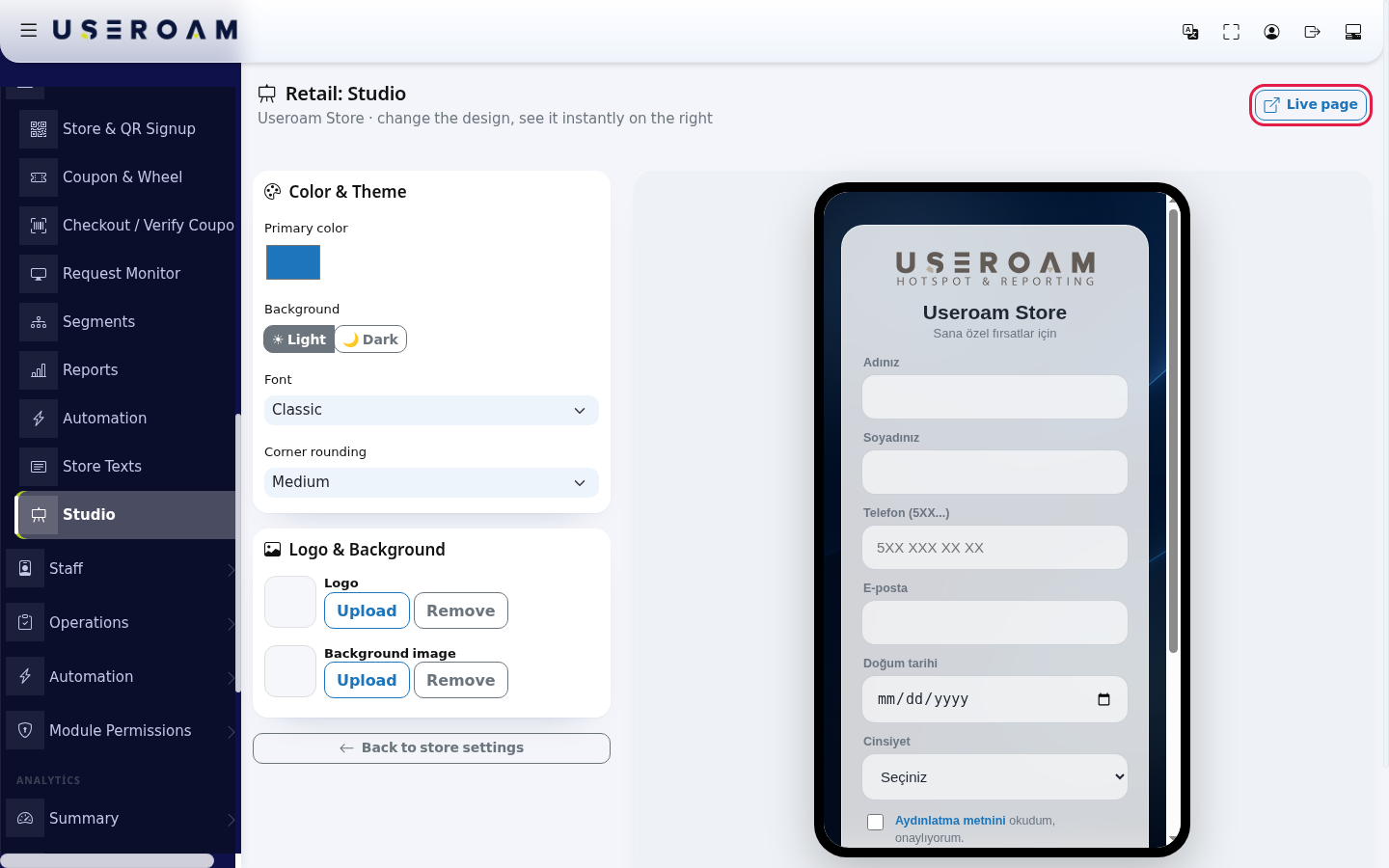
The Live page link at the top right opens the page as the customer sees itpage in a new tab.
1.the ColourColor & Theme
- card,
Primary colour:click the colourusedboxfortobuttons and accents. Enter your brand colour withchoose thepicker.Primary Background:color. Choose☀Light or🌙Dark.Ifunderyour store lighting is dim, the dark theme is easier to read on screen.Font:BackgroundClassic,ModernClassic, Modern, Elegant (serif) or Plain under Font, and Slightly rounded, Medium or Very rounded under Corner rounding. The preview refreshes after each choice.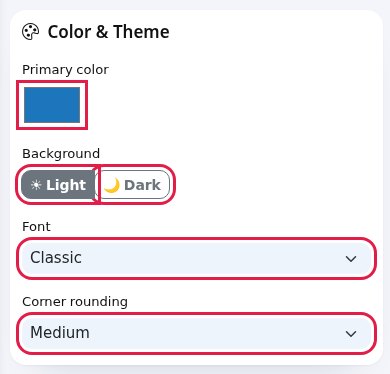
Corner rounding:
2. Logo & Background
Logo:addcard,yours withpress Upload next to Logo or Background image anddeletepickitanwithimage. The card shows "Uploading…", then "Uploaded", and the thumbnail appears. Remove deletes the image ("Removed").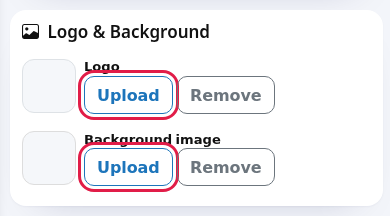
- When you are done, press Back to store settings.
-
Every field and button
Field / Button What it does BackgroundPrimaryimage:colorColour of buttons, links and the pagecouponbackground,code.managedIfwithyou keep thesamedefault blue, your guest Wi-Fi portal's button colour is used.Background: Light / Dark Whether the form card looks light or dark. Font Classic, Modern, Elegant (serif), Plain. Corner rounding Slightly rounded, Medium, Very rounded. Logo · Upload / Remove The buttons.logo abovethe
form.
Readability:Remove also hides the portal logo on this page.Background image · Upload / Remove Image behind the page. If removed, a busycoloured animated backgroundimageiscanshown.makeLive page Opens the formcustomerfieldspageon top of it unreadable. Preferin aplainnewortab.blurredPreview image; if in doubt, leave the background empty and rely on the primary colour alone.3.note"Live previewpreview:Changeschangesappearapplyinstantlyinstantly".in the preview on the right — you see the result without saving. TheBack to store settings Returns buttontoreturnsStore & QR Signup.Messages you may see
Message Meaning / what to do Uploading… / Uploaded The image is being sent / was saved. Removed The image was deleted. Failed The change could not be saved. If the image is too large or an unsupported format, try a smaller JPG/PNG; if it persists, reload the page and try again. Create a store first There is no store; create one on Store & QR Registration. screen.Frequently asked questions
Where is the Save button?
There is none; every choice is saved instantly.I removed the logo and the portal logo disappeared too.
Yes, Remove hides the logo completely on this page. Upload a logo to show one again.The preview did not change.
It refreshes after every save. If it did not, reload the page or open Live page.Related
pages:pagesRetail - The
HotelStoreStudio.Page Your Customers See