
Administrators
The Administrators page lists and manages the user accounts that can sign in to the panel. In hotels, this is also where you create separate accounts for reception, housekeeping or technical services.
How do I open this screen? From the left menu, go to Settings → Administrators.
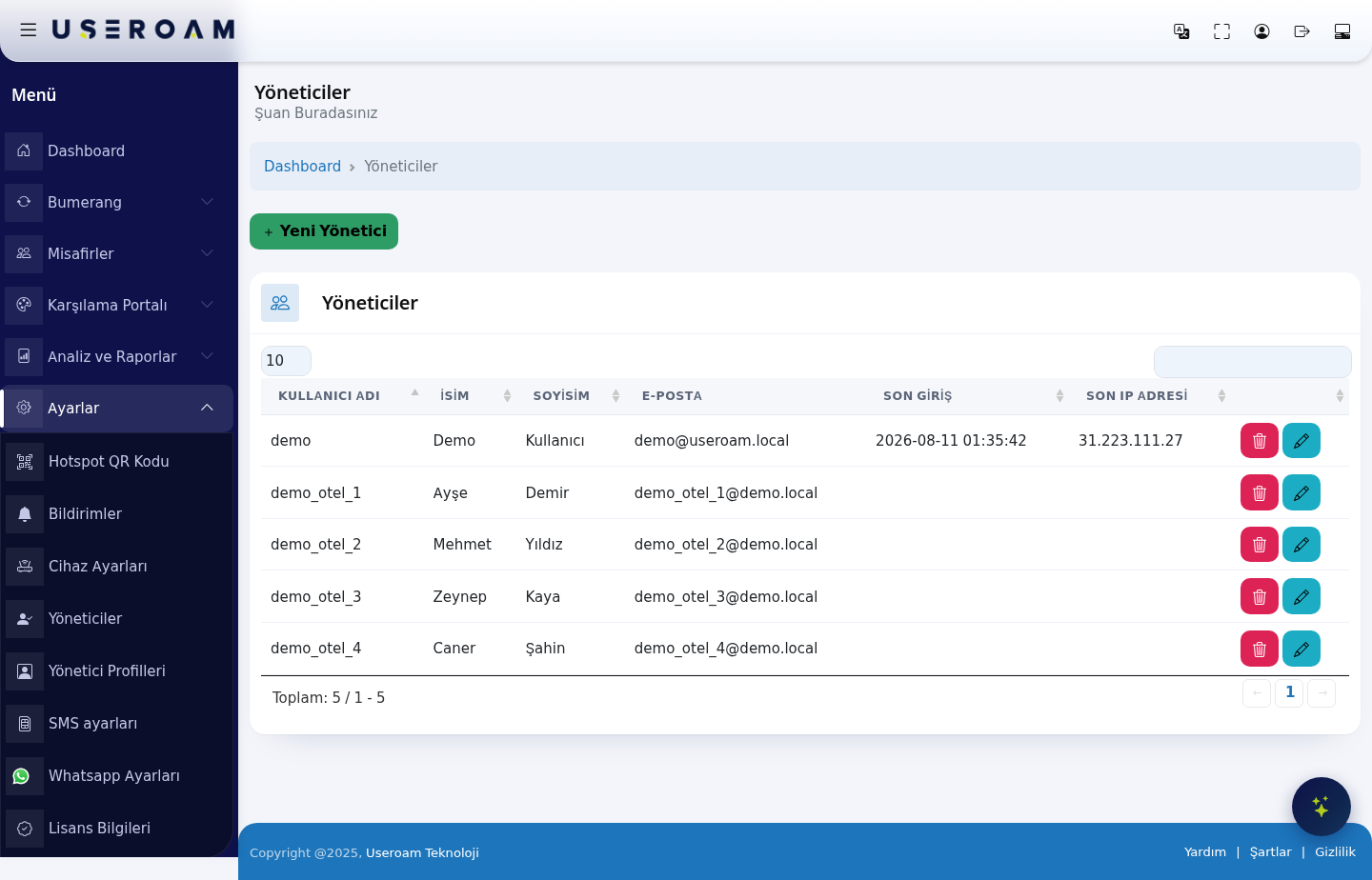
List columns
- USERNAME: the account name used to sign in to the panel.
- FIRST NAME and LAST NAME: the account holder's name.
- E-MAIL: the account's email address. Notifications and password operations go to this address.
- LAST LOGIN: when the account last signed in (date and time). Use it to spot accounts that are no longer in use.
- LAST IP ADDRESS: the IP address of the last sign-in, so you can see whether anyone signed in from an unexpected location.
Security tip: disable accounts with an empty last-login date or months of inactivity. To track who did what, see Analytics and Reports → Audit Log.
Navigating the list
- The 10 / 25 / 50 / 100 / All selector at the top left sets how many records appear per page.
- The search box at the top right filters instantly across all columns.
- Below the table you find the total record count ("Total: 5 / 1 - 5") and the page navigation arrows.
New Administrator
Use the New Administrator button at the top right to create an account. The form asks for username, first name, last name, email and password. Which screens the account can reach is determined by its administrator profile — you create profiles under Settings → Administrator Profiles.
Related pages: Settings → Administrator Profiles (permission groups), Analytics and Reports → Audit Log (who did what).