
Administrators
What is it for?
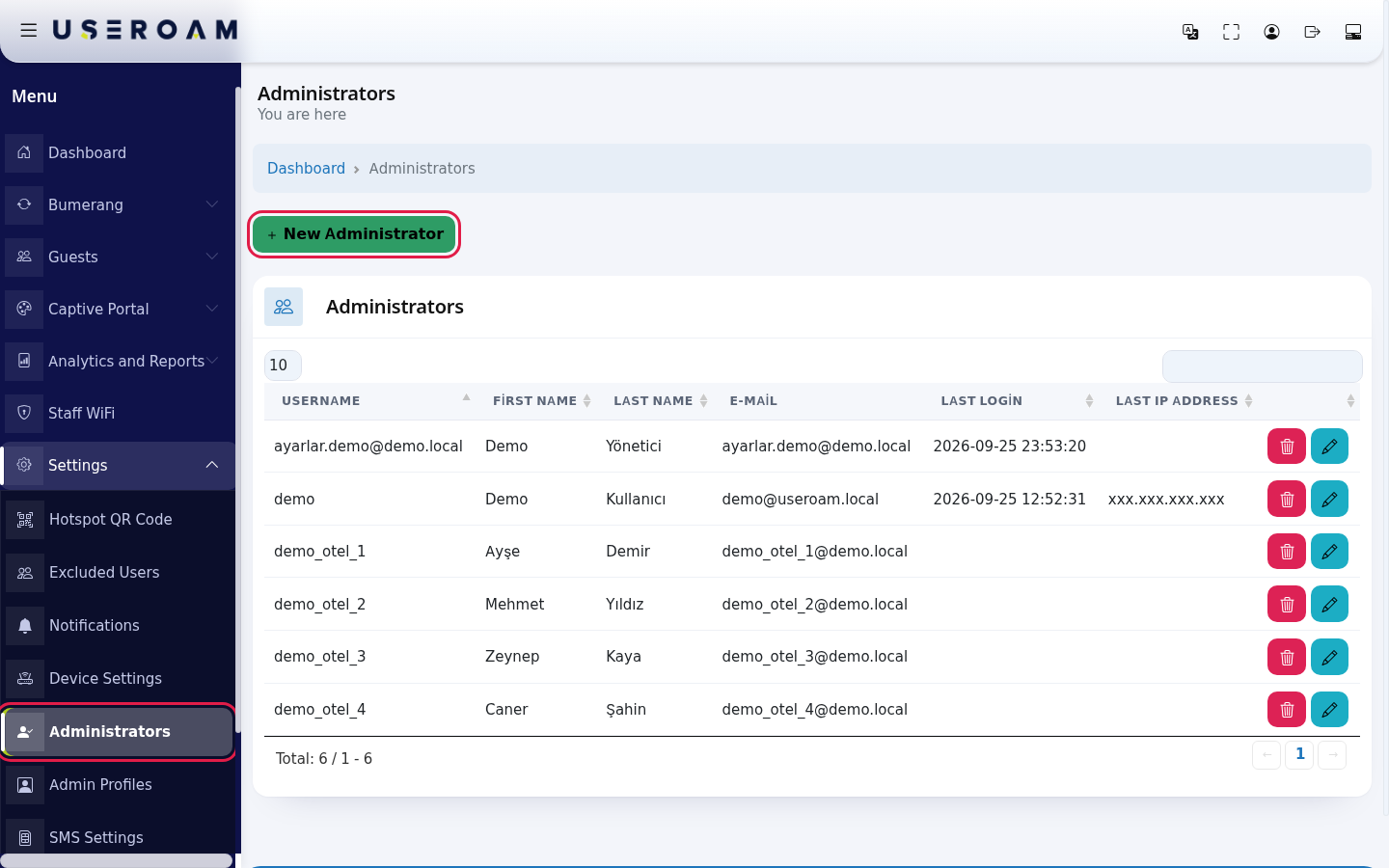
The Administrators screen lists the users of your account who can sign in to the panel. Here you create new users, edit their details or delete them. For example you can open separate accounts for reception, accounting or technical staff, so everyone signs in with their own e-mail and password.
How do I open it? In the left menu, click Settings → Administrators.
Under the screen title it says You are here. Click Dashboard in the path line at the top to return to the home screen.
When do I use it?
- A new employee joined and needs access to the panel.
- An employee's name, e-mail or permission profile changed.
- You want to remove the panel access of someone who left.
- You want to see who signed in last, when and from where.
Step by step: adding an administrator
In the left menu, click Settings → Administrators, then the green New Administrator button.
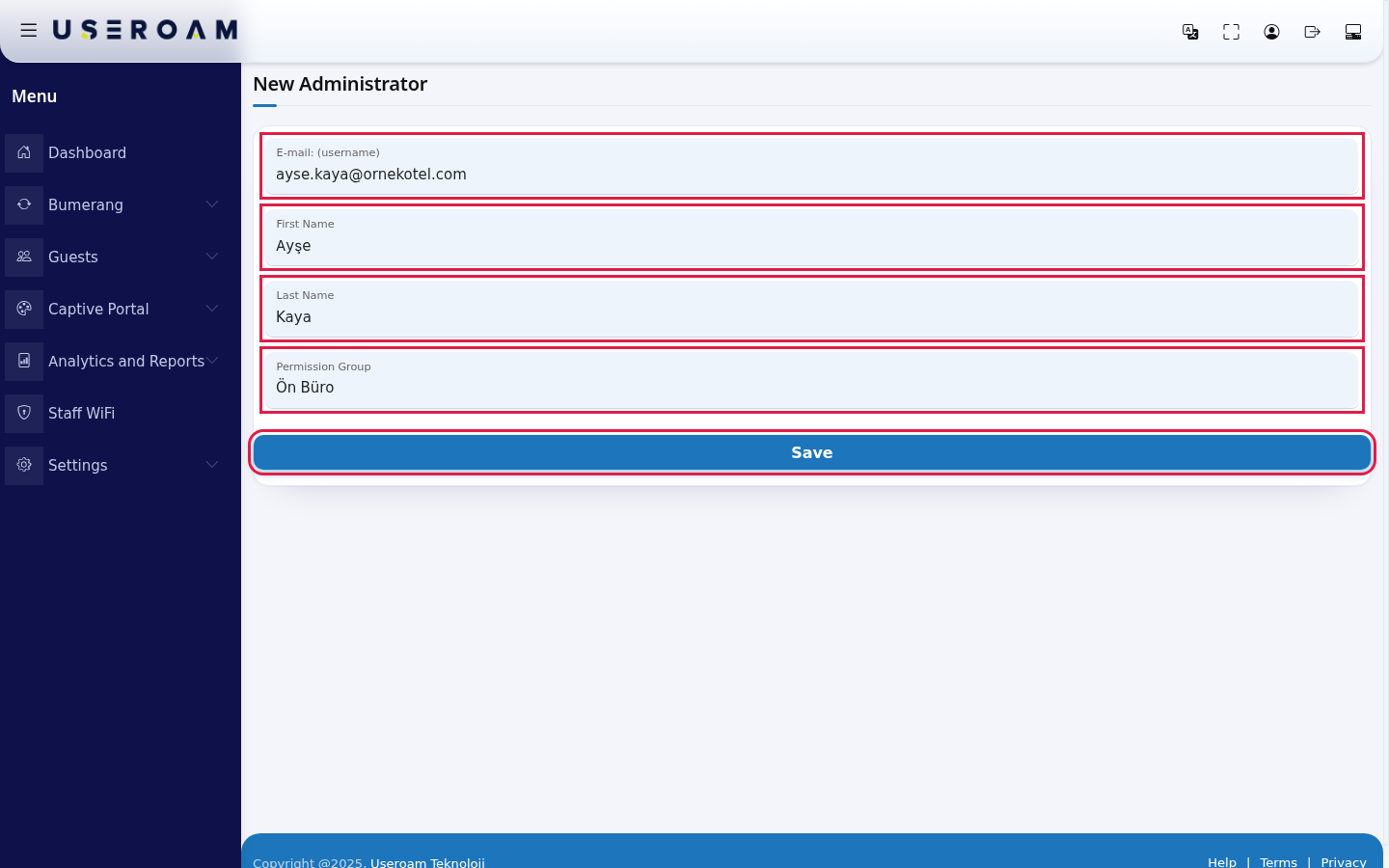
Fill in the form: the person's e-mail address in E-mail: (username) (e.g. ayse.kaya@examplehotel.com), and first and last name in First Name and Last Name. Choose the person's permission profile in Permission Group. Then click Save.
If the save works, you return to the Administrators list and the new person appears. Useroam e-mails the person a welcome message with the username and a 12-character password. The person signs in with these.
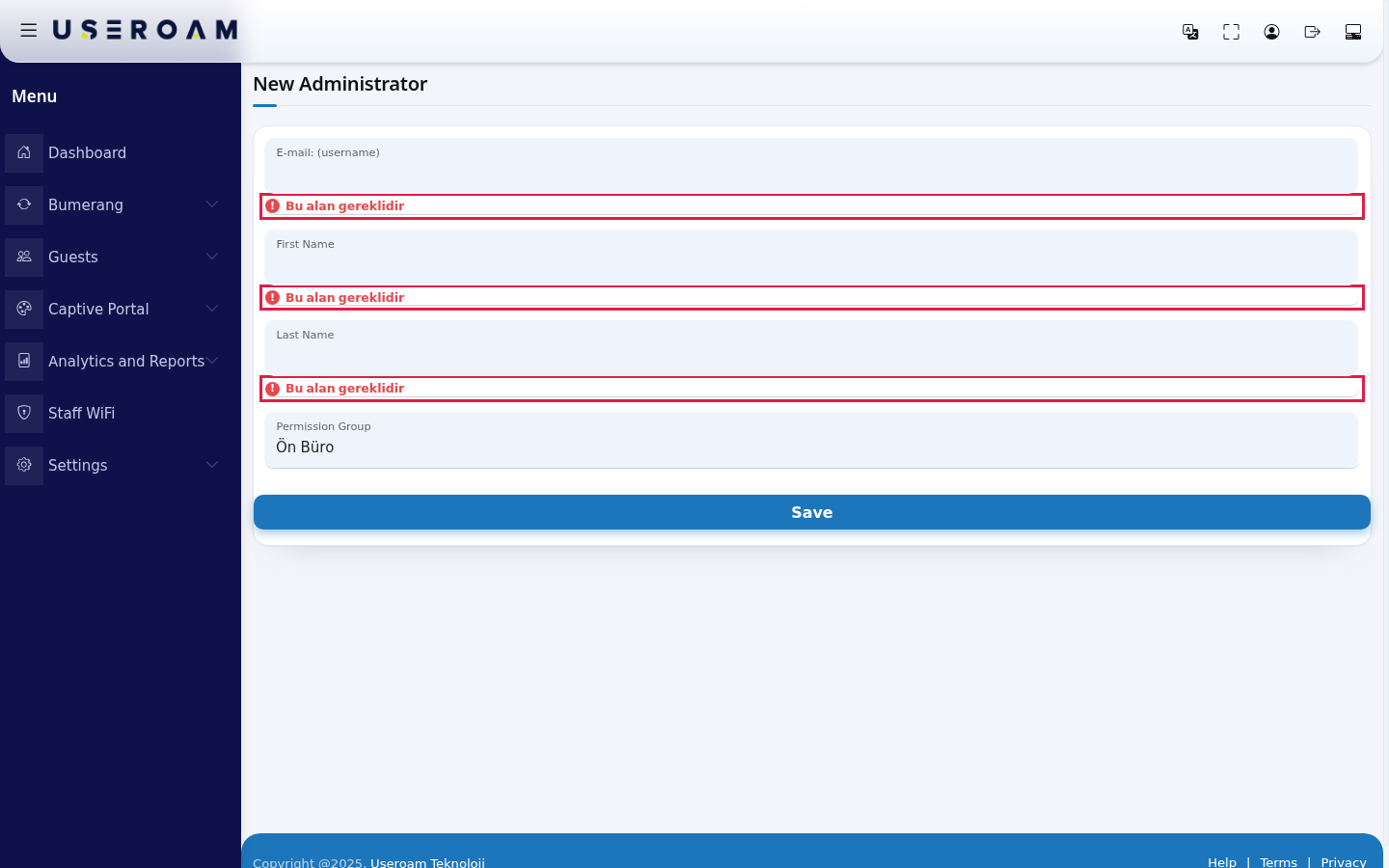
If you leave a required field empty or the e-mail is not valid, a red Bu alan gereklidir (this field is required) appears under the field:
Note: The new administrator can access only the device that is selected at that moment. If a user with the same e-mail already exists, nothing is saved and the form opens empty again; check the list in that case.
Step by step: editing or deleting an administrator
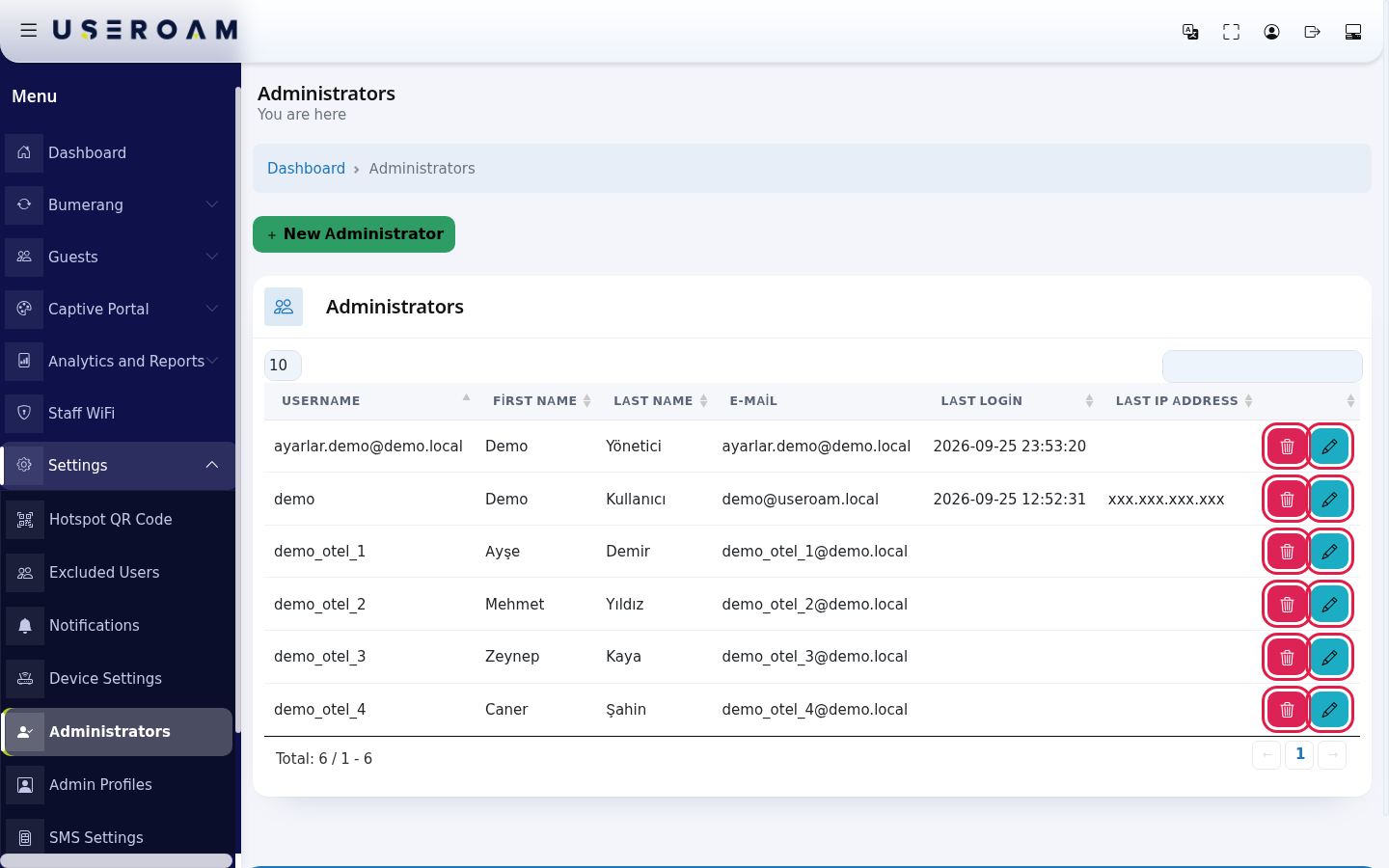
In the list, click the blue pencil (Edit) on the person's row. The red trash can (Delete) deletes the person.
On the Edit Administrator screen change Username, First Name, Last Name, Profil (profile) and E-Mail, then click Save. The untitled boxes below these fields are not saved; you do not need to touch them. The password is not changed on this screen.
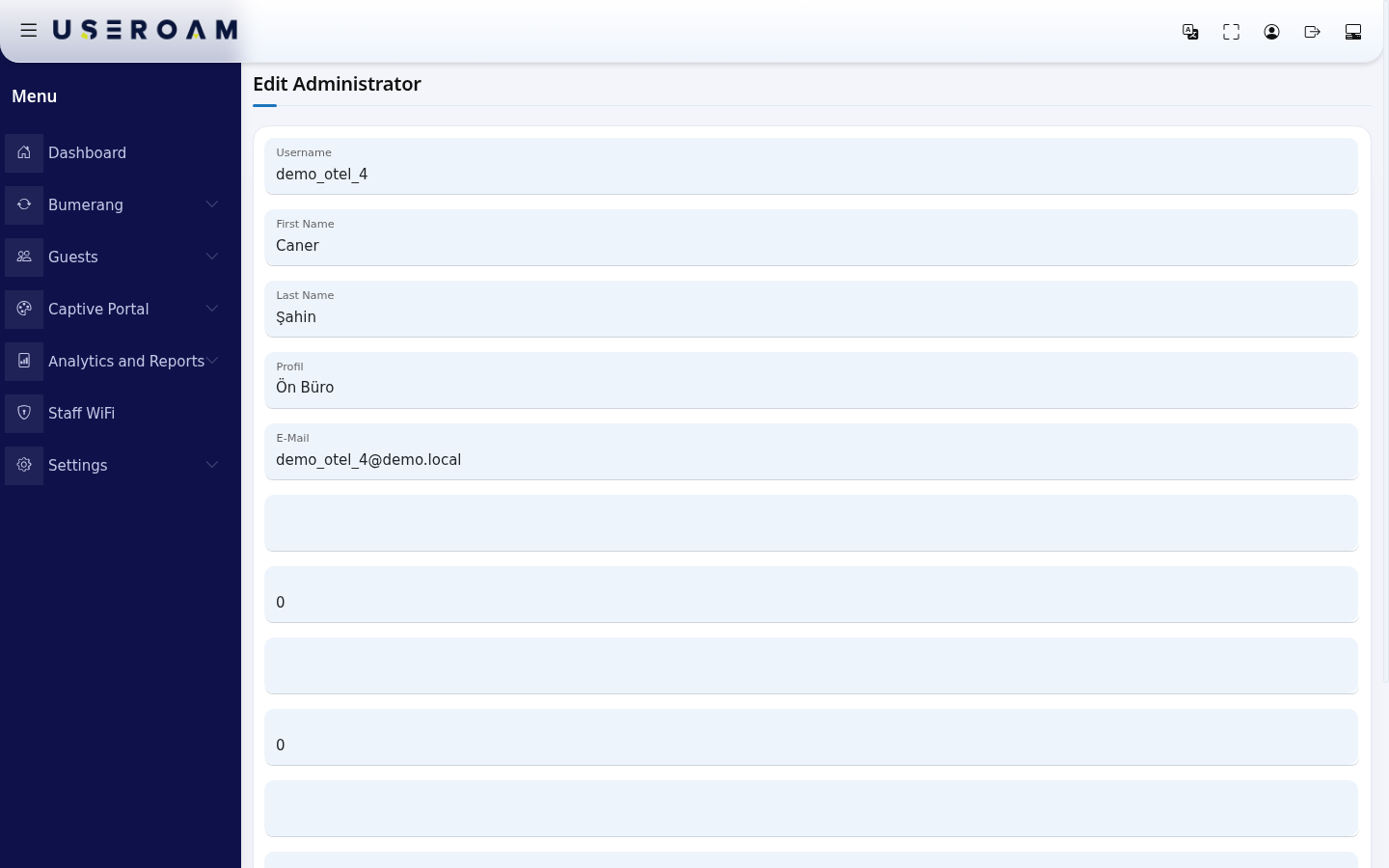
Caution: Delete removes the person immediately without asking and cannot be undone. Make sure you click the right row.
Every field and button on the screen
| Field / Button | What it does |
|---|---|
| New Administrator | Opens the new user form. |
| Username | The name used to sign in (the e-mail address for new users). |
| First Name, Last Name | The person's first and last name. |
| The person's e-mail address. | |
| Last Login | Date and time of the person's last sign-in. Empty means never. |
| Last IP Address | The internet address of the last sign-in. If you see an address you do not expect, ask the person to change their password. |
| Pencil (Edit) | Edits the person's details. |
| Trash can (Delete) | Deletes the person without asking. |
| Number box at the top left | How many rows per page: 10, 25, 50, 100 or All. |
| Search box at the top right | Searches all columns. |
| Total: 6 / 1 - 6 | Total people and the rows shown. With no records it says No Record; Processing... may show while the table loads. |
| Permission Group / Profil | The person's permission profile. You create profiles on Administrator Profiles. |
Frequently asked questions
The new administrator did not get the password e-mail.
Check the e-mail address and the spam folder. If the address is wrong, edit the person and correct it.
I want an employee to see only certain modules.
Create the person here, then restrict them by module on Module Permissions.
Can the person manage another device too?
A new administrator can access only the device selected when they were added. For other devices, contact support.
Related pages
- Administrator Profiles
- Module Permissions
- Audit Log
- My Profile (Account Info): changing your password