
Windows setup
To join the company Wi-Fi without typing a password, a certificate is installed on your computer.
Note: the Windows flow has not yet been verified end to end on a real machine. If a step fails, tell your administrator; that is our gap, not your mistake.
Before you start
- Be on the company network. The setup page opens only from your company Wi-Fi. If you open it over mobile data you see "Open this page on the company network".
- You need the setup link from your administrator.
- The link does not expire. Once you start, finish the certificate download step within 15 minutes.
- This guide covers wireless connections. If your computer is connected by cable, ask your administrator; wired access needs separate configuration.
1. Download the certificate
- Open the
link andlink, enter your work username andpassword.password and click Install. While your identity is checked the button says Installing...; do not close the page. - Click Download certificate.
- A certificate password
isand the Windows steps are shown on screen; you will needitthenext.password next, so keep the page open.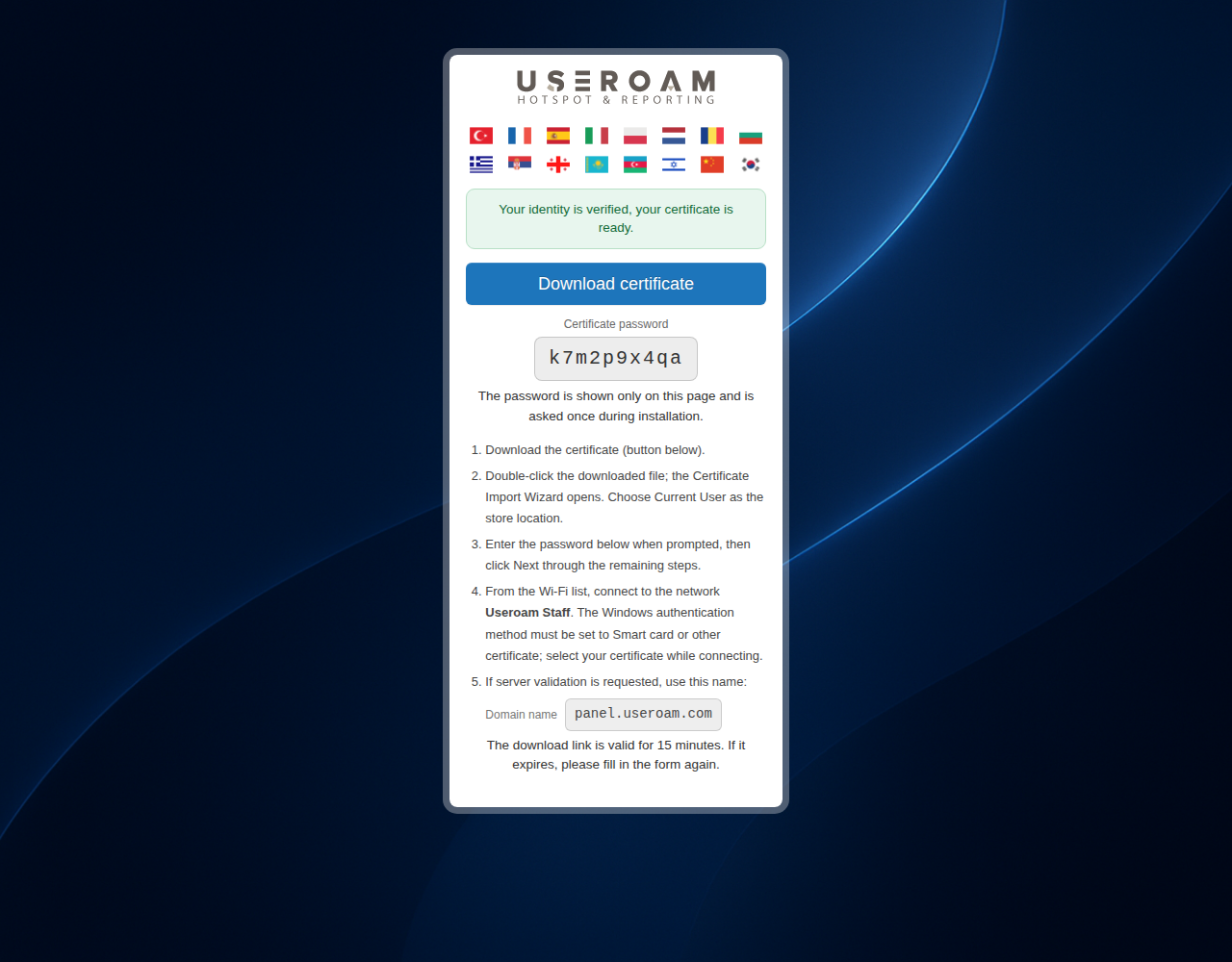
2. Install the certificate
- Double-click the downloaded file. The Certificate Import Wizard opens.
- Choose Current User as the store location and click Next.
- Enter the certificate password shown on screen.
- Click Next and Finish through the remaining steps.
3. Join the network
- Select the company network from the network icon in the taskbar.
- If Windows asks for a certificate, choose the one you installed.
- If it asks you to verify the server,
enteruse theservername shown next to Domain nameyouronadministratorthegavesetupyou.page (usuallypanel.useroam.com).
If you cannot connect
Windows's own windows (Certificate Import Wizard, network selection) differ between Windows versions, so this guide has no pictures of them. The network must be configured to use Smart card or other certificate as its authentication method. If you don't see that option, or the connection still fails, contact your administrator.
Common questions
It says "Open this page on the company network".
Your phone is on mobile data or a network outside the company. Join your company Wi-Fi and open the link again.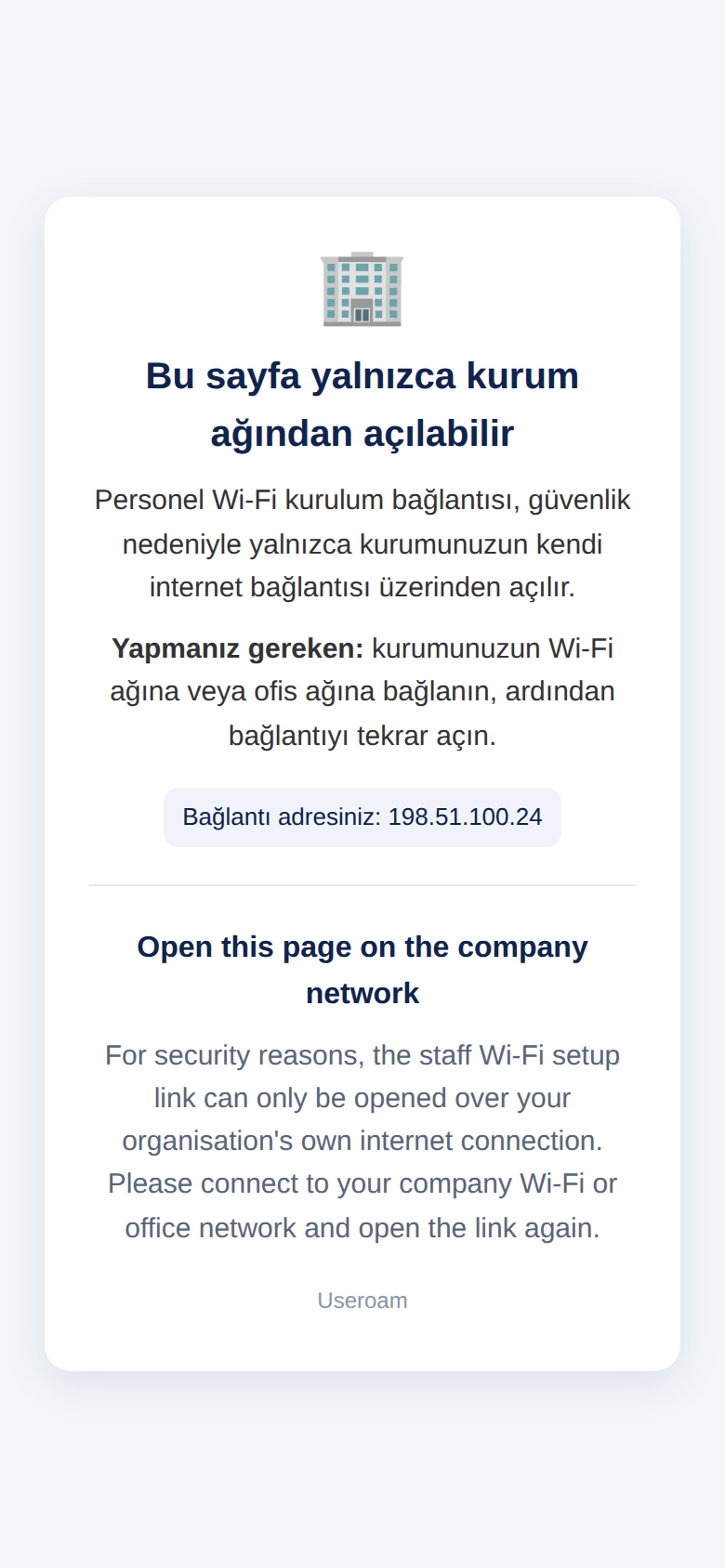
It says "Profil bulunamadı veya süresi doldu (15 dk)" (profile not found or expired).
The download step was not done within 15 minutes. Open the setup link again and fill in the form once more.
The setup page shows an error message.
If you see "Incorrect username or password.", tap Try again and type your details again; if you received a temporary password by SMS, use that. If you see "Verification timed out" or "not enabled / not found in the staff list", tell your administrator. All messages and what they mean: Inviting Staff.