
Inviting Staff
What is it for?
Staff start the setup with the setup link. This page explains how to get the link to your staff, what they see when they open it, and what each error message means.
When do you use it?
- When a new employee starts.
- When you turn on Staff WiFi for the first time and all staff need to run the setup.
- When an employee changes phone or their certificate is about to expire.
- When staff say "the setup page shows an error".
Before you start
- On the Settings card Staff WiFi is on must be on and a network name must be entered.
- The employee needs a staff record: from Active Directory, or created in New User with the type Staff WiFi (certificate).
- The setup page opens only from the company network. The employee's phone must be joined to your company Wi-Fi; it does not open over mobile data.
Step by step: sending the link
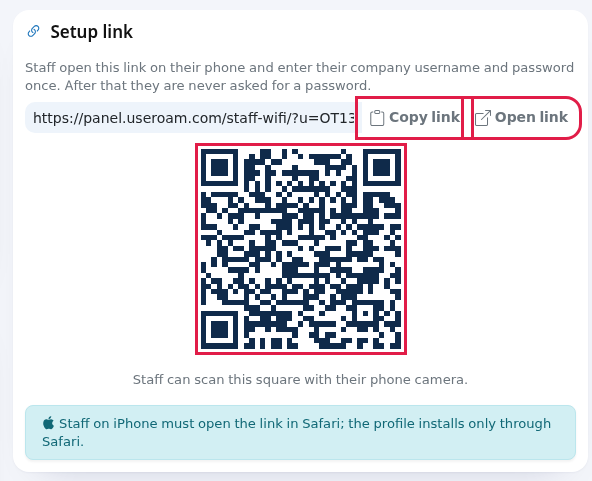
- Open Staff WiFi in the left menu. On the Setup link card at the top right press Copy link (the button briefly says Copied) and paste the link into an e-mail or message. If the employee is with you, scanning the QR code with the phone camera is enough.
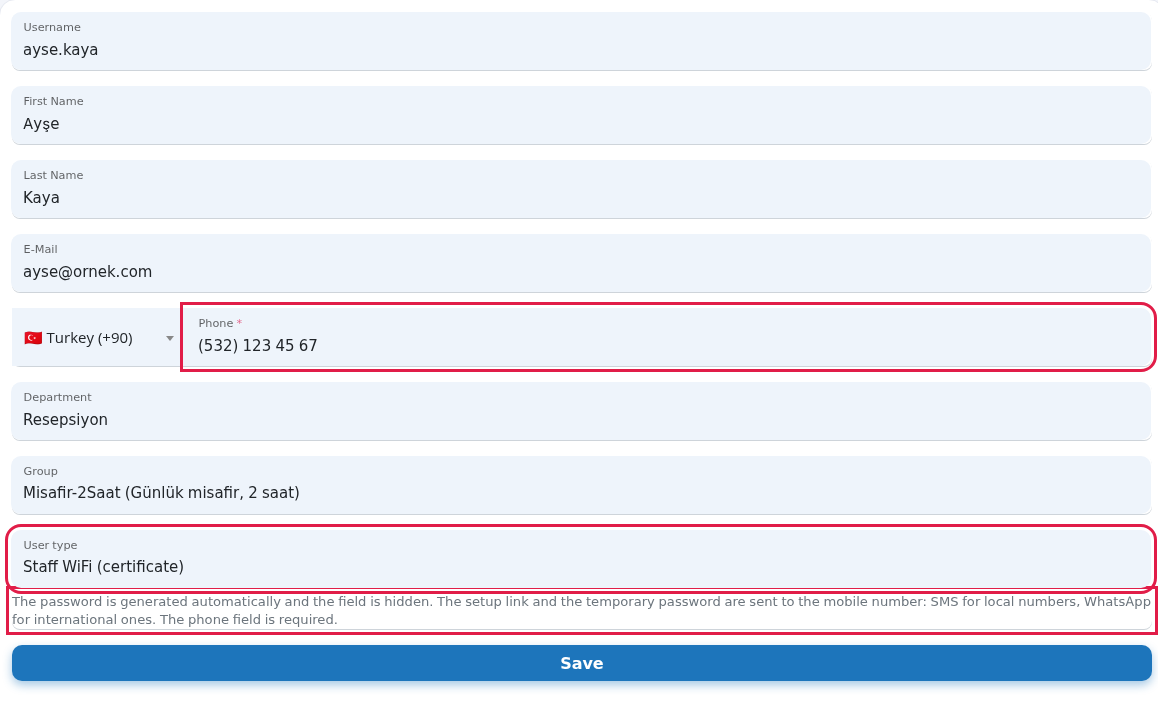
- For local users you do not need to send the link yourself: in New User, choose Staff WiFi (certificate) as User type and enter the phone number; the panel creates a temporary password and the link, username and temporary password are sent to the employee's phone (SMS to a Turkish number, WhatsApp to a foreign number). Details: New User.
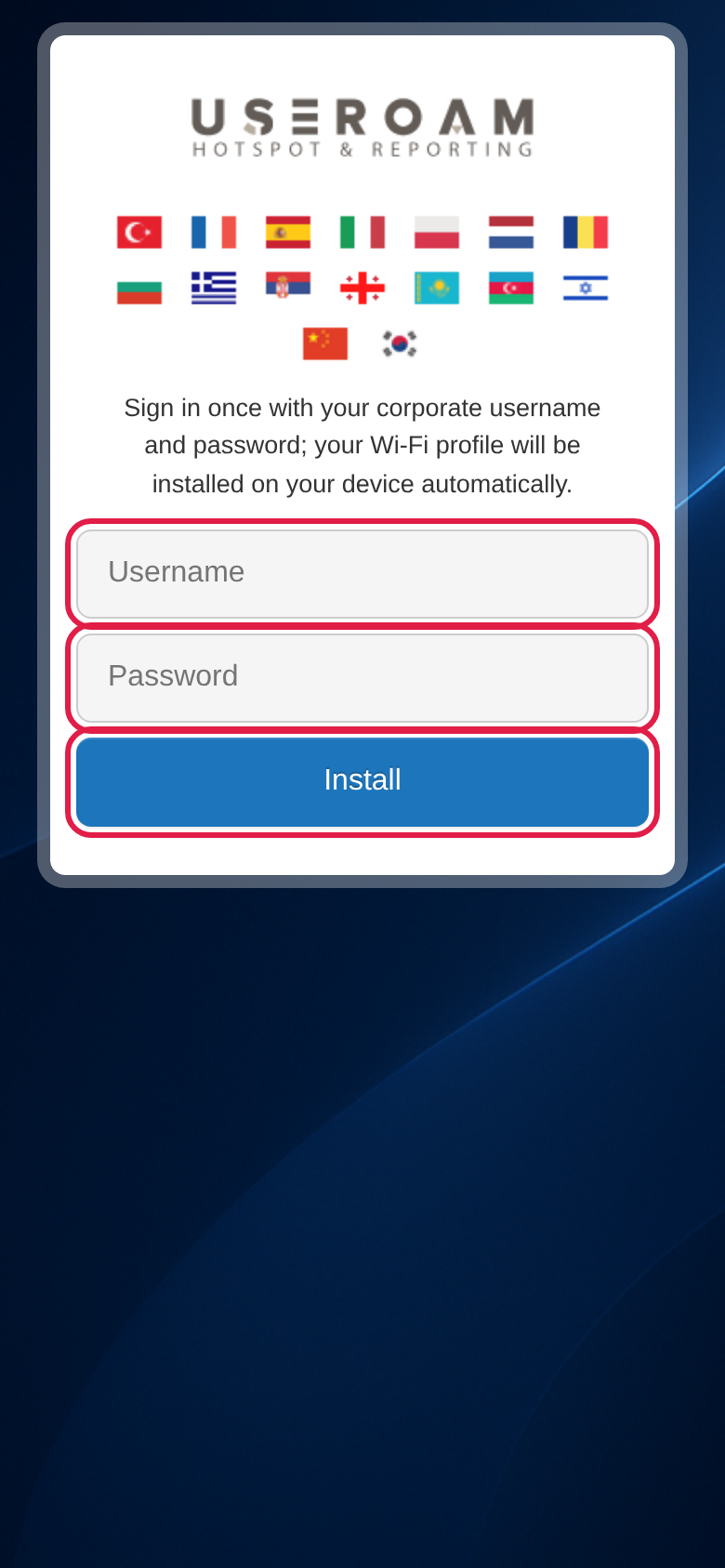
- The employee opens the link, enters their company username and password and taps Install. On iPhone the link must be opened in Safari.
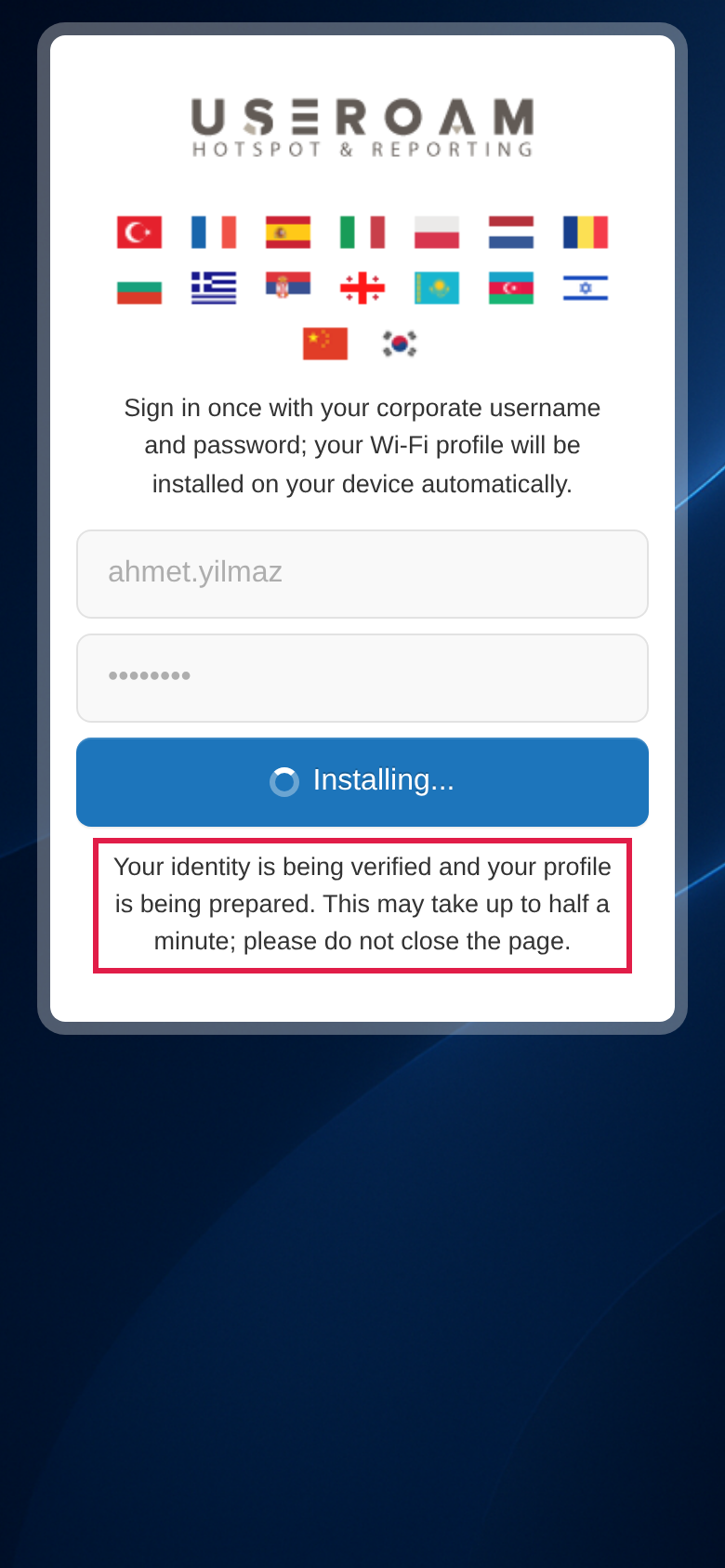
- While the identity is being checked, the button says Installing... and the note "Your identity is being verified and your profile is being prepared. This may take up to half a minute; please do not close the page." appears.
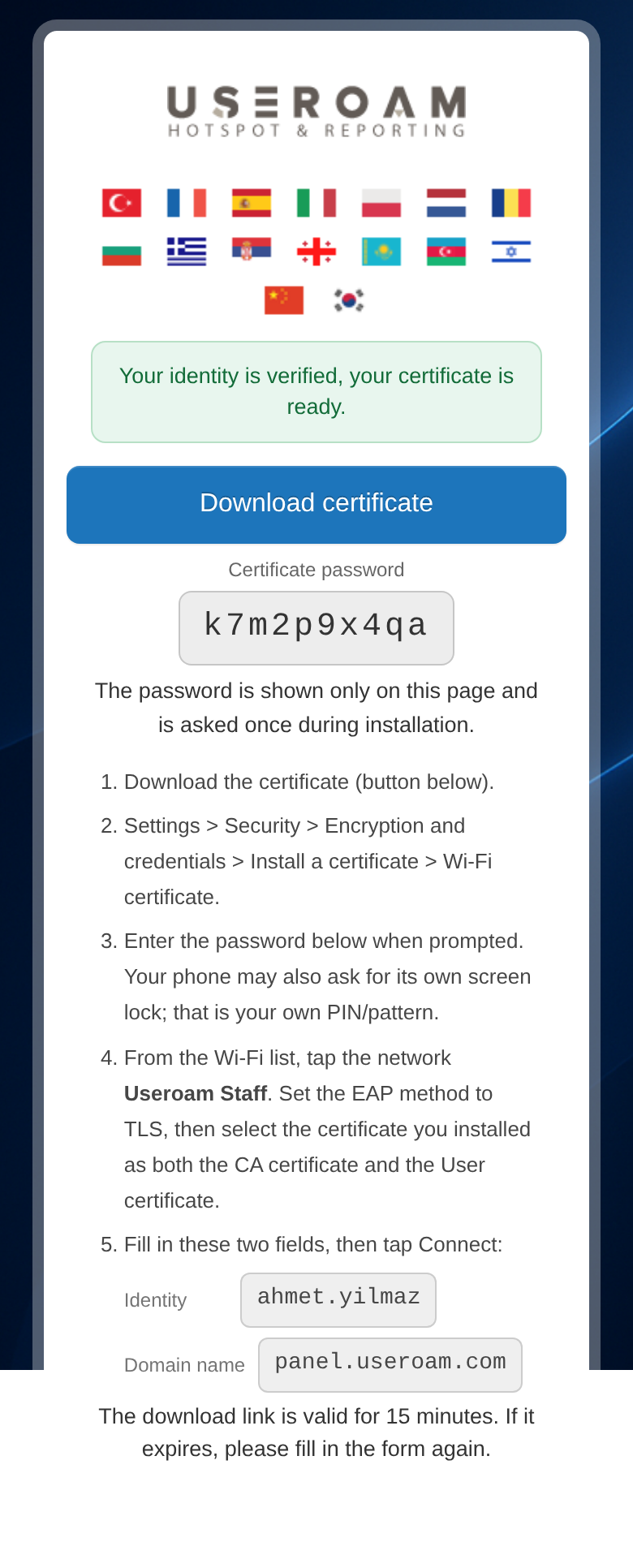
- On iPhone and iPad the profile downloads on its own. On Android and Windows a Download certificate button, the Certificate password and steps for the device appear. The employee follows the guide for their device: iPhone and iPad, Android, Windows.
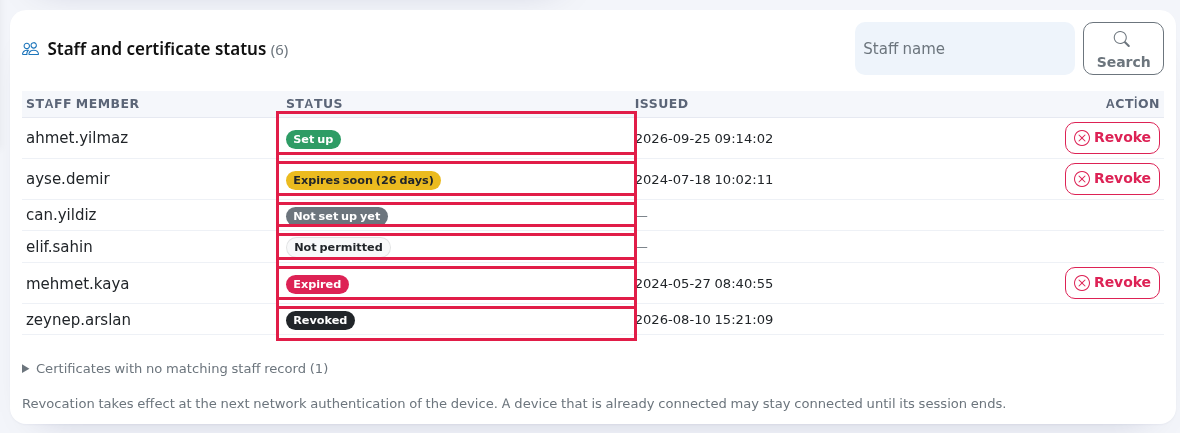
- In the panel, look for the Set up badge next to the employee in Staff and certificate status.
Everything on the Setup link card
| Field / Button | What it does |
|---|---|
| Note at the top | "Staff open this link on their phone and enter their company username and password once. After that they are never asked for a password." |
| Address box | An address like https://panel.useroam.com/staff-wifi/?u=..., specific to your device. Its ending may change slightly each time the page opens; older links keep working. |
| Copy link | Copies the address; the button briefly shows Copied. |
| Open link | Opens the setup page in a new tab. If your own connection is not coming from the company network, the page shows the "company network only" notice. |
| QR code | The same address. Note below: "Staff can scan this square with their phone camera." |
| Blue iPhone note | "Staff on iPhone must open the link in Safari; the profile installs only through Safari." |
| Yellow warnings | "Staff WiFi is off..." or "The network name is empty..." See Settings and Status. |
The link belongs to the device, not to a person: all staff use the same link and it does not expire. Who can get a certificate is decided by the staff record, not by the link.
Messages on the setup page
| Message the employee sees | Why | What to do |
|---|---|---|
Open this page on the company network (Turkish and English, with the connection address)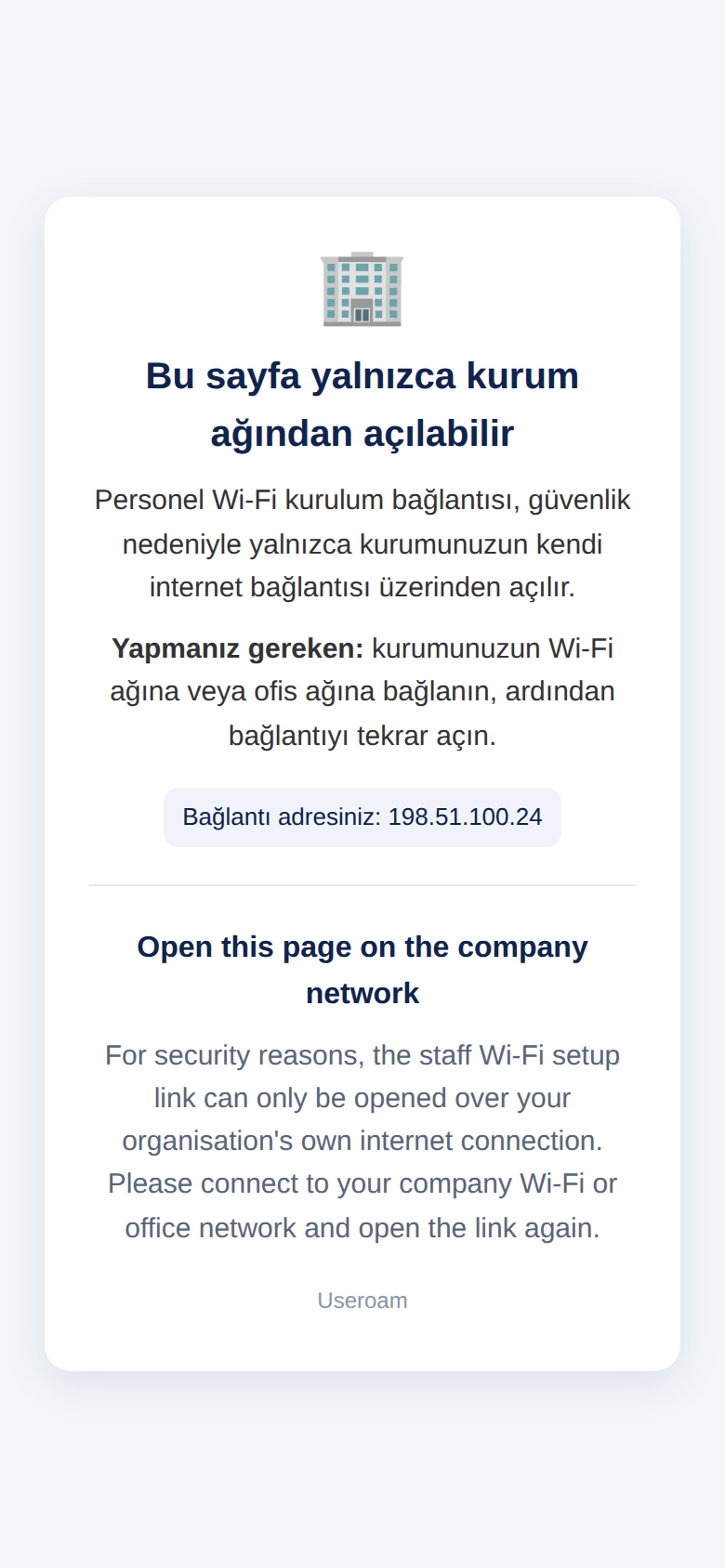 | The phone is on mobile data or a network outside the company. | Join the company Wi-Fi and open the link again. |
Incorrect username or password. (with Try again)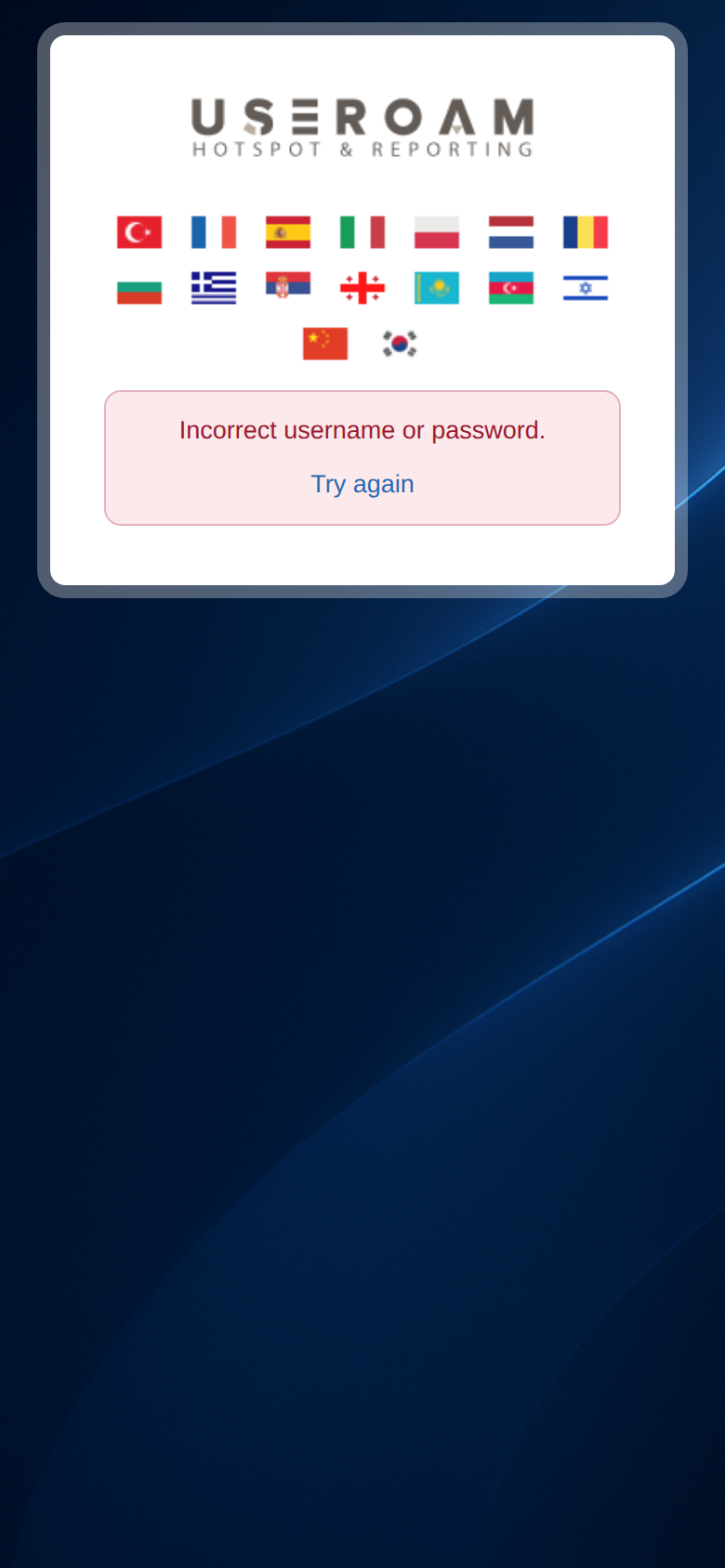 | Wrong password. Local users must use the temporary password from the SMS. | Tap Try again and sign in with the right details. |
Username and password cannot be empty.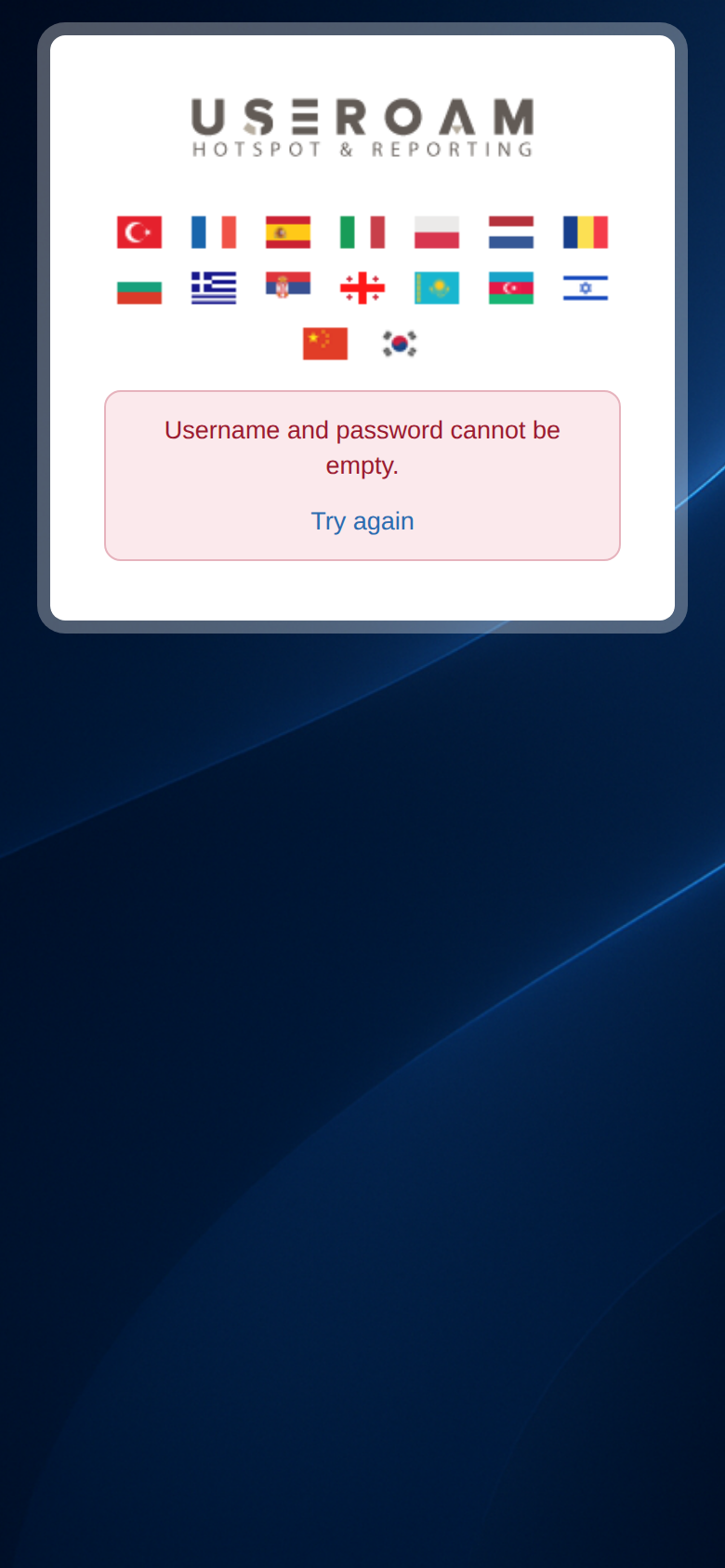 | One of the boxes was empty. | Fill in both boxes. |
This user is not enabled for staff Wi-Fi. Your administrator must set the user type to Staff Wi-Fi (certificate) in the panel.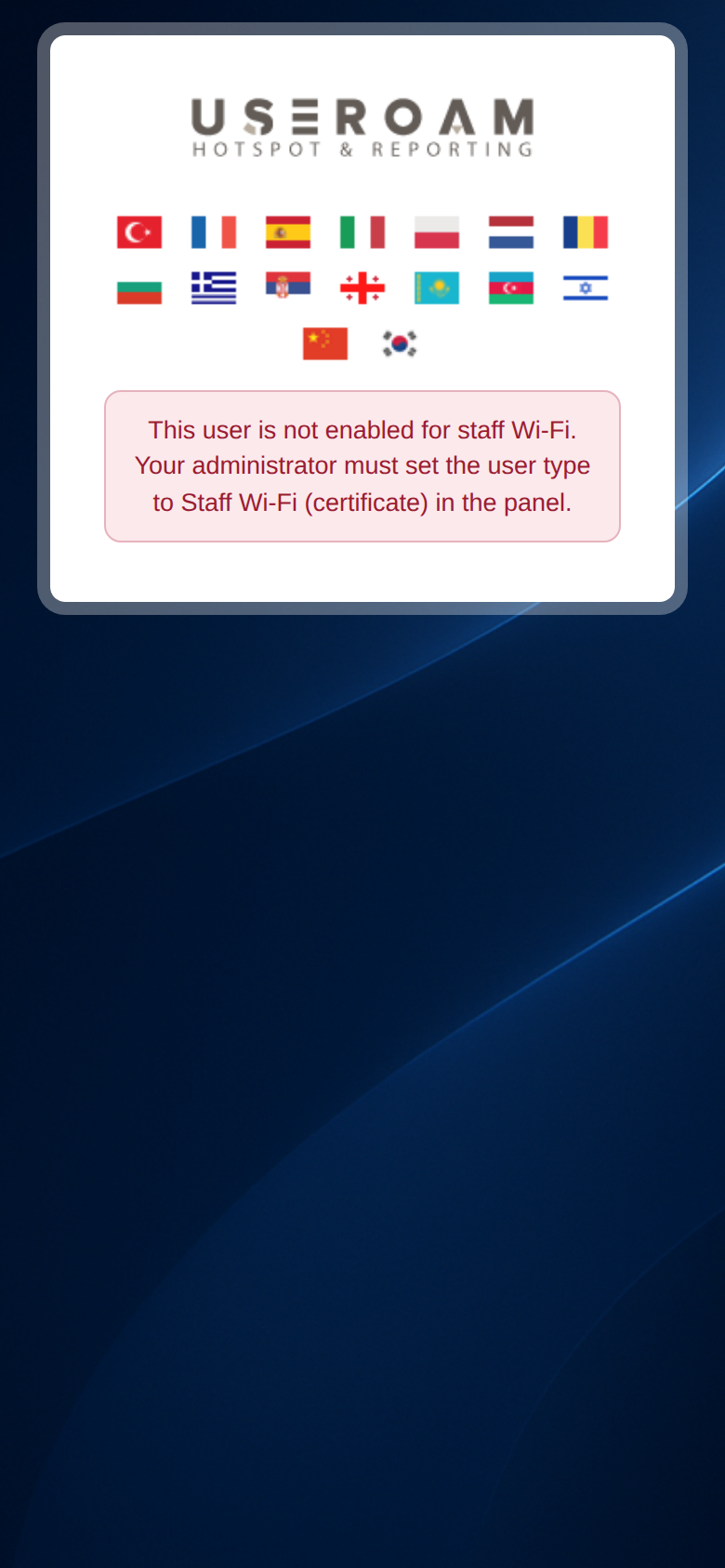 | The local user was created as Hotspot user. The panel list shows Not permitted. | Create the employee again with the type Staff WiFi (certificate). |
This user was not found in the staff list. Please try again after your administrator creates your staff record.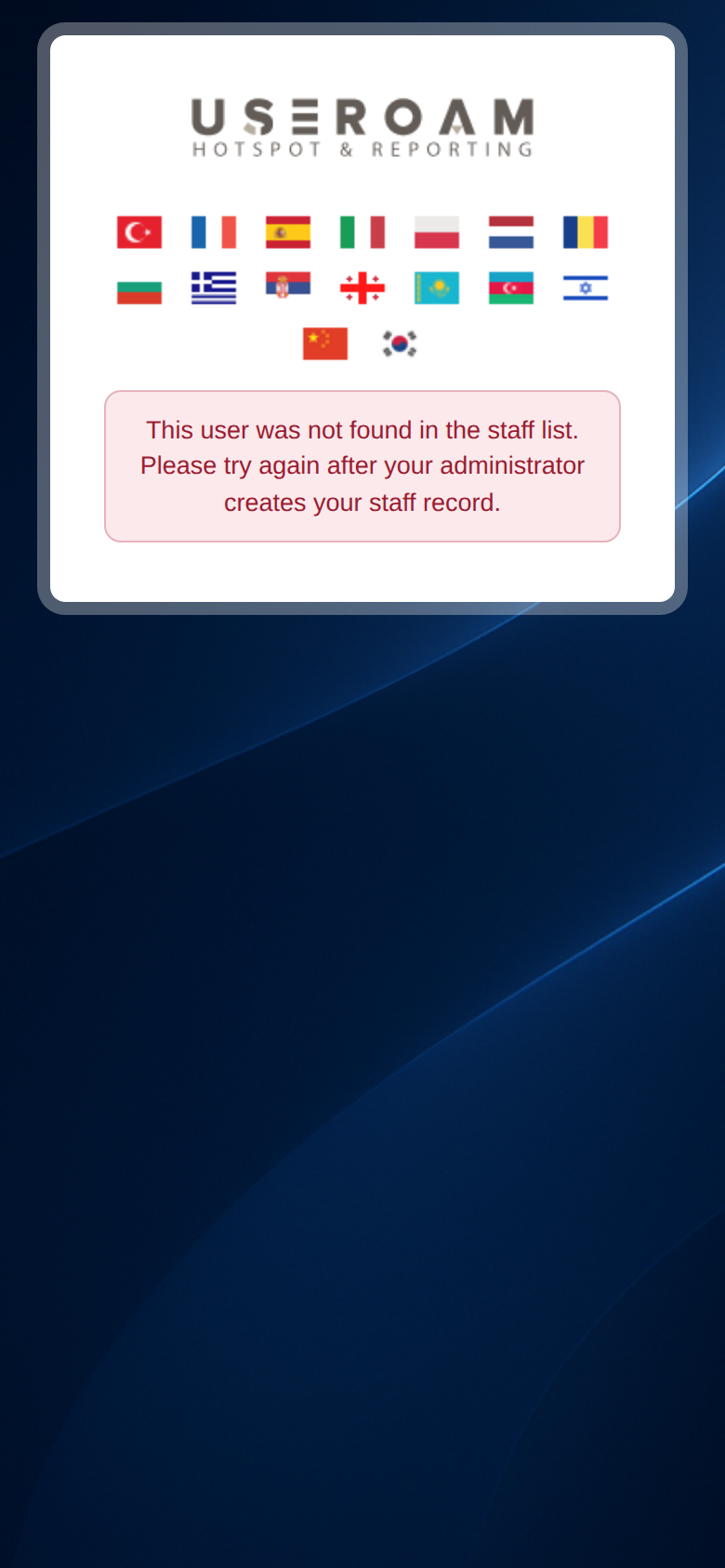 | The Active Directory password is right, but the employee is not in this device's staff list. | Check that the Connector has brought the employee in. |
Verification timed out. Please try again; contact your administrator if the problem continues.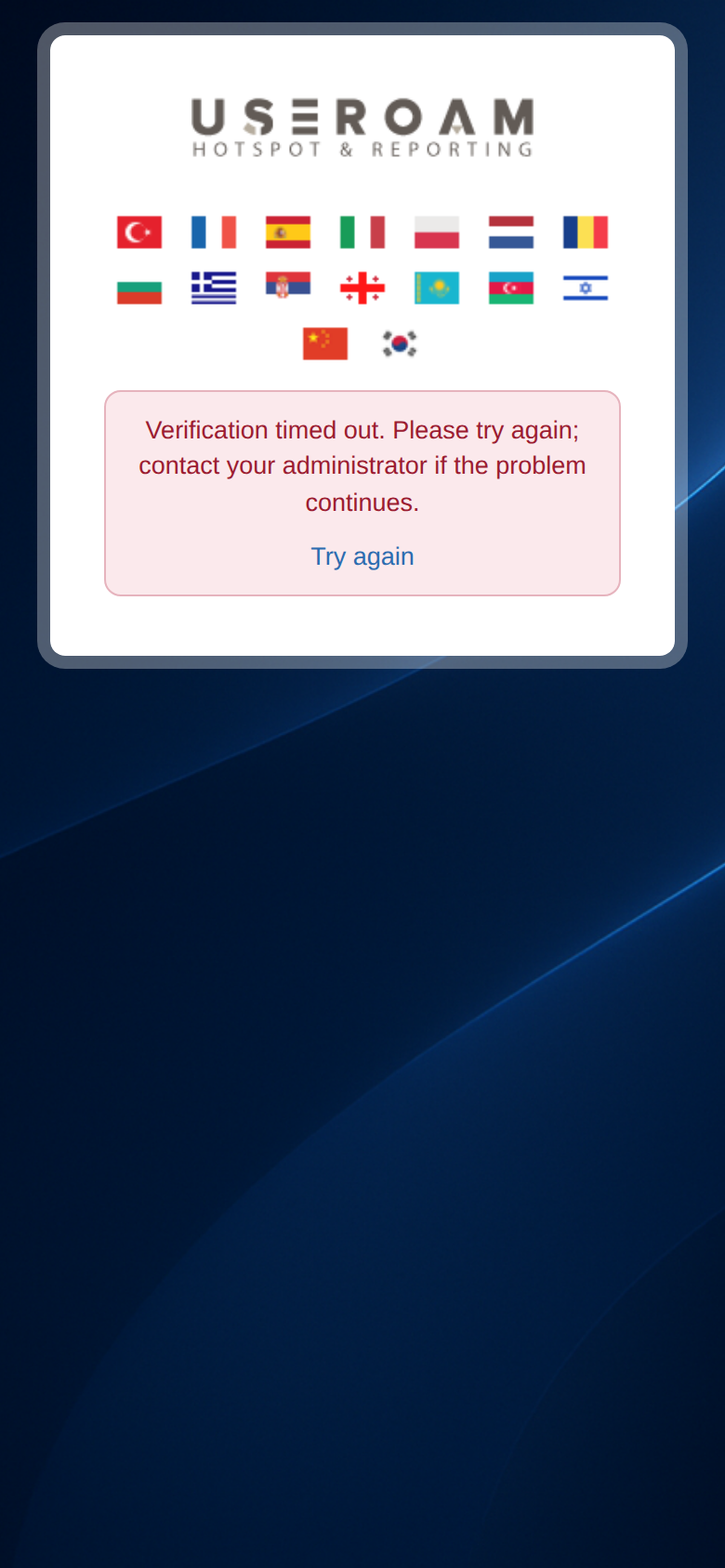 | The Connector did not answer within a few seconds. | Check in the panel that the Connector is Online. |
Bu cihaz için connector tanımlı değil. (S-10) (no connector defined for this device; shown in Turkish only)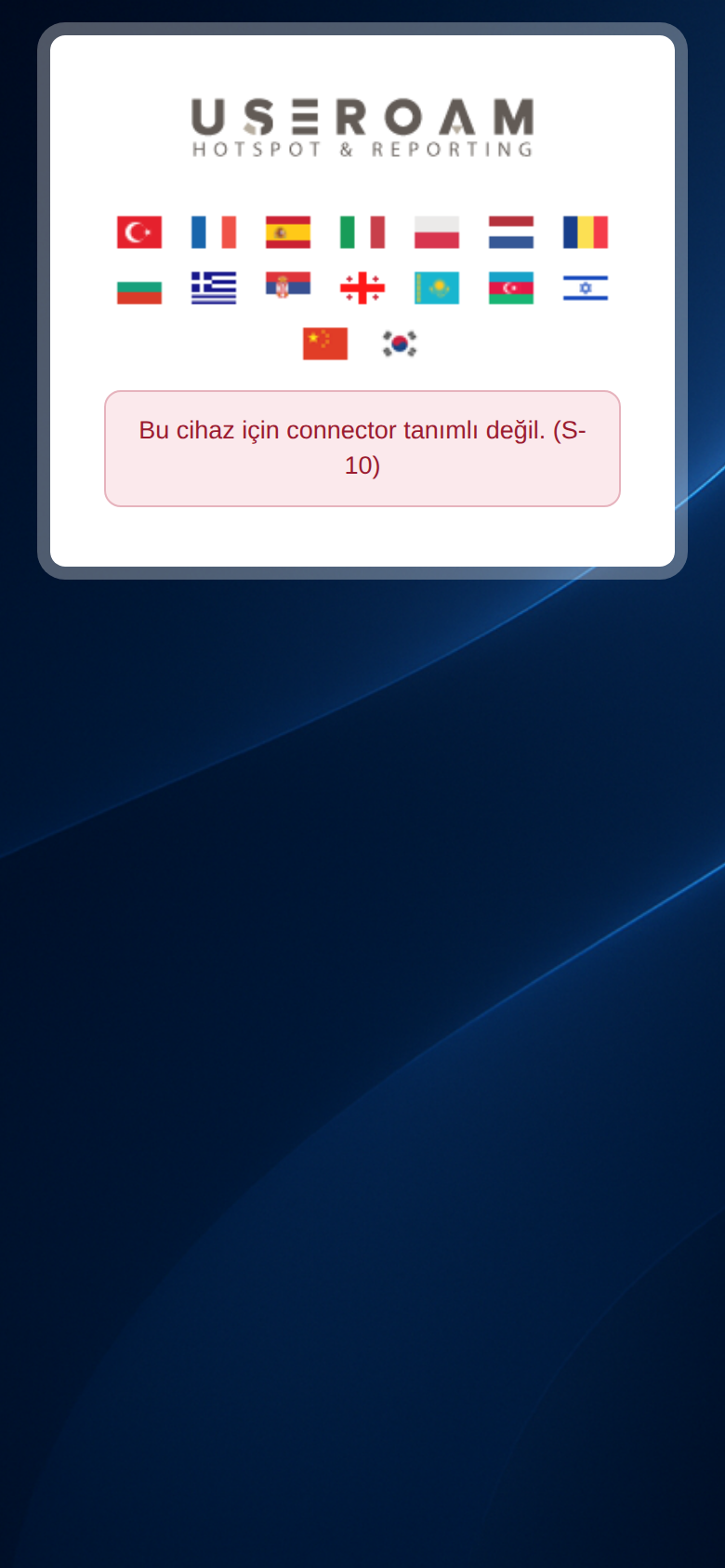 | The username is not a local user in the panel and no Connector is installed. | Check the spelling of the username; create the user in the panel if it is a local user, or install the Connector if you use Active Directory. |
Bu kurum için personel WiFi kurulumu kapalı. (S-09) (staff Wi-Fi setup is closed for this organisation)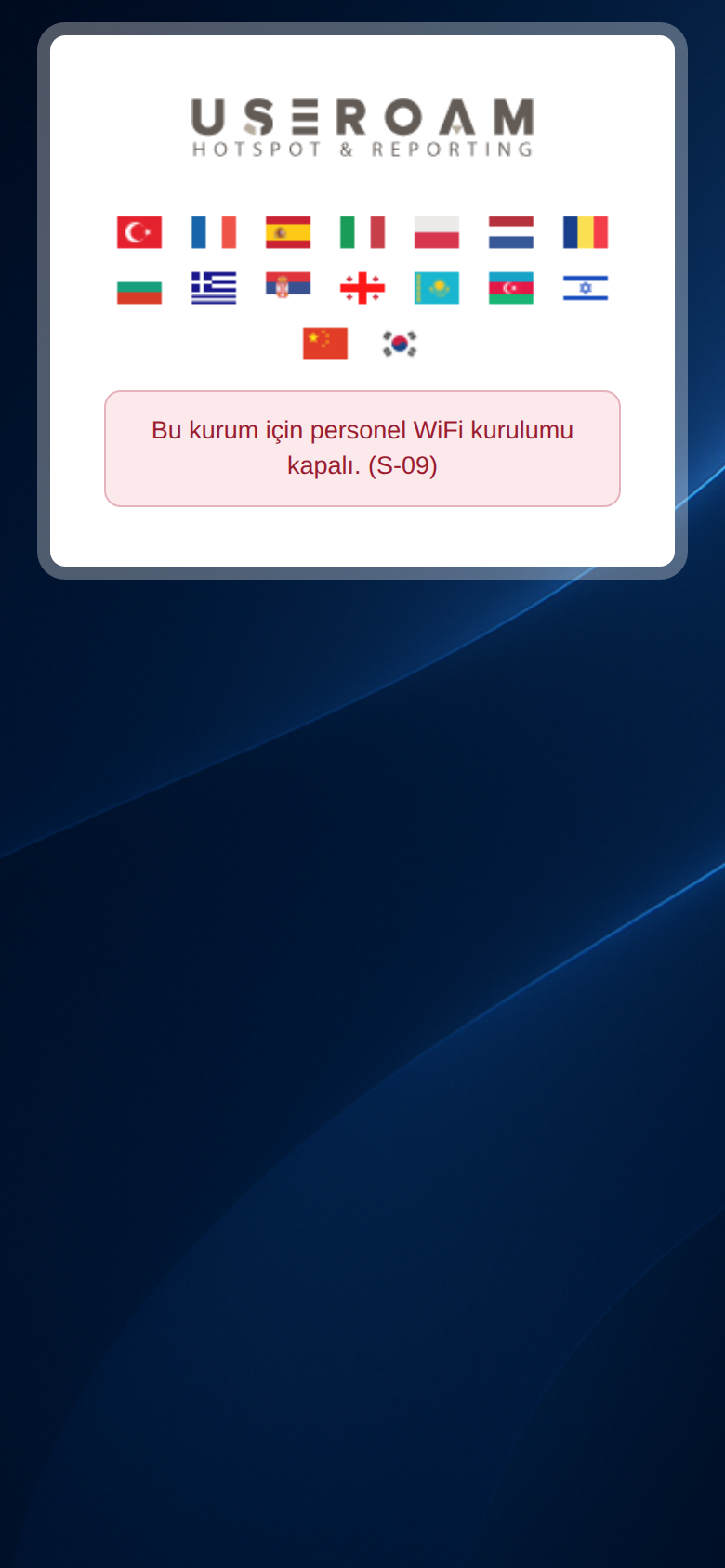 | Staff WiFi is on is off. | Turn it on and save. |
Kurulum bağlantısı eksik. (S-01) (setup link incomplete) | The end of the address was cut off when copying. | Copy the link again from the card and send it in full. |
| Cihaz bulunamadı. (S-06) (device not found) / Bu cihaz pasif. (S-08) (this device is inactive) | The link is broken or the device licence is inactive. | Copy the link again; if the device is inactive, contact your reseller. |
Profil bulunamadı veya süresi doldu (15 dk). Lütfen formu tekrar doldurun. (profile not found or expired, 15 min) | The download link was not used within 15 minutes, or the iPhone profile was already downloaded once. | Open the setup link and fill in the form again. |
| Profili Safari ile yükleyin (install the profile with Safari, with a Bağlantıyı kopyala / copy link button) | On iPhone the link was opened in Chrome or inside another app. | Copy the link shown and open it in Safari; no need to fill in the form again. |
| Sertifika üretilemedi: ... (certificate could not be created) / Doğrulama başlatılamadı. (verification could not start) / Connector anahtarı geçersiz. (connector key invalid) | A problem on the server side. | Try again in a few minutes; if it continues, contact Useroam support. |
The flags at the top of the setup page change its language. You can change the texts on the page for your organisation: Portal Texts.
Frequently asked questions
Do I send a separate link to each employee?
No. The link is the same for everyone. Each employee signs in with their own username.
The employee filled in the form but forgot to download.
The download is valid for 15 minutes. After that, they open the same link and fill in the form again; no new link is needed.
The employee changed phone.
They run the setup again on the new phone. When a new certificate is issued, the same person's older certificates are revoked automatically.
The SMS did not arrive.
Check the phone number in the Local Users list. If needed, copy the link from the card and send it yourself; you can set a new temporary password in the Group and Password tab of Edit User and give it to the employee.
Related pages
- Certificates and Staff
- Useroam Connector
- Guests > New User
- Employee guides: iPhone and iPad, Android, Windows