
Requests
Requests is the app's landing tab. Staff see the requests assigned to them and the ones waiting in the pool, pick them up and close them here.
How do I open it? It opens when you sign in. The Requests item in the bottom bar always brings you back.
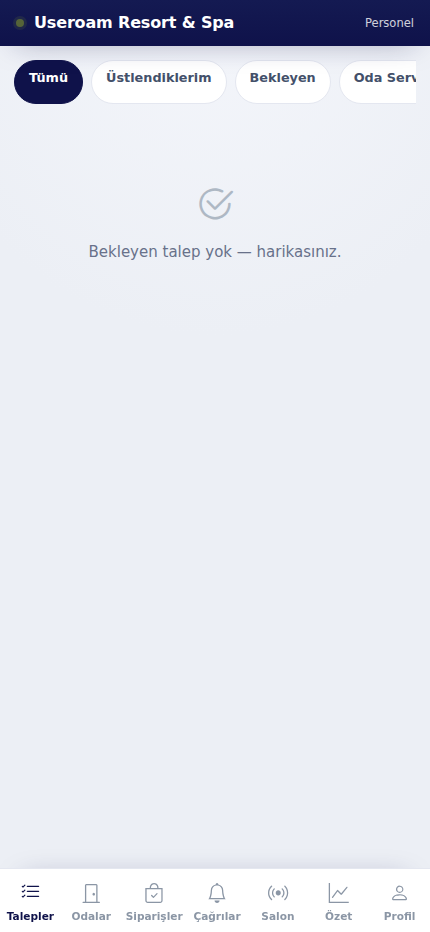
1. Filters
There are four filters above the list:
- All: Every open request in the business.
- Assigned to me: Only the requests you have taken on. This is the view you will use most during a shift.
- Pending: Requests nobody has picked up yet.
- Room Service: Room service requests.
With nothing waiting, the list reads "No pending requests — great job."
2. The request card
Each request is a card showing its type, the room or point it came from, the time it was raised and its status. Tap the card to take it on, and close it as completed when the work is done. Fault requests can carry a resolution photo when you close them.
Everything you do appears in the panel immediately: the request shows as assigned to you there too, and drops off when you close it.
3. Raising a request
When you spot something yourself, you can raise the request too — that is what New Request on the Profile tab is for.
Related pages: Useroam Go → Rooms, Summary, Profile; Hotel Solution → Request Management.