
Requests
Requests is the tab the app opens on. Staff see the requests assigned to them and those waiting in the pool, take them and close them here.
How do I open it? This tab opens when you sign in. Requests in the bottom bar always brings you back; the number on it is the count of open requests.
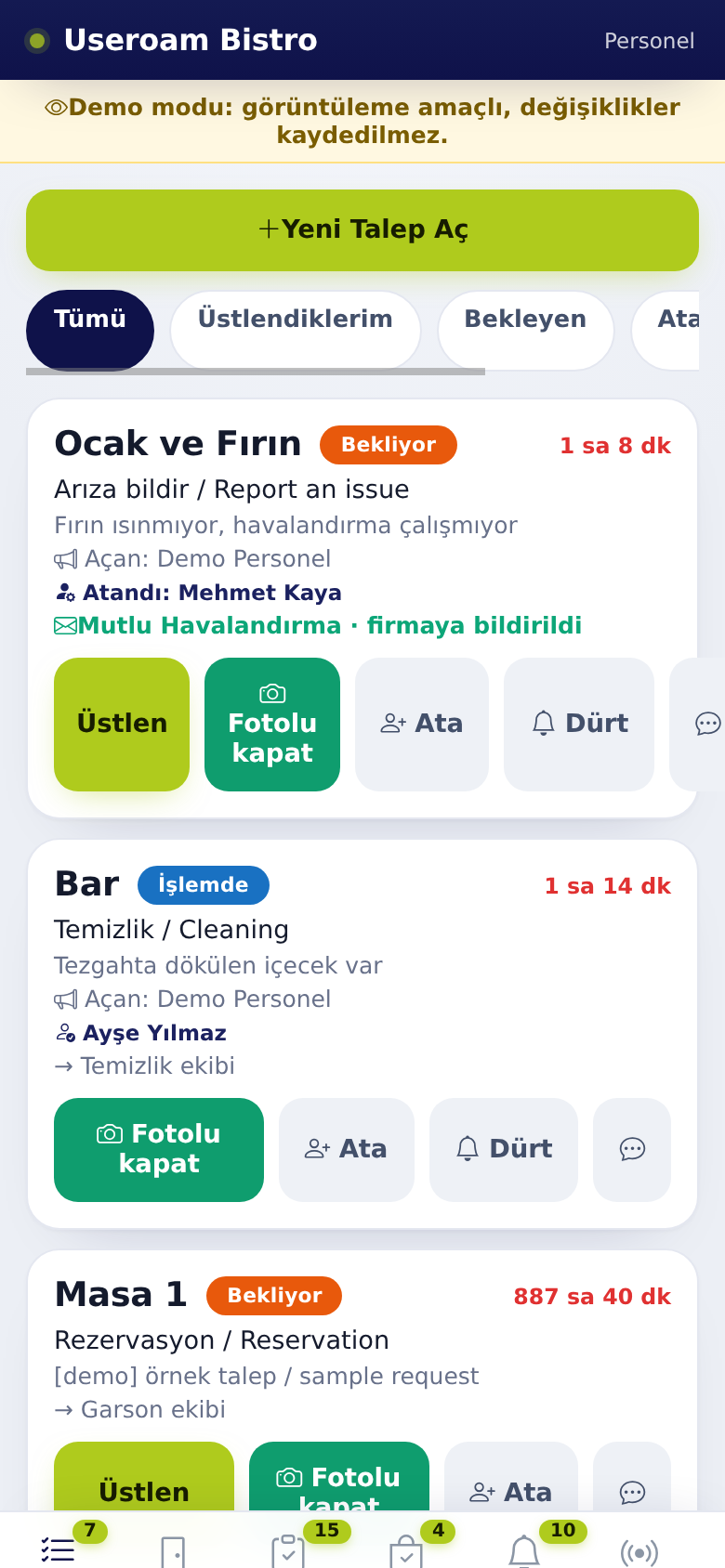
1. Filters
- All: every open request you can see.
- Assigned to me: only requests you hold.
- Pending: requests nobody has taken yet.
- Room Service: food orders to rooms in a hotel (if any).
- Managers also get Unassigned and Overdue.
With no open requests you see "No pending requests, great job.".
2. Request card
The card shows the place (room or point), status badge (pending, in progress), elapsed time, request type, description, who opened it (Opened by:) and who holds it (Assigned: or · assigned to you).
- Tap Take. The screen shows Assigned to you; the job is now yours, its status becomes in progress and it shows your name in the panel.
- Do the job.
- Tap Close with photo, take a photo and close. The screen shows Fault closed or Updated.
Photo rule: if the venue set a minimum number of photos for a request type, you cannot close with fewer: "At least 1 photo(s) are required to close this request."
Take and ▶ Start job in the point's menu do the same thing: on site you can tap the point and Start job to take the job. Use either one.
If a job you hold is given to someone else you get a Job moved to someone else notification. When a new job arrives the phone alerts you and New task arrived 🔔 appears.
3. Room service orders (hotel)
A food order to a room arrives as a request card with a next-step button: Prepare → Ready → Deliver. Tap once per step.
4. Messages
- Tap the speech bubble on the card.
- Earlier messages are listed; if none, you see "No messages yet.".
- Type your message and send.
- On restaurant requests the chat is between managers and staff ("Write a message (managers and staff see it)…"). The other side gets a New message on a request notification: managers if the job holder wrote, otherwise the job holder.
- On hotel requests the message goes to the guest ("Reply to guest…").
5. Opening a new request
- Tap + New Request at the top of the list.
- Choose the request type. "Automatically routed to the relevant department."
- Type or pick the place and add a short note.
- Tap Create Request. The screen shows Request created.
Managers always see this button; staff see it if the venue turned on Staff can open requests from the app in the panel. Managers can also pick a person; if they do not, Automatic: least busy person now is used.
6. Manager only
- Assign and Nudge buttons on cards.
- An envelope badge on jobs automatically reported to a support company: company notified, notification awaiting approval (panel) or could not notify company.
- In a restaurant, a warning strip for overdue requests: "3 request(s) exceeded SLA, please check."
Details: Manager Tools and Tasks.
Related pages: Useroam Go → Rooms, Tasks, Manager Tools and Tasks, Messages and Errors.