
Requests
Requests is the app's opening tab. Staff see the requests assigned to them and those waiting in the pool, take them and close them here.
How do I open it? This tab opens when you enter the app. The Requests item in the bottom bar always brings you back.
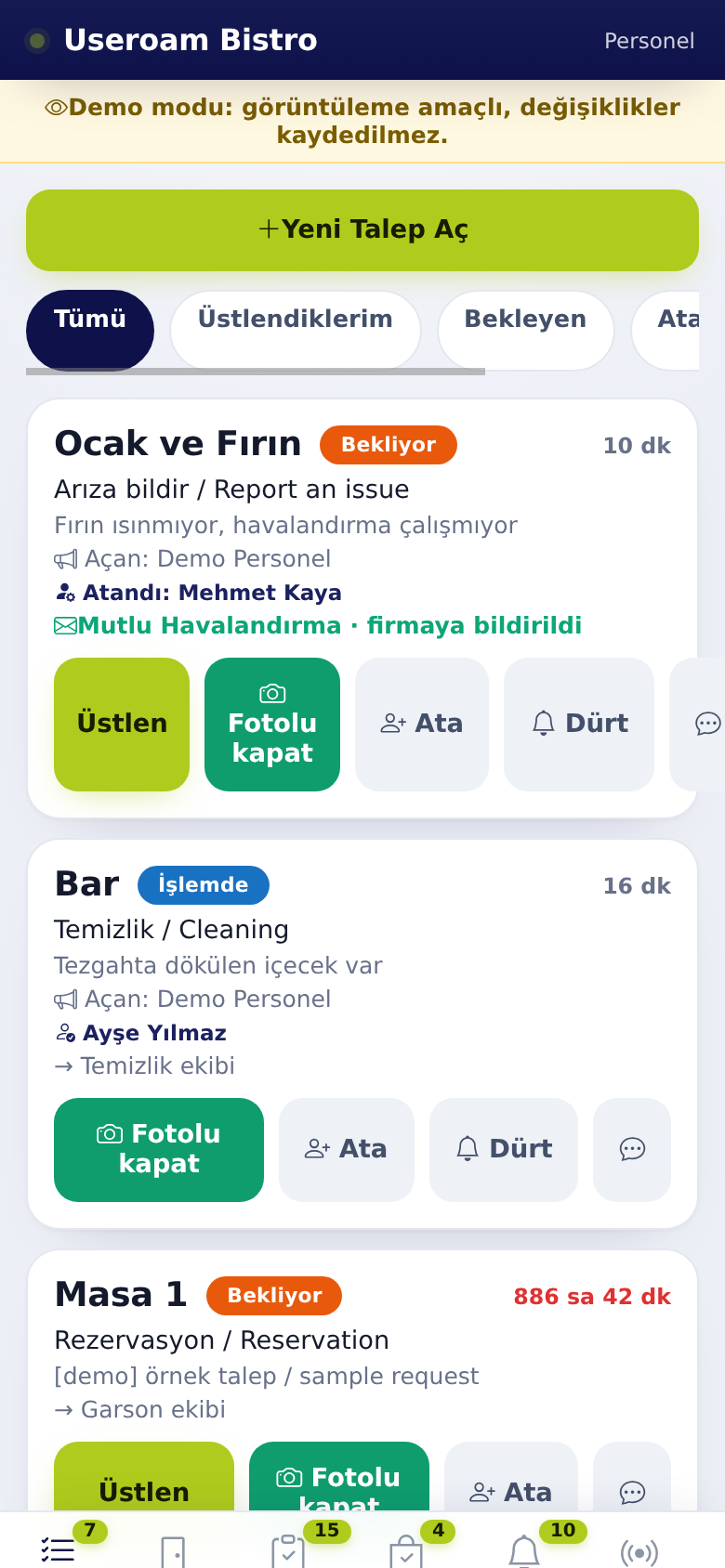
1. Filters
- All: every open request you can see.
- Mine: only the requests you hold.
- Waiting: requests no one has taken yet.
- Managers also get Unassigned and Late.
2. Request card
The card shows the place, request type, description, elapsed time, who opened it and who holds the job.
- Tap Take (Üstlen). The job is now yours and shows your name in the panel and the app.
- Do the job.
- Close it with Close with photo.
If a job you hold is given to someone else, you get a "Job moved to someone else" notification. The speech-bubble icon on the card lets you write a message on the request.
3. Opening a new request
Use + Open New Request at the top of the list to report something you notice on site. Managers always see this button; staff see it if the venue allows it.
4. Manager only
Managers also see Assign and Nudge on the card, and a company notified badge on jobs reported to a service company. Details: Manager tools and tasks.
Related pages: Useroam Go → Rooms, Manager tools and tasks, Profile.