
Role Guide: Hotel Manager
This page is for the person running the hotel housekeeping or technical team.
1. What this role sees
- All tabs and all rooms and areas; the Rooms | Areas switch.
- Extra buttons: Assign, Nudge, Assign room owner, + Add task; extra chips: Unassigned, Overdue; the Summary tab.
2. Assigning rooms
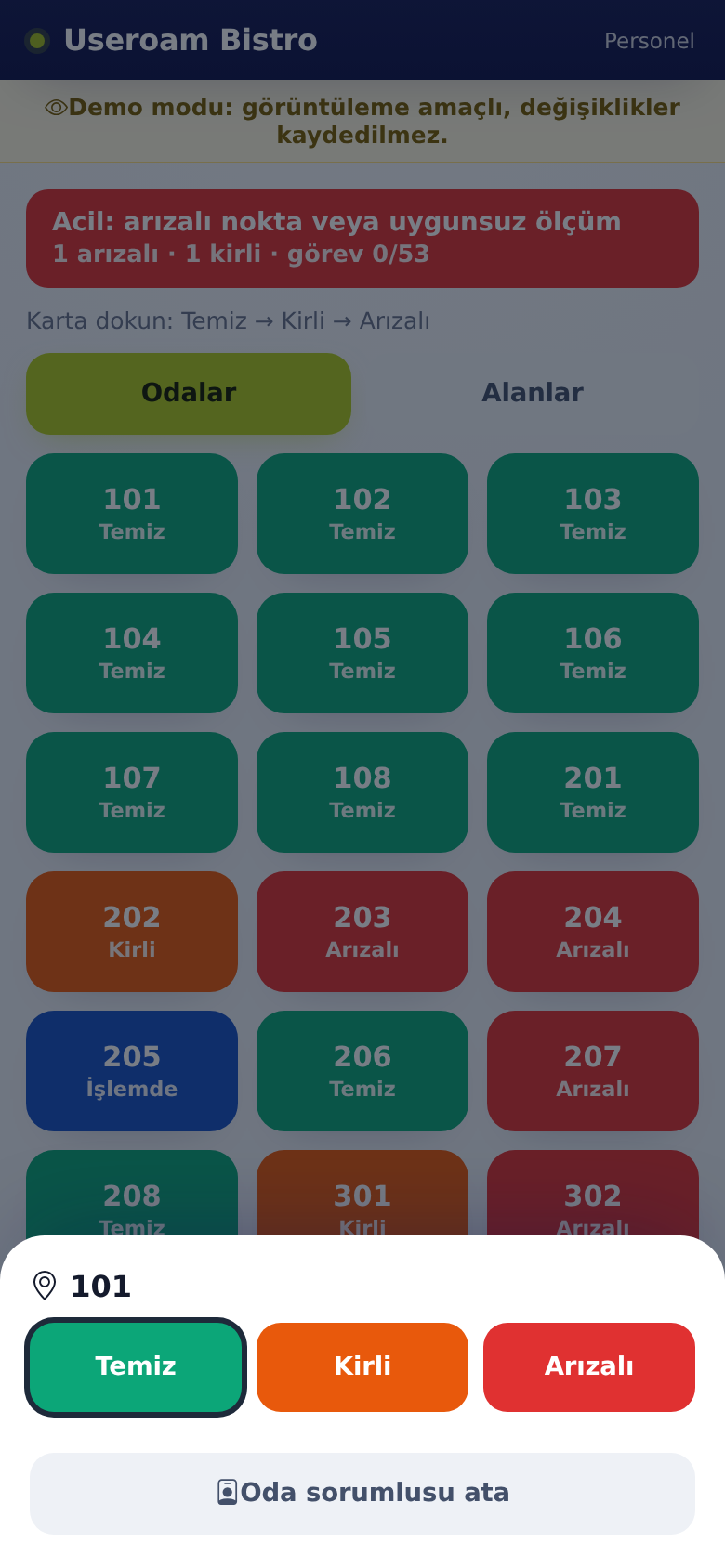
- On Rooms, tap a room.
- Tap Assign room owner and choose a staff member.
- The room's cleaning job goes to that person; on their screen the room shows · assigned to you.
3. Managing requests
- On Requests, tap Unassigned and hand out jobs with Assign.
- Use Nudge for jobs under Overdue.
- Reply to a guest request with the speech bubble on the card.
- For room service orders, follow the Prepare, Ready, Deliver steps on the card.
4. Checkout
- On Rooms, tap Checkout on the room card.
- Read the confirmation: open requests close, the room becomes dirty, the guest record is not deleted.
- Confirm; the room joins the cleaning queue.
5. Tasks and end of day
- Define recurring work such as area rounds and technical checks on Tasks with + Add task.
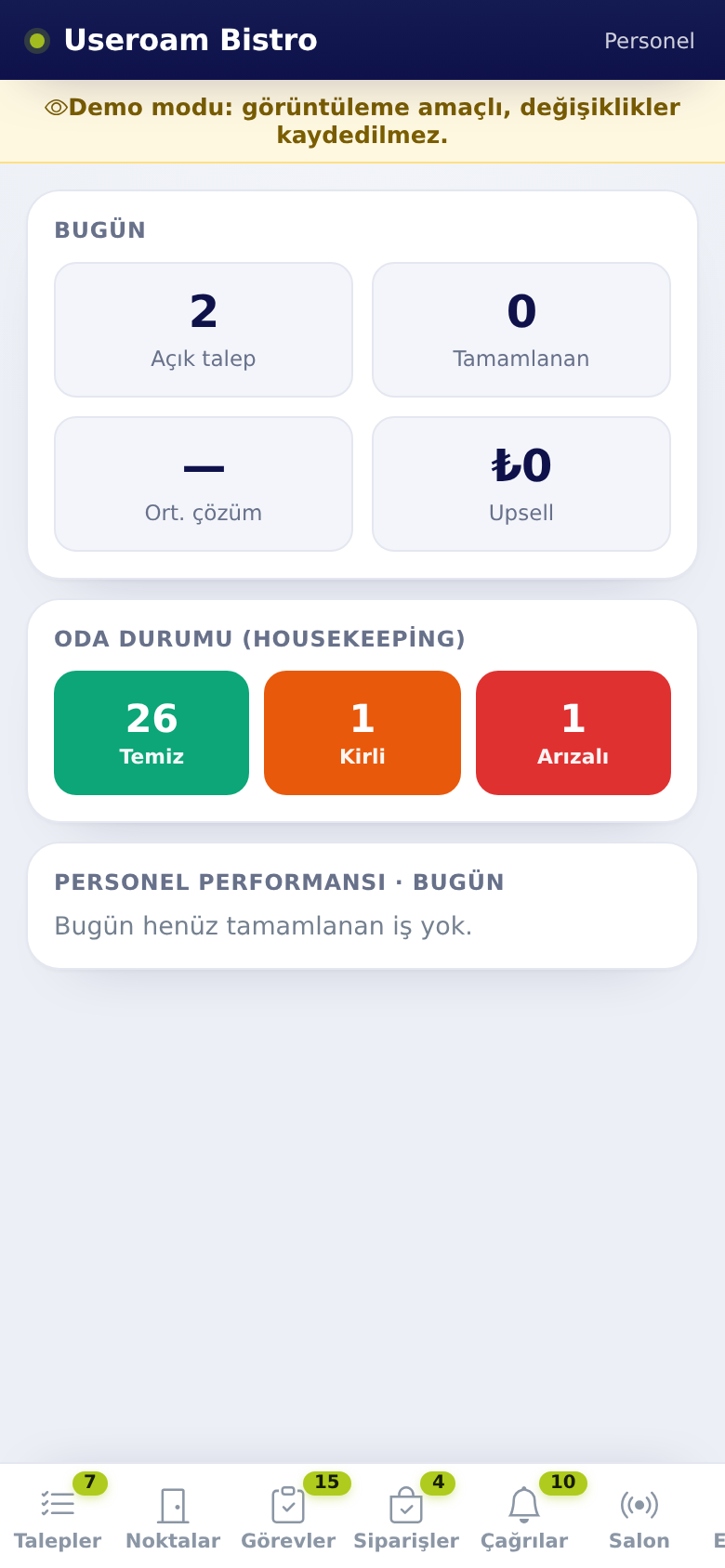
- On Summary, see the room state split (Clean, Dirty, Faulty), open and completed jobs and staff performance.
6. FAQ
A staff member cannot see areas. The areas may have no owner; set owners on the panel's Operations screen.
As a manager I can tap Clean, but staff cannot. The Clean lock only applies to staff; once the open job closes the room turns clean by itself.
Do SLA notifications work for the hotel? In-app SLA notifications are for restaurant requests; hotel SLA rules work by SMS from the panel.
Related pages: Useroam Go → Manager Tools and Tasks, Rooms, Summary; Hotel Solution → Room Board, SLA Rules.