
Rooms
This tab shows the live state of rooms and areas (lobby, pool, kitchen etc.). In venues with the hotel module there are two buttons at the top: Rooms and Areas (Odalar | Alanlar).
How do I open it? The Points (Noktalar) tab in the bottom bar (door icon).
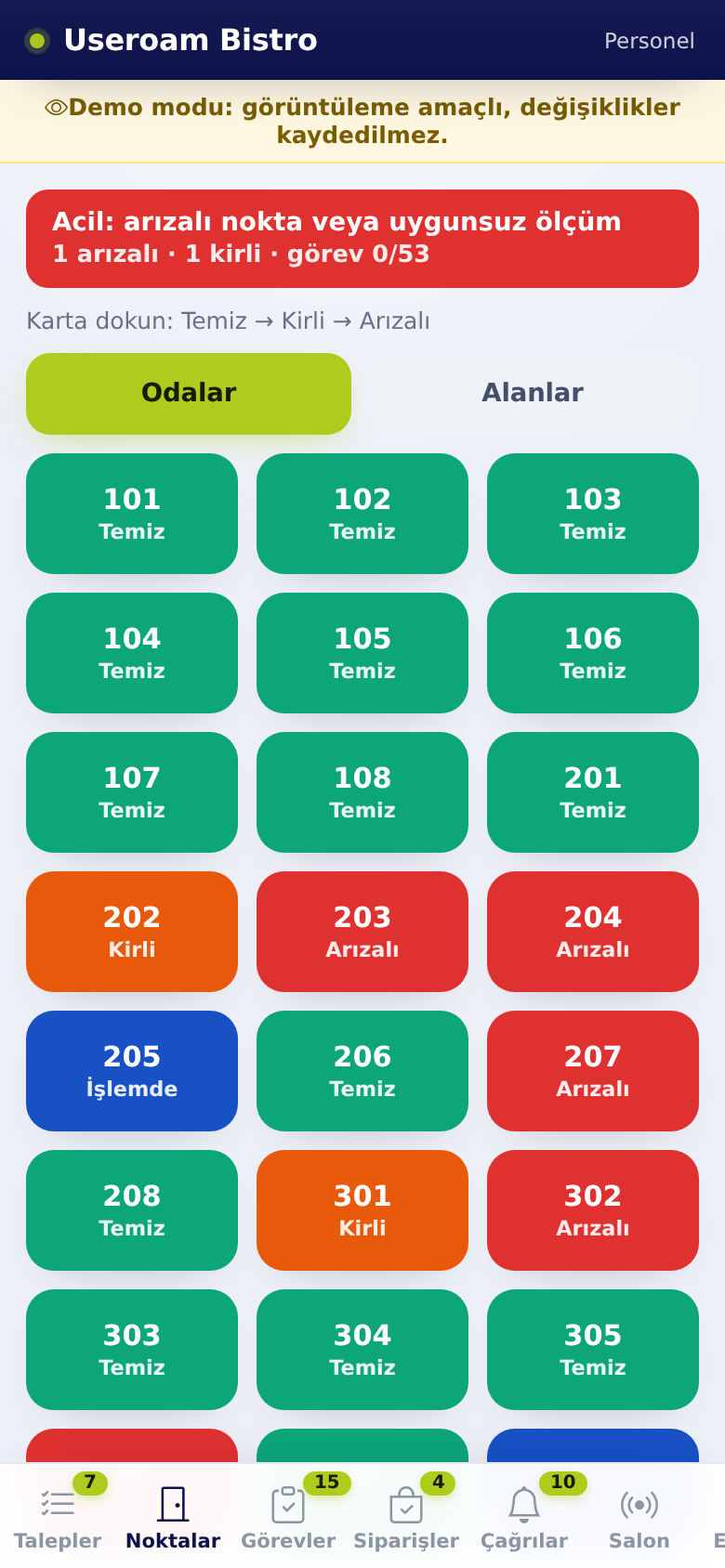
1. Colours
- Green (Clean): ready.
- Orange (Dirty): waiting for cleaning.
- Red (Faulty): there is a problem to fix.
- Blue (In progress · Name): someone has taken the job at this place; the box shows their name.
2. Changing the state
- Tap a room or area. A menu opens.
- Choose Clean, Dirty or Faulty. You can add a note and a photo.
- In a hotel, setting a room to Faulty opens a fault request. Setting it to Dirty opens no request; the room joins the cleaning queue.
- For areas (and restaurant points), Dirty opens a cleaning request and Faulty opens a fault request.
- On a dirty room the menu shows ▶ Start cleaning; on a place with an open job it shows ▶ Start
workjob. Tapping it makes the job yours and the box turns blue.
Clean lock
Staff cannot set a place with an open job to Clean; the job has to be closed first. In a hotel, only an open cleaning or fault request locks a room. When the job is closed, the place becomes Clean by itself.
3. Areas
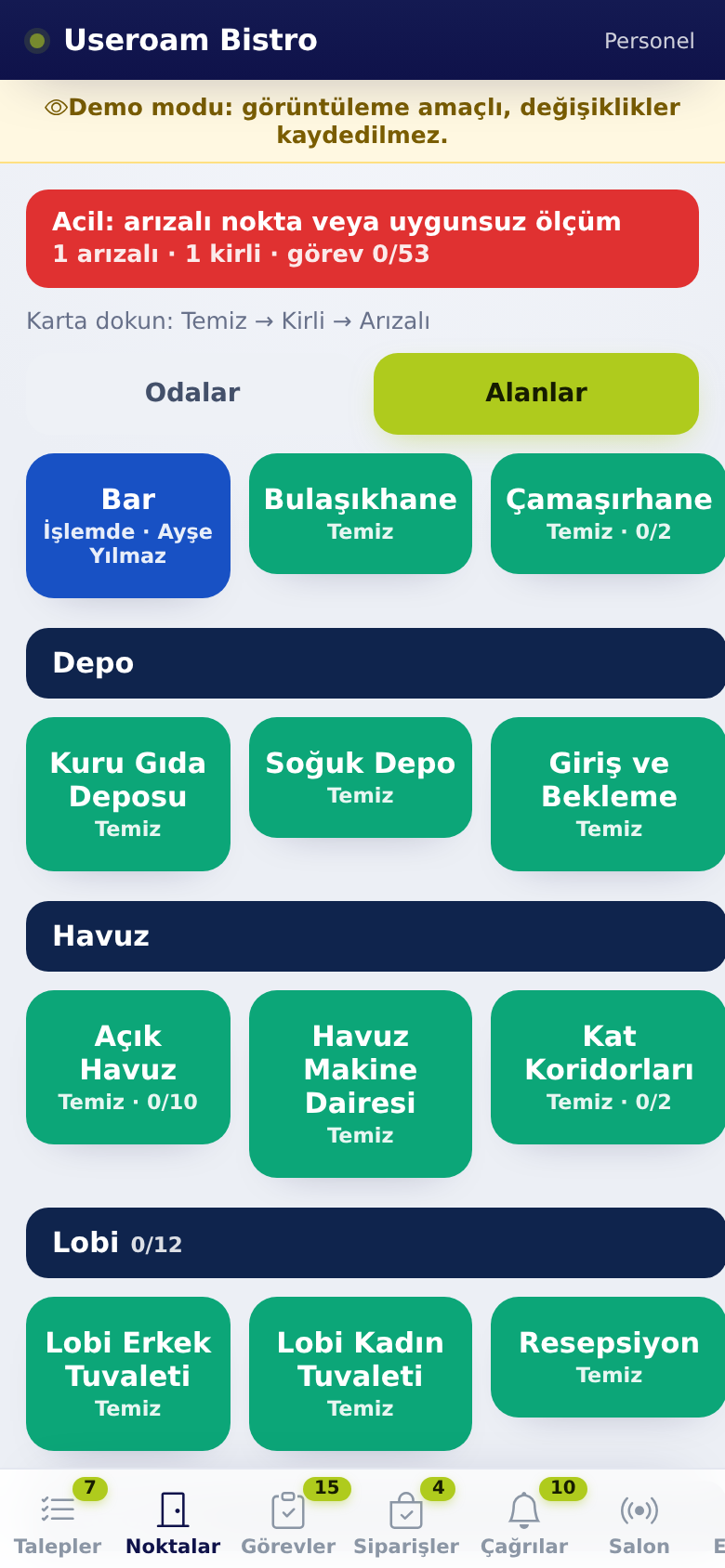
Areas are grouped by their parent place. The parent (e.g. Storage, Pool, Lobby) is a navy header and cannot be tapped. The boxes below it are the individual places. Staff see only the places they are responsible for.
4. Checkout
In a hotel, Checkout marks the room as checked out; the room joins the cleaning queue.
Related pages: Useroam Go → Requests, Manager tools and tasks; Operations; Hotel Solution → Room Board.