
Staff Accounts and Departments
Useroam Go accounts are created fromin the panel. This page covers adding staff, definingsetting up departments and what the roles mean.
How do I open this screen?
InOpen Staff from the leftmenu go toBumerang → BUSINESS (İŞLETME) → Staff (Personel).menu.
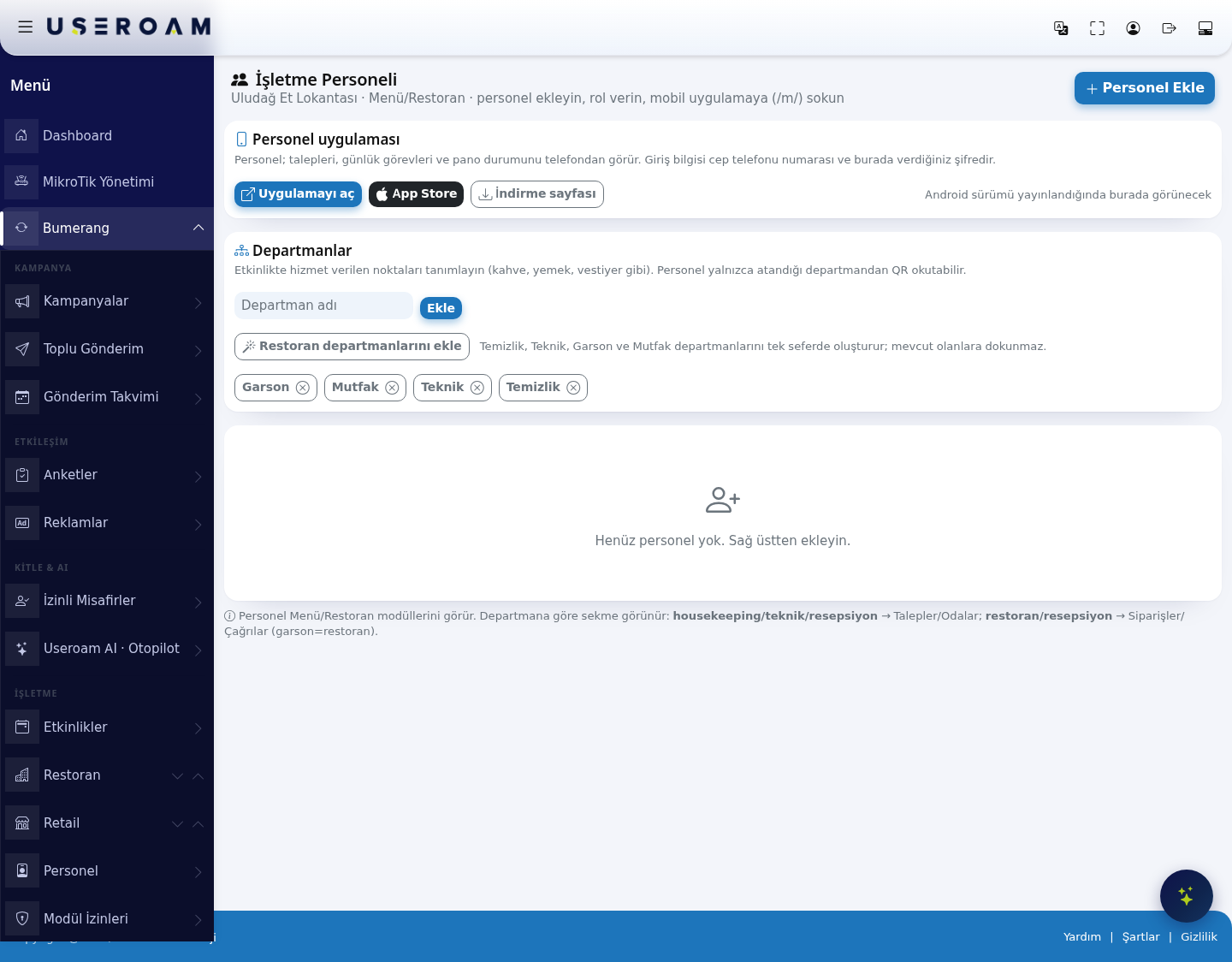
1. Adding a staff member
The
- Click Add
staffStaff. - Enter the
top right opens these fields:Firstfirst name andsurnamelast name.Phone:EnterAthe mobile number in Phone (e.g.5xxxxxxxxx5301234567form.). This number isalsothetheapp username.- Choose a Role: Staff or Manager.
- Tick one or more departments under Department(s).
- Save.
for
You do not type the Staff only see the sections ticked for their own departments. Staff without a department only see the Profile tab, with the warning "No work area has been given to you yet". When Staff can open requests from the app is on in the Staff-created requests card, staff can open requests themselves. The The Staff app card app.
Password:password. TheIt sign-inis passwordgenerated youautomatically handand sent to the staff member.
Role: Two options — Staffmember (handlesSMS requests and orders) or Manager (also manages staff and assignment). The manager role can administer other staff and assignments fromwhen the app.Departments:Forgot password One or more departmentson the personapp's works in.
You hand the password over yourself. There is no "forgot password" flow sign-in thescreen app;to youget reseta itnew fromone thisby screen.SMS.
2.
DepartmentsRolesThe
3. Departments and what the app shows
decides which work a staff member sees. Type a department name and pressclick Add.
There is a shortcut for restaurants:Shortcuts: Add restaurant departments creates(Cleaning, TemizlikTechnical, (cleaning),Waiter, Teknik (technical), Garson (waiting staff)Kitchen) and MutfakAdd hotel departments (kitchen)Housekeeping, inTechnical, oneRestaurant, go,Front leavingDesk). anyThey leave existing onesdepartments alone.AtSwitch events,off a department representsyou ado servicenot pointuse (coffee, food, cloakroom and so on).with Staff can only scan QR codes for the department they are assigned to.Deactivate.
3.4. DepartmentHow torequests requestreach mappinga departmentRequests are distributed by department. In the restaurant module everyEvery request type is linked to a department,department. andWhen a newrequest requestis opened it goes to that department's staff.staff (in a restaurant it is assigned automatically to the least busy person). Points and rooms can also have an owner (a person or a department); you set this on the Operations screen.
5. Staff-created requests
samerequest logic appliesgoes to hotelthe right department and managers see who opened it (Opened by:). When off, only managers open requests.
4.6. App links and demoonhas the screen carries threethese links:
app:app Opens the (web appapp), (PWA).
Store:Store, Google Play Downloadsand thea iOS version.
page:page A plain install page you can share with staff.
TheOn Androidthe linkdemo willaccount appear on thisthe card oncealso theshows storetrial versioncredentials: phone 5000000000, password demo2026. The demo sign-in is published.view only; changes are not saved.
Related pages: Useroam Go → What is Useroam Go?, App Screens by Department;
SettingsStaff;→ Module PermissionsOperations.