
Tasks
The Tasks tab shows recurring jobs done during the day: opening checks, toilet rounds, fridge temperature, closing and so on. Tasks start again automatically every day; nothing needs to be reset in the morning.
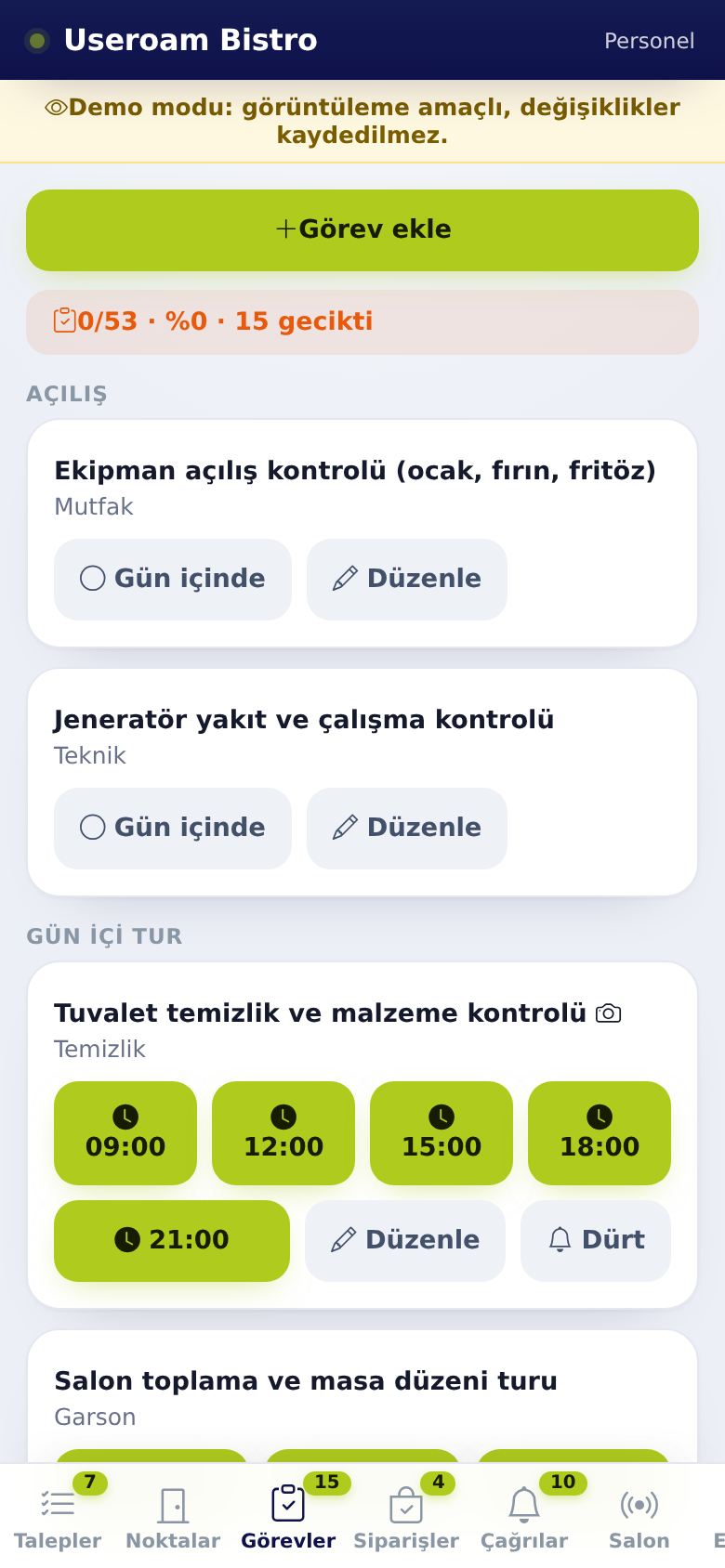
1. Reading the list
- Each task is split into the hours it must be done (e.g. 09:00, 12:00, 15:00). A task with no hours is done once During the day.
- A slot whose time has passed without being done shows overdue.
- Finished tasks show a green badge.
- If nothing is due for you today, the tab shows "No tasks for today".
Staff only see tasks given to them or to their department. Managers see all tasks.
2. Completing a task
- Tap the hour of the task you are doing.
- For a measurement task, enter the result in Measured value (e.g. fridge temperature).
- If the task says Photo required, take a photo. The task will not save without it.
- Add a Note if you like.
- Tap Complete.
If the measurement is out of range, the task is still saved and you see "Saved. Out of range, a work order was opened.". A request is opened and assigned automatically, and managers are notified.
3. Details of a finished task
- Tap the badge of a finished task.
- The window shows the photo, who did it (Done by), the time, the measured value and the notes.
- Tap Add note to add information later. The new note is added below the old one with the time and your name.
4. For managers
- + Add task creates a new task; Edit next to a task opens the same window, where the task can also be deleted.
- On an overdue task, Nudge sends a reminder to the person or team responsible.
- When staff finish a task, managers receive a Task completed notification.
Step by step: Manager Tools and Tasks.
Related pages: Useroam Go → Requests, Rooms, Manager Tools and Tasks; Operations.