
Local User Report
What is it for?
The Local User Report gives period-based lists of the local usersaccounts you createcreated manuallyby hand in the panel —(Local notUsers): theaccounts guestscreated whoor registerused throughtoday, theyesterday, portal.this Accountsmonth opened for staff, employees and long-stay guests appearor in thisa report.range you choose.
HowWhen do I
openusethisit?screen?
From- You want to see the staff or guest accounts created in a certain period.
- You want to check which accounts were used recently.
Step by step
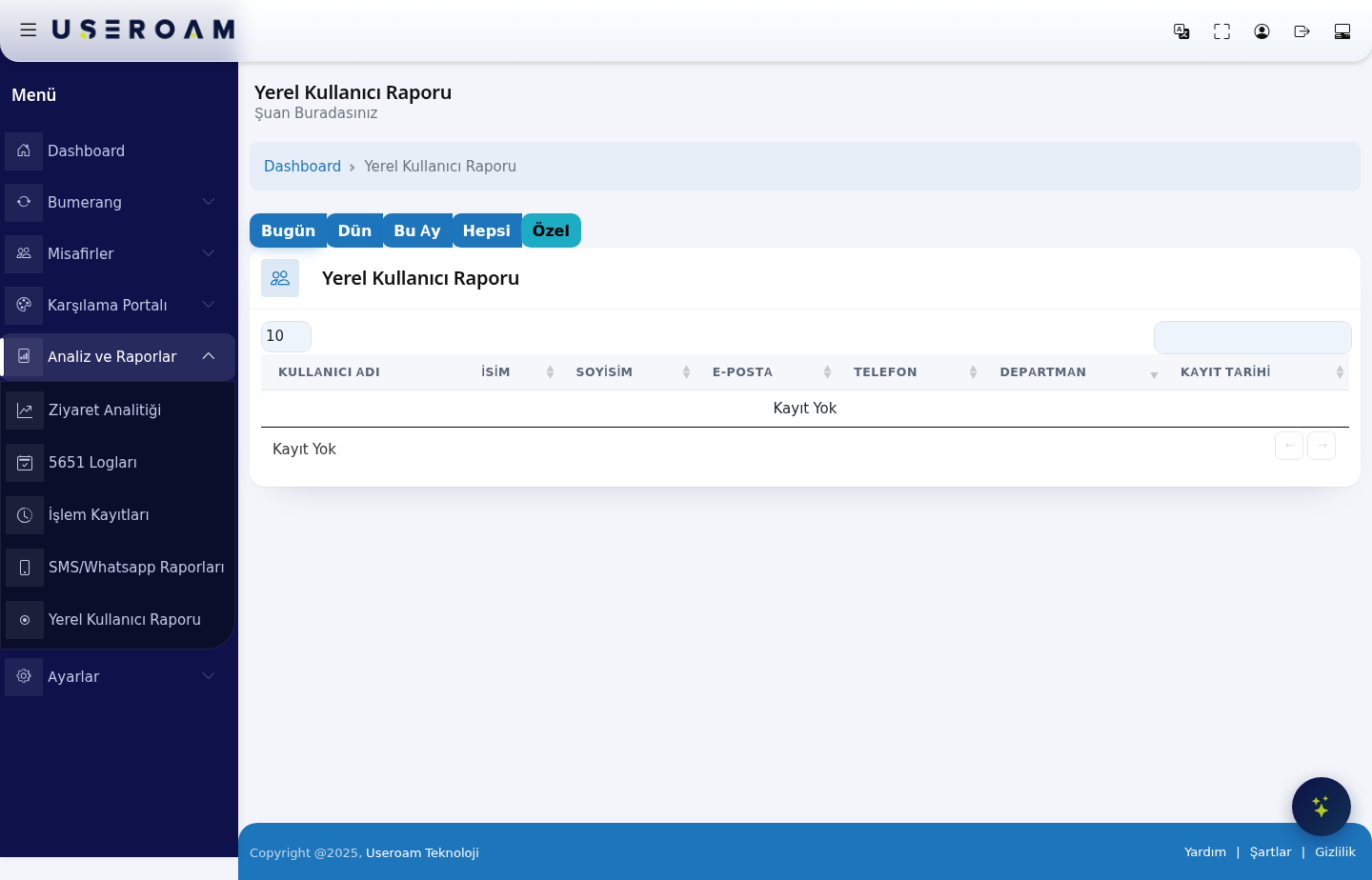
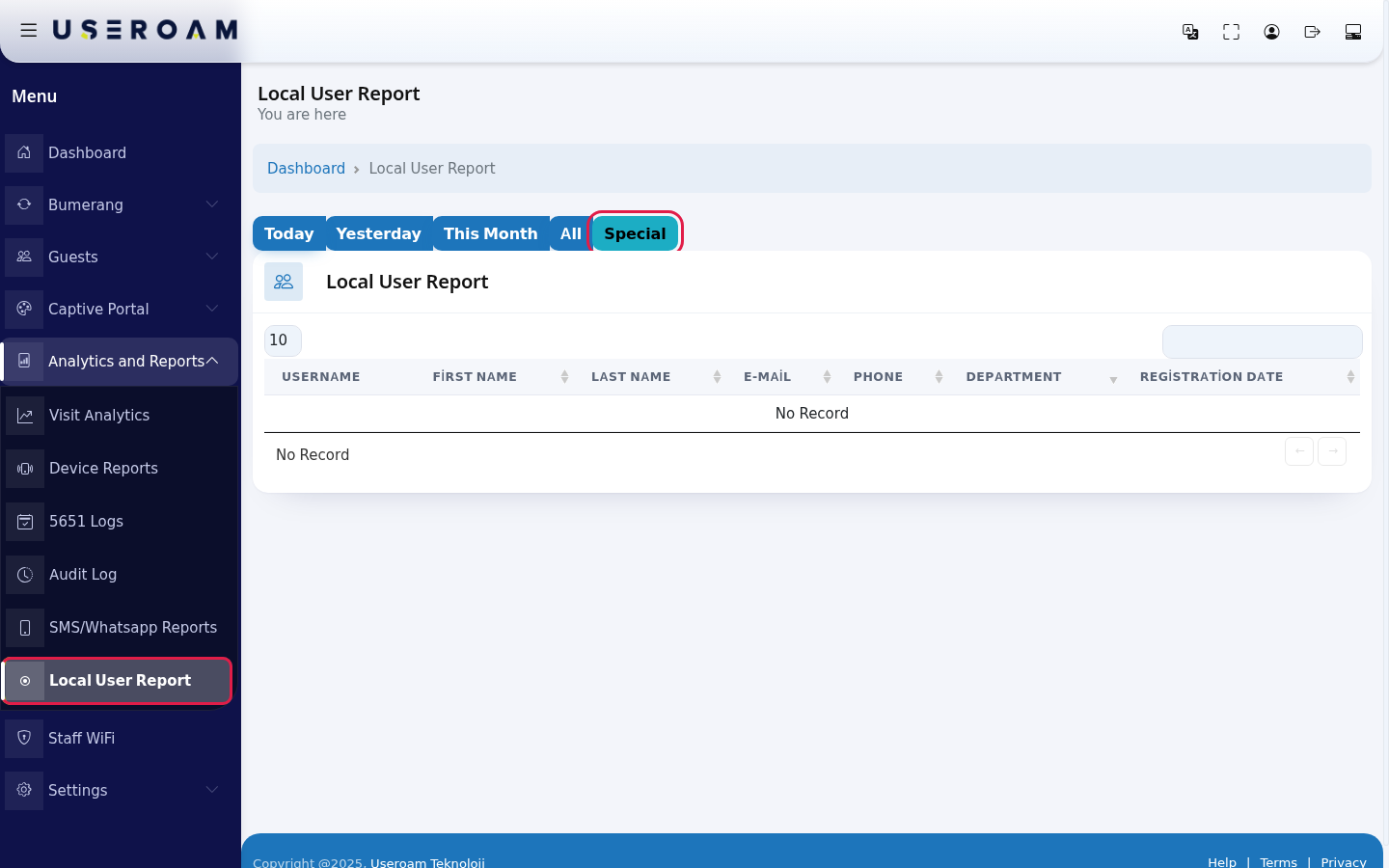
ChoosingChoose the period
Selecting CustomSpecial opens the CustomSpecial Report section:card described on SMS / WhatsApp Reports (Start Date, End Date, Filter Type, Save).
Every field and button on the screen
Field / Button What it does Today, Yesterday, This Month, All, Special Period choice. Start Date, End Date, Filter Type (Registration Date / EndLast Date:Login), pickSaveCustom therange.rangeUsername, fromFirst theName, calendar.Last FilterE-Mail, Type:Phone, DepartmentAccount details. Registration Date The (when the account was created) or Last Login (when the user last connected).
Save: generates the report.
Tip: to clean up dormant accounts, choose a wide range with the Last Login type — that is how you spot users who have not signed in for a long time.
Table columns
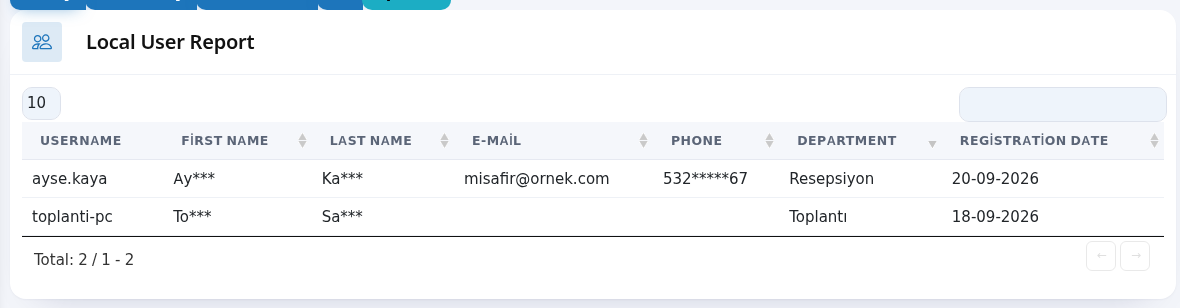
USERNAME: the account's login name.
FIRST NAME / LAST NAME: the user's name.
E-MAIL: the email address on the account.
PHONE: the user's phone number.
DEPARTMENT: the unit the user belongs to. In corporate deployments, use it to break the report down by department.
REGISTRATION DATE: the dateday the account was created.Search box, number box, Total Search, rows per page and total records. No Record if empty. Frequently asked questions
WhenThe therereport areis noempty.
No records,local account was created or used in the tableselected readsperiod. "No Record".
Navigating the list
Use thePress 10 / 25 / 50 / 100 / All selector to set records per page, and the search box to filter instantly across all columns.
Related pages: Guests → Local Users (managing accounts), Guests → New User, Guests → Bulk Users, Guests → Groups.Related pages