
Local User Report
What is it for?
Local User Report gives period-based lists of the accounts you created by hand in the panel (Local Users): accounts created or used today, yesterday, this month or in a range you choose.
When do I use it?
- You want to see the staff or guest accounts created in a certain period.
- You want to check which accounts were used recently.
Step by step
- In the left menu open Analytics and Reports and click Local User Report. Choose the period with the buttons at the top: Today, Yesterday, This Month, All or Special. Special opens the Special Report card described on SMS / WhatsApp Reports (Start Date, End Date, Filter Type, Save).
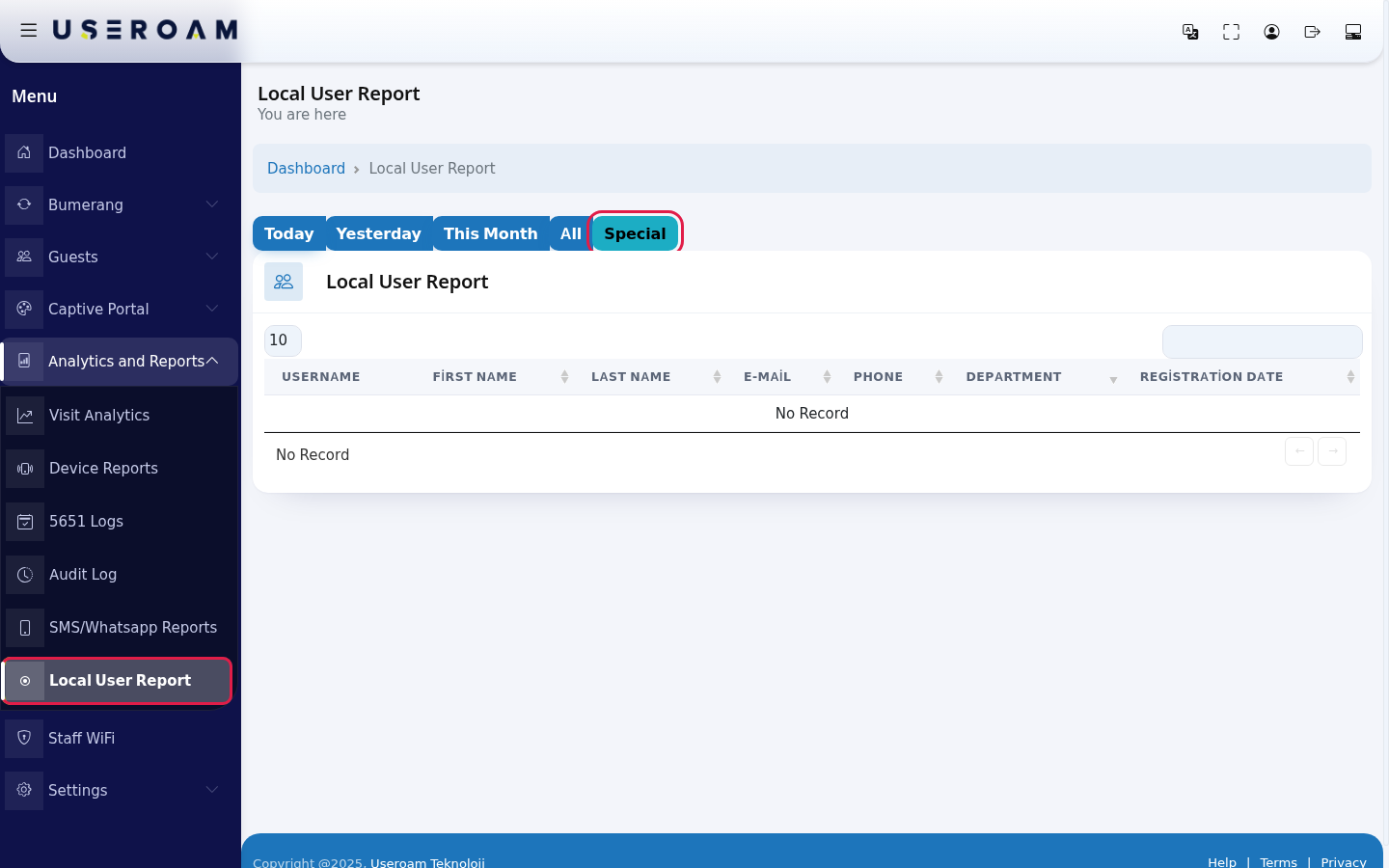
- Review the table; find an account with the search box.
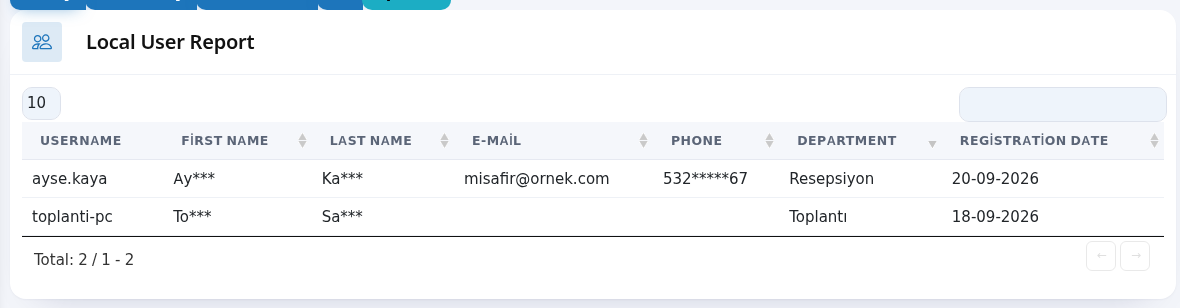
Every field and button on the screen
| Field / Button | What it does |
|---|---|
| Top of the page | The heading Local User Report with You are here under it; Dashboard in the path line returns to the home screen. While the table loads it shows Processing..., with no records No Record; All in the number box shows every row. |
| Today, Yesterday, This Month, All, Special | Period choice. |
| Start Date, End Date, Filter Type (Registration Date / Last Login), Save | Custom range. |
| Username, First Name, Last Name, E-Mail, Phone, Department | Account details. |
| Registration Date | The day the account was created. |
| Search box, number box, Total | Search, rows per page and total records. No Record if empty. |
Frequently asked questions
The report is empty.
No local account was created or used in the selected period. Press All.