
Campaigns
What is it for?
The Campaigns (Bumerang) screen is where you manage the automatic messages that bring your guests back by themselves. You set them up once; the message goes out when a guest visits for the first time, has not come for a while, or has come a set number of times. The screen also shows how many guests came back after a campaign and roughly how much revenue that brought.
If you are setting up your first campaign, go straight to Creating your first campaign. This page covers following, editing, pausing and deleting campaigns you already have.
When do you use it?
- When you want to see how many messages your campaigns sent and how many guests they brought back.
- When you want to change a campaign's message, coupon or sending hours.
- When you want to pause a campaign for a while (for example during renovation) or remove it completely.
Before you start
- You need the Bumerang marketing package. Without it, this menu opens an introduction screen instead of the campaign list.
- Campaigns only go to guests who gave commercial message consent at Wi-Fi login. See how many you have on Opted-in Guests.
Step by step: read your campaign results
- In the left menu, under Bumerang, open the CAMPAIGN heading and click Campaigns. The dark blue summary card at the top shows Guests brought back by Bumerang (last 14 days) and the Estimated extra revenue. The four boxes below: Messages sent, Returning guests, Return rate, Active campaigns.
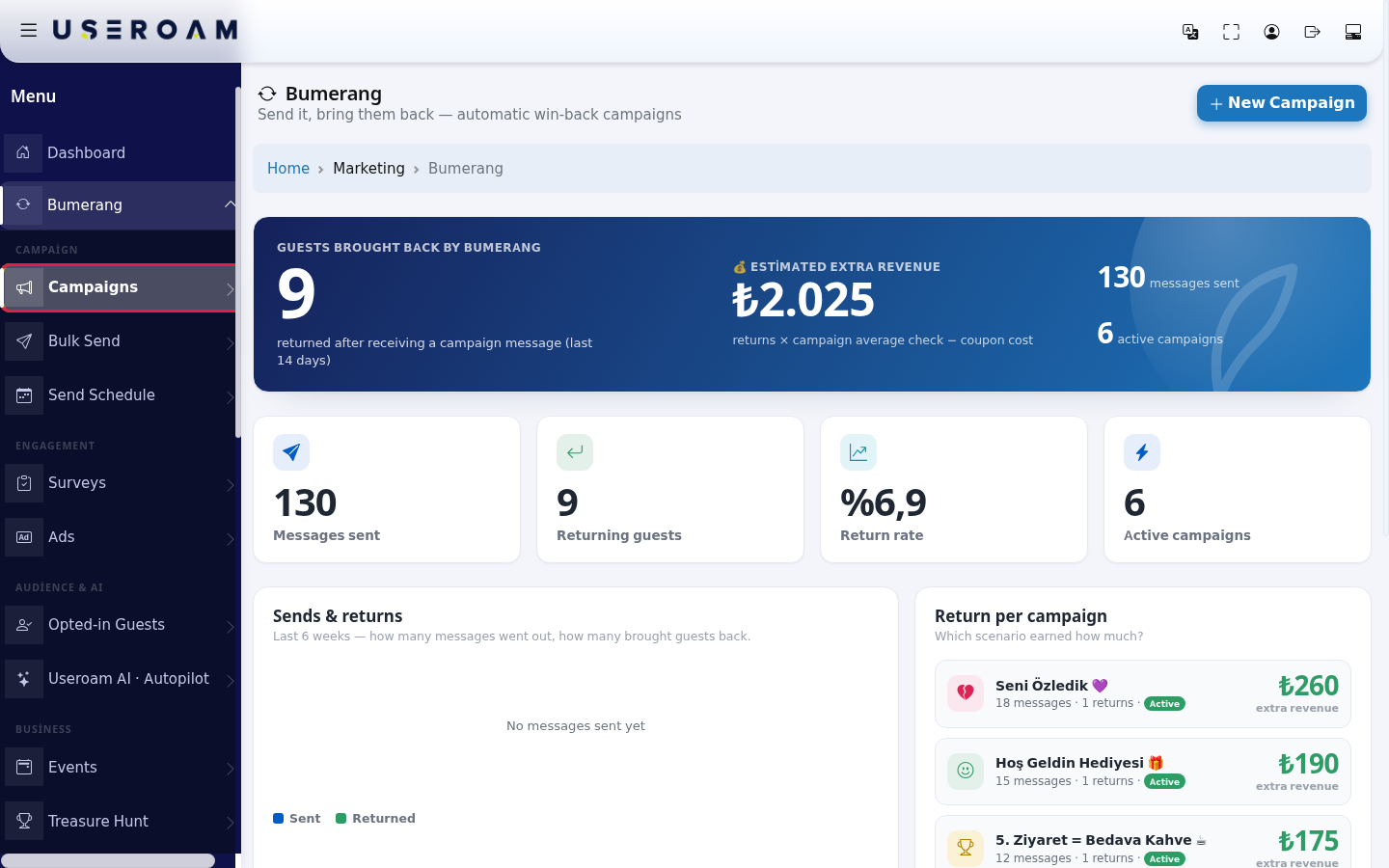
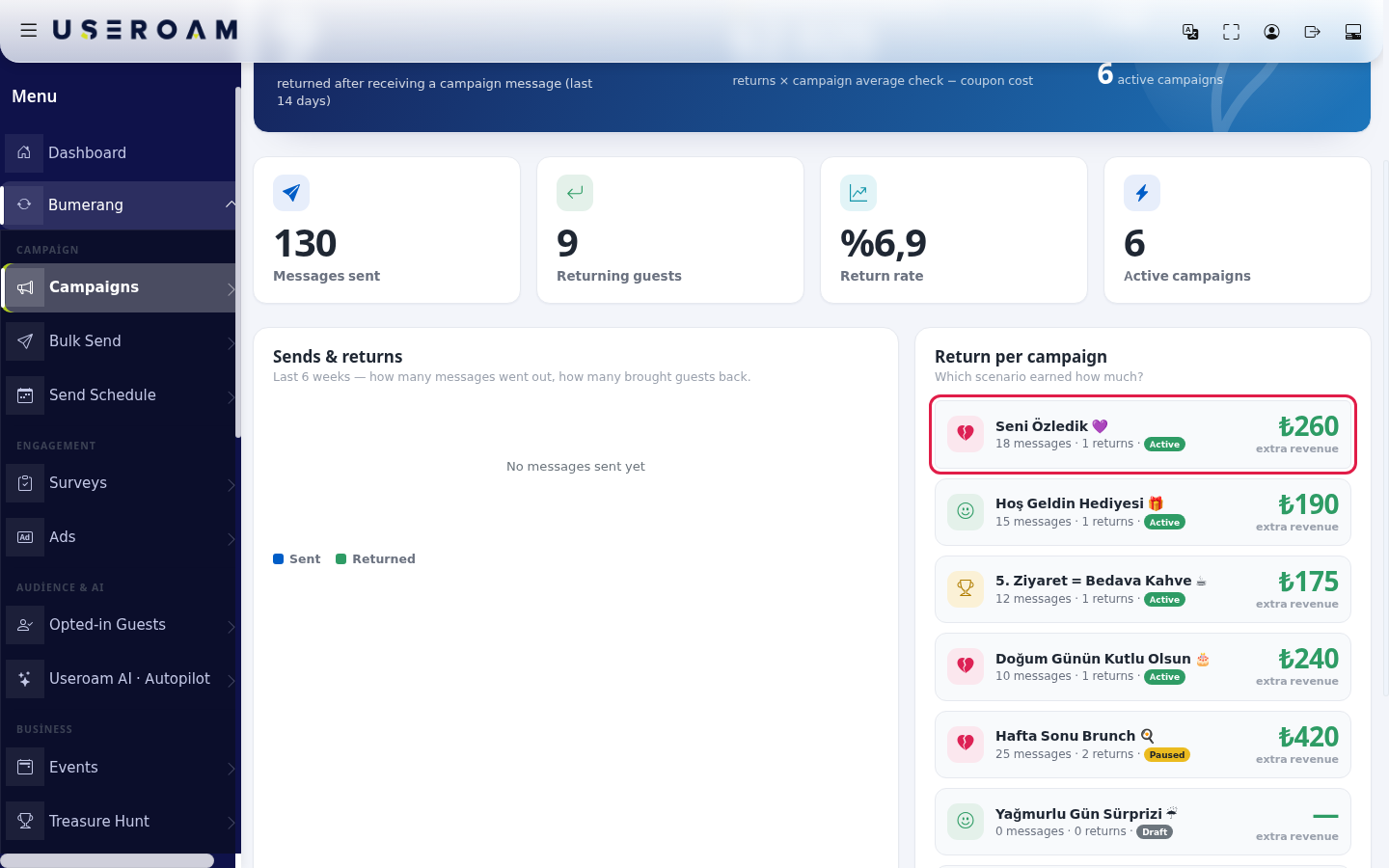
- In the Return per campaign list on the right, each campaign is a row: its name, how many messages went out, how many returns there were, a status badge (Active, Paused, Draft, Archive) and the extra revenue on the right. Click a row for details.
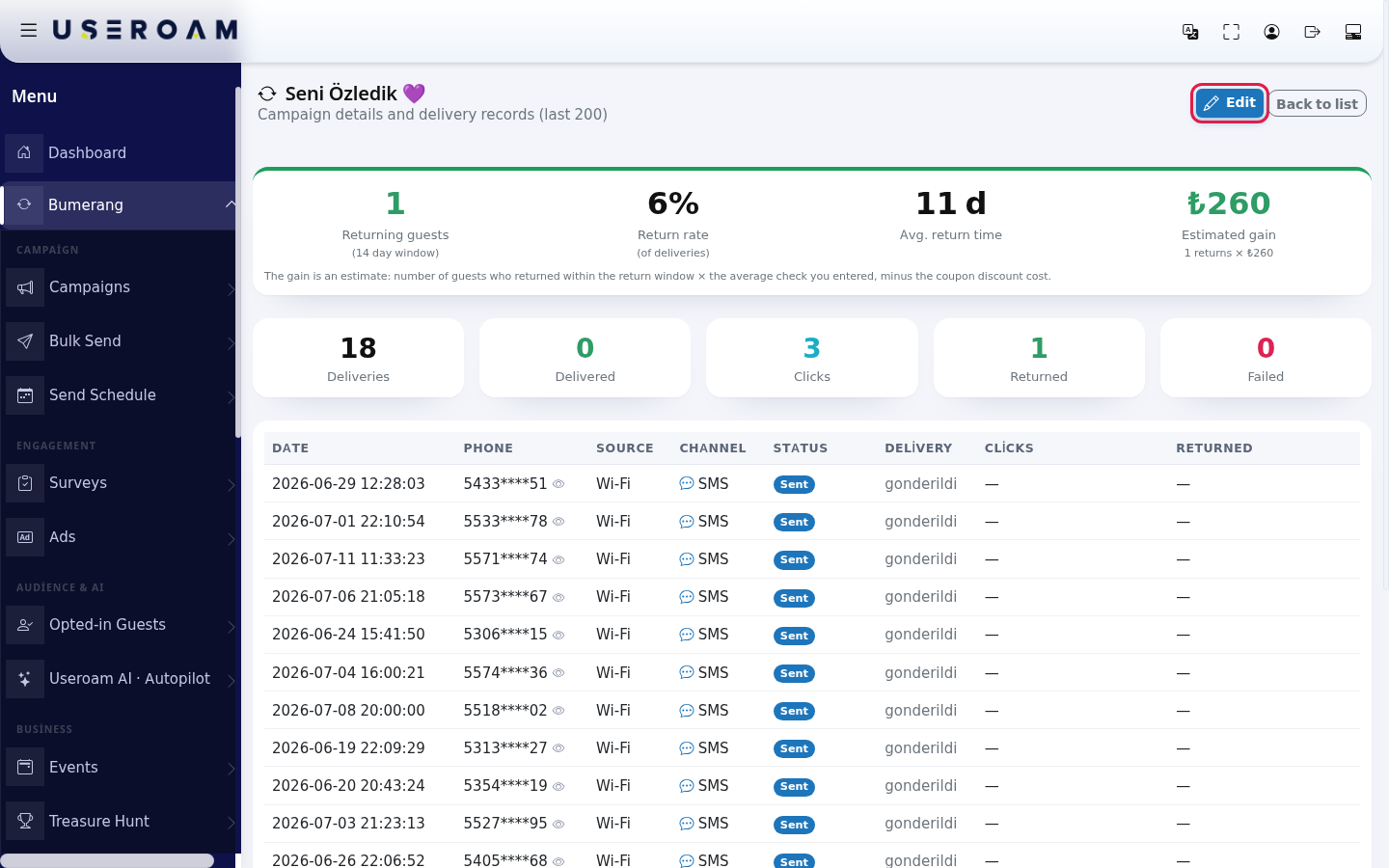
- The campaign details screen opens. At the top: Returning guests (14 day window), Return rate (of deliveries), Avg. return time and Estimated gain; below: Deliveries, Delivered, Clicks, Returned, Failed and the list of the last 200 deliveries. To make changes press Edit at the top right; to go back press Back to list.
Step by step: edit, pause or delete a campaign
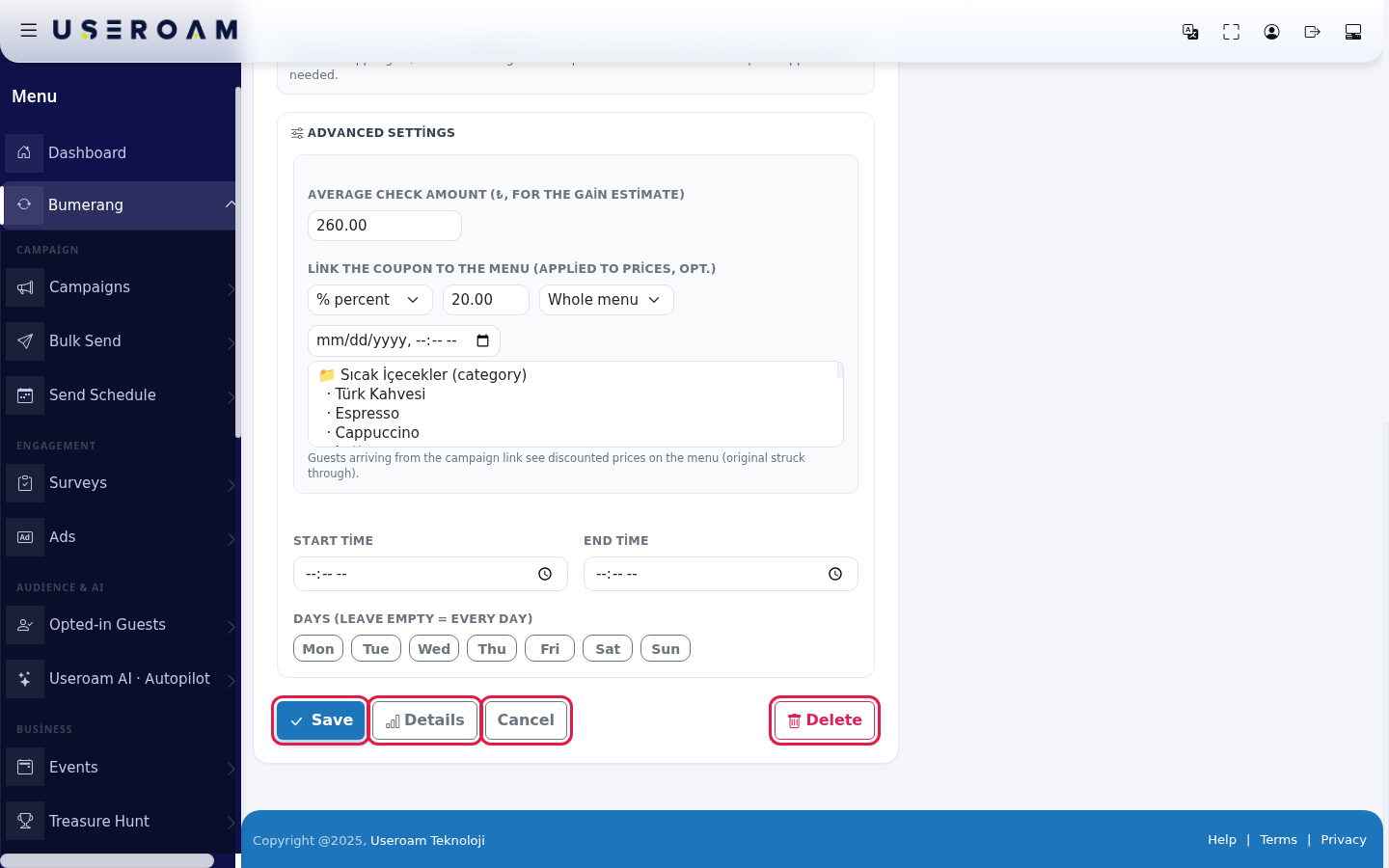
- On the Edit Campaign screen you can change the Campaign name, the When? value and the Message to send. To pause the campaign, choose Paused in Status; to start it again choose Active (running). Draft and Archived send nothing either.
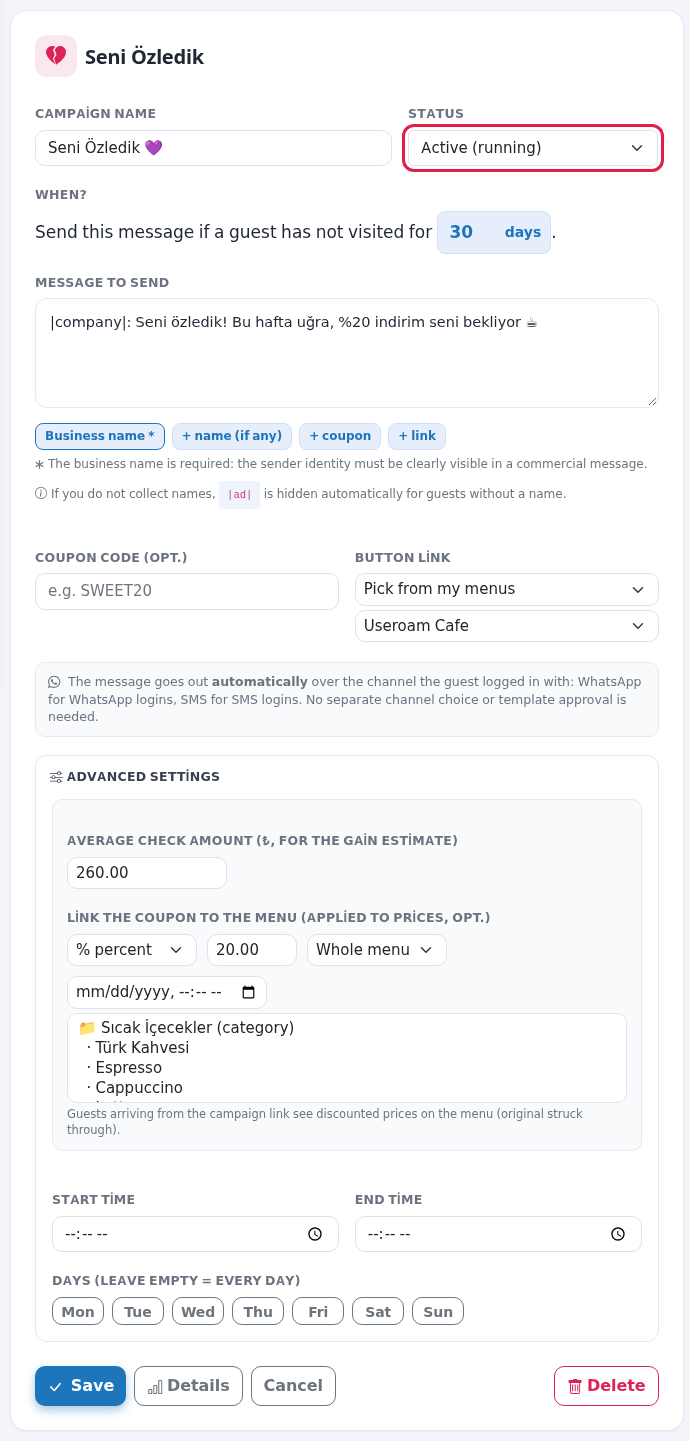
- Under Advanced settings, enter the Average check amount (₺, for the gain estimate) (example:
350); the gain is calculated with this value. If you gave a coupon, use Link the coupon to the menu (applied to prices, opt.) to tie the discount to the menu: No discount, % percent or ₺ amount; scope Whole menu, Selected categories or Selected products; Expiry (empty = unlimited). To limit sending to certain hours and days, use Start time, End time and Days (leave empty = every day) (Mon, Tue, Wed, Thu, Fri, Sat, Sun).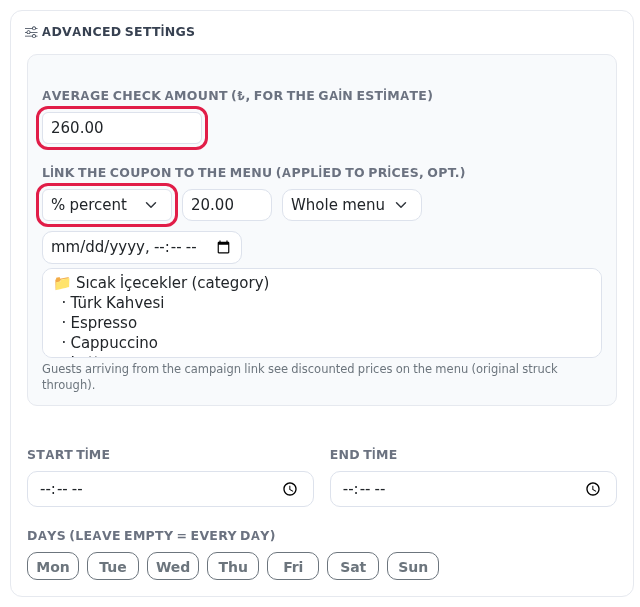
- Press Save; "Saved." appears at the top of the screen. Details opens the campaign details, Cancel leaves without saving. To remove the campaign completely, press the red Delete and confirm "Delete this campaign and all of its delivery records? This cannot be undone." To keep past reports, choose the Archived status instead of deleting.
Campaign types
| Type | When does it go out? | Default |
|---|---|---|
| Welcome (Hoş Geldin) | A set number of minutes after a guest connects for the first time. Goes to each guest once. When you switch it on, only guests who came for the first time in the last 24 hours count; older guests do not get a mass message. | 30 minutes |
| We Missed You (Seni Özledik) | When a guest has not visited for a set number of days. It does not go to guests who have been away for more than 180 days. | 30 days |
| Loyalty (Sadakat) | When a guest visits for the set th time. Goes to each guest once. | 5th visit |
Fields on the screen
| Field | Meaning |
|---|---|
| Title and path | Under the title: "Send it, bring them back: automatic win-back campaigns". The path at the top (Home, Marketing, Bumerang) takes you back to earlier screens. |
| Guests brought back by Bumerang | "returned after receiving a campaign message (last 14 days)". Next to it the number of messages sent and active campaigns. |
| Estimated extra revenue | |
| Chart subtitle | "Last 6 weeks: how many messages went out, how many brought guests back." |
| Page tour | Two steps on first opening: Create a campaign ("Create a new trigger campaign here: write your message, add the coupon and menu link.") and Campaign card ("Each card is a campaign: status, sends, clicks and returns. Click a card for details."). |
| Hints on the edit screen | The preview on the right and the tour texts are described on Creating your first campaign. Grey examples in the boxes: "e.g. SWEET20" for the coupon, "e.g. 350" for the average check. |
| Details: subtitle | "Campaign details and delivery records (last 200)". Under the gain card: "The gain is an estimate: number of guests who returned within the return window × the average check you entered, minus the coupon discount cost. |
| Sends & returns chart | Last 6 weeks: weekly Sent and Returned. With no sends it says "No messages sent yet". |
| Return per campaign | "Which scenario earned how much?" Each row shows messages, returns, status and extra revenue. |
| "No campaigns yet" | Shown when there are no campaigns: "Set it up once and let guests return on their own. Pick a ready recipe, fill it in, and go live." Press Set up → on one of the recipe cards below it. |
| Details: Estimated gain | Calculated as "returns × average check"; the discount is deducted for coupon returns. If the average check is empty it says "For a gain estimate enter the average check amount". |
| Details table | Columns: Date, Phone (masked), Source (Wi-Fi or Hotel), Channel, Status, Delivery, Clicks, Returned. With no sends it says "No deliveries yet." |
| Status badges | Pending (queued), Sent, Failed, Clicked (the guest pressed the button), Returned (the guest came back within 14 days). |
| Delivery column | On WhatsApp Read, Delivered or Not delivered; on SMS Delivered or Not delivered. If the operator has not reported yet, the raw Turkish status (for example "gonderildi") is shown. |
| Custom URL warning | "With a custom URL the coupon cannot be linked to a menu: that menu is not your Useroam menu, so discount settings are not saved." If the button link is your own website, the discount settings are not used. |
| Scope selection | If the scope is Selected categories or Selected products, pick from the list ("Select if the scope is category/product (Cmd for multiple)"; Ctrl on Windows). Categories are marked "(category)". "Guests arriving from the campaign link see discounted prices on the menu (original struck through)." |
Warnings when saving
| Warning | What to do |
|---|---|
| "The campaign name cannot be empty." | Give the campaign a name. |
| "The business name is required in the message. Please add the |company| placeholder." | Press the Business name tag under the message; the sender must be clearly visible in a commercial message. |
| "The message uses |link|; fill in the Link field or remove |link| from the message." | Choose a menu in Button link, or delete the link tag from the message. |
| "You used |kupon| in the message but the coupon code is empty. Enter a coupon code or remove the |kupon| tag from the message." | Fill in Coupon code, or delete the tag. |
| "Error: …" | The save failed; read the message, refresh the page and try again. |
Frequently asked questions
My campaign is active but no message went out.
There may be no consented guests (see Opted-in Guests), or you are outside the hour and day limits. Welcome only goes to new guests; it does not go to guests from before you switched it on.
Does the message go by SMS or WhatsApp?
Over the channel the guest logged in to Wi-Fi with: WhatsApp for WhatsApp logins, SMS for SMS logins. No separate channel choice or template approval is needed. On WhatsApp the message goes into a fixed template and the link becomes a button.
Why is the estimated extra revenue zero?
The campaign has no average check amount. Open Advanced settings with Edit and enter it.
Does the same guest get the message again and again?
Welcome and Loyalty go to a guest once. We Missed You can go again if the guest stays away for a long time again.
I deleted a campaign and its reports are gone.
Delete also removes all delivery records and cannot be undone. Use Paused to stop and Archived to keep.
Related pages
- Creating your first campaign
- Bulk Sending (one-off announcement)
- Sending Calendar
- Bumerang Reports