
Bulk Users
What is it for?
Bulk Users letscreates many Wi-Fi user names and passwords in one go. The accounts download as printable PDF cards that you hand out to guests, training participants or event visitors.
When do I use it?
- You need dozens of accounts for a training, meeting or event.
- You want to give guests Wi-Fi with a card, without phone verification.
- You want to adjust how the cards look for your business (
generateBiletmanyTasarımı, ticket design).
Before you start
- You need a group for the accounts' time and speed rules. If you have none, create one on Groups first.
- For guests to sign in with a user name and password, that sign-in must be on for your login screen. If your login screen has no such boxes, contact support.
Step by step: creating bulk accounts
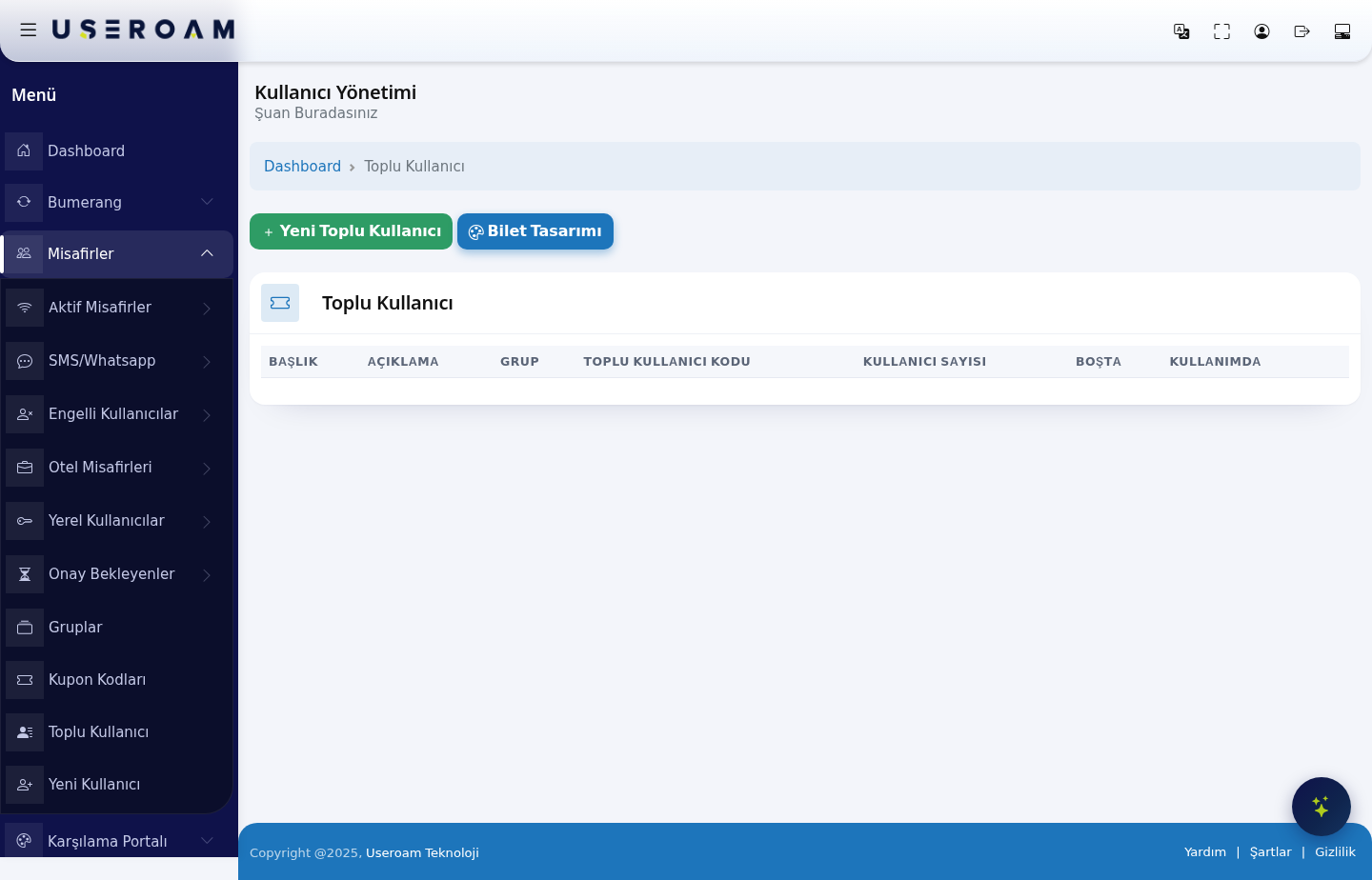
- In the left menu open Guests
insteadand click Bulk Users. Press the green New Bulk Users button.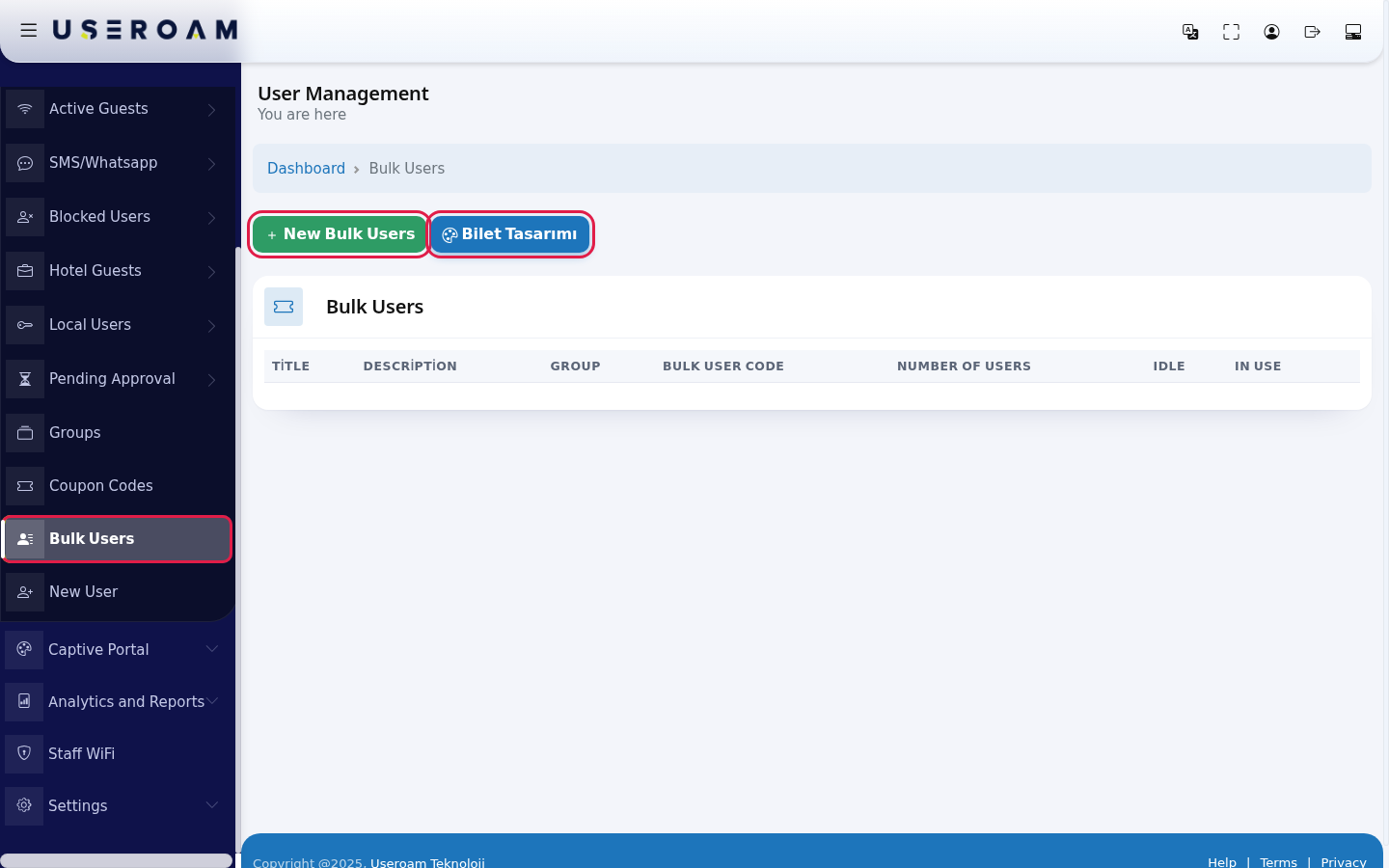
- Fill in the form: Title (example:
Meeting-Room), Description, Number ofcreatingUsersthem(example:20), Character Length (6 by default) and Character Type (All, Letters Only, Numbers Only). While Single Password is on (the default), all accounts share onebypassword;one.turnItit off for a separate password per account. Pick Group and PDF Language and press Save.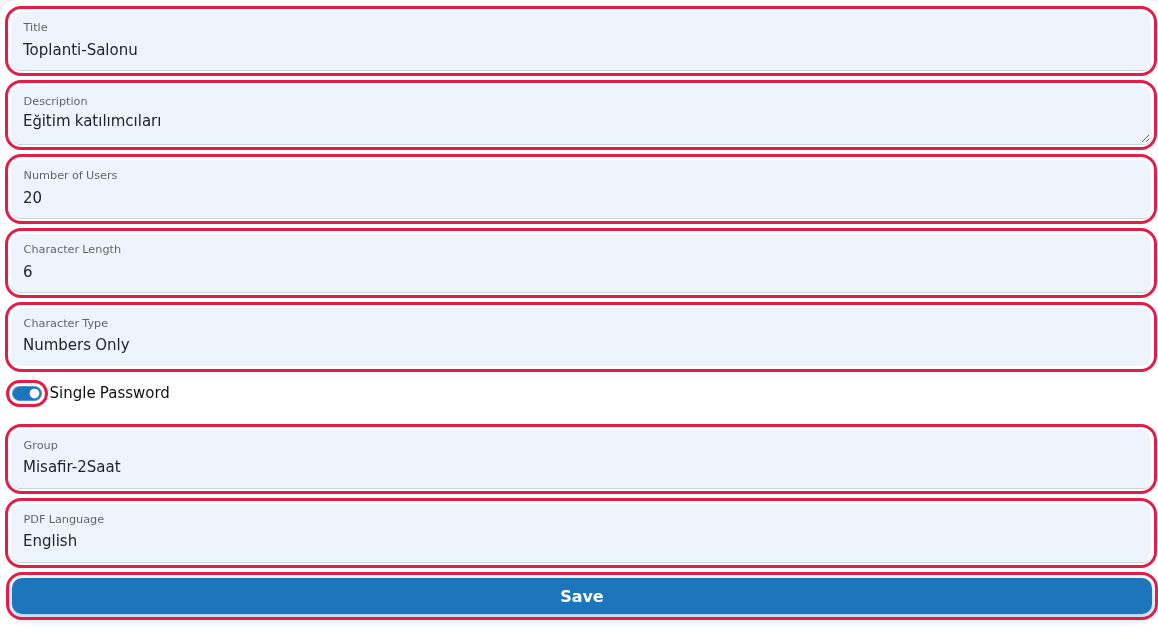
- The new batch appears in the list. Download and print the cards with the blue PDF button on the row. Idle is the
practicalnumberwayoftounusedgiveaccounts,accessIntoUselargethegroupsused—ones.conferenceTheattendees,redcampbuttonordeleteshoteltheperiods,batchcorporateandtrainingitssessions.accounts.
Step by step: changing the card design (Bilet Tasarımı)
This screen is in Turkish only; the English names below are for guidance.
- Press
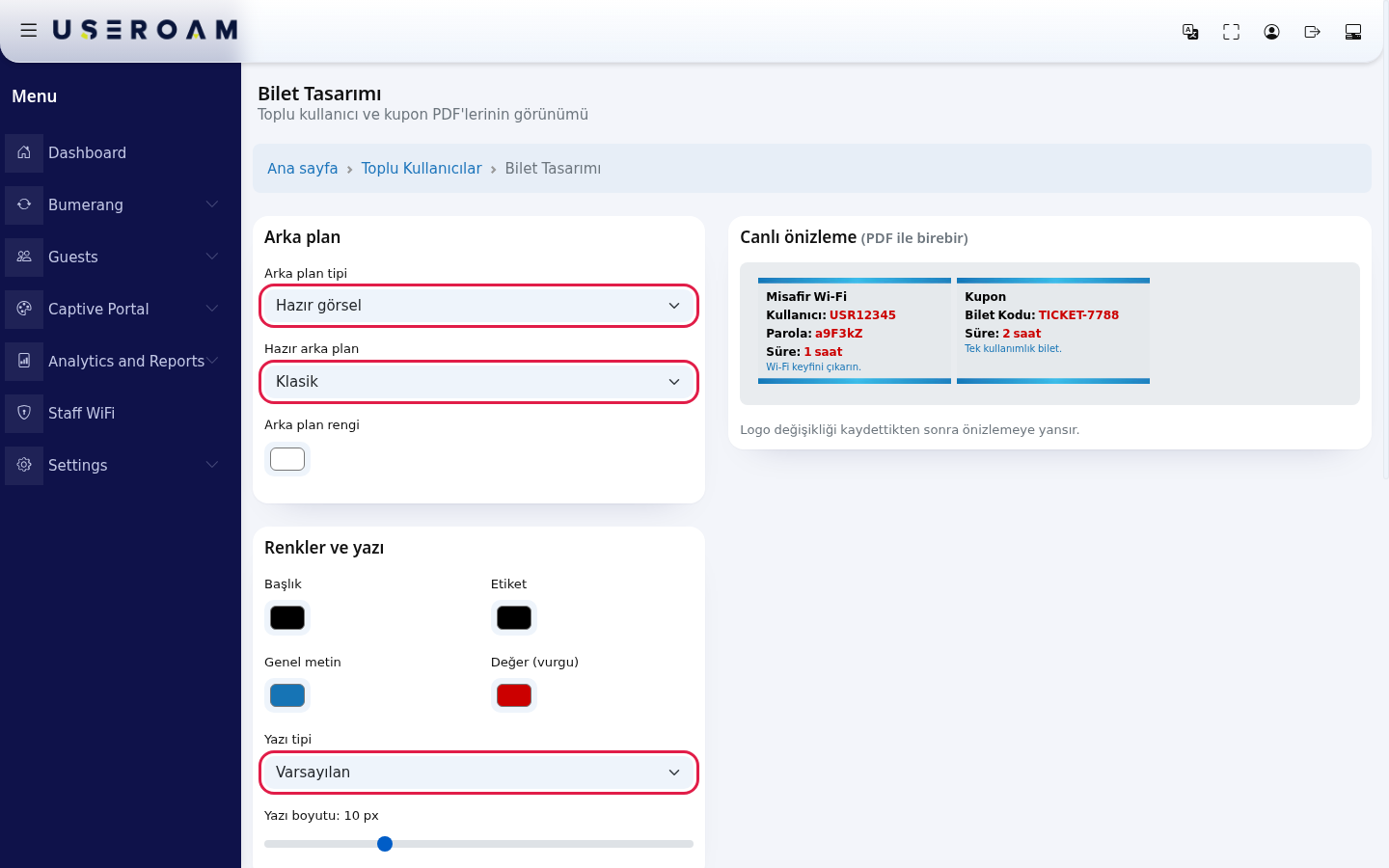
HowBiletdoTasarımıIabove the list. Settings openthis screen?Fromon the leftmenu,andgoCanlı önizleme (PDF ile birebir) (live preview, same as the PDF) on the right. In the Arka plan (background) card choose Arka plan tipi (Hazır görsel ready image or Düz renk plain colour), Hazır arka plan (Klasik, Çerçeve, Limon Köşe, Lacivert Köşe, Degrade or Görselsiz (düz renk)) and Arka plan rengi (background colour). In Renkler ve yazı (colours and text) set the Başlık (title), Etiket (label), Genel metin (body text) and Değer (vurgu) (value, highlight) colours, the Yazı tipi (font) and Yazı boyutu (font size).
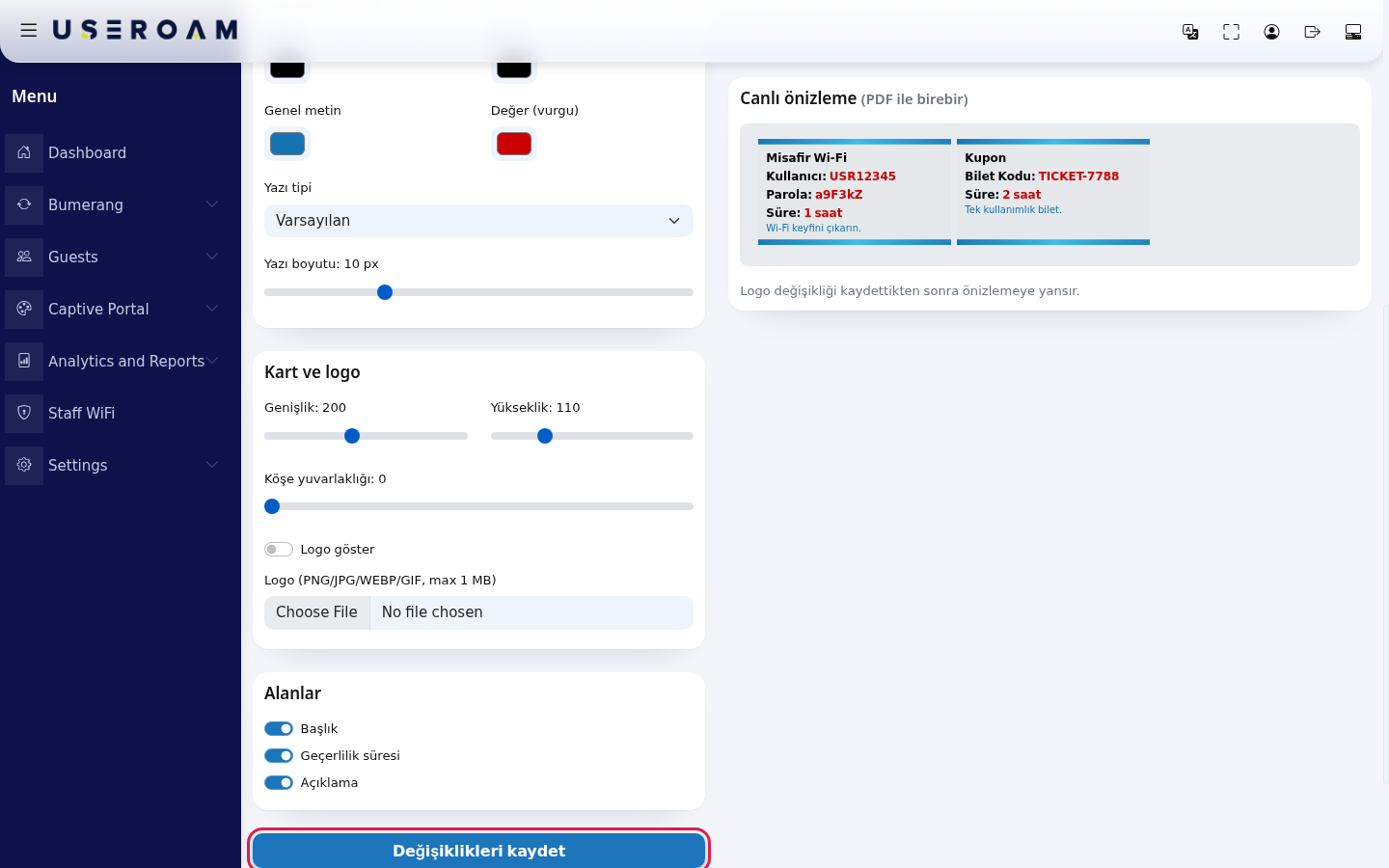
- In Kart ve logo (card and logo) slide the card's Genişlik (width), Yükseklik (height) and Köşe yuvarlaklığı (corner radius); to show your logo, turn on
GuestsLogo→göster and choose the Logo (PNG/JPG/WEBP/GIF, max 1 MB) file. In Alanlar (fields) choose whether Başlık (title), Geçerlilik süresi (validity) and Açıklama (description) appear on the card. Press Değişiklikleri kaydet (save changes). The design is used for both bulk user and coupon PDFs. A logo change shows in the preview after saving.
Every field and button on the screen
Field / Button What it does New Bulk Users .
Table columns
TITLE:Opens the namecreation form.Bilet Tasarımı Opens the PDF card design screen. Title, Description Name and note of the bulk-batch.Number of Users How many accounts to create. 10 by default. Character Length, Character Type Length and characters of user batch.namesand passwords. DESCRIPTION:Single PasswordWhen freeon,textalldescribingaccountsthesharebatch.onepassword. GROUP:Groupthe group the generated users belong to. Duration, quotaTime and speed rules come from it.BULK USER CODE:of thecodeaccounts.identifyingthe batch.USER COUNT:Languagethe total number of accounts generated.IDLE:how many accounts nobody has used yet.IN USE:how many accounts have been taken up — this is how you see how many people actually connected during an event.
New Bulk User
Use theNew Bulk Userbutton to generate a new batch. You set the title, description,groupand the number of users to create. The system generates the usernames and passwords automatically.
Choosing the group matters:since duration and quota rules come from the group, pick one that matches the lengthLanguage of the event.textFor a two-day conference, for example, use a group with two days' validity (Guests → Groups).
Ticket Design
TheTicket Designbutton editson thetemplatecards.Save Creates the generatedaccounts.username/passwordBulk pairsUserareCodeThe printedbatch'son.systemit,Number cutofit up and hand the slips to attendees.
Related pages:Guests → GroupsUsers,Guests → Coupon CodesIdle,GuestsIn→UseTotal, LocalunusedUsersand used accounts.Blue PDF button Downloads the cards as a PDF. Red button Deletes the batch and its accounts without asking. Frequently asked questions
How does a guest with a card connect?
.
They type the details on the card into the user name and password boxes on the Wi-Fi login screen.
Single password or separate passwords?
A single password makes handing out easier; separate passwords are safer, because one person's card is useless to anyone else.
How is this different from Coupon Codes?
With Coupon Codes the guest types a single code; here they get a user name and a password.