
Groups
What is it for?
Groups are rule sets that decide how long your guests can stay connected. Every guest or user belongs to a group; when the group's Validity time runs out, the connection ends and the guest signs in again. On your firewall, rules such as speed and quota are also linked to the group name.
When do I use it?
- You want to give guests a time limit such as "2 hours of free internet".
- You want an unlimited group for staff or long-stay guests.
- To prepare the group you will choose when creating new users or bulk users.
- To change the time of an existing group or delete a group you no longer use.
Before you start
- Groups are per device: the selected device's groups are listed. For another location, change the device on the Device Selection screen first.
- The group name must be exactly the same as the user group name on your firewall; the firewall matches speed and quota rules by this name. Spaces in the name are removed when saving (example:
Guest 2 Hoursis saved asGuest2Hours). So give the name without spaces (example:Guest-2Hours). - Open Group, shown in light blue on the list, is the system's default group; it cannot be edited or deleted.
Step by step: creating a new group
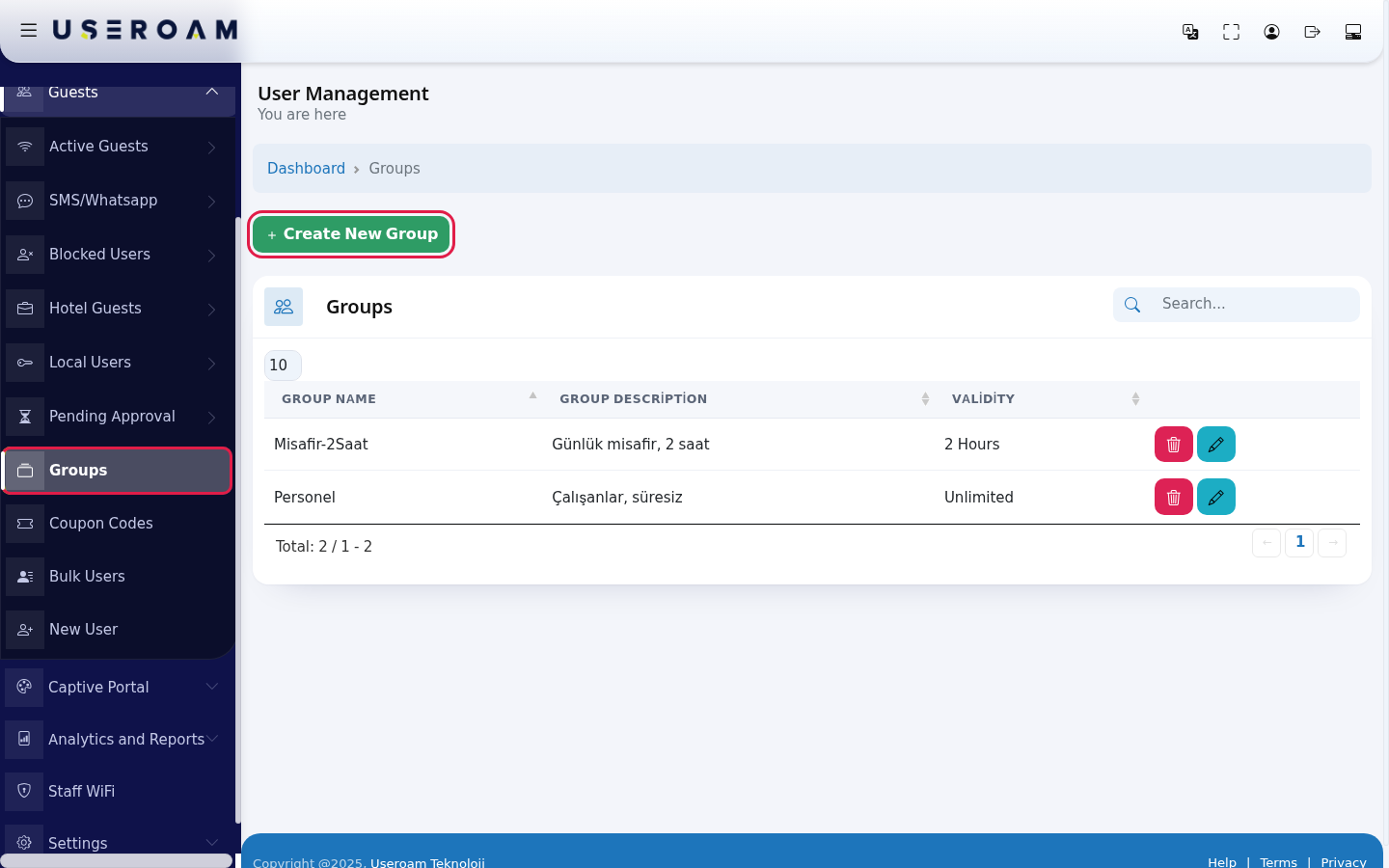
- In the left menu open Guests and click Groups. Press the green Create New Group at the top of the page.
- Fill in Group Name (example:
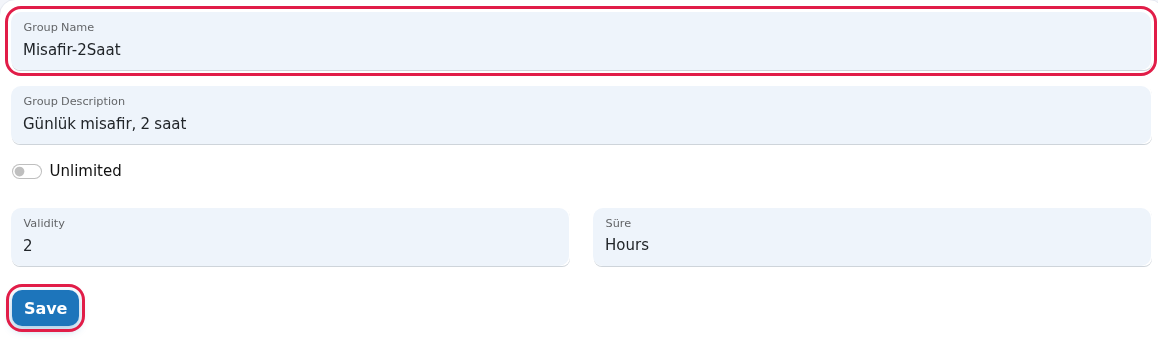
Guest-2Hours) and Group Description (example:Daily guest, 2 hours). Type a number in Validity (example:2) and pick Hours or Minutes in the Duration list next to it. Press Save. The group is added to the list.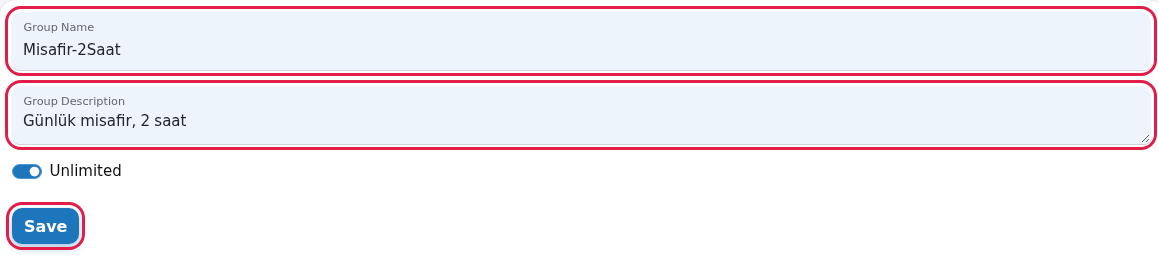
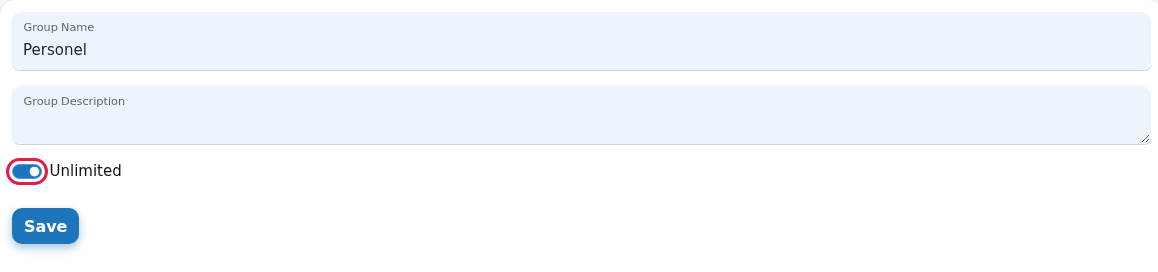
- If you do not want a time limit, turn on the Unlimited switch. The Validity box is hidden and the group has no time limit; the list shows Unlimited.
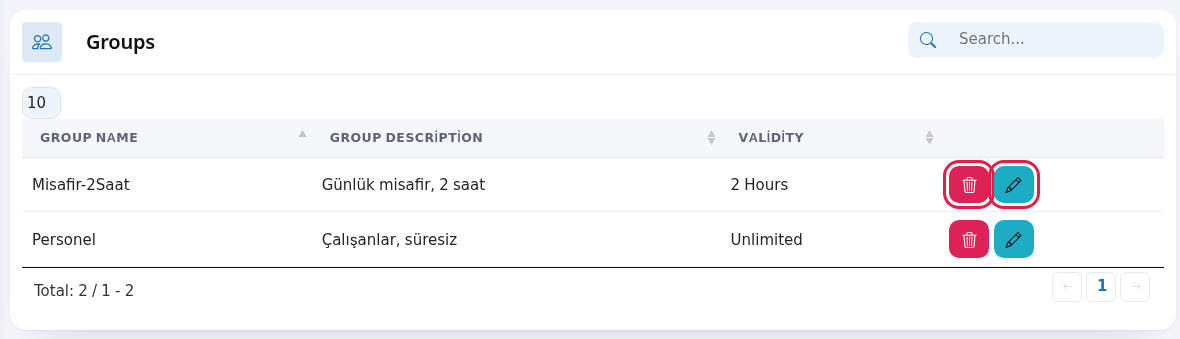
- To change a group, press the blue pencil (Edit Group) on the right of its row. To delete it, use the red trash button (Delete Group).
- On the edit screen (its heading is still Turkish: Grup Düzenleme) change the name, description or time and press Save.
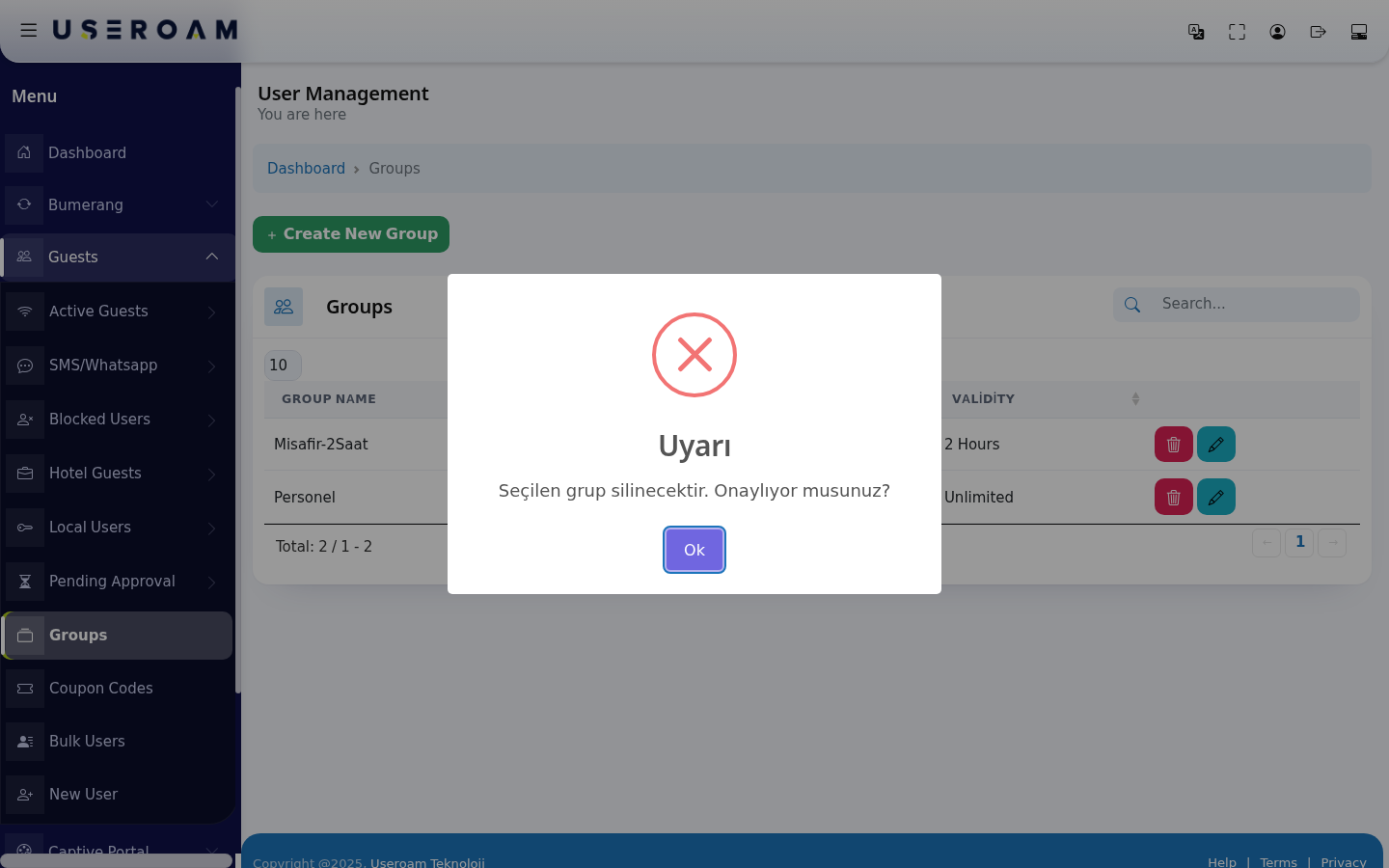
- When you press the trash button, a window asks "Seçilen grup silinecektir. Onaylıyor musunuz?" (the selected group will be deleted, do you confirm?; this window is Turkish only). Press Ok to delete. To cancel, click outside the window or press Esc.
Extra fields depending on the device
- Sophos with the firewall API connected: the form also lets you pick firewall policies: Quota (internet time), QoS (Bandwidth), Access Duration (access time) and Data Amount (data quota). Anything you do not pick stays Unlimited (no policy). The Yeni Politika (New Policy) button creates a new policy on the firewall: choose its type (QoS (Bandwidth), Internet Time, Access Time, Data Quota); for bandwidth you are asked for Limit (upper cap), Bandwidth (Mbps) and Priority (High, Low, Real time). When you save, the group is also created on the firewall with the same name. For setup see Sophos Firewall API Setup.
- MikroTik: the form shows a MikroTik Speed and Quota Settings card: Download speed and Upload speed (example:
10M), Total quota (MB), Idle timeout (min), Simultaneous devices and the advanced Profile on device and Address list. No limit is applied for fields you leave empty. These values are sent to the guest at sign-in; nothing is written to the device. - Other firewalls: only name, description and time. Define speed and quota rules on your firewall for the user group with the same name.
Every field and button on the screen
| Field / Button | What it does |
|---|---|
| Top of the page | The heading User Management with You are here under it; Dashboard in the path line returns to the home screen. While the table loads it shows Processing..., with no records No Record; All in the number box shows every row. |
| Create New Group | Opens the new group form. |
| Search... | Searches the group list. |
| Number box at the top left | Rows per page: 10, 25, 50, 100, All. |
| Group Name | Must match the group name on the firewall. Spaces are removed. Example: Guest-2Hours. |
| Group Description | A note on what the group is for. Shown in brackets next to the group name in lists. |
| Unlimited | When on, there is no time limit. |
| Validity and Duration | How long one sign-in stays valid: a number + Hours or Minutes. It shows 1 when the form opens. |
| Validity (list) | Unlimited, … Minutes or … Hours. Times longer than 60 minutes are shown in hours (example: 90 minutes is 1.5 Hours). |
| Blue pencil (Edit Group) | Opens the edit screen. |
| Red trash (Delete Group) | Deletes the group after asking. |
| Save | Saves the group and returns to the list. |
| Toplam: … / … - … | Total number of groups and the range shown (label still Turkish: "Toplam" = Total). With no groups it says No Record. |
Frequently asked questions
I pressed Save but no group was created and the form opened again.
A group with the same name may already exist on this device. The screen shows no warning in this case; check the list and use a different name.
I deleted a group. What happens to its guests?
Users and settings linked to the deleted group (for example the group selected in SMS settings) are left without a group. Before deleting, move those settings to another group.
How do I set a speed limit for guests?
From the group form on Sophos with the firewall API connected and on MikroTik; on other firewalls on the firewall's own screen, for the user group with the same name as this group.
Where are groups used?
They are chosen on the New User, Bulk Users and SMS Settings screens.