
Local Users
What is it for?
Local Users is the list of Wi-Fi accounts you created by hand in the panel (accounts created on the New User screen and Staff WiFi accounts). Here you find accounts, block or delete them, or change their password and group.
When do I use it?
- You want to see the staff or special guest accounts you created.
- You want to renew an employee's password or change their group.
- You want to close or delete the account of someone who left.
Step by step
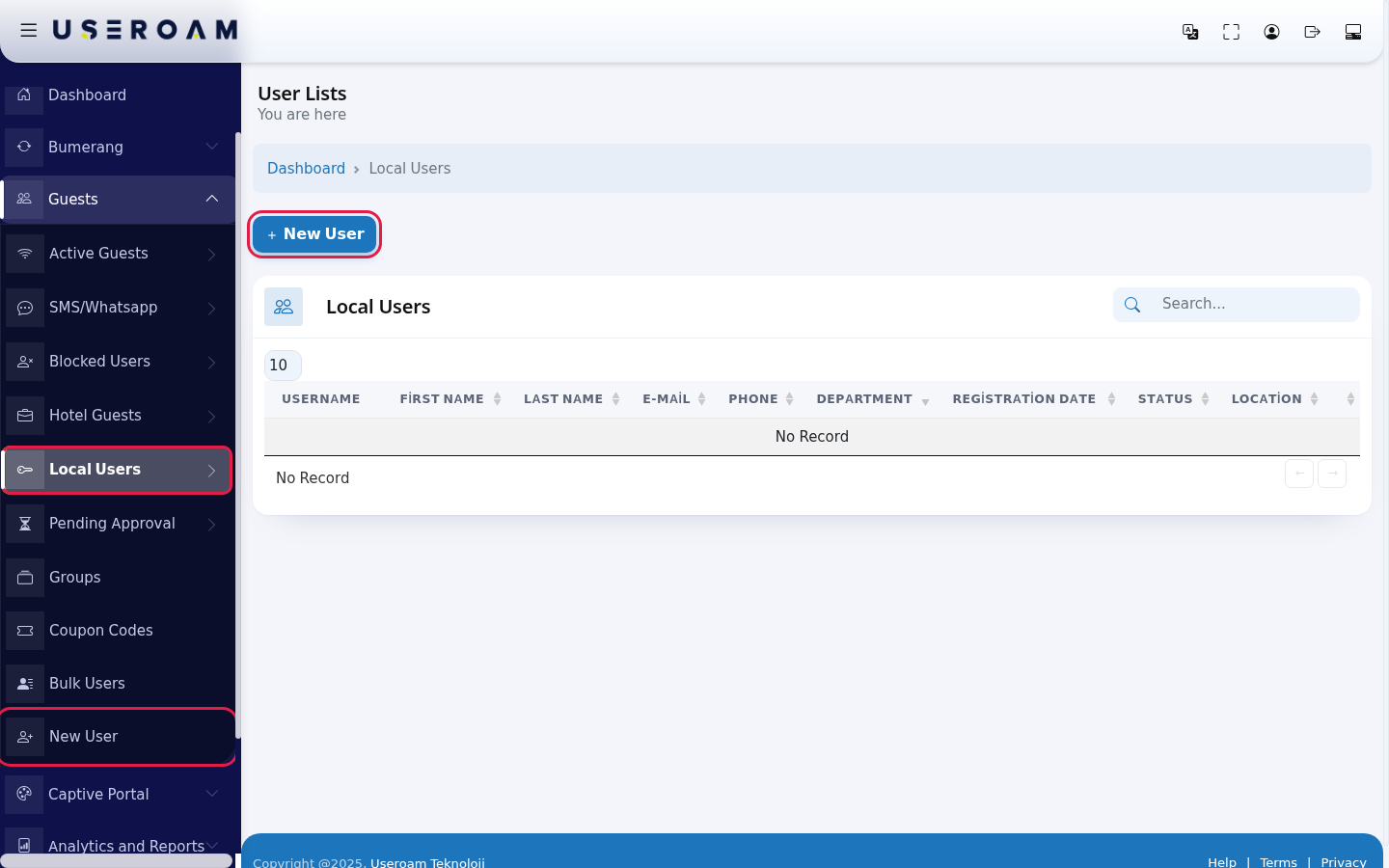
- In the left menu open Guests and click Local Users. To create a new account use the New User button at the top of the page.
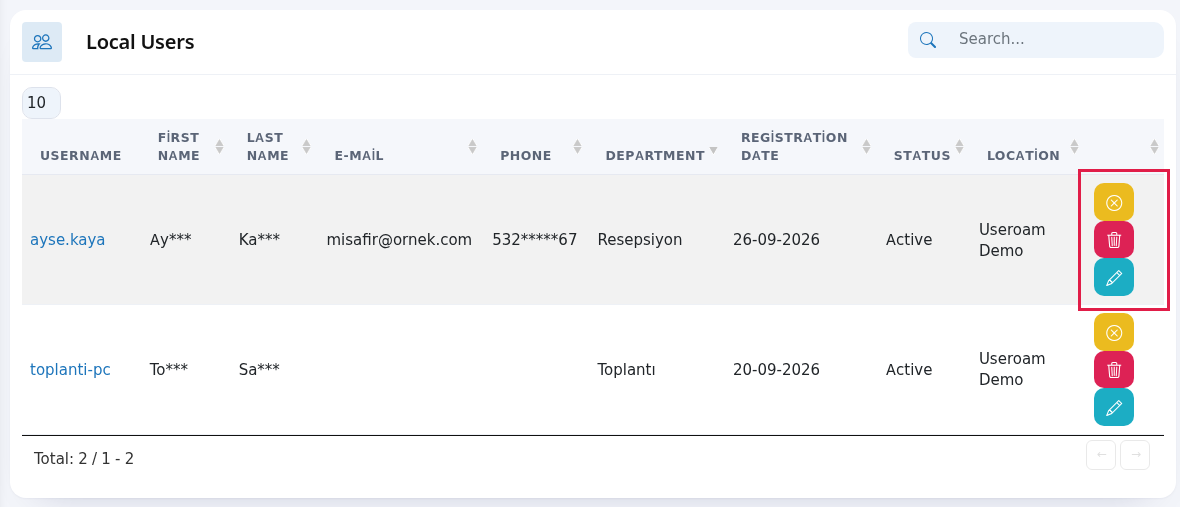
- Find the account with the Search... box. Use the buttons at the end of the row: yellow Disable User, red Delete User, blue Edit User. Password and group are changed on the Group and Password tab of the edit screen (see SMS / WhatsApp Users, steps 4 and 5).
Every field and button on the screen
| Field / Button | What it does |
|---|---|
| Top of the page | The heading User Lists with You are here under it; Dashboard in the path line returns to the home screen. While the table loads it shows Processing..., with no records No Record; All in the number box shows every row. |
| New User | Opens the new account form. |
| Username | The account's login name. Click it to open the edit screen. |
| First Name, Last Name, E-Mail, Phone, Department | Details entered when the account was created. |
| Registration Date | The day the account was created. |
| Status | Active, Passive (blocked) or Waiting for Approval. |
| Location | The device the account belongs to. |
| Yellow, red and blue buttons | Disable User / Enable User, Delete User (deletes without asking), Edit User. |
| Search..., number box, Total | Search, rows per page (10, 25, 50, 100, All) and total records. No Record if empty. |
Frequently asked questions
Why are my bulk-created users not here?
Bulk users are listed separately: Bulk Users.
Where do I see these users' connection history?
On the Local User Report screen.