
Hotel Studio
Studio (screen title Hotel Studio) is where you change the look of your guest page on a live phone preview: style, accent colour, font, background and button look, cover photo and logo. You can also edit request types and hotel information in place on the preview. Every change is saved immediately.
Studio, Portal Design and Guest Portal
- Studio changes the appearance (colour, font, background, cover). The same settings are on the Design tab of Portal Design; both use the same setting, so a change in one appears in the other.
- The Studio preview shows the classic layout of the page. If you built a block layout in Portal Design, the order of the cards is set there; your Studio changes to colour, font, background, cover, logo and hotel name still apply to the guest page, and request types and hotel information show in their blocks.
- Phone, fee, language and QR settings are on the Guest Portal screen.
When do you use it?
- To match the portal to your hotel's colours and feel.
- To change the cover photo or find a free image.
- To quickly fix the names and order of request types or hotel information.
Step by step
- Open Studio. In the left menu press Hotel → Studio, or the purple Studio button on the Guest Portal screen. Studio opens full screen, without the panel menu. The phone preview is in the middle, the tool strip and the panel of the selected section on the left. The top shows the hotel name, Studio and the save status (Ready, Saving…, Saved).
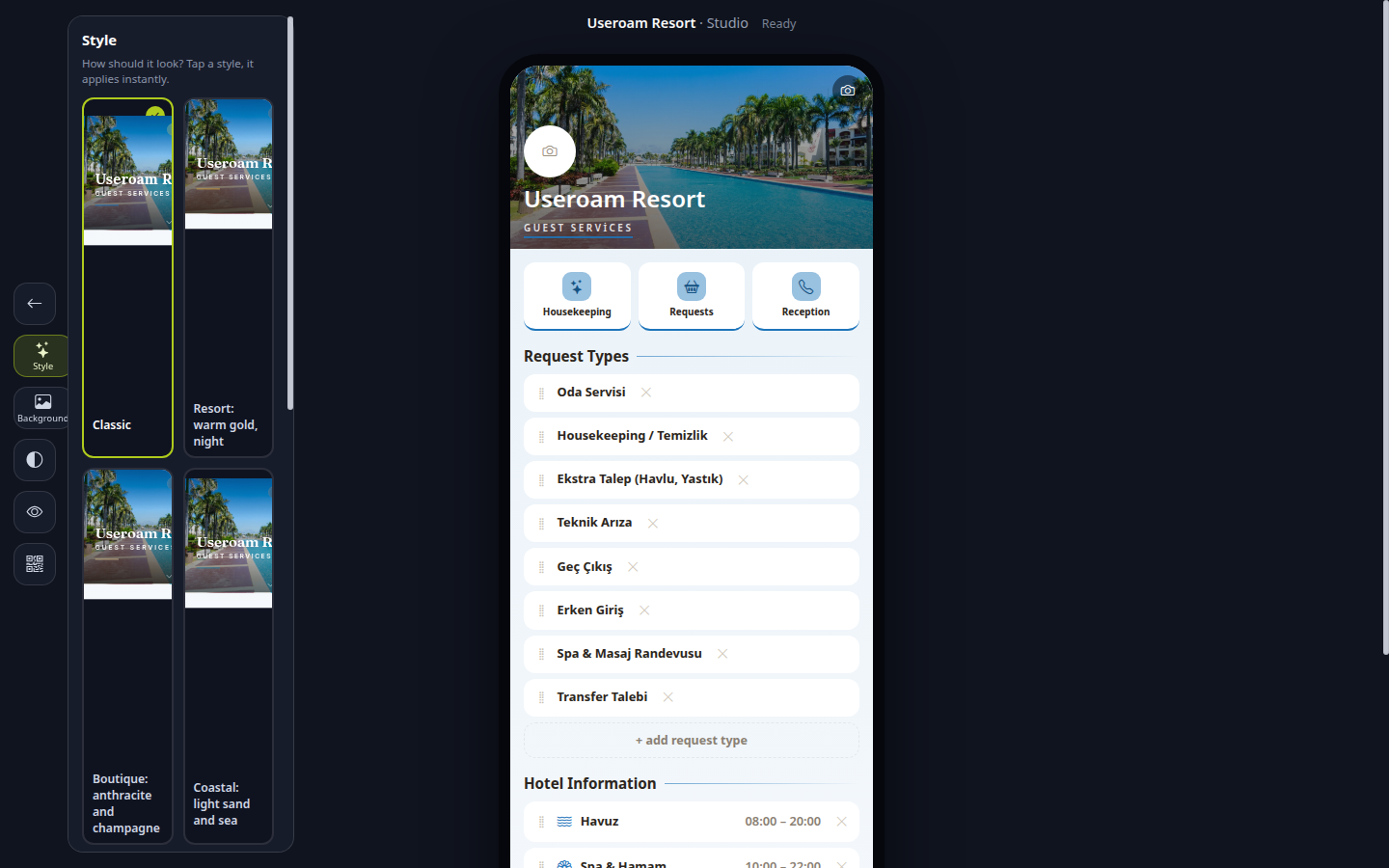
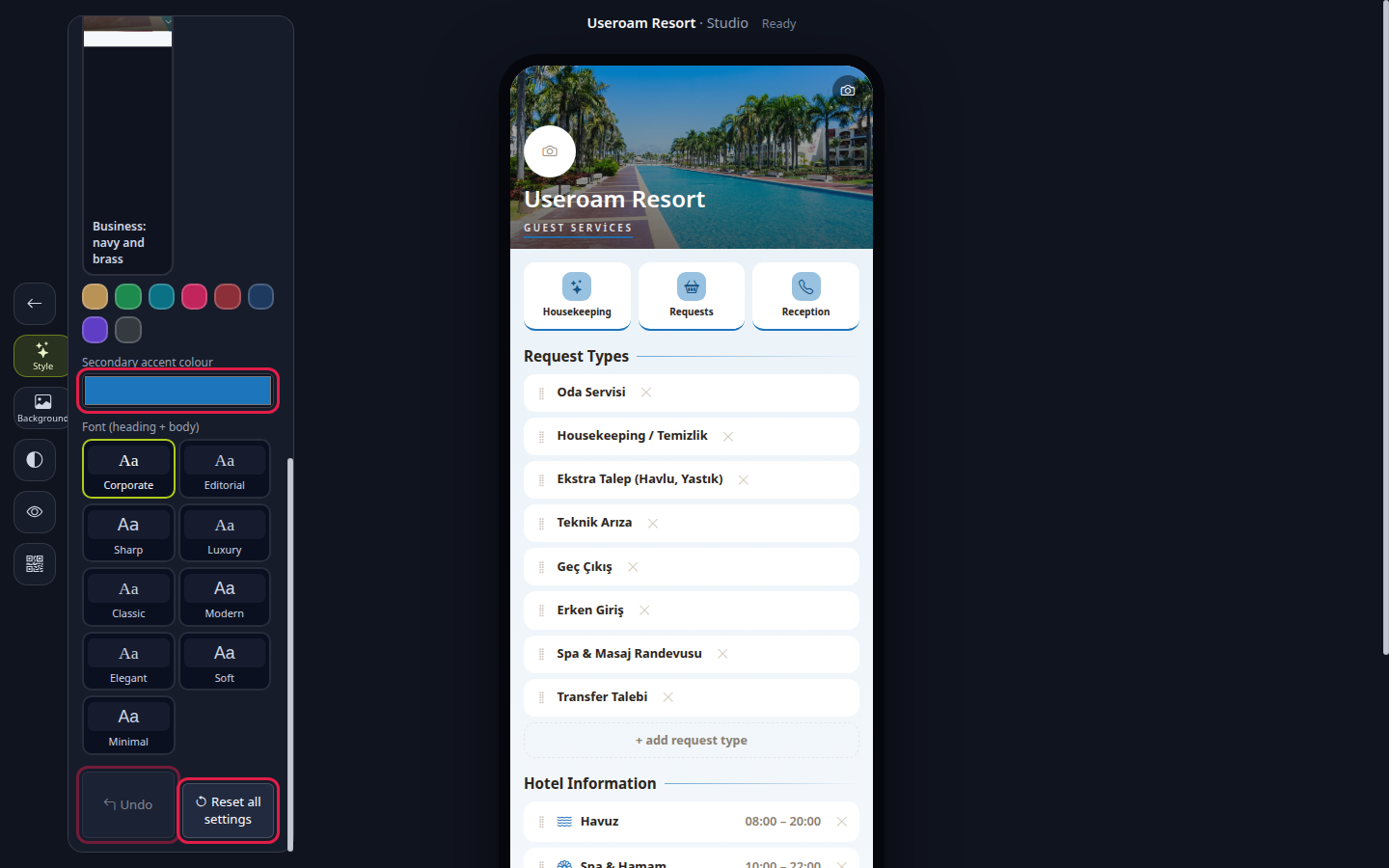
- Pick a style. Press Style on the strip (How should it look? Tap a style, it applies instantly.). Tap one of the ready styles: Classic, Resort: warm gold, night, Boutique: anthracite and champagne, Coastal: light sand and sea, Business: navy and brass. Below, choose the accent colour from the palette, the Secondary accent colour and the Font (heading + body) pairing. At the bottom, Undo reverses the last change (Last change undone) and Reset all settings returns the theme to default on the second tap (Are you sure? Tap again, then Theme reset to default).
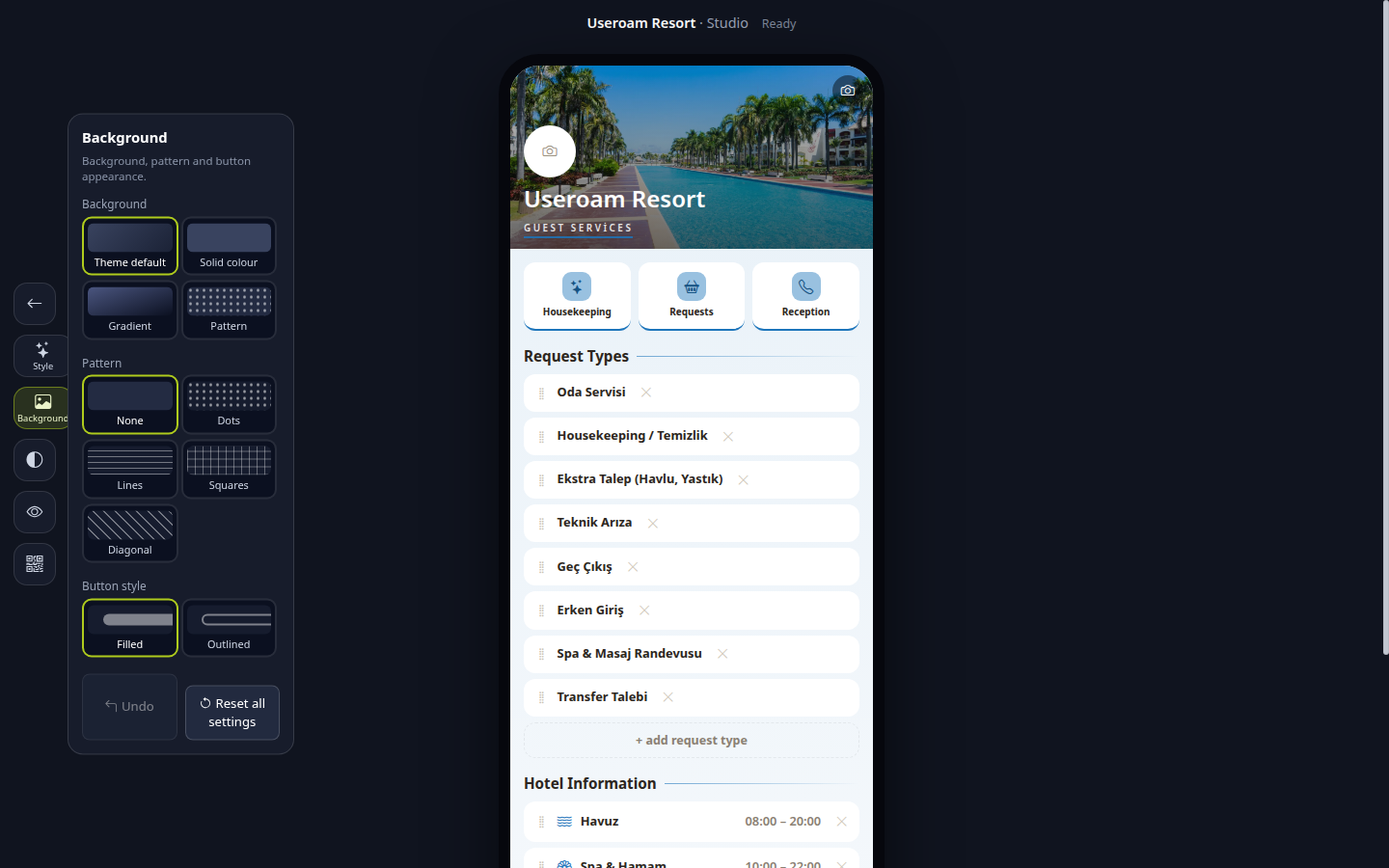
- Set the background. Press Background on the strip (Background, pattern and button appearance.). Background: Theme default, Solid colour, Gradient, Pattern. Pattern: None, Dots, Lines, Squares, Diagonal. Button style: Filled or Outlined.
- Change the cover photo. Tap the cover on the preview (Tap: cover photo). In the Change photo window choose Upload my own photo or Suggest a free image. Free images come from Openverse (Openverse · CC0 / public domain.); type a word (e.g. pool, spa, lobby) such as
pool,spaorlobbyand tap an image. To change the logo, tap the logo circle (Tap: logo).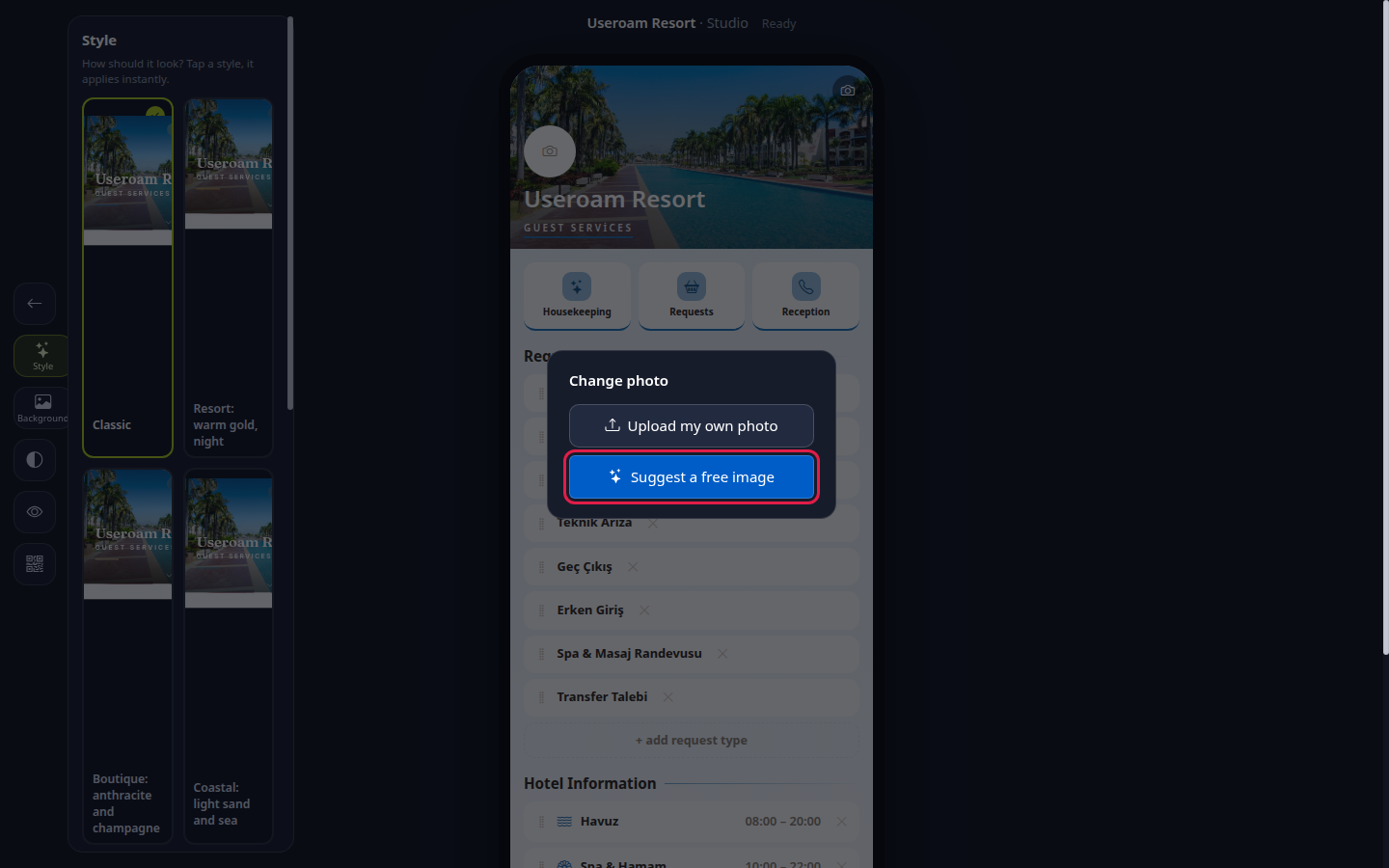
Edit texts in place. On the preview you see the classic layout's shortcut cards (Housekeeping, Requests, Reception) and Guest Services on the cover. Tap the hotel name and type. In the Request Types and Hotel Information rows tap the text to fix it, drag by the handle on the left to reorder and remove with the cross; tapping an icon changes it (Tap: change icon). For a new row press + add request type or + add information. A reminder sits below the preview: Tap the text and type. Drag rows by the handle. Tap the cover and logo to change them.
Tool strip
| Button | What it does |
|---|---|
| Left arrow (Back to classic management) | Returns to the Guest Portal screen. |
| Style | Style, colour and font panel. |
| Background | Background, pattern and button panel. |
| Half circle (Light / Dark appearance) | Switches the page to light or dark and saves (Dark appearance / Light appearance). |
| Eye (Live guest page) | Opens the page guests see in a new tab. |
| QR (Room QR (in classic management)) | Opens the Guest Portal screen where QR labels are made. |
Status and error texts
| On screen | Meaning |
|---|---|
| Ready / Saving… / Saved | Save status. |
| That did not work | Could not save; try again. |
| Connection problem | Check the internet connection and try again. |
| Uploading… / Downloading… | A photo is uploading or a suggested image is downloading. |
| No suggestions available right now. / Selection not found. / Could not download, try another suggestion. / Hourly search limit reached; try again later. | No free image suggestion could be fetched. Try another word or upload your own photo. |
On first open the tour shows four bubbles: Live cover (Tap the cover photo to change it; tap the hotel name to type directly.), Request types (Tap and type, drag by the handle to reorder, tap to delete.), Hotel information (Edit the hours in place; the icon changes when you tap it.), Accent colour (Tap the palette and your guest page instantly takes on the new colour.).
Frequently asked questions
Where is the Save button?
There is none; every change saves immediately. When the status at the top reads Saved, the change is on the guest page.
I messed up the theme by mistake.
Use Undo for the last change and Reset all settings for all theme settings.
Can I use the free images?
Suggestions come from images licensed CC0 or public domain.