
The hotel portal your guests see
This page describes the hotel portal that opens on the guest's phone when they scan the QR code in the room (https://menu.useroam.com/o/...). Use it when helping a guest at reception or checking your portal, to see what appears on the guest's side and why.
What is it for?
- Without installing an app, guests ask for room cleaning, towels, repairs or late check-out, make reservations and see hotel information and the menu.
- Their requests go straight to the right department (Request Management, Useroam Go).
Before you start
- The page address and QR labels: Guest Portal. Which cards appear: Portal Design. The pictures below show a sample hotel layout; your page may differ depending on your blocks.
- When sending a request or reservation, guests verify with room number and surname. For this the guest's stay must come from your hotel management system (PMS Integration).
The guest's steps
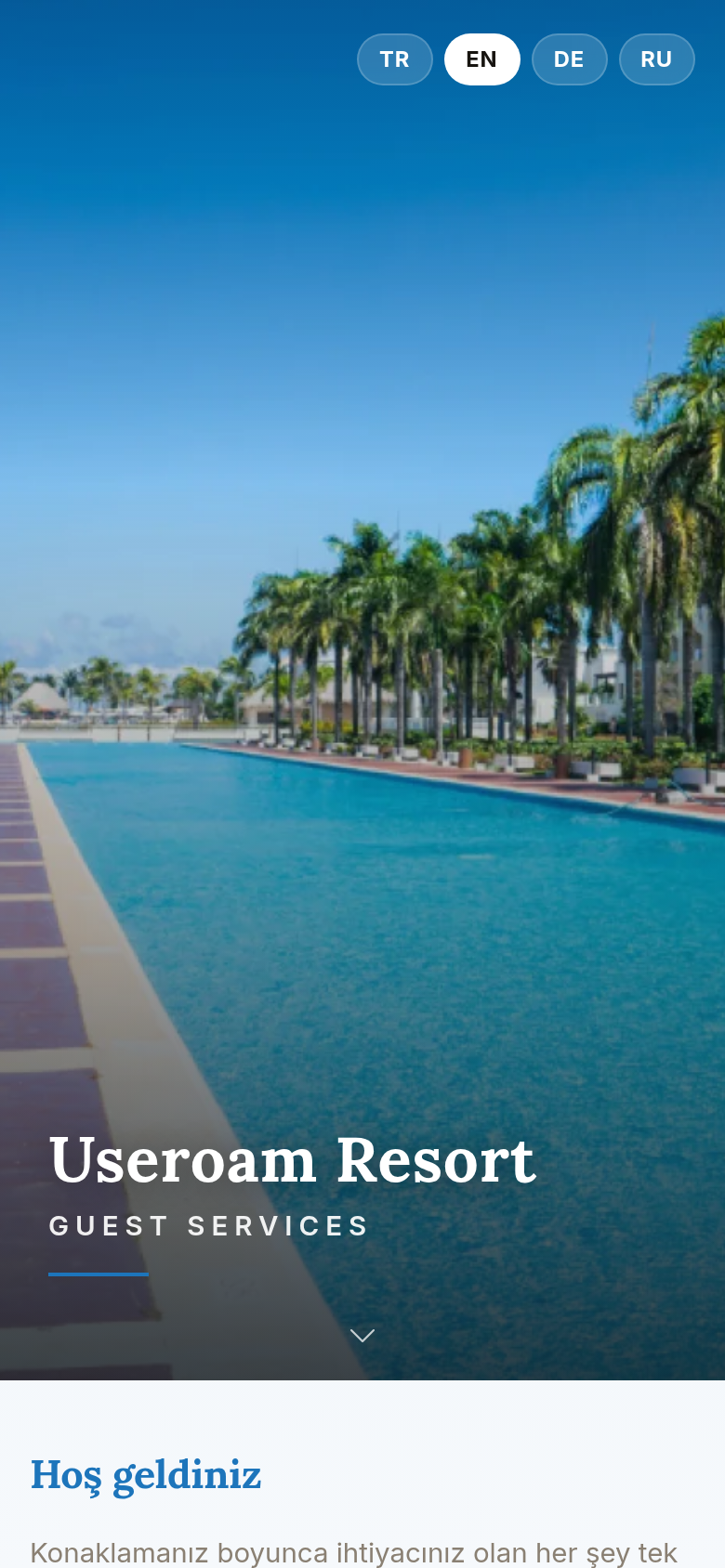
- Opens the page and picks a language. The cover shows the hotel name and Guest Services. The buttons at the top right (TR, EN, DE, RU...) change the language; the choice is remembered on the phone. Languages are set on the Guest Portal screen.
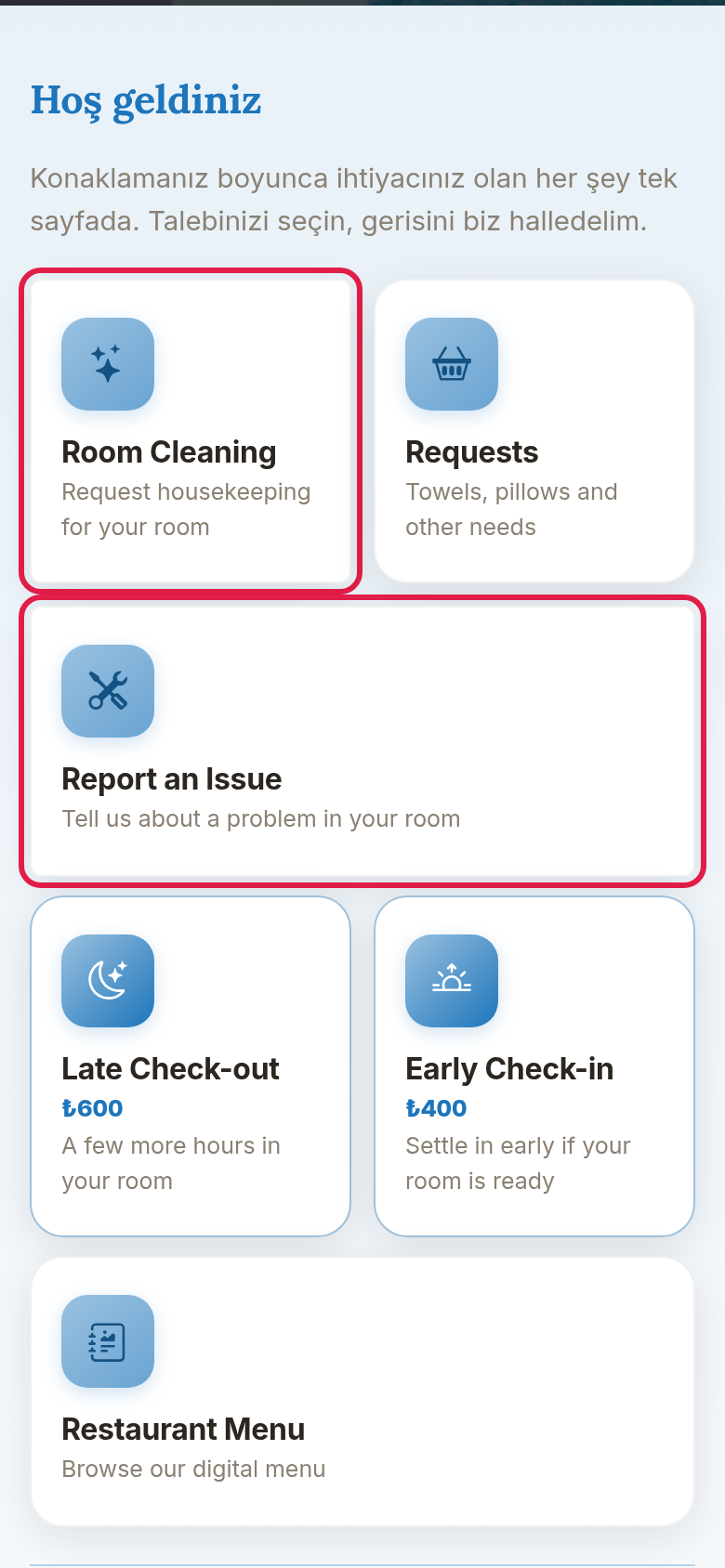
- Taps a service card. Below the welcome section are cards: Room Cleaning, Requests (towels, pillows and other needs), Report an Issue, Late Check-out and Early Check-in with prices, Restaurant Menu, Reception, Feedback, Events. Text blocks you wrote yourself in Portal Design (such as the welcome text) stay in the language you wrote them in.
- Fills in the request. In the Room Cleaning window the guest answers When works for you? with As soon as possible, 10:00-12:00, 12:00-14:00 or 14:00-16:00, can add an Optional note and presses Send request.
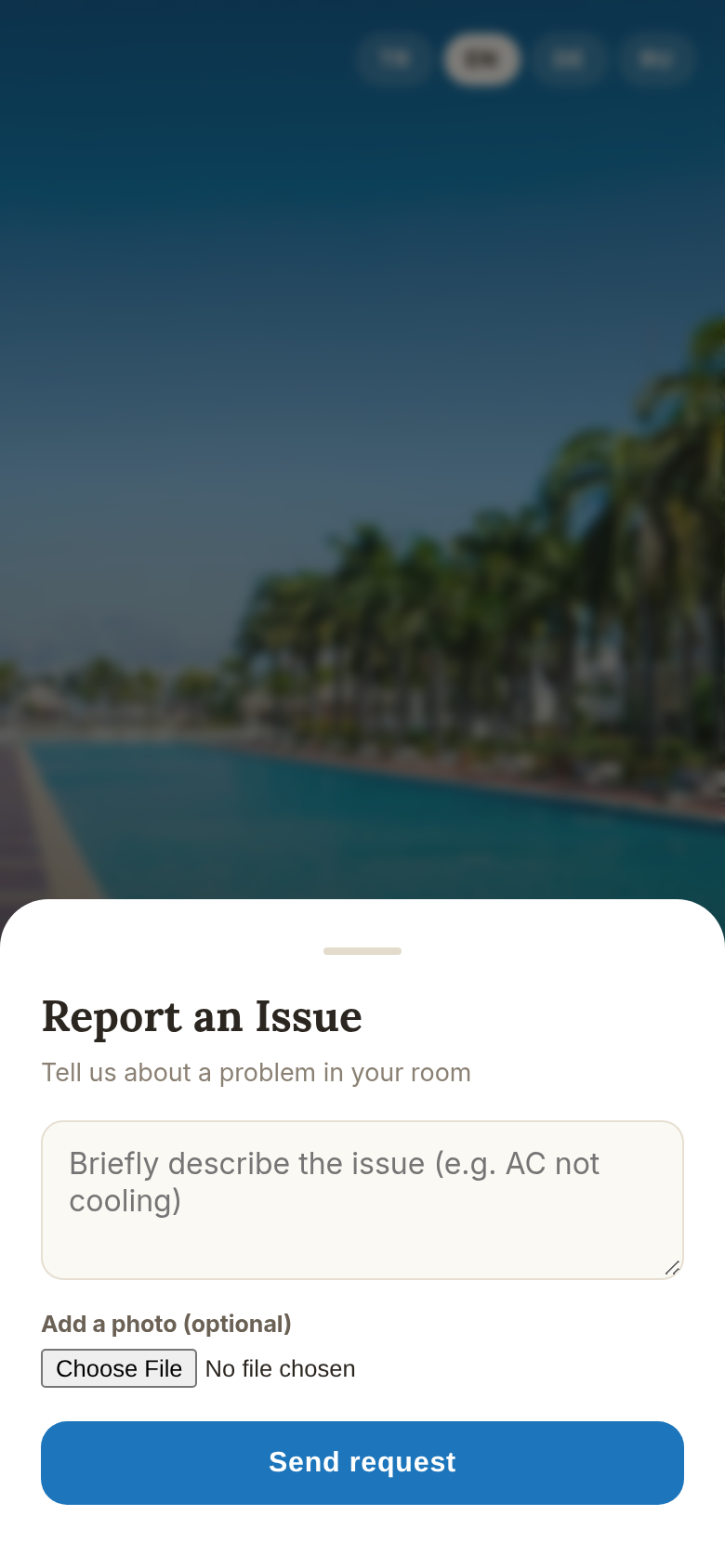
In Report an Issue the guest briefly describes the problem (Briefly describe the issue (e.g. AC not cooling)) and can attach a photo with Add a photo (optional). The issue note is required.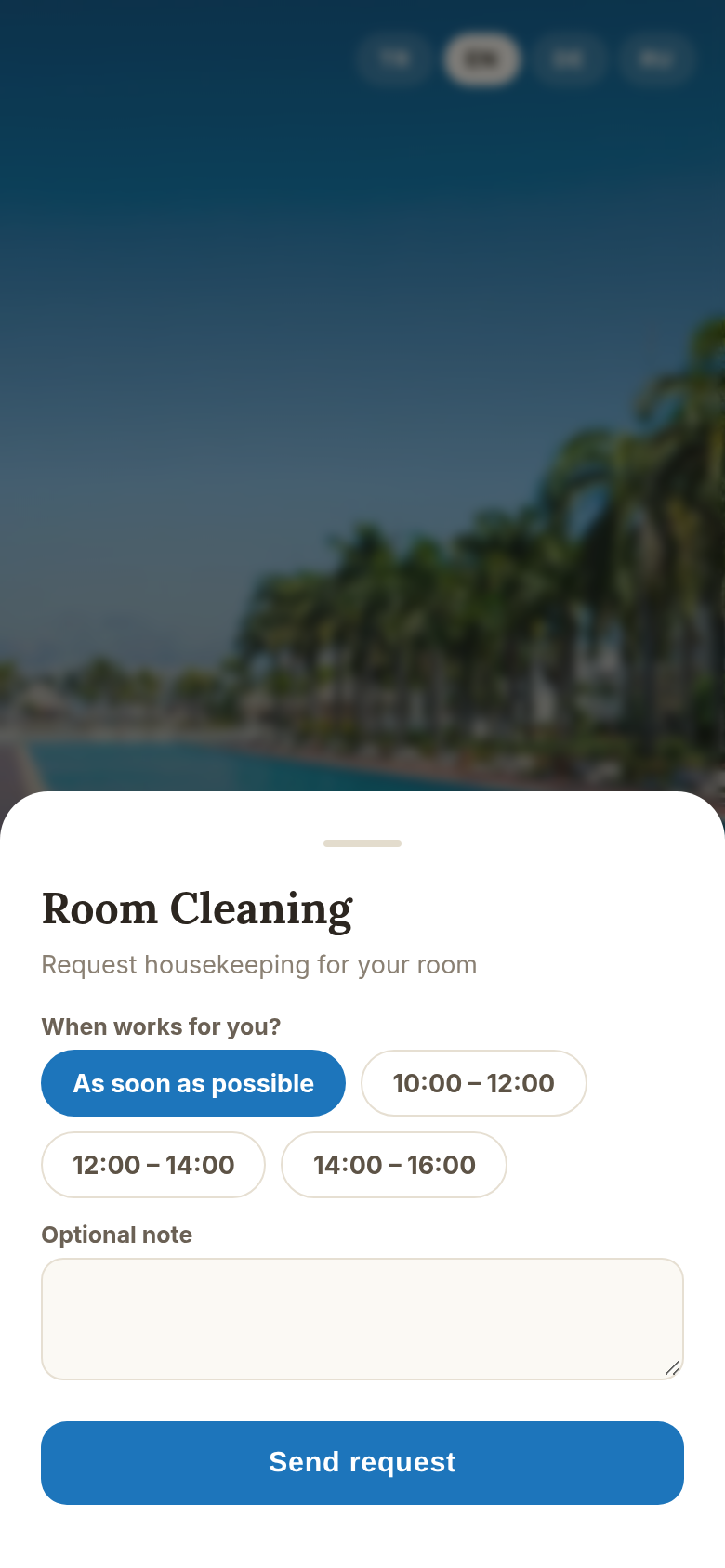
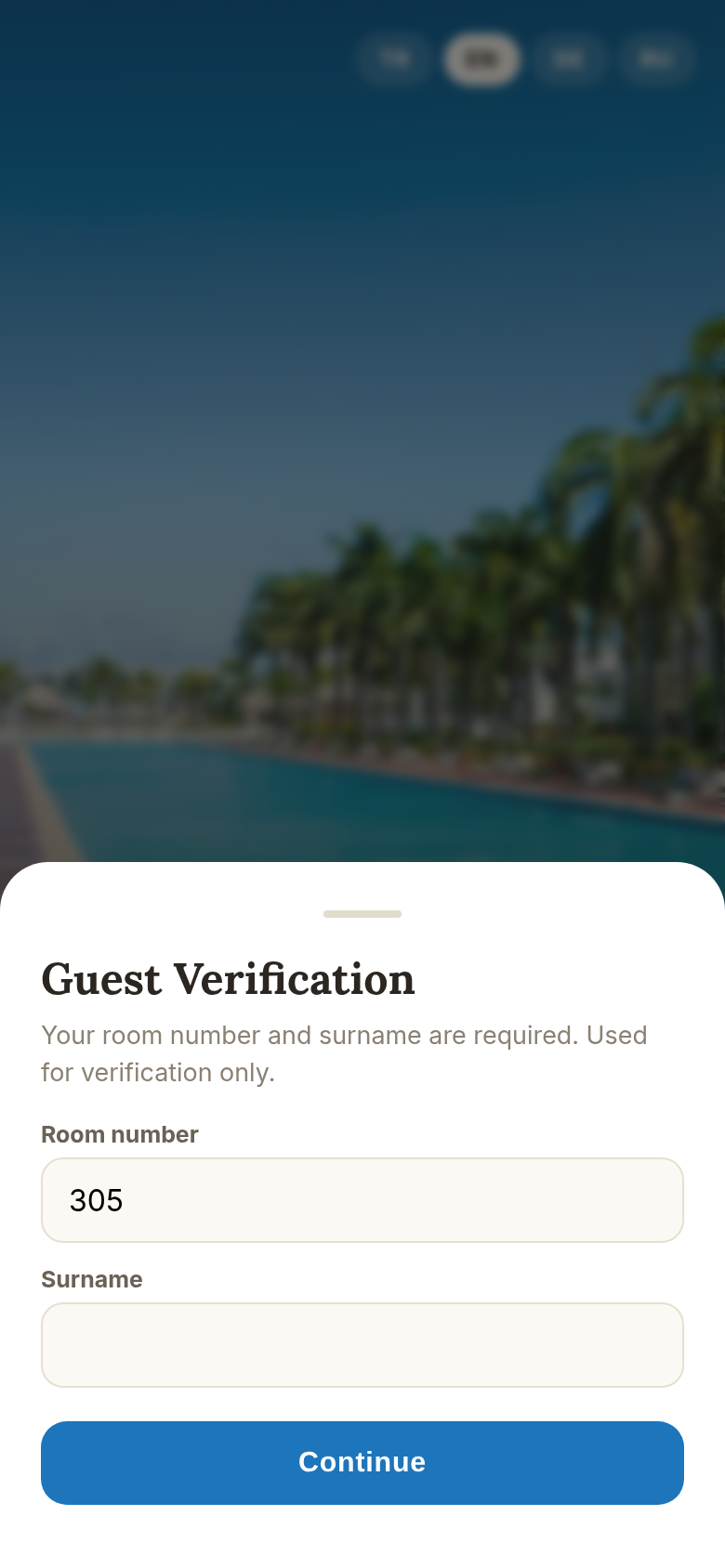
- Verifies. On the first request the Guest Verification window opens: Your room number and surname are required. Used for verification only. The guest enters Room number and Surname and presses Continue. If the details do not match the hotel system, it says Details did not match, please check.
- Saves the personal link. After verification the Your personal link is ready window appears: Valid for your entire stay, save it and skip room verification next time. The guest chooses Copy link (Copied), Share / Save or Continue to request; the Valid until date is shown. The link lasts at most 3 days and until the check-out day. This window only appears to a verified guest, so there is no picture of it. Makes a reservation. The Reservations section lists services with price and the Next free time; below it is the note No payment now. It is charged to your room once confirmed. Extras are products without a time (pick a Quantity, then Add to my room).
Tapping a service shows the verification window first to a guest who is not verified; then the guest picks Date (Today, Tomorrow...), Time, Guests and Note (optional) and presses Pick a time and book. A taken slot shows Full; with no free time that day it says No times available on this date.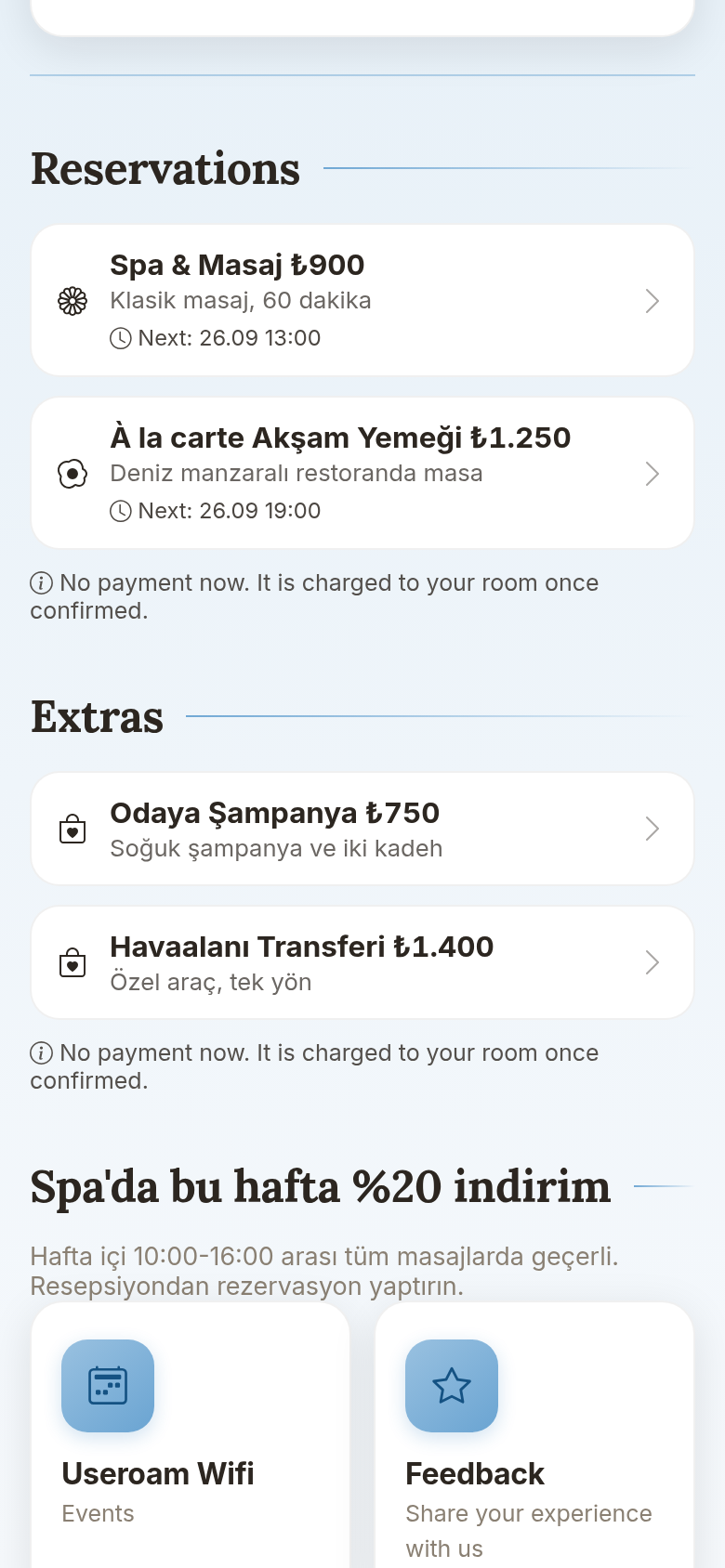
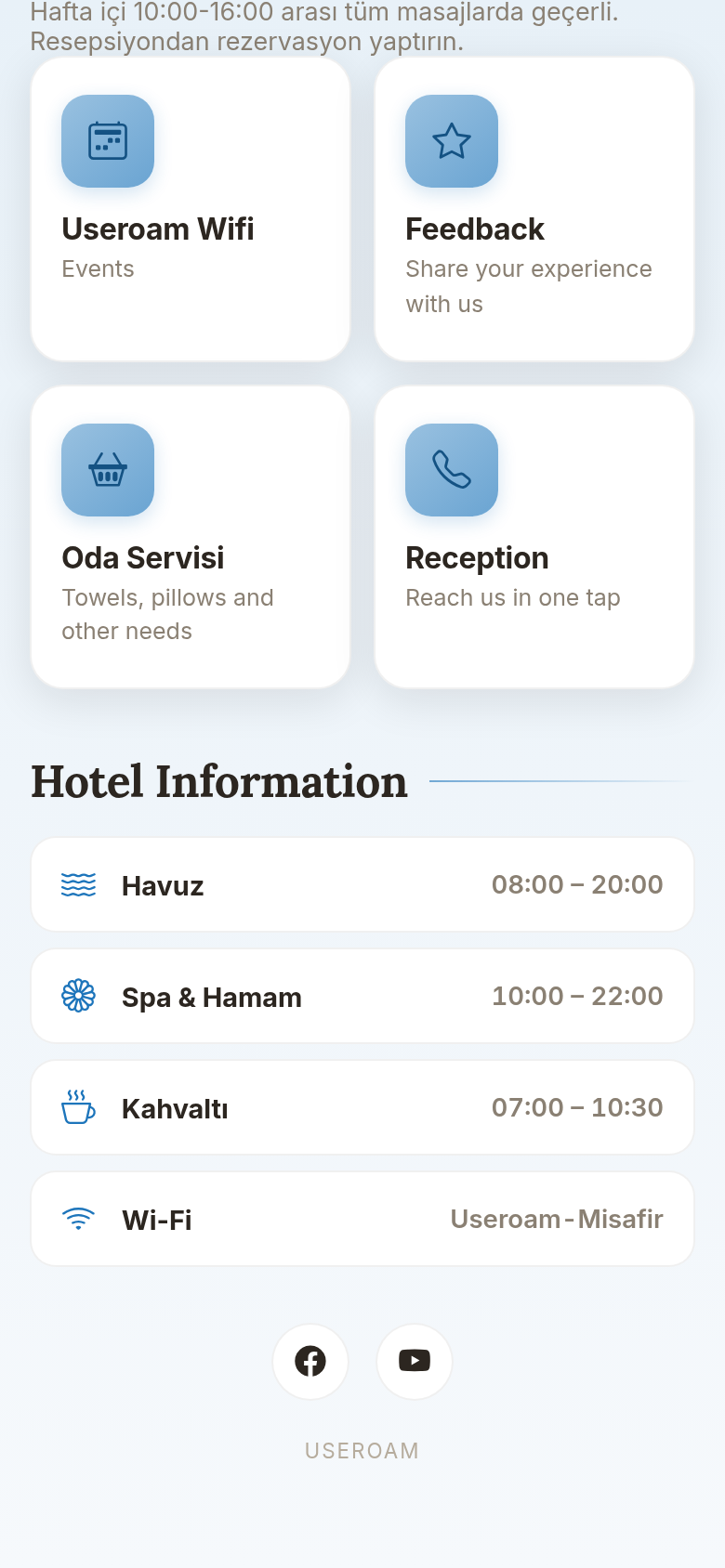
- Looks at hotel information and other cards. At the bottom are Hotel Information (pool, spa, breakfast hours, Wi-Fi name), social media links and other cards. The Reception card offers Call reception and, if WhatsApp is set, Message on WhatsApp.
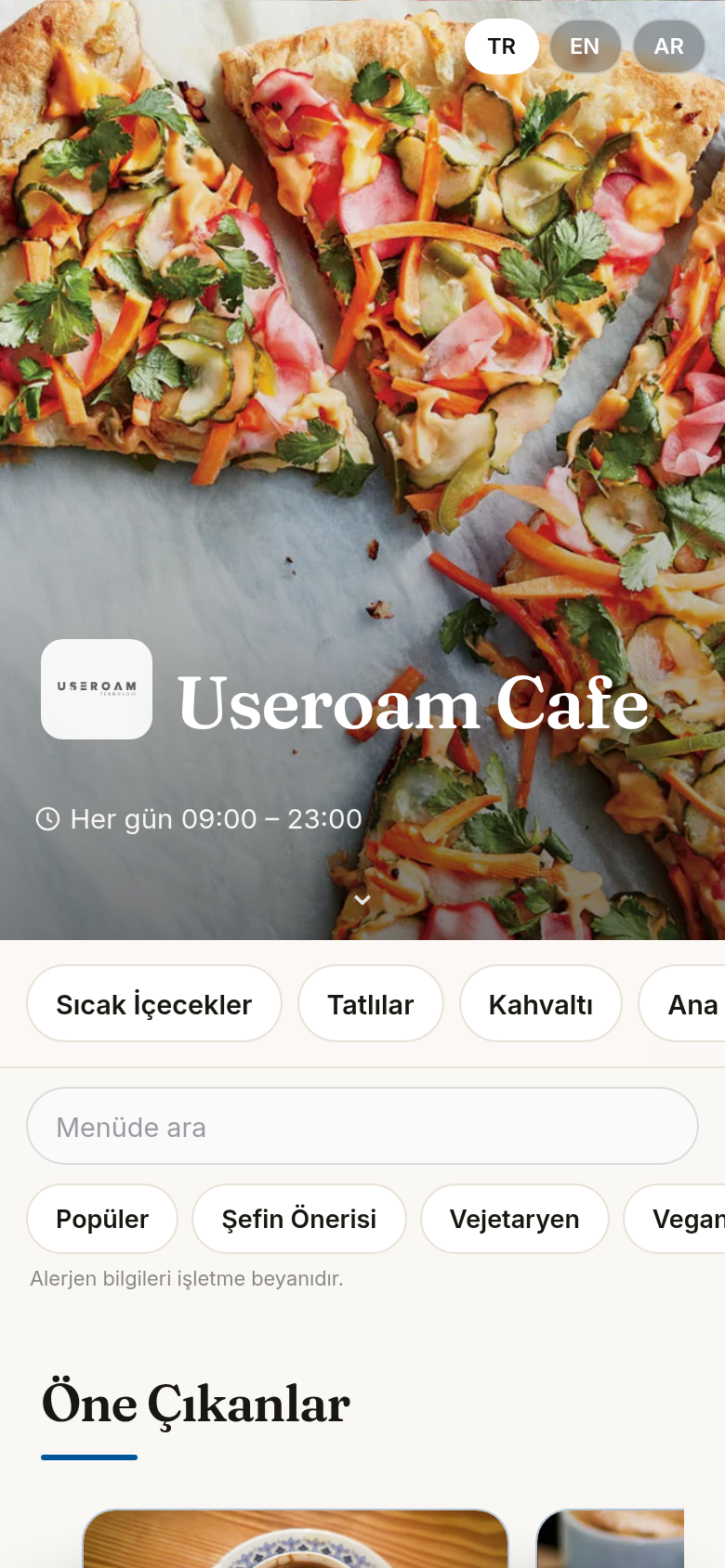
- Orders room service. The QR Menu / Room Service card opens the hotel's QR menu in room service mode. The guest adds items to the basket and sends the order to their room; prices always come from the menu on the server. The order appears on Request Management as Room Service.
Sections without a picture
- Faster Internet (High-speed internet packages): appears when Portal Design has a Wi-Fi Packages block; the guest sees Choose a package, or No packages available right now. when there are none. The order lands on Speed Package Sales waiting for approval. The sample hotel has no such block, so it was not captured.
- My Requests: a verified guest sees the status of their requests (Pending, In progress, Done, Cancelled) and writes to reception in Write a message…; the hotel's replies are labelled Hotel.
- Notifications: with Enable notifications the guest is notified when a request is taken and completed (Notifications on). On iPhone they first need Share → Add to Home Screen.
- Late Check-out and Early Check-in window: Charged to your room upon reception approval, subject to availability. and the Request button.
Messages the guest may see
| On screen | Meaning |
|---|---|
| Request received. Our team will take care of it shortly. | The request reached the team. |
| You just sent a request, please try again in a minute. | A room cannot send a second request within a minute; a room can open at most 20 requests a day. |
| Something went wrong, please try again. | General error; for example asking for late check-out when no fee is set. |
| Details did not match, please check. | Room and surname did not match the hotel system, or the guest's check-out date has passed. Check the record at reception. |
Frequently asked questions
The guest cannot verify.
The surname must be written as in the hotel system; check that the stay is on the Hotel Guests list with a check-out date of today or later.
What if someone else opens the personal link?
Whoever opens the link can make requests as that room's guest. Ask the guest to keep the link to themselves.
A card is missing from the page.
Cards are set by the blocks in Portal Design; late check-out and early check-in only appear when a fee is entered.
Related pages
- Guest Portal · Portal Design · Bookings and Extras · Speed Package Sales
- Setting up the QR menu from start to finish (the menu for room service)