
Portal Design
What is it for?
Portal Design (screen title: Guest Portal Designer) lets you arrange, with drag and drop, the hotel portal page guests open on their phone (the page with cards such as housekeeping, late checkout, issue reporting, menu and Wi-Fi packages). Here you decide which cards appear and in what order, add headings, text, images, videos or buttons between them, and set the colours, font and cover of the page.
How do I open this screen? In the left menu, click Hotel → Portal Design. Below the title it reads Arrange the portal page with drag and drop.
This page covers the hotel portal where guests use hotel services, not the Wi-Fi login screen (captive portal). For the Wi-Fi login screen see Captive Portal → Portal Settings.
When do I use it?
- You want the cards guests use most (e.g. Housekeeping, Late Checkout) at the top of the hotel portal.
- You want to add a welcome text, a promotional image, a video or a "Directions" button to the portal.
- You want the portal's colour, font and cover image to match your hotel's identity.
- You want extra pages, for example for the spa, restaurant or events.
Before you start
- The hotel module must be set up. Otherwise the screen says No hotel portal is set up on this device.; create the hotel profile first (Guest Portal).
- Card content (request types, Wi-Fi packages, menu, ads, bookable services) comes from the matching screens. This screen only sets layout and look.
- Hotel information and request types stay on the old Hotel Studio screen; the Hotel info and request types: old studio link in the right panel takes you there.
Parts of the screen
- ELEMENTS on the left: blocks you drag onto the page.
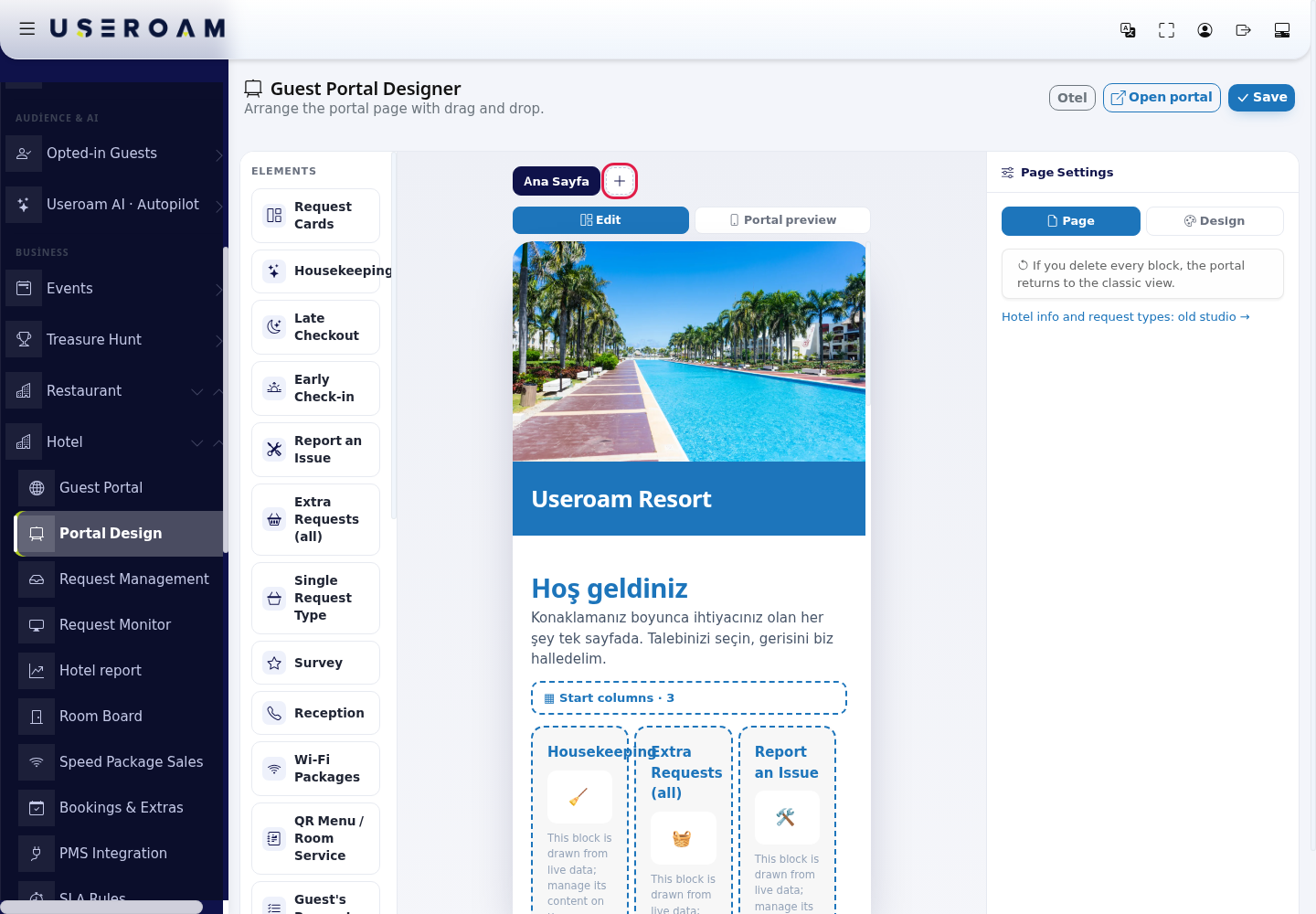
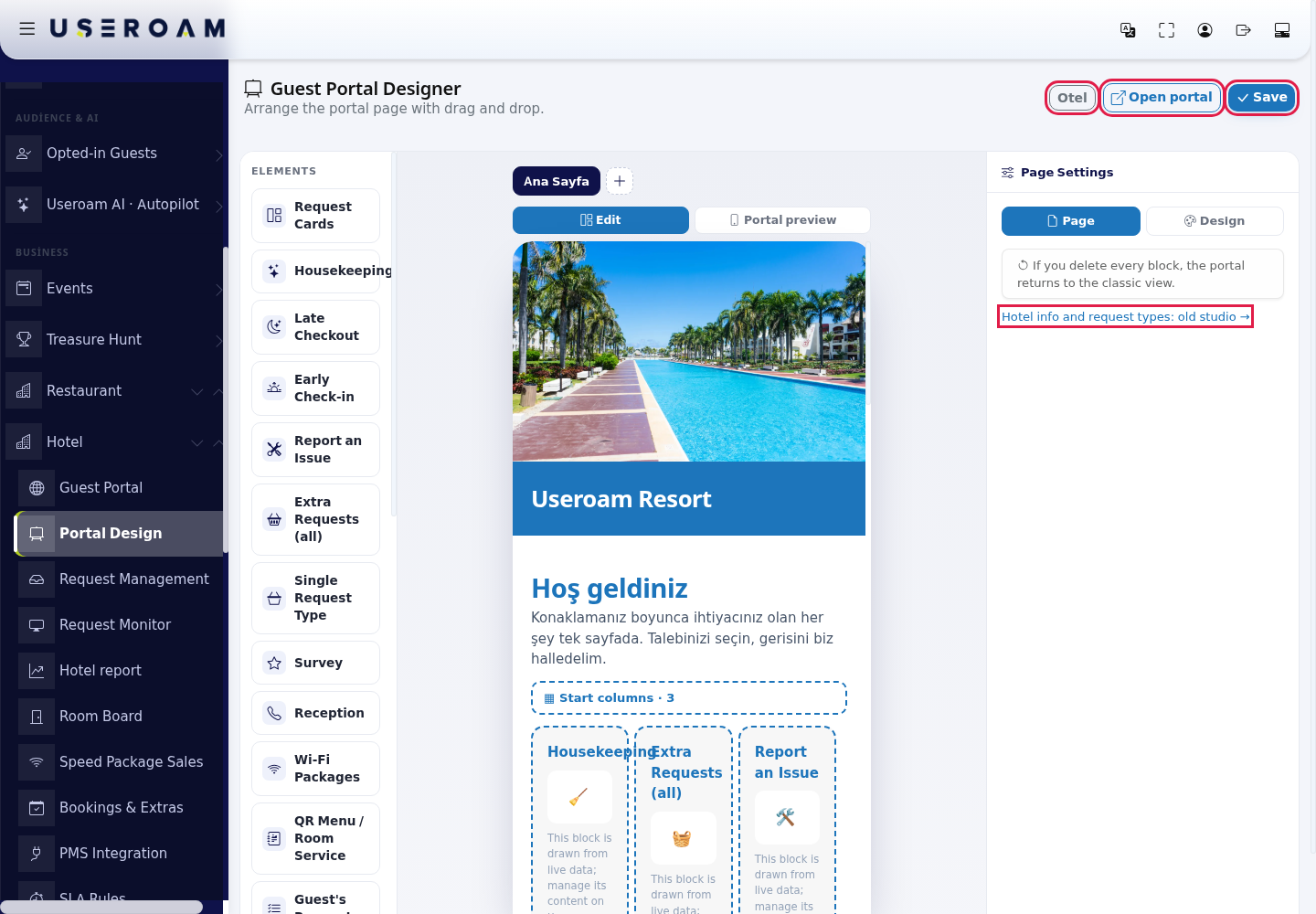
- The page in the middle: the phone view of the portal. Above it are the page tabs (Ana Sayfa, the home page, shown in Turkish, and +) and the Edit / Portal preview buttons.
- Page Settings on the right: Page and Design tabs; clicking a block opens that block's settings.
- Top right: Hotel (back to hotel management), Open portal (opens the guest page in a new tab), Save.
Step by step
In the left menu, click Hotel → Portal Design. The ELEMENTS list opens on the left and the portal page in the middle. If the portal was never edited, the page starts with the blocks of the current portal.
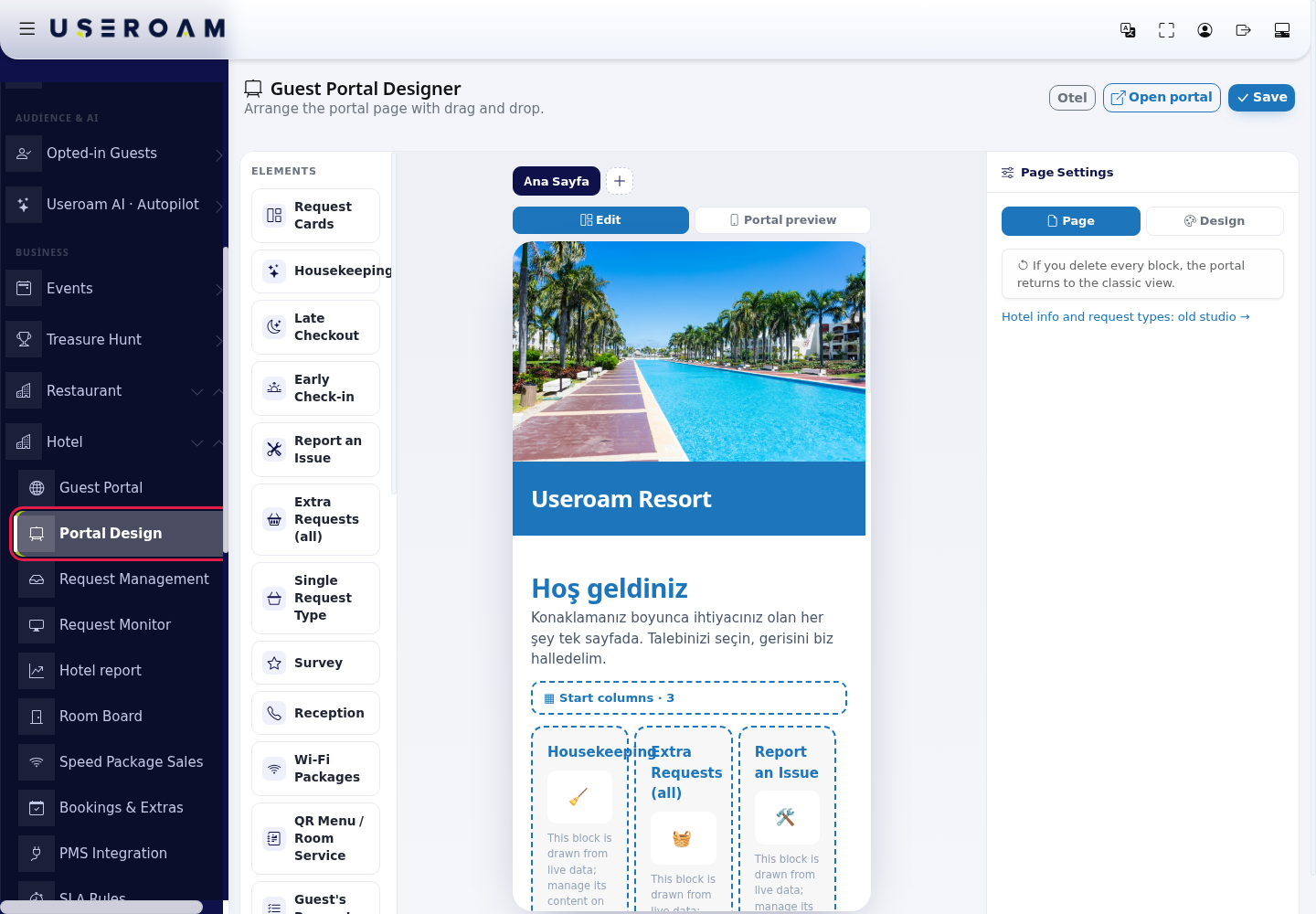
Drag the element you want from the left and drop it where you want it on the page. An empty page reads Drag an element from the left and drop it here. Clicking a block shows Up, Down and Delete buttons on it; you can also drag a block to move it.
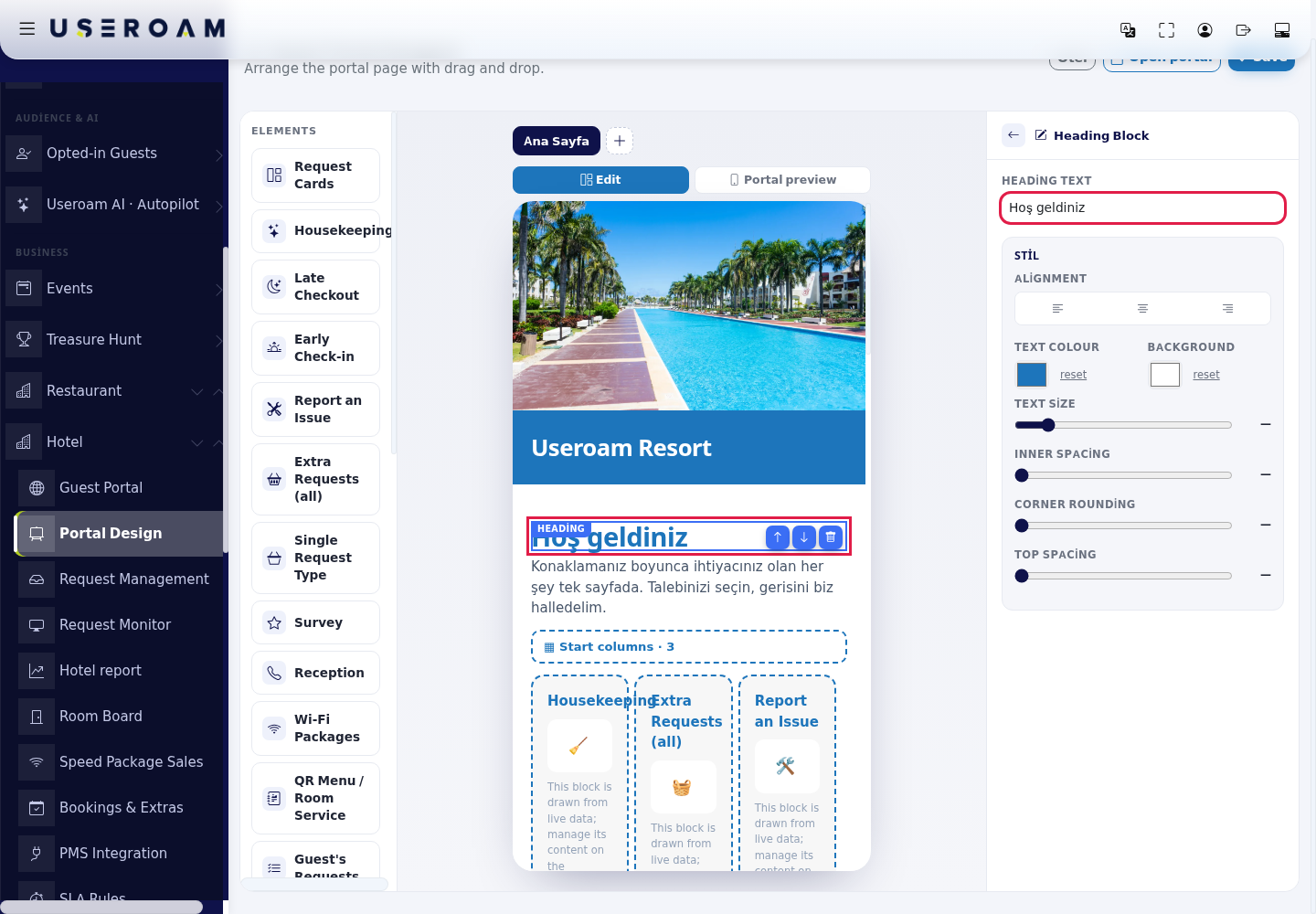
Clicking a content block (e.g. Heading) opens its settings on the right: the text box and the style section (Alignment, Text colour, Background with reset, Text size, Inner spacing, Corner rounding, Top spacing; the section title reads STİL in Turkish). The left arrow in the right panel goes Back to Page Settings.
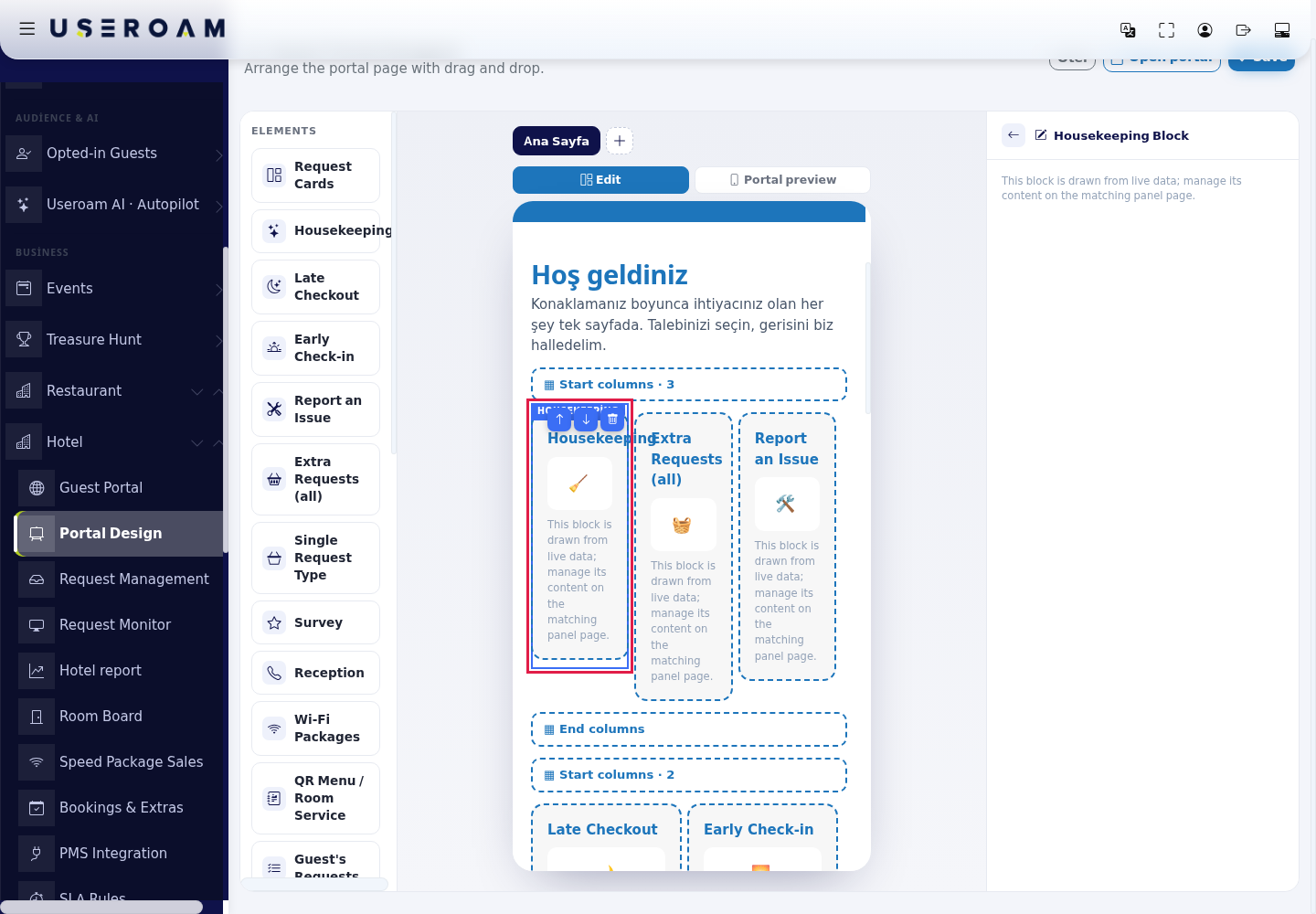
Add the hotel cards (e.g. Housekeeping, Late Checkout, Wi-Fi Packages). These are live blocks: the editor shows them with an icon and the right panel says This block is drawn from live data; manage its content on the matching panel page. Guests see the current real information on these cards.
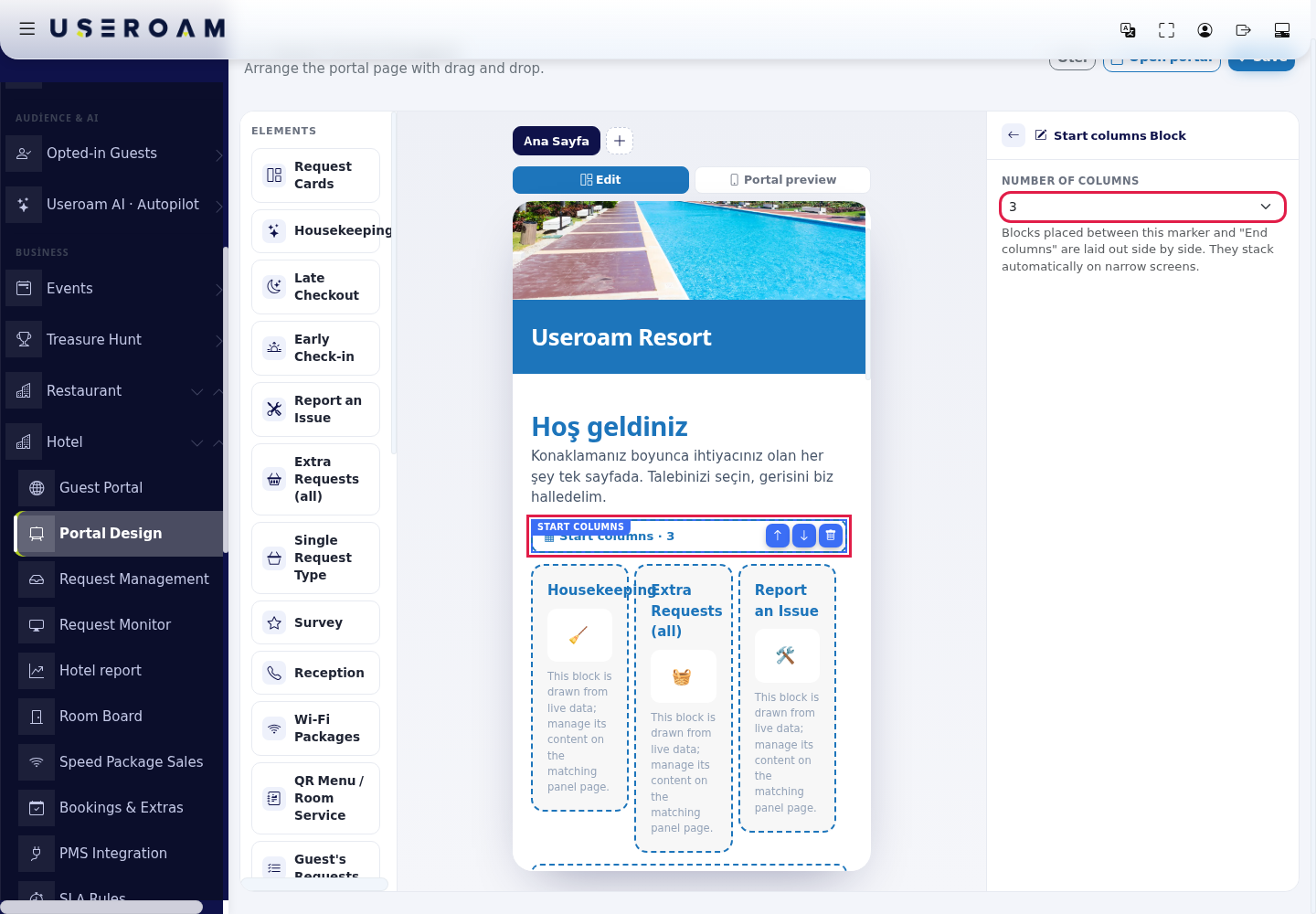
To place cards side by side, use Start columns and End columns: blocks between them are laid out side by side and stack on narrow screens. Click Start columns and choose Number of columns on the right (e.g. 3). Every Start columns needs an End columns; otherwise the page shows Column markers do not match...
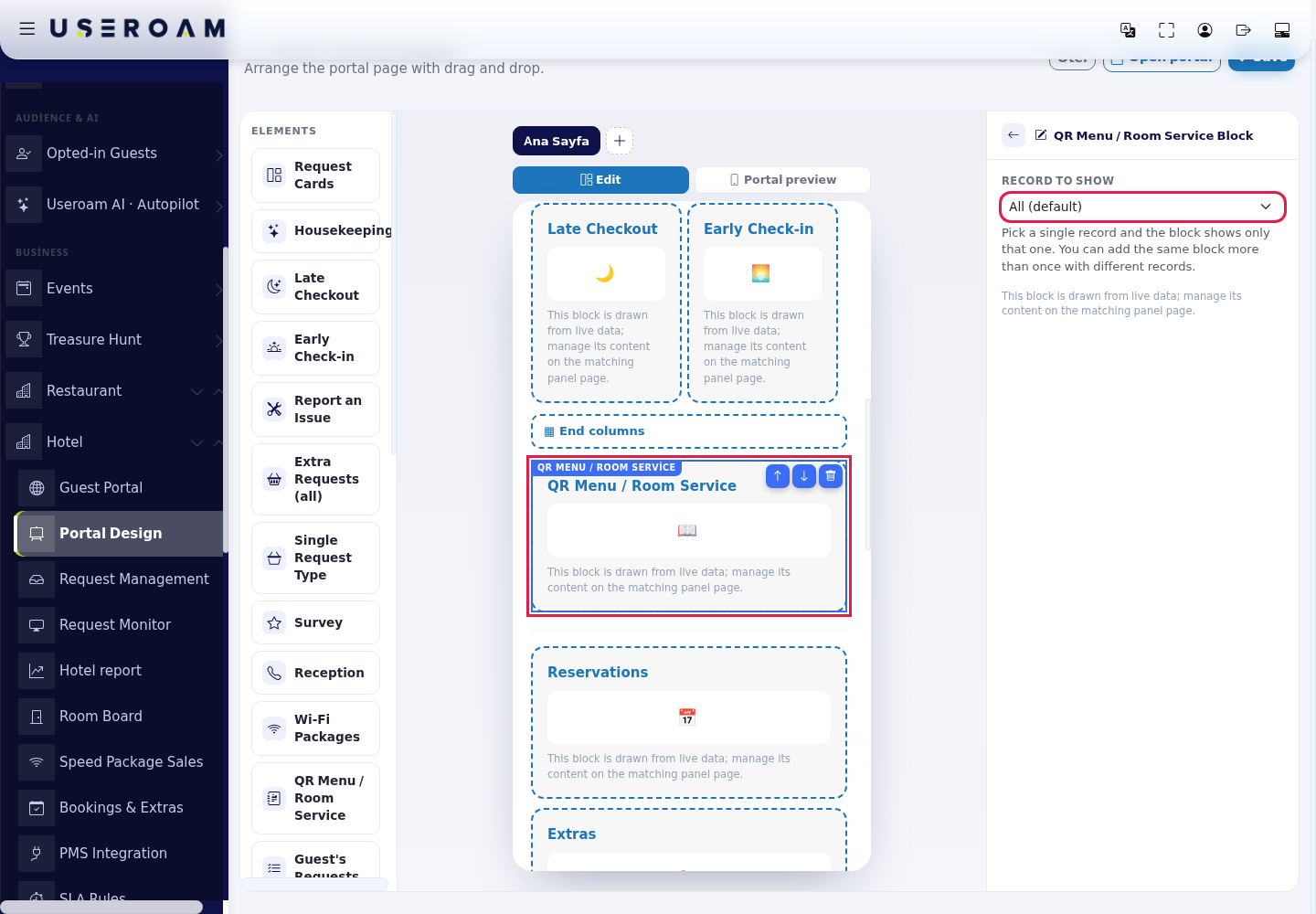
Live blocks that can pick a record (Wi-Fi Packages, QR Menu / Room Service, Ads, Single Request Type, Survey, Event Pages) show a Record to show list on the right. All (default) shows everything; pick a single record and the block shows only that one. You can add the same block more than once with different records.
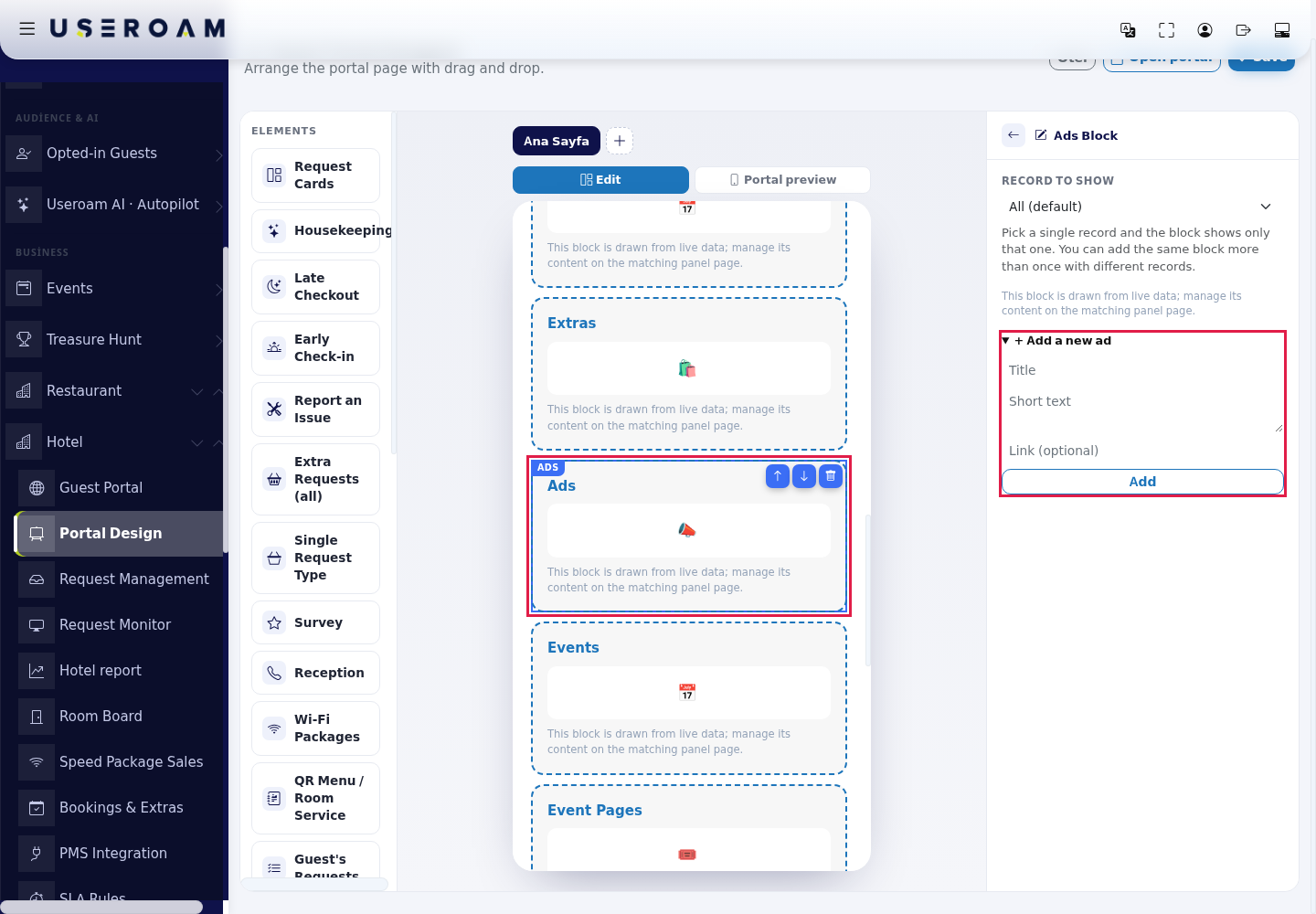
Some live blocks (Wi-Fi Packages, Ads, Reservations, Extras) let you add a new record without leaving the page: open the + Add a new ... section on the right, fill in the fields and press Add. On success it reads Added and selected for this block.
- + Add a new speed package: Name, Speed (example: 50 Mbps), Duration (hours), Price, Group to apply. If the device has no group, the form is replaced by No group is defined on this device, so a speed package cannot be added here.
- + Add a new ad: Title, Short text, Link (optional).
- + Add a new service (Reservations): type (Spa, A la carte, Tur), Name, Duration (minutes), Price, Opening time, Closing time. These hours apply to all seven days; use the Bookings & Extras page to set them day by day.
- + Add a new product / extra (Extras): Name, Duration (minutes), Price.
Error messages: Enter a name., Enter opening and closing times (closing must be after opening)., Could not be added.
To add an extra page, press + next to the page tabs and type a name when asked New page name: (e.g. Spa). Click a page tab to switch pages; the buttons on the tab rename the page (Page name:) or delete it (asks for confirmation). Extra pages only show content blocks (heading, text, image...); live hotel cards stay on the home page. Set a Button block's Target to an extra page to link pages together.
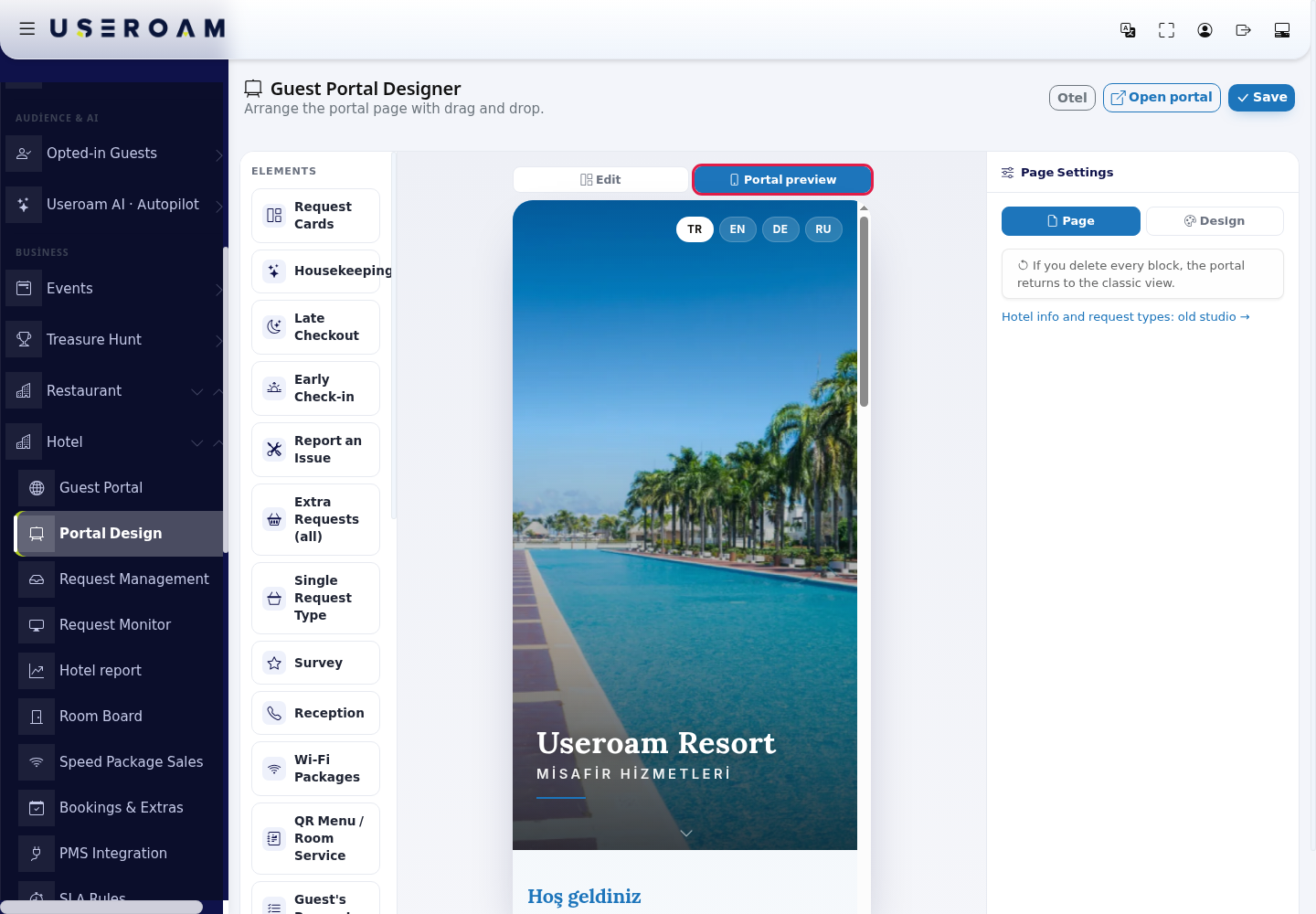
Press Portal preview to check the page as guests see it: the cover, language buttons and cards are drawn as they really look. Press Edit to go back to editing.
To change the look, go to the Design tab on the right. At the top it says Design changes are saved instantly.: every choice here reaches the portal right away. Pick a style under Appearance: Classic, Resort (warm gold, night), Boutique (anthracite and champagne), Coastal (light sand and sea), Business (navy and brass). The selected style applies its own accent colour and heading font; the background follows your Light/Dark choice. Then choose the main colour from the Color swatches or Main colour (pick any colour), and the background with Light / Dark appearance.
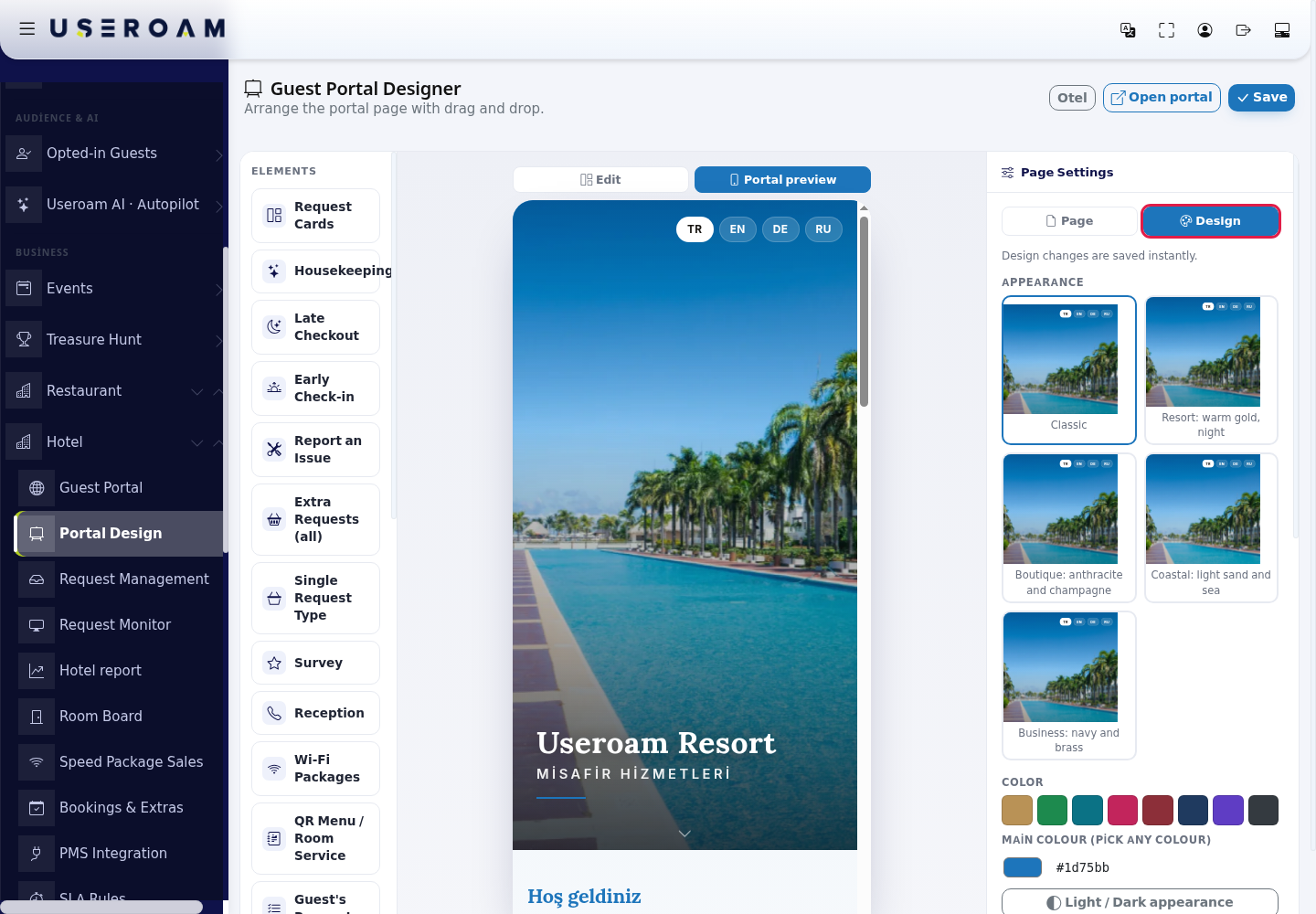
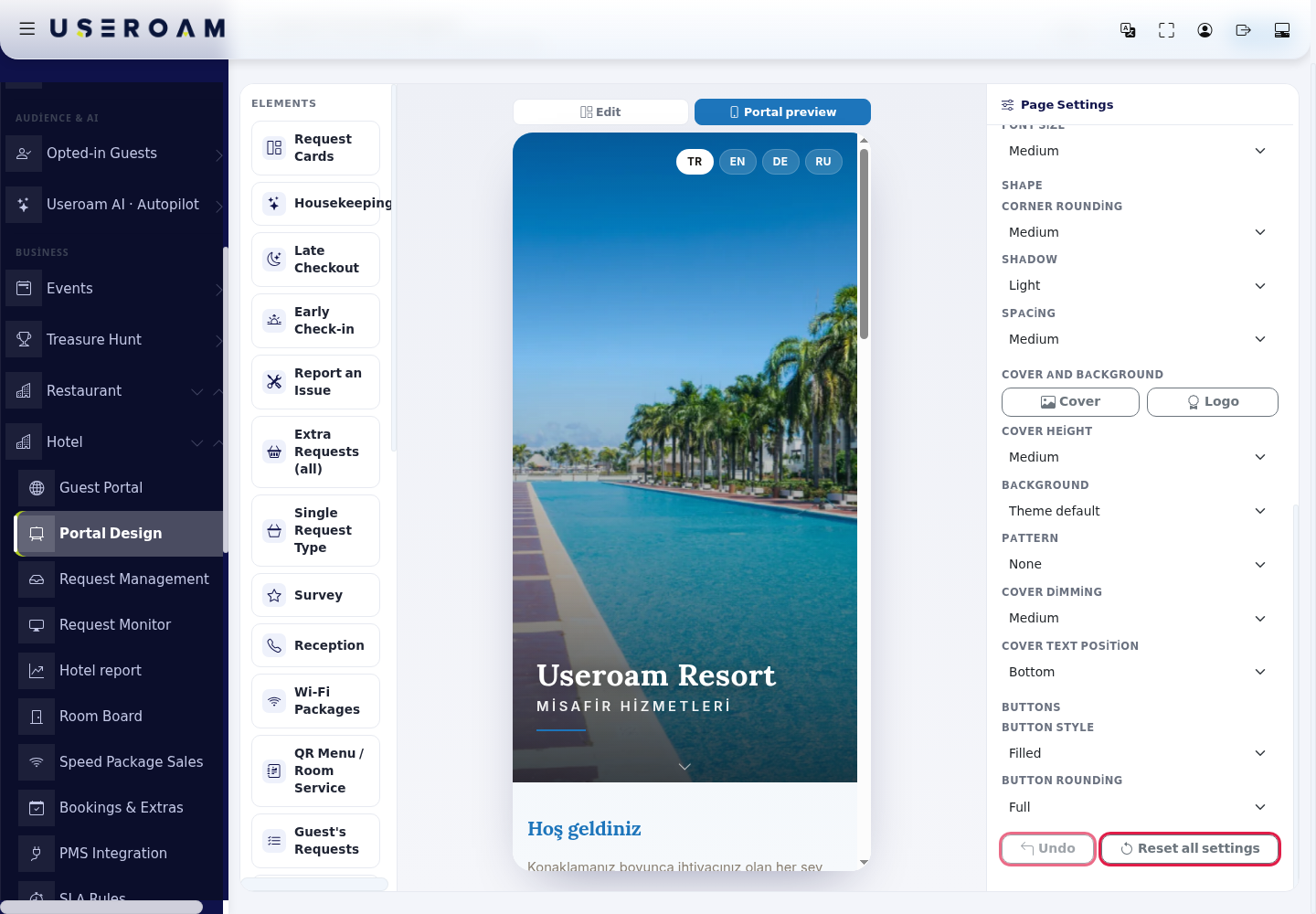
Scroll down the same tab for the other settings: Typography (Font (heading + body), Font size: Small, Medium, Large), Shape (Corner rounding, Shadow, Spacing), Cover and background (upload Cover and Logo, Cover height, Background, Pattern, Cover dimming, Cover text position), Buttons (Button style, Button rounding). At the bottom, Undo reverts the last change (Last change undone) and Reset all settings returns the theme to default (Theme reset to default). While saving you see Saving…, then Saved; if you see That did not work or Connection problem, the change was not saved, so try again.
When the block layout is ready, press Save at the top right; it says Saved. The Design tab saves by itself, but the block layout is only saved with Save. Check the result on the guest page with Open portal.
Elements
Live hotel blocks
| Element | What guests see | Where the content comes from |
|---|---|---|
| Request Cards | All request cards together (housekeeping, issue, extras, reception). | Hotel request types |
| Housekeeping, Late Checkout, Early Check-in, Report an Issue | A single request card. | Late checkout and early check-in fees from Guest Portal settings |
| Extra Requests (all), Single Request Type | All extra request types or the one you pick. | Hotel request types (Hotel Studio) |
| Survey | The published hotel survey. | Surveys |
| Reception | Call and WhatsApp buttons for reception. | Hotel phone and WhatsApp number |
| Wi-Fi Packages | Speed packages guests can buy. | Speed Package Sales |
| QR Menu / Room Service | The published QR menu or room service. | Menus |
| Guest's Requests | Status of the guest's own requests. | The guest's requests |
| Events | The hotel's daily programme. | Hotel events |
| Event Pages | Published event pages. | Events |
| Hotel Information | Hotel information cards (hours, facilities...). | Hotel Studio |
| Ads | Ads selected for the hotel portal. | Advertisements |
| Reservations | Spa, A la carte, Tour bookings. | Bookings & Extras |
| Extras | Extra products without booking. | Bookings & Extras |
A live block with no content shows nothing to guests; the editor shows a warning with a fix link. Examples: No Wi-Fi package defined: this block shows nothing to the guest. (Add a package), No published QR menu... (Create a menu), No ad selected for the hotel portal... (Add an ad), No bookable service defined... (Add a service), No extra product defined..., No late checkout fee set... and No early check-in fee set... (Open hotel settings), No extra request types defined..., No request type selected... Pick one on the right., No published survey... (Create a survey), No published event page... (Create an event page), No phone or WhatsApp number set..., The selected record no longer exists.... If the page has no live block at all, the top shows No portal block added: guests cannot see the request cards, their own requests or the hotel information. Drag one in from the left.
Content blocks
| Element | Settings on the right | Example |
|---|---|---|
| Heading | Heading text, Subheading | Welcome |
| Text | Text editor: Bold, Italic, Underline, Add link (asks Link (https://…):), Remove link, Clear formatting | Breakfast 07:00-10:30 |
| Image | Image URL or upload with Add image (image files only; on error Upload failed) | pool.jpg |
| Gallery | Images (one URL per line), Add image | 3 images |
| Video | YouTube link | https://youtube.com/watch?v=... |
| Button | Button text, Target: External link (URL) or Page: an extra page; Link. To target an internal page, first add a new page from the top. | See the spa |
| Map | Address; guests see a Directions button | Hotel address |
| Divider | A divider is just a separator line; it needs no content. | - |
| Start columns / End columns | Number of columns; blocks in between are laid out side by side | 3 |
| HTML / CSS | HTML / CSS / JS code, Height (pixels). The code runs in an isolated frame and cannot reach the rest of the page, the panel or cookies. The preview refreshes when you leave the field. The frame cannot measure its own height; adjust it manually. | Your own design |
Live blocks and column markers have no style settings; their look comes from the Design tab.
All messages
| Where | Message |
|---|---|
| Wi-Fi Packages | No Wi-Fi package defined: this block shows nothing to the guest. |
| QR Menu / Room Service | No published QR menu: this block shows nothing to the guest. |
| Ads | No ad selected for the hotel portal: this block shows nothing to the guest. |
| Reservations | No bookable service defined: this block shows nothing to guests. Add the service with the Spa, A la carte or Tour type. |
| Extras | No extra product defined: this block shows nothing to guests. Add the service with the "Product / extra (no booking)" type. |
| Late Checkout | No late checkout fee set: this block shows nothing to the guest. |
| Early Check-in | No early check-in fee set: this block shows nothing to the guest. |
| Extra Requests (all) | No extra request types defined: this block shows nothing to the guest. |
| Single Request Type | No request type selected: this block shows nothing to the guest. Pick one on the right. |
| Survey | No published survey: this block shows nothing to the guest. |
| Event Pages | No published event page: this block shows nothing to the guest. |
| Reception | No phone or WhatsApp number set: this block shows nothing to the guest. |
| Block with a selected record | The selected record no longer exists: this block shows nothing to the guest. |
| Top of the page | No portal block added: guests cannot see the request cards, their own requests or the hotel information. Drag one in from the left. |
| Top of the page | Column markers do not match: every "Start columns" needs an "End columns". An unmatched marker does nothing on the portal. |
| + Add a new speed package | No group is defined on this device, so a speed package cannot be added here. |
| Add | Enter a name. |
| Add (service) | Enter opening and closing times (closing must be after opening). |
| Add | Could not be added. |
| Add | Added and selected for this block. |
| Save | Saved. |
| Opening the screen | No hotel portal is set up on this device. |
| Add image | images only |
| Add image | upload error |
| Add image | Upload failed |
Other texts in the editor
- New blocks come with placeholder text: New Heading, Write your text here…, Write your text…, View Button, and in the HTML block HTML, CSS and JavaScript can be used freely in this block. Change them on the right. Empty image, gallery, video and HTML blocks show a reminder to add content on the right.
- The cover at the top of the page appears as Portal title in the editor; the Details label on live blocks shows the card's details.
- Start columns note: Blocks placed between this marker and "End columns" are laid out side by side. They stack automatically on narrow screens. End columns note: The column area ends here; content after it flows full width again.
- Quick-add note for reservations: These hours apply to all seven days. Use the Bookings & Extras page to set them day by day.
- HTML block note: The code runs in an isolated frame: it cannot reach the rest of the page, the panel or cookies. The preview refreshes when you leave the field.
- Note on the Page tab of the right panel: If you delete every block, the portal returns to the classic view.
- On the Design tab, the Automatic / my own theme style leaves the theme to your own settings. The Light / Dark appearance options are Dark background and Light background; Secondary accent colour picks a second accent colour. While a cover or logo uploads it says Uploading….
Frequently asked questions
My changes do not show for guests.
The block layout is only saved with Save at the top right. Colour and font choices on the Design tab are saved instantly.
What happens if I delete every block?
As the right panel says: if you delete every block and save, the portal returns to the classic view.
A card says "this block shows nothing to the guest".
That card has no content. Use the link next to the warning to go to the right screen and add it (e.g. a Wi-Fi package, a menu, an ad).
Where do I change the hotel name, phone or request types?
Not here: use the Hotel info and request types: old studio link in the right panel to go to Hotel Studio, or the Guest Portal settings.