
Room Board
The Room Board shows every room in your hotel as a coloured card: which room is clean, dirty or out of order, and who is responsible for it. Checkout is done here too.
What is it for?
- Shows the workload of housekeeping and the technical team on one screen.
- Lets you assign a responsible person to each room.
- Puts a room into the cleaning flow with one button when the guest leaves (Checkout).
When do you use it?
- When you first set up the hotel module, to create the room list.
- During the day, to see dirty and out-of-order rooms and assign people.
- When a guest checks out, to mark the room dirty.
Before you start
- A hotel profile must exist (Guest Portal).
- You can also create rooms in the Venue Setup Wizard; there you can paste room names containing letters (A101, Suite-3) as a list.
Step by step
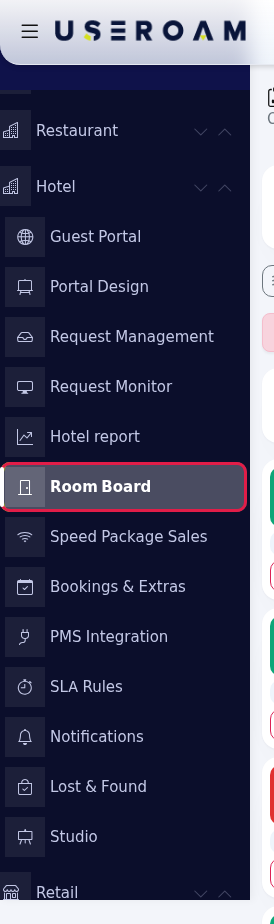
- Open the board. In the left menu press Hotel → Room Board. (The Rooms tab on Request Management is the same board.)
- Create the room list. On the Create room list: row type the first and last room number (for example
101and120) and press Add. Every number in between is added as a clean room; existing rooms are left alone. Repeat for each floor (201-220, 301-320...). At most 300 rooms are added in one go.
- Change the status and assign a person. Each press on the coloured top part of a room card moves the status on: Clean (green) → Dirty (orange) → Out of order (red) → Clean. Pick the responsible person in the list under the card; the choice saves at once. A card without a person shows unassigned.
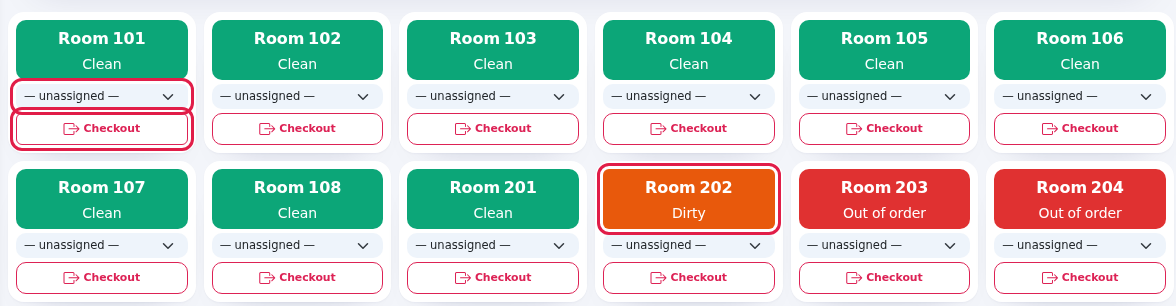
- Check out. When the guest leaves, press Checkout on the room card. A confirmation appears: Room 204, check out this room? Open requests will be closed, the room moves to dirty (awaiting cleaning). The guest record is not deleted. After you confirm, the room's open requests are cancelled ([checkout kapanışı] is added to the staff note) and the room becomes Dirty.
- Check rooms awaiting checkout. If your hotel management system (PMS) is connected, rooms whose check-out date fell in the last 3 days but whose card is not yet dirty are listed in an orange card above the board. Press Checkout on each of those rooms.

Every field and button on the screen
| Field / button | What it does | Example |
|---|---|---|
| Create room list: first / last number + Add | Adds the rooms in the number range. Both boxes must be filled; if they are empty nothing is added. | 101 - 120 |
| Hint: Click the card: Clean → Dirty → Out of order cycle. Rooms with requests are added automatically; the room is cleaned once cleaning/repair is completed. | Reminds you how the board works. If a request comes from a room that is not on the list, the room is added to the board automatically. | - |
| Room card (Room 101, status) | Pressing it moves the status to the next one. Colour: green Clean, orange Dirty, red Out of order. | Room 202 · Dirty |
| Person list (unassigned) | Picks the room's responsible staff member. In Useroam Go the room shows as assigned to that person. | Ayşe Yılmaz |
| Checkout | Closes open requests and marks the room dirty. It does not delete the guest record or any PMS data. | - |
| Rooms awaiting checkout (N) | Rooms with a PMS check-out date in the last 3 days that are still not dirty. Each badge reads Room 204 · check-out 2026-09-26; a room without a card on the board gets no room record. | Room 410 · check-out ... · no room record |
| Card text: Rooms whose check-out date has passed in the last 3 days but haven't yet entered the cleaning flow. Press Checkout on the relevant room card, the guest record is not deleted. | Tells you what to do. | - |
| No rooms yet, add a range above. | Shown when the board has no rooms. Follow step 2. | - |
The summary cards and live status strip above the board are the same as on Request Management: Request Management.
Panel versus Useroam Go
In the panel, pressing a card only changes its status; setting a room to Out of order does not open a malfunction request. In the Useroam Go app, tapping a room opens a menu: choosing Out of order asks for a note and photo and opens a Malfunction request; on a dirty room Start cleaning starts a cleaning job. If you want the team to track a malfunction, open the request from the app or with Open New Request (reception) on Request Management. Details: Useroam Go: Rooms.
Frequently asked questions
My room numbers contain letters (A101, Suite-3). How do I add them?
The range on this screen only works with numbers. In the room step of the Venue Setup Wizard, paste the room names as a list (one room per line).
Cleaning is finished, why is the room still dirty?
A room goes back to clean by itself when a cleaning or malfunction request is completed on Request Management or in Useroam Go. If there was no request, press its card to bring it to Clean.
Does Checkout cut the guest's internet?
No. Checkout only changes requests and room status; it does not touch the guest record or PMS data.
I never see the Rooms awaiting checkout card.
It only appears when a PMS is connected and there are rooms with a check-out in the last 3 days that are not yet dirty (PMS Integration).
Can I delete a room?
There is no delete button for rooms on this screen.
Related pages
- Request Management · Setting up your hotel on day one
- Operations: areas other than rooms (lobby, pool, restrooms) and daily tasks
- Useroam Go: Rooms