
Setting up your hotel on day one
This task page lists, in order, what a hotel setting up the Useroam hotel module for the first time needs to do to be ready in one day: the setup wizard, rooms, departments and staff, assignment, delay rules, the guest portal and QR codes, speed packages and finally a test request. Each step links to its detailed page.
What is it for?
- Prepares the hotel so that the first guest request lands with the right person, without skipping a step.
When do you use it?
- When the hotel is new or has just moved to Useroam.
- When you want to check whether the setup is complete.
Before you start
- Log in to the panel as an administrator and pick the hotel's device at the top right.
- The hotel module must be on: Module Permissions → Venue Modules.
- Have these at hand: room numbers, the staff list (name, phone, department), the reception phone and, if you have one, PMS details.
Step by step
- Open the setup wizard in hotel mode. If the hotel has never received a request, the wizard opens by itself the first time you open Request Management. Or press Setup wizard on Request Management. If the venue also has a restaurant, press Hotel Portal in the top strip. Details: Venue Setup Wizard.

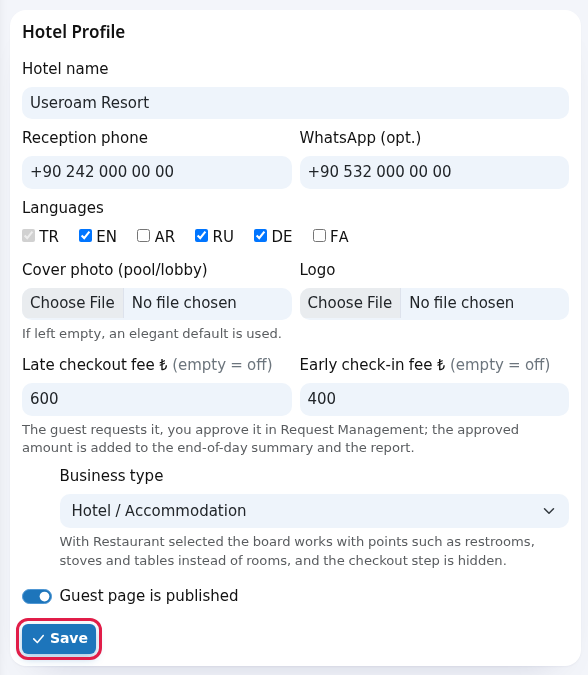
- Create the hotel profile. In the wizard's first step type the hotel name and press Create. Then fill in phone, languages, cover photo and late check-out / early check-in fees on the Guest Portal screen.

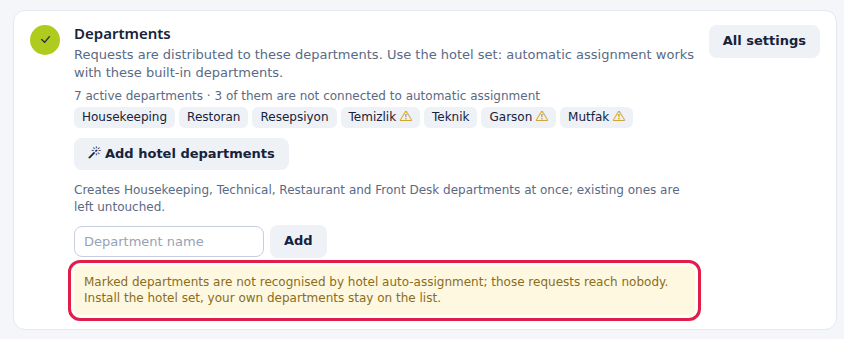
- Open the hotel departments. In the wizard press Add hotel departments: Housekeeping, Technical, Restaurant and Front Desk open in one go.
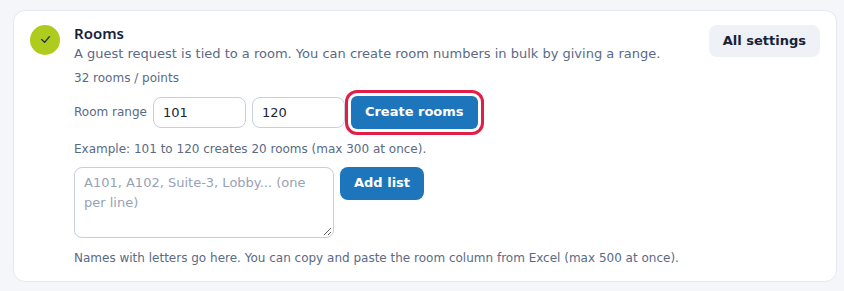
- Create the rooms. In the wizard's room step enter the first and last room number (paste a list for room names with letters). You can also add rooms later on the Room Board.
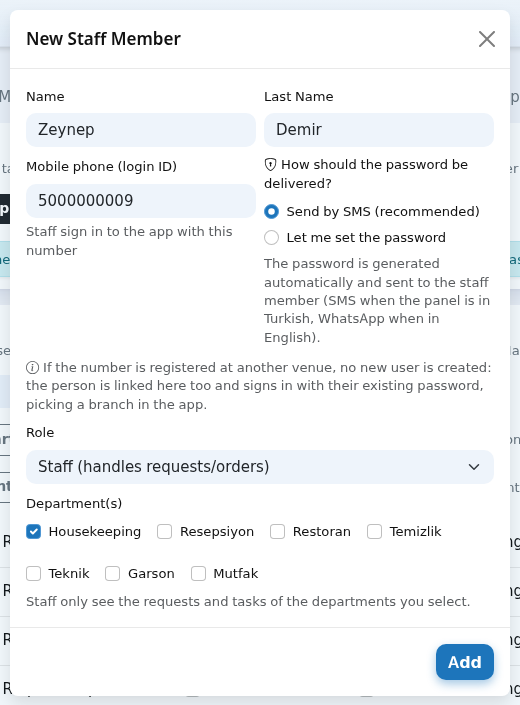
- Add staff and link them to departments. On the Staff screen add each employee and pick their hotel department; give managers the manager role. Staff sign in to the Useroam Go app with their phone number.
- Set up assignment. Choose which department each request type goes to; in the first days we recommend leaving Automatic person assignment off (pool). Details: Automatic Assignment.

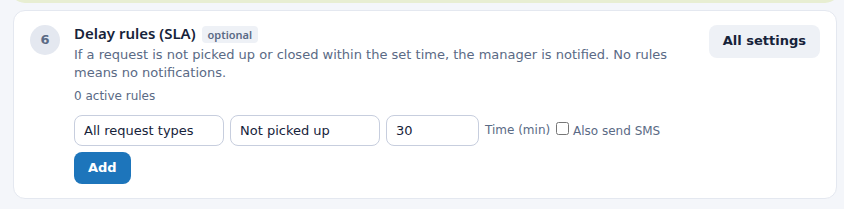
- Add a delay rule (SLA). For example "Malfunction, If not completed, 120 min" and "All, If not taken, 30 min". Leave SMS off in the first days. Details: SLA Rules.
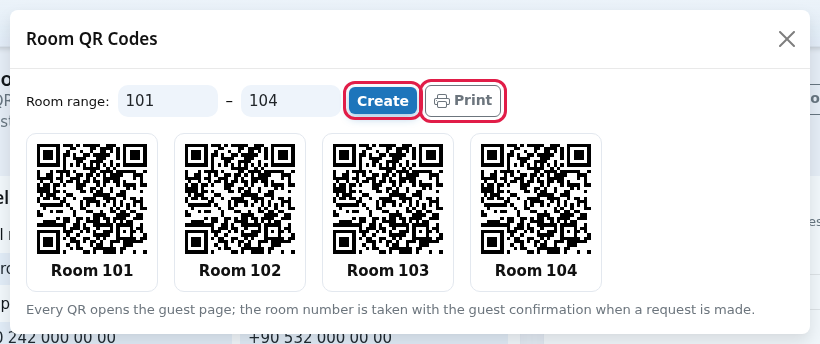
- Prepare the guest portal and QR codes. Choose the cards in Portal Design, set the colours in Studio, and print the labels with Room QR on Guest Portal and place them in the rooms.
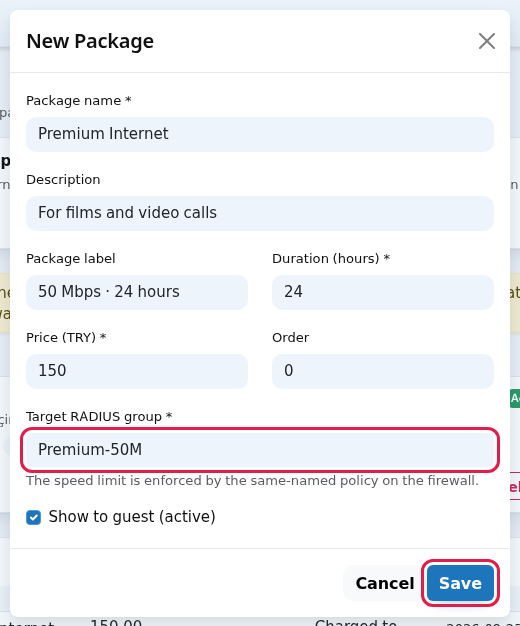
- Turn on speed package sales (optional). Create a group with the same name as the speed policy on your firewall, then define the package. Details: Speed Package Sales. For bookable services: Bookings and Extras. PMS for guest verification: PMS Integration.
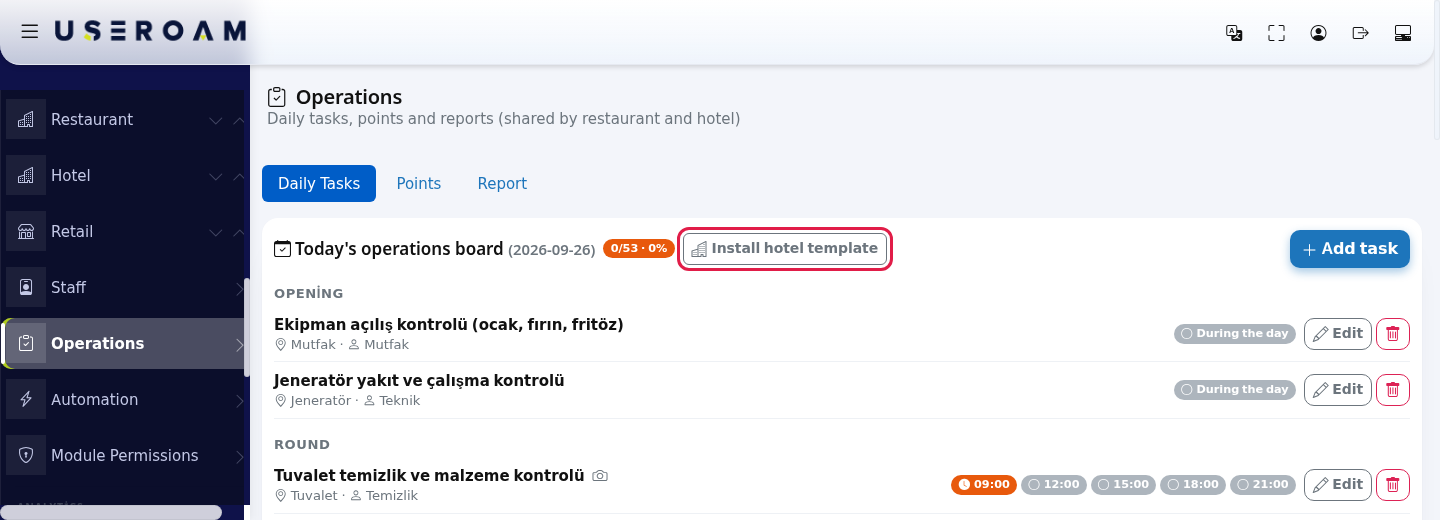
- Areas outside rooms and daily tasks (optional). You can add areas such as lobby, pool and restrooms and daily check tasks with the hotel template installed in one press on the Operations screen; the template is not added by default.
- Open a test request. On Request Management use Open New Request (reception), pick a room number and a type for the test and press Open. Check that it lands in the right department and that staff see it in Useroam Go; then close it with the cancel button. The wizard's Verify the setup card (Create test request) does the same check.

Checklist
| Check | Where you see it |
|---|---|
| The guest page opens | Guest Portal → Guest page |
| The room count on the live status strip is right | Request Management → strip: Rooms |
| Every department has at least one staff member | Staff screen; no warning in the wizard |
| The test request is in the right department | Request Management → Assignment column |
| Staff see the request on their phone | Useroam Go → Requests |
Frequently asked questions
I closed the wizard. How do I open it again?
With the Setup wizard button on Request Management.
Can I start without a PMS?
Yes: the panel, Useroam Go and requests opened at reception work without a PMS. For guests to send requests and reservations from the portal, guest verification, that is a PMS record, is needed.
Related pages
- Request Management · The hotel portal your guests see · Automation (reporting a malfunction to your support company)
- Role guide: hotel manager · Role guide: hotel staff