
Coupons & Wheel
What is it for?
On Coupons & Wheel you define the discount coupons given to customers and set up the Spin-to-Win Wheel shown after sign-up. When a customer wins a coupon, a one-time code (example: K586E2B8) is created for them; the code is checked and redeemed at the till.
The subtitle under the screen title reads "Store name · coupons scanned at the register and spin-to-win".
When to use it
- When you want to give a welcome discount to customers who sign up.
- When you want to change the wheel's slices, win rate or daily spins.
- When you want to stop (deactivate) an expired campaign.
Before you start
- A store must exist (Store & QR Registration).
- How a customer gets a code: if the wheel is on, it appears after sign-up and the coupon is the prize of the winning slice. If the wheel is off, the newest active coupon with distribution After the form is given right after sign-up. An automation rule can also give coupons (Automation).
Step by step: adding a coupon
- Open Retail > Coupon & Wheel in the left menu.
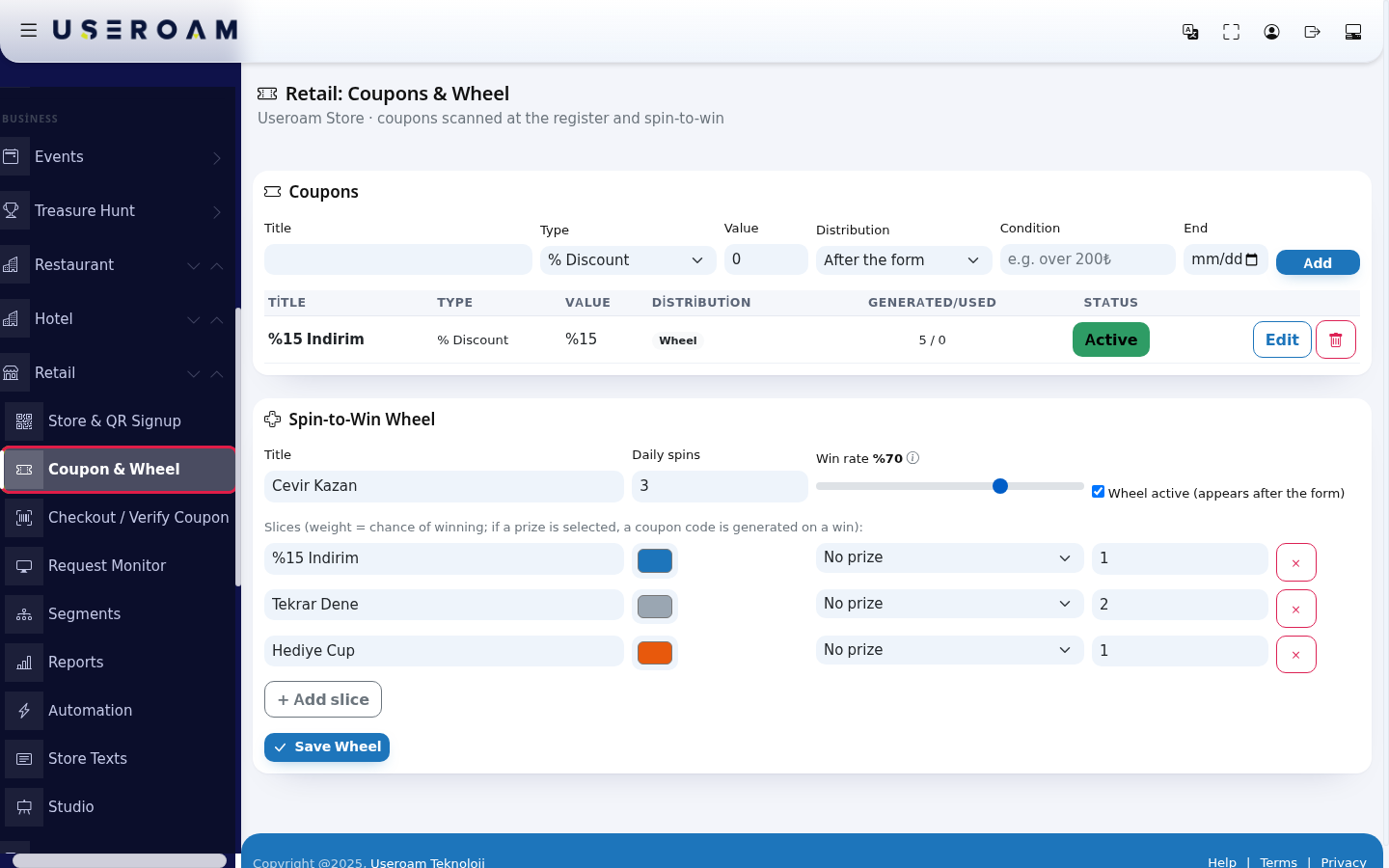
- Fill in the form in the Coupons card: Title, Type, Value, Distribution, and optionally Condition and End. Press Add. "Coupon added." appears.

- The coupon appears in the list. Pressing Active makes it Passive (press again to turn it back on). Edit loads the coupon into the form; the bin deletes it after "Delete this?".

- After Edit, the form fills with the coupon and the button changes to Update. Change what you need and press Update ("Coupon updated.").

Step by step: setting up the wheel
- In the Spin-to-Win Wheel card, set the Title (text shown above the wheel), Daily spins and Win rate. Keep Wheel active (appears after the form) ticked. Above the slices: "Slices (weight = chance of winning; if a prize is selected, a coupon code is generated on a win):". For each slice choose a coupon in the prize box or leave No prize.
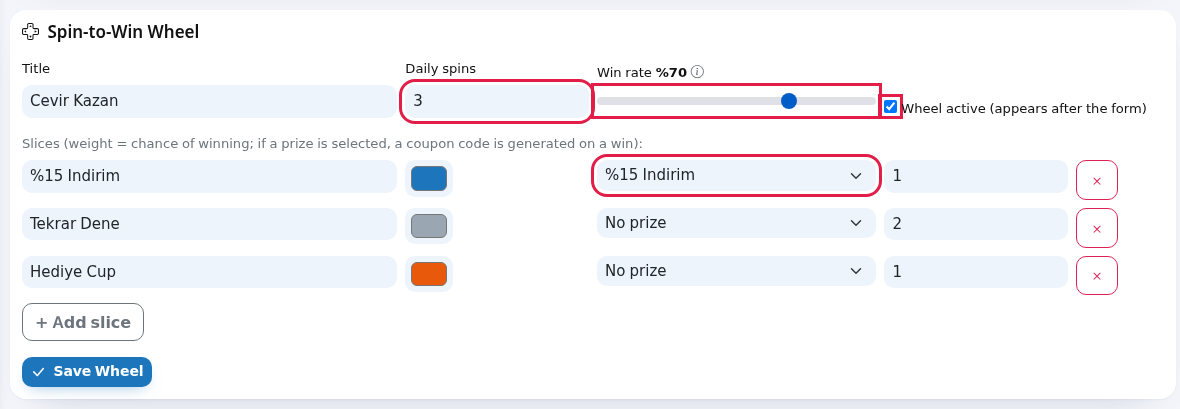
- For a new slice press + Add slice and enter its label, colour, prize and weight. Remove a slice with the red x at the end of its row. Press Save Wheel ("Wheel saved.").
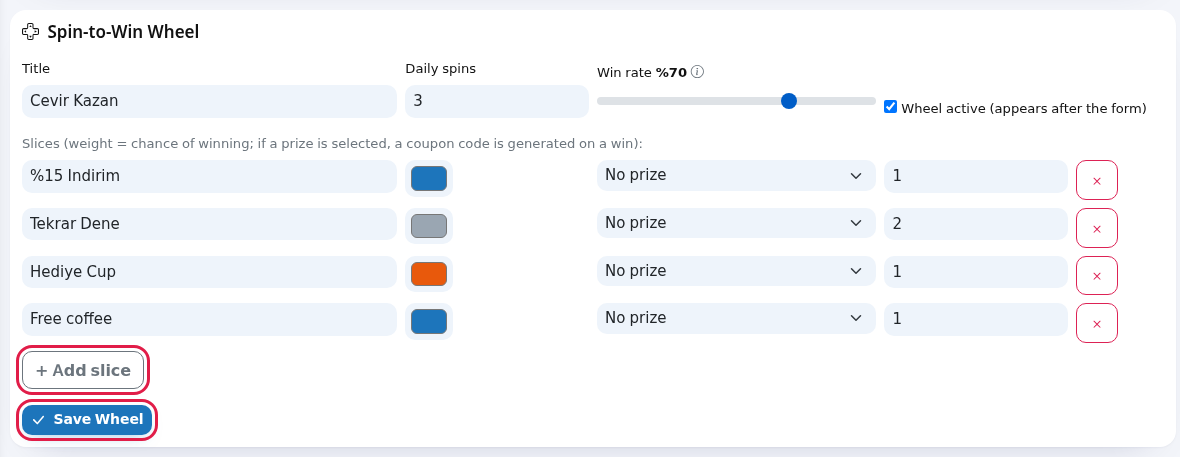 Check the prize boxes before saving. The screen currently cannot show the coupon you chose earlier; every prize box opens as No prize. If you press Save Wheel without checking, all slices are saved without prizes and no customer can win a coupon. Re-select the prizes every time you save.
Coupon fields
| Field | What it does | Example |
|---|---|---|
| Title | Required. Name the customer sees on the coupon and the cashier sees at the till. | Welcome 10% |
| Type | % Discount, ₺ Discount, Gift/Sample, Buy X Pay Y. | % Discount |
| Value | Discount amount: a percentage for % Discount, an amount for ₺ Discount. Not used for Gift and Buy X Pay Y (the list shows a short dash instead). | 10 |
| Distribution | After the form: given to everyone who signs up while the wheel is off. Wheel prize and Manual: labels only; the coupon is given if chosen as a wheel prize or used in an automation rule. Shown in the list as a Form, Wheel or Manual badge. | After the form |
| Condition | Grey sample: "e.g. over 200₺". Information only; shown under the title in the list. The till screen does not check it; the cashier does. | over 200 TL |
| End | Last valid day. After it the till shows "Coupon has expired" and the form coupon is no longer given. The wheel, however, keeps giving an expired coupon as a prize; make the coupon Passive when the campaign ends. Empty means no end date. | 31.12.2026 |
| Generated/Used | How many codes were issued / how many were redeemed at the till. | 5 / 0 |
| Status | Active (green) or Passive. A passive coupon issues no new codes by any route; codes already issued stay valid at the till. | Active |
Wheel fields
| Field | What it does | Example |
|---|---|---|
| Title | Text above the wheel. If empty, "Çevir Kazan". | Spin to Win |
| Daily spins | How many times one sign-up can spin on the same day (at least 1). | 1 |
| Win rate | Share of spins that land on a prize slice (0-100, in steps of 5). Hovering the info icon shows: "What share of spins lands on a prize slice. Lower it and "Try Again" comes up more often." | %70 |
| Wheel active (appears after the form) | If off, no wheel is shown; after sign-up the After-the-form coupon or the thank-you screen appears. | Ticked |
| Label | Text on the slice (first 16 characters shown). | 15% off |
| Colour | Slice colour. | |
| Prize (No prize / coupon name) | Which coupon's code is created when this slice wins. Without a prize the customer sees "Not this time". | %15 Indirim |
| Weight | The slice's share within its group (prize or no-prize). First the win rate decides win or lose, then a slice in that group is picked by weight. | 1 |
| + Add slice / x | Adds / removes a slice. | |
| Save Wheel | Saves the wheel settings. |
Messages you may see
| Message | Meaning |
|---|---|
| Coupon added. / Coupon updated. | The coupon was saved. |
| Title is required. | Give the coupon a name. |
| Status updated. | Active/Passive changed. |
| Deleted. | The coupon was deleted. |
| Wheel saved. | The wheel settings were saved. |
| No coupons yet. | The list is empty; add one with the form. |
Frequently asked questions
Is there no limit field?
No. Daily or total coupon limits and a start date cannot be set on the screen; when a coupon is saved these are stored as unlimited.
Is the coupon condition checked at the till?
No. The condition is information only; the cashier must check it.
Everyone wins / nobody wins on the wheel.
Check the Win rate and make sure a coupon is selected on the prize slices. A passive or deleted coupon gives no prize.
Can I cancel a single code?
There is no button for cancelling one code. Making the coupon Passive stops new codes but issued codes stay valid; to end them, set the End date to a past day.