
Till / Coupon Validation
What is it for?
Checkout / Coupon Validation shows whether the coupon code a customer brings is valid and marks the code as used. Each code can be used once; after that it no longer works.
The screen title is Retail: Checkout / Coupon Validation; the subtitle reads "Store name · scan or type the code, check validity, redeem".
When to use it
- When a customer shows their coupon code or coupon image at the till.
- When you want to see whether a code was already used, and when and by whom.
Before you start
- The computer or tablet at the till must be logged in to the panel with the store's device selected.
- To scan with the camera, the device needs a camera and the browser needs camera permission. Otherwise type the code or use a USB barcode scanner (it types the code into the box and presses Enter).
Step by step
- Open Retail > Checkout / Verify Coupon in the left menu. Type the customer's code in Coupon code (case does not matter) or press the camera button and scan the QR on the customer's screen. Press Check or Enter.
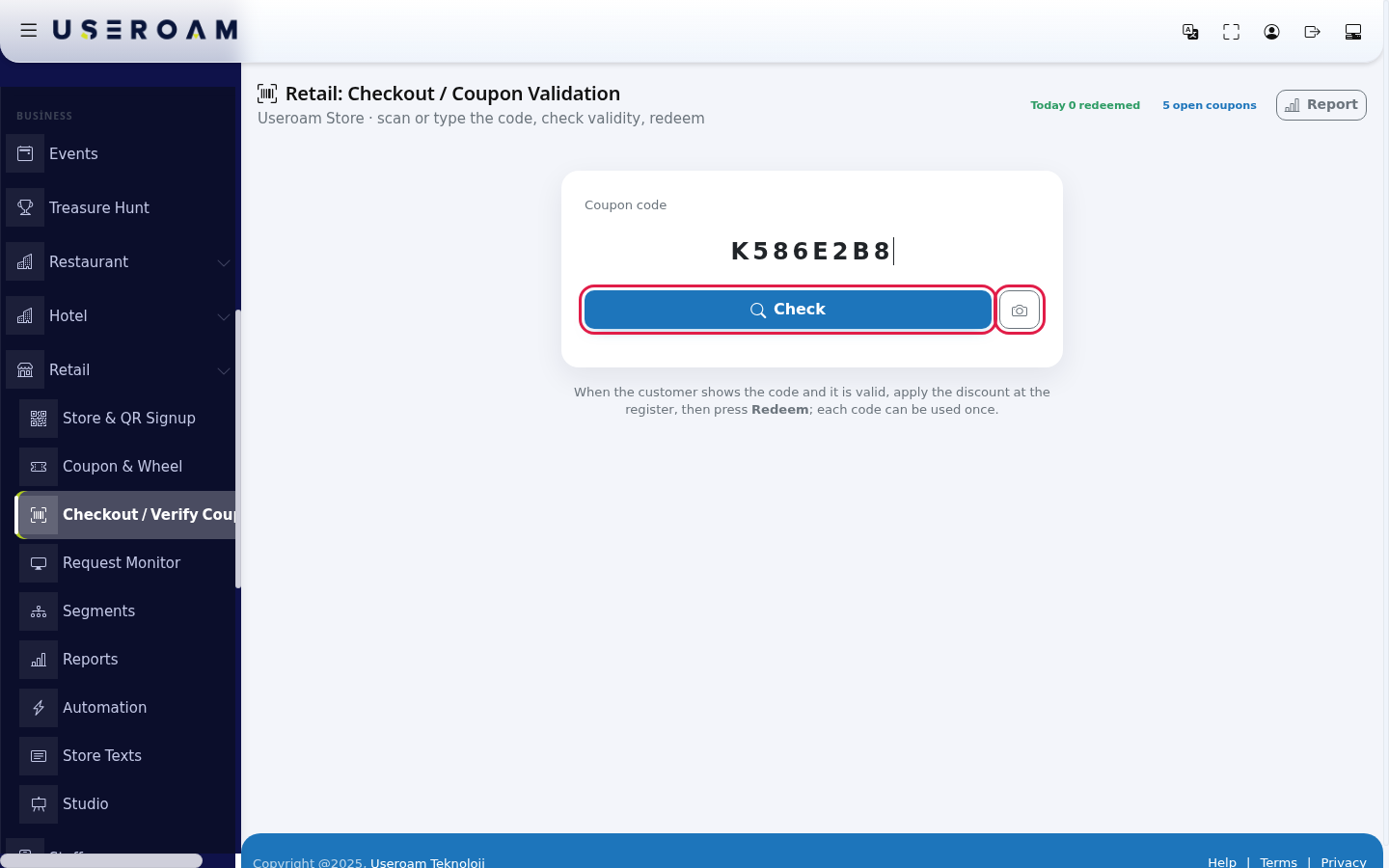
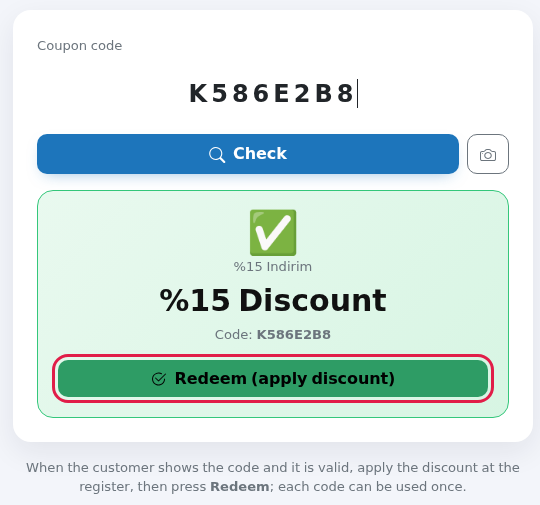
- If the code is valid, a green box shows the coupon name, the discount (example: %15 Discount) and the code. Apply the discount at the register, then press Redeem (apply discount).
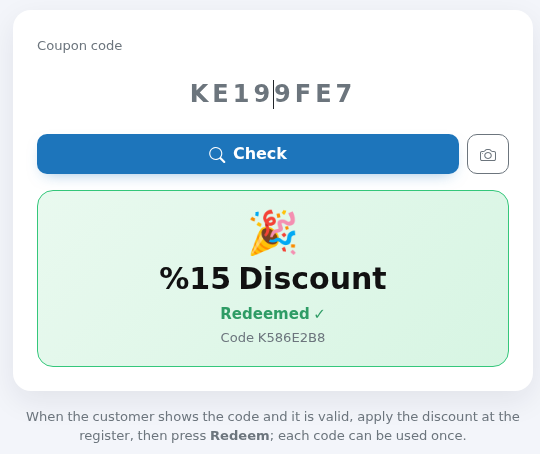
- The box changes to Redeemed ✓ and the code box empties for the next customer.
Invalid code screens
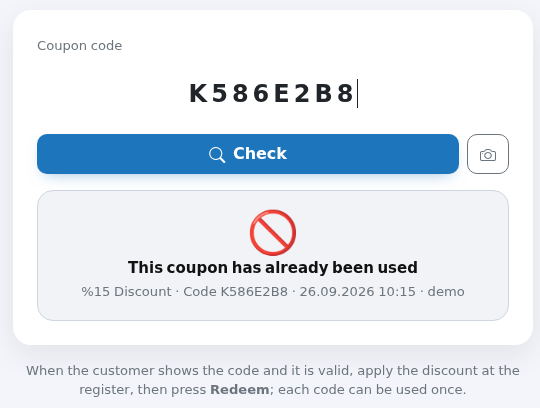
Grey box: the code was already used. Below it: the discount, code, date and time of use and the panel user who redeemed it.
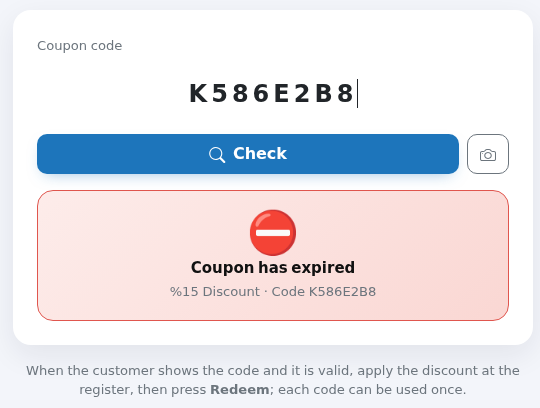
Red box: the coupon's End date has passed.
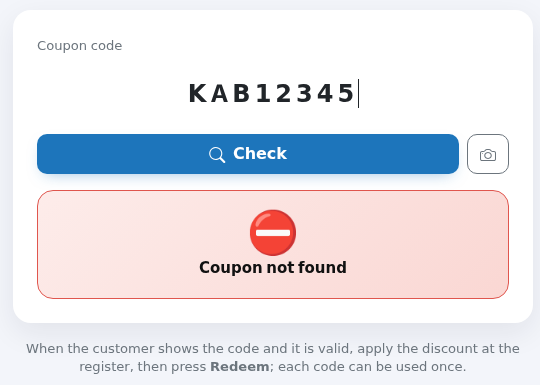
Red box: this store has no such code. Read the code again from the customer's screen; another branch's code does not work here.
Every field and button
| Field / Button | What it does |
|---|---|
| Today X redeemed | Codes redeemed at the till today. |
| X open coupons | Codes issued but not yet used. |
| Report | Opens Retail Reports. |
| Coupon code | The box for the code. The grey sample (KE199FE7) only shows the format. |
| Check | Checks the code without using it. At least 4 characters. |
| Camera button | Opens the camera; when a QR is read, the code is filled in and checked automatically. Press again to close the camera. |
| Redeem (apply discount) | Marks the code as used. Only shown on a valid result. |
| Note at the bottom | "When the customer shows the code and it is valid, apply the discount at the register, then press Redeem; each code can be used once." |
Messages you may see
| Message | Meaning / what to do |
|---|---|
| Checking… | Being checked; wait. |
| Redeemed ✓ / Coupon redeemed | Done. |
| Gift / Sample, Buy X Pay Y | Shown instead of a discount for Gift and Buy X Pay Y coupons. |
| This coupon has already been used / Already used (date) | The code was used before. Do not apply the discount. |
| Coupon has expired / Expired | The coupon's end date has passed. |
| This coupon has been cancelled / Cancelled coupon | The code was cancelled; it does not work. |
| Coupon not found | The code is not in this store or was mistyped. |
| Invalid code | A code has 4-20 letters or digits, without spaces or symbols. |
| Coupon could not be redeemed (it may have been used at the same time) | The same code was used at another till at the same moment. Press Check again to see its status. |
| Error | Connection problem. Check your internet connection and try again. |
| Camera could not be opened / Scanner library could not be loaded | No camera permission or no camera. Type the code. |
| Unknown action | Unexpected request; reload the page. |
Frequently asked questions
Do I press Redeem first or apply the discount first?
Apply the discount first, then press Redeem. A redeemed code cannot be restored; if the sale is cancelled the code is lost.
Does the screen check the coupon condition (example: over 200 TL)?
No. The condition is only a note in the coupon list; the cashier checks it.
Where can I see who used a code?
Check a used code again: the date and time of use and the panel user are shown. This screen does not write to the Audit Log.
Can it connect to our POS system?
Yes, there is an API endpoint for checking and redeeming coupons. See API Keys for a key; contact our support team for integration details.
A phone number appears on the valid result.
For coupons sent by SMS through an automation rule, the customer's number is shown under the result. Do not keep the screen facing customers.
Related pages
- Coupons & Wheel
- The Store Page Your Customers See (the customer's coupon screen)
- Retail Reports