
Android setup
To join the company Wi-Fi without typing a password, a certificate is installed on your device. On Android this has two stages: install the certificate, then fill in a few fields in the Wi-Fi settings.
Before you start
- Be on the company network. The setup page opens only from your company Wi-Fi. If you open it over mobile data you see "Open this page on the company network".
- You need the setup link from your administrator. It may also arrive by SMS.
- The link does not expire. Once you start, finish the certificate download step within 15 minutes; if it lapses, fill the form again.
- Menu names vary slightly between phone brands.
1. Download the certificate
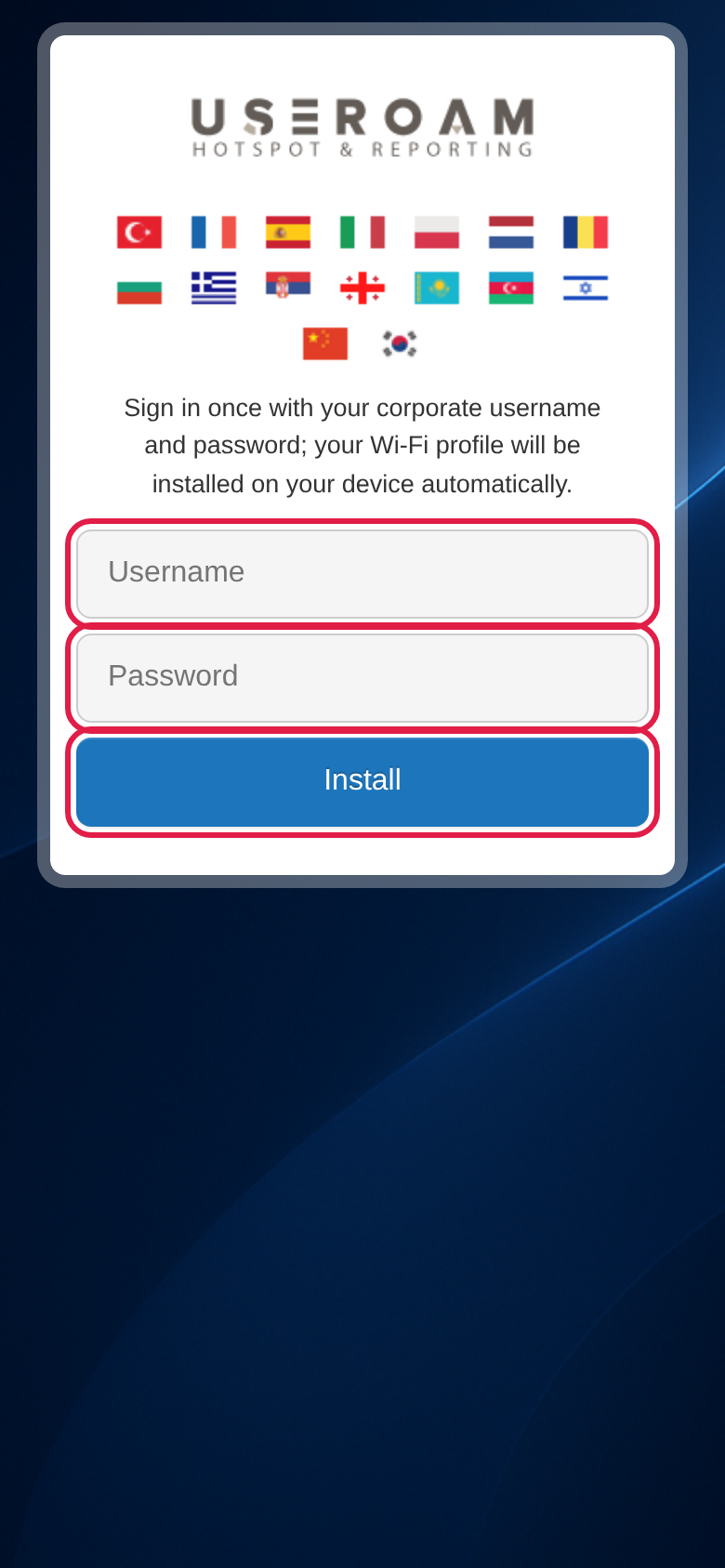
- Open the link and enter your work username and password.
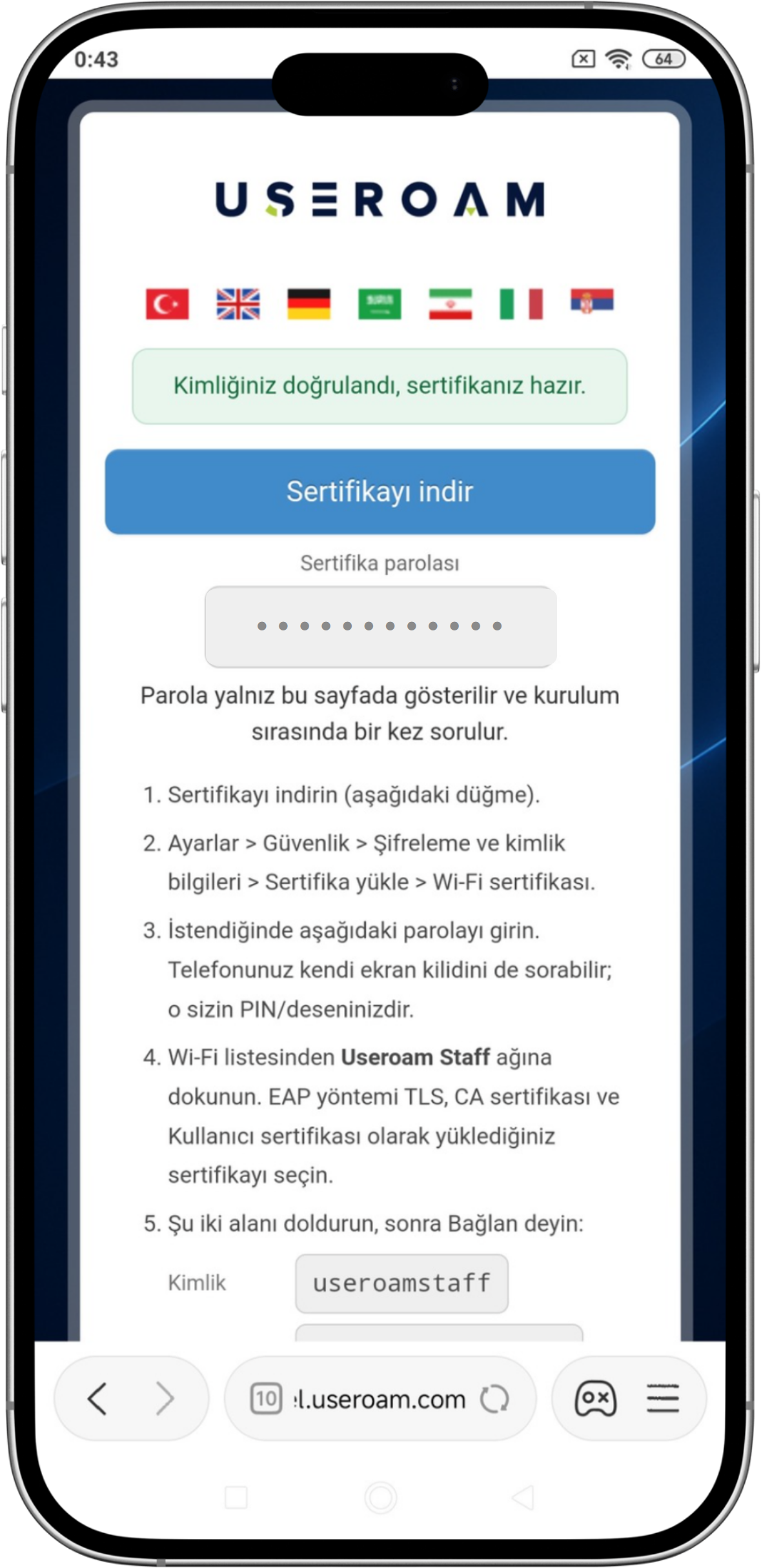
- Once you are verified, a Download certificate button appears; tap it.
- A certificate password appears on the same screen. You will need it in the next step, so keep the page open. The screen also shows the values for the Identity and Domain fields.
2. Install the certificate
- Tap the downloaded file in the notification shade or the Downloads list. The name looks like
useroam-personel.p12and it is only a few KB.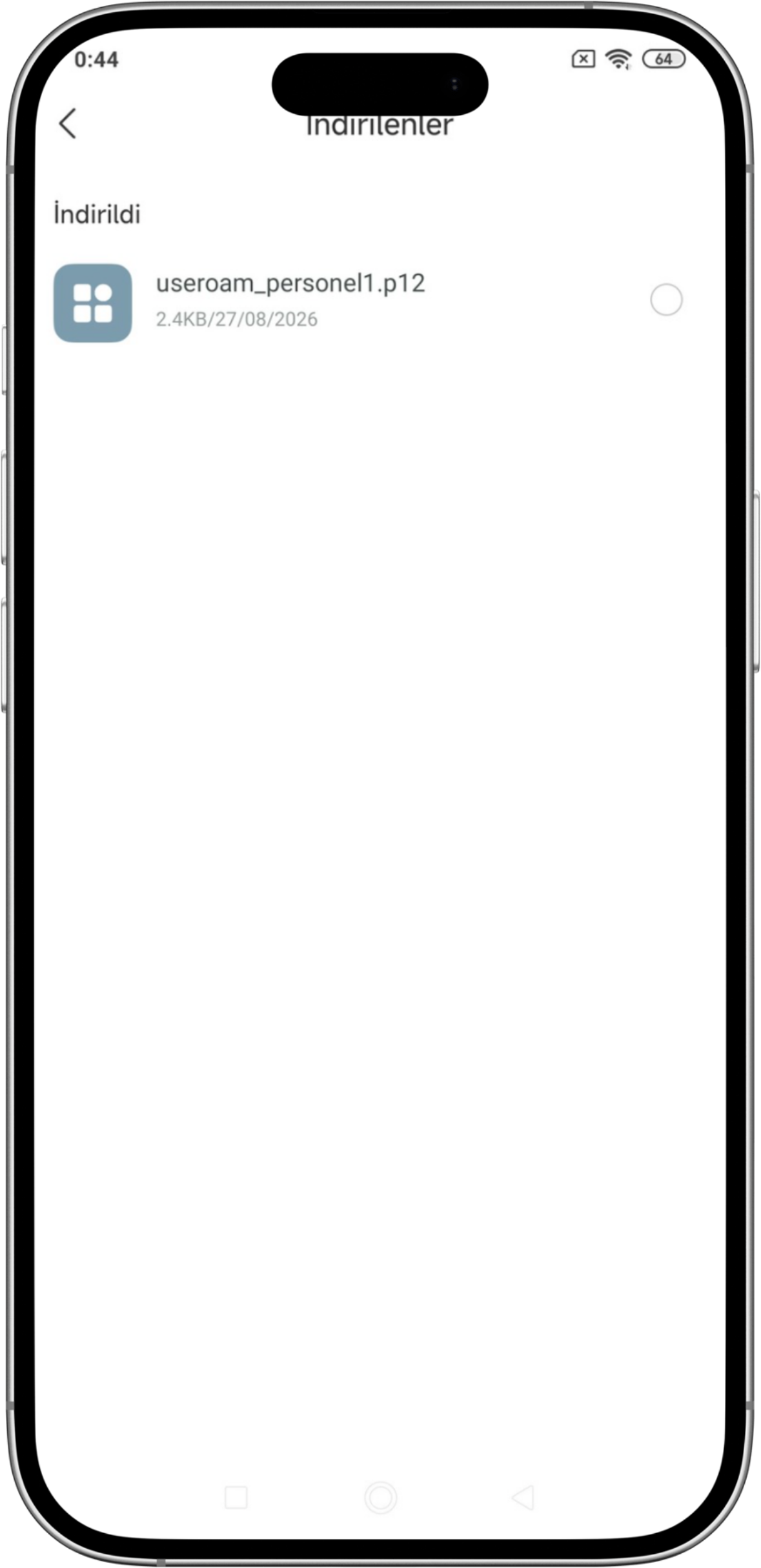
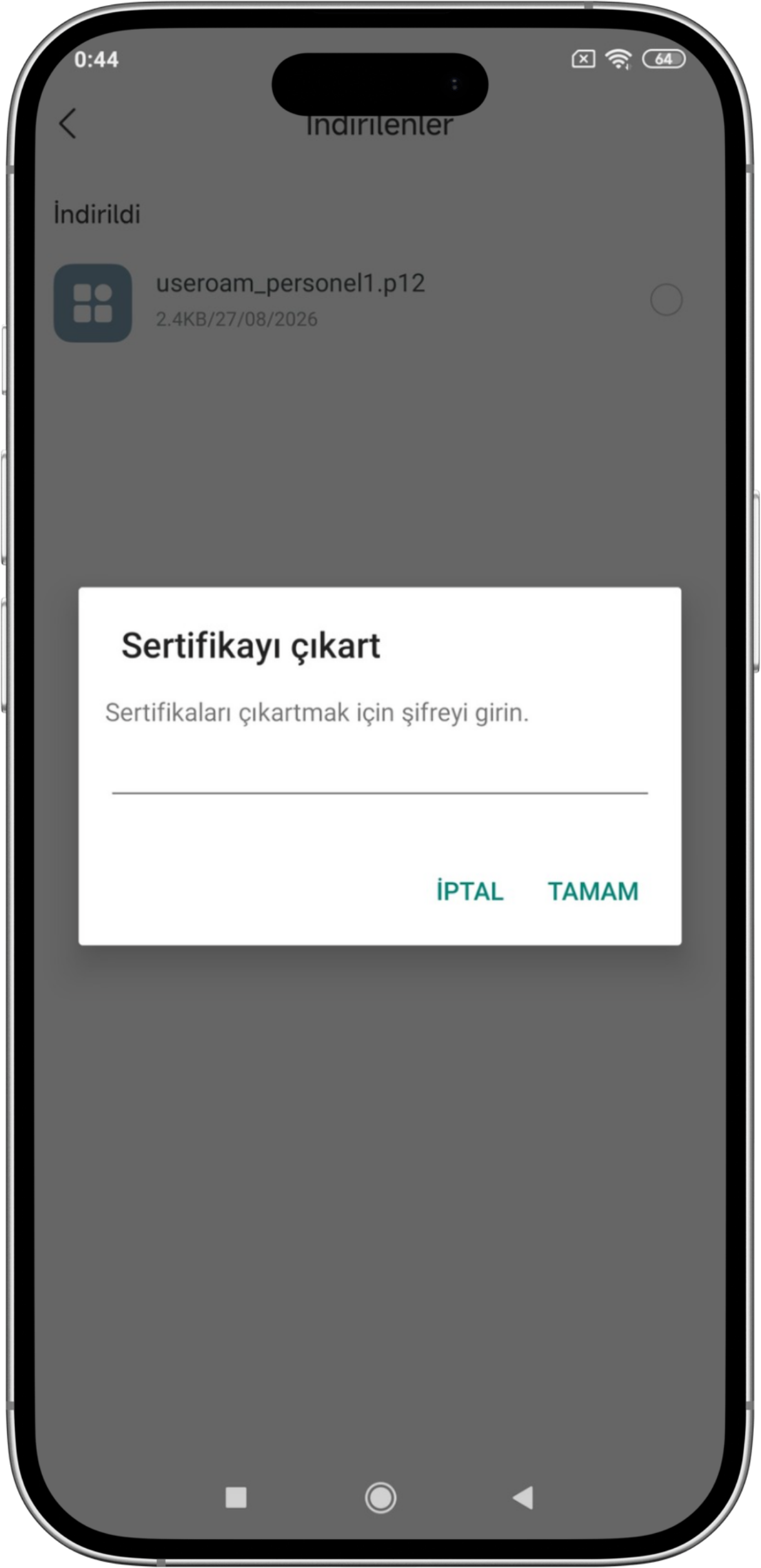
If you cannot reach the file, the same thing works from Settings > Security > Encryption & credentials > Install a certificate; there, choose Wi-Fi certificate. Do not choose "VPN and apps": the Wi-Fi screen cannot see certificates installed there. - An Extract certificate dialog opens. Enter the certificate password shown on the setup page and tap OK.
- In the Name the certificate dialog, Credential use must be set to Wi-Fi. Tap OK.
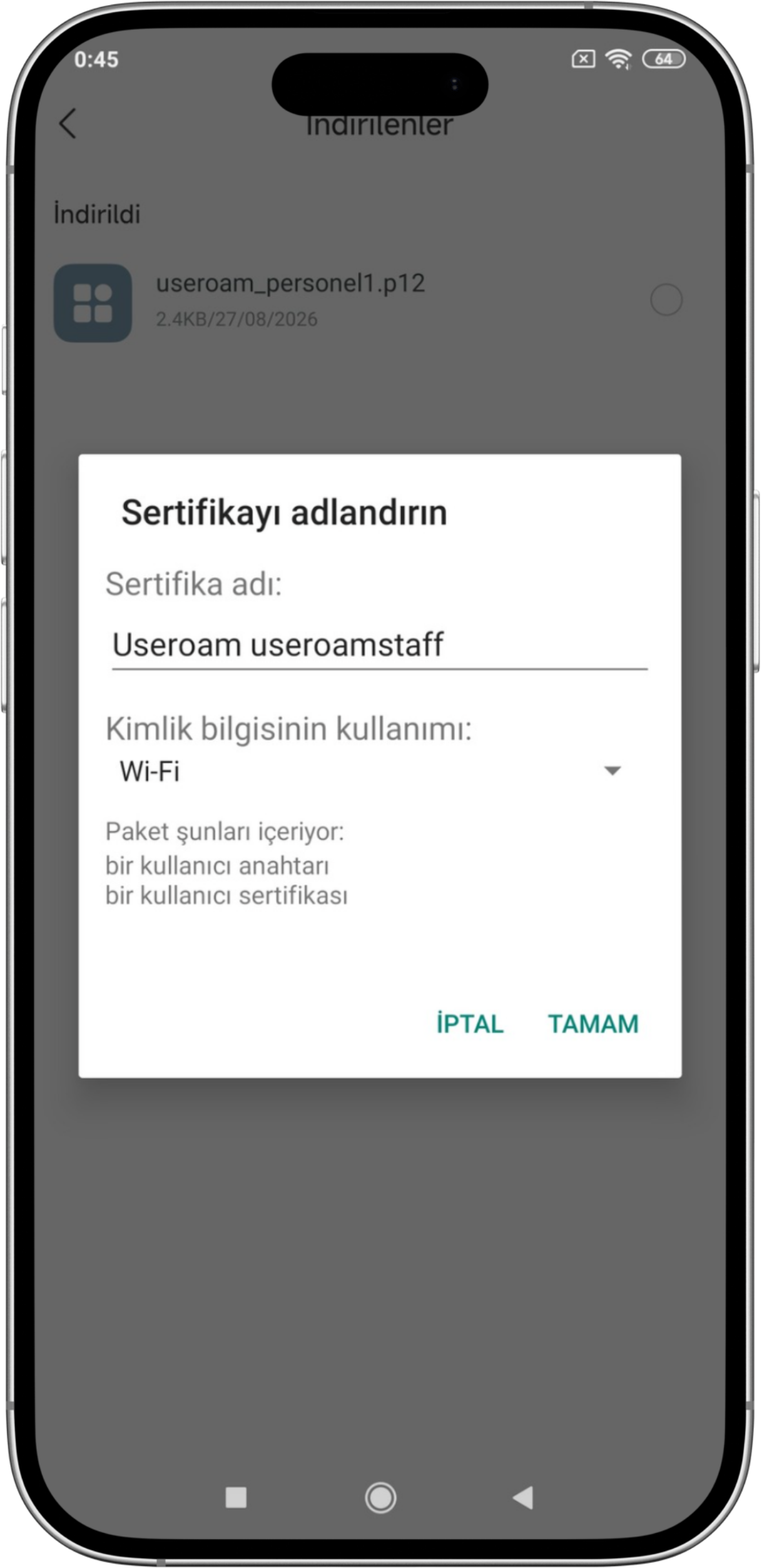
- Your phone may also ask for its screen lock. That is your own PIN or pattern.
3. Join the network
- Tap the company network in your Wi-Fi list. The dialog that opens shows only Identity and Password; that is not enough for a certificate login. Tap Advanced options.
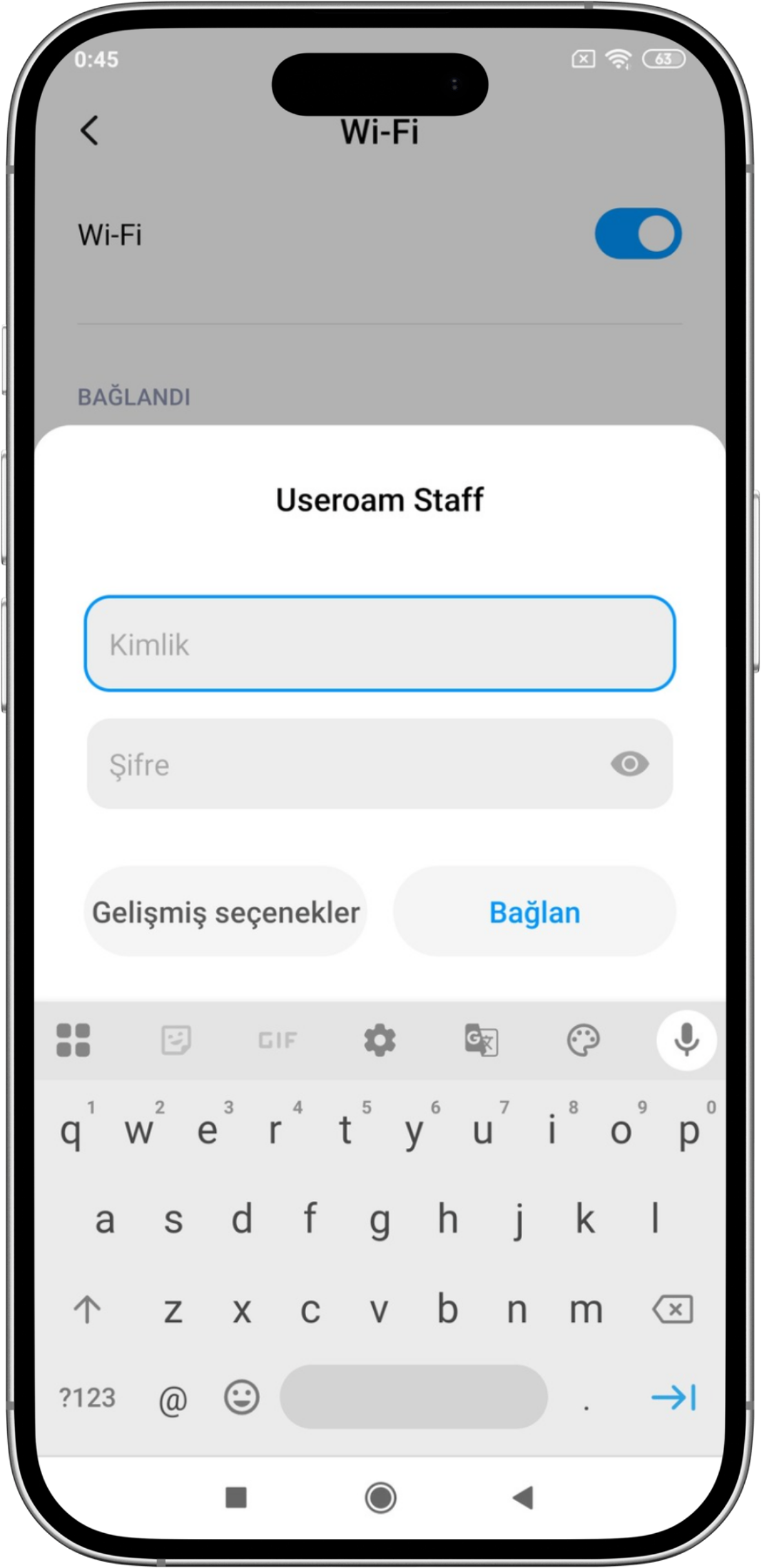
- Fill in the fields in the expanded form.
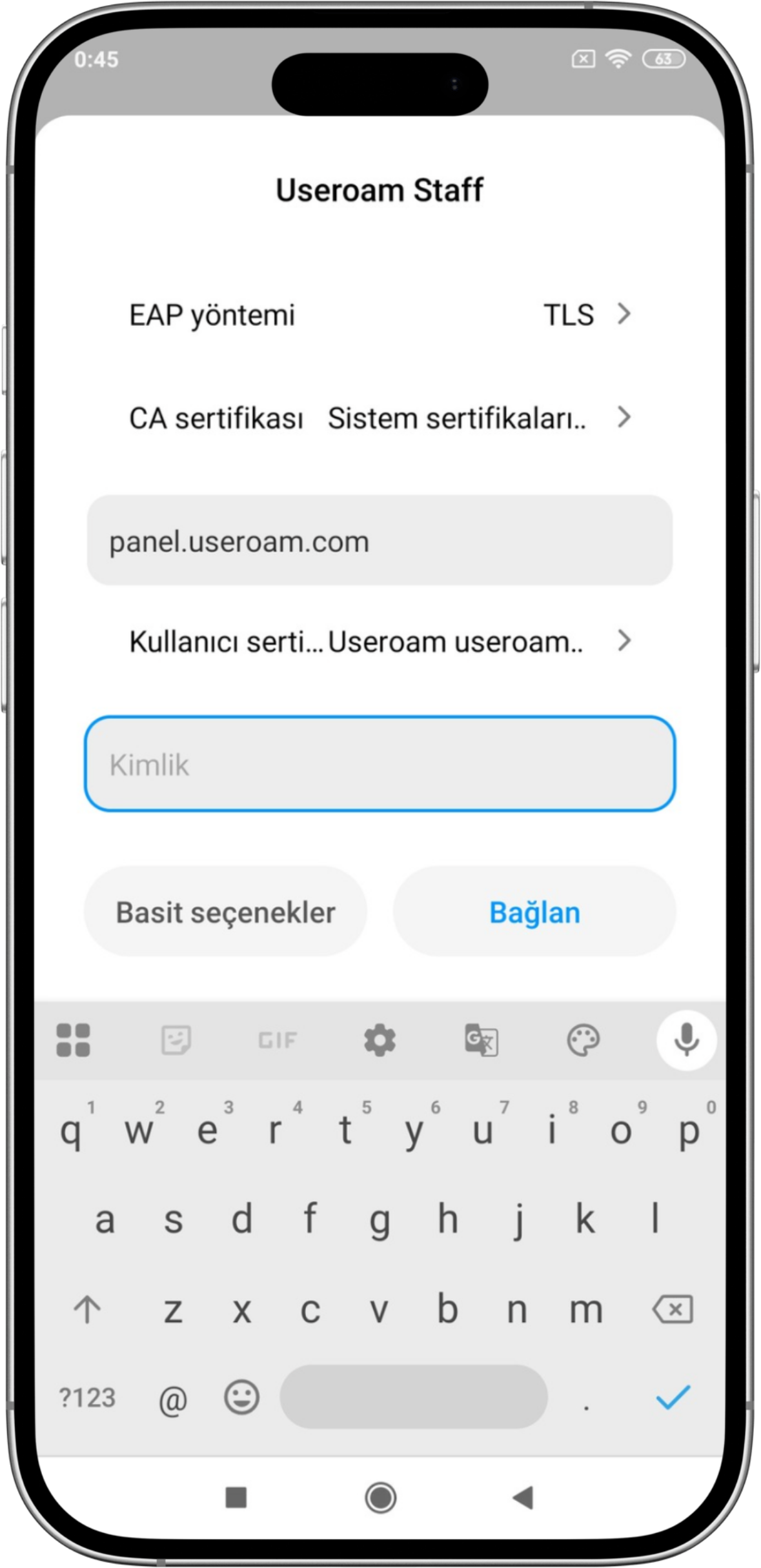
The fields to fill in:
| EAP method | TLS |
| CA certificate | Use system certificates |
| User certificate | select the certificate you installed |
| Identity | your username |
| Domain | the value shown next to Domain name on the setup page (usually panel.useroam.com) |
Then tap Connect.
About the CA certificate: the steps on the setup page may say to select "the certificate you installed as both the CA certificate and the User certificate". In CA certificate choose Use system certificates; select the certificate you installed only in User certificate. The file you installed contains no CA certificate, so it does not appear in the CA list.
The two places people get stuck
Identity: enter your work username. Use exactly the value shown to you on the setup page.
Domain: do not leave it empty. If it is blank the phone reports "Couldn't connect".
Common questions
The phone asked for a password during installation. Which one?
There are two. The certificate password shown on screen opens the file. The screen lock your phone asks for is your own PIN or pattern; Android protects stored certificates with it.
What is installed on my personal phone?
Only a certificate used to join the company Wi-Fi. Your device is not placed under management and its contents are not accessible.
It says "Open this page on the company network".
Your phone is on mobile data or a network outside the company. Join your company Wi-Fi and open the link again.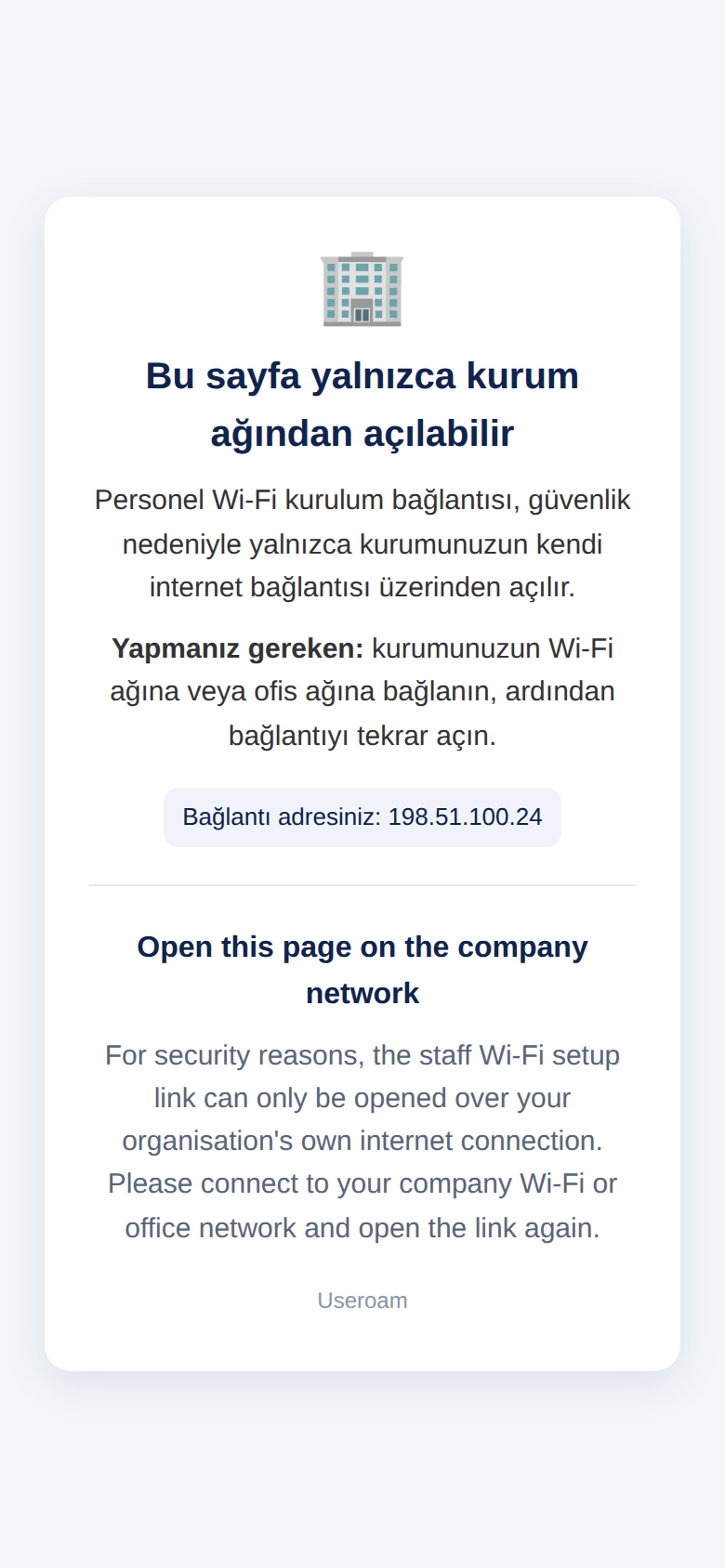
It says "Profil bulunamadı veya süresi doldu (15 dk)" (profile not found or expired).
The download step was not done within 15 minutes. Open the setup link again and fill in the form once more.
The setup page shows an error message.
If you see "Incorrect username or password.", tap Try again and type your details again; if you received a temporary password by SMS, use that. If you see "Verification timed out" or "not enabled / not found in the staff list", tell your administrator. All messages and what they mean: Inviting Staff.