
SMS / WhatsApp Users
What is it for?
The SMS/WhatsAppWhatsapp list shows everythe guestguests who registeredsigned up to your Wi-Fi with atheir phone number through(SMS theor captiveWhatsApp portal.verification). ItFrom ishere theyou maincan listapprove, ofblock youror guestdelete database;a campaignguest, targetingor change their details, group and data-protection requests both run through it.password.
names
HowWhen do I
openusethisit?screen?
From- You want to see whether a guest is registered and when they signed up.
- You want to stop (block) a guest's logins or allow them again.
- You want to move a guest to a longer-lasting group or delete their record.
Before you start
- The list shows the
leftguestsmenu,ofgothetoselectedGuestsdevice.→- Numbers,
SMS/WhatsApp.first
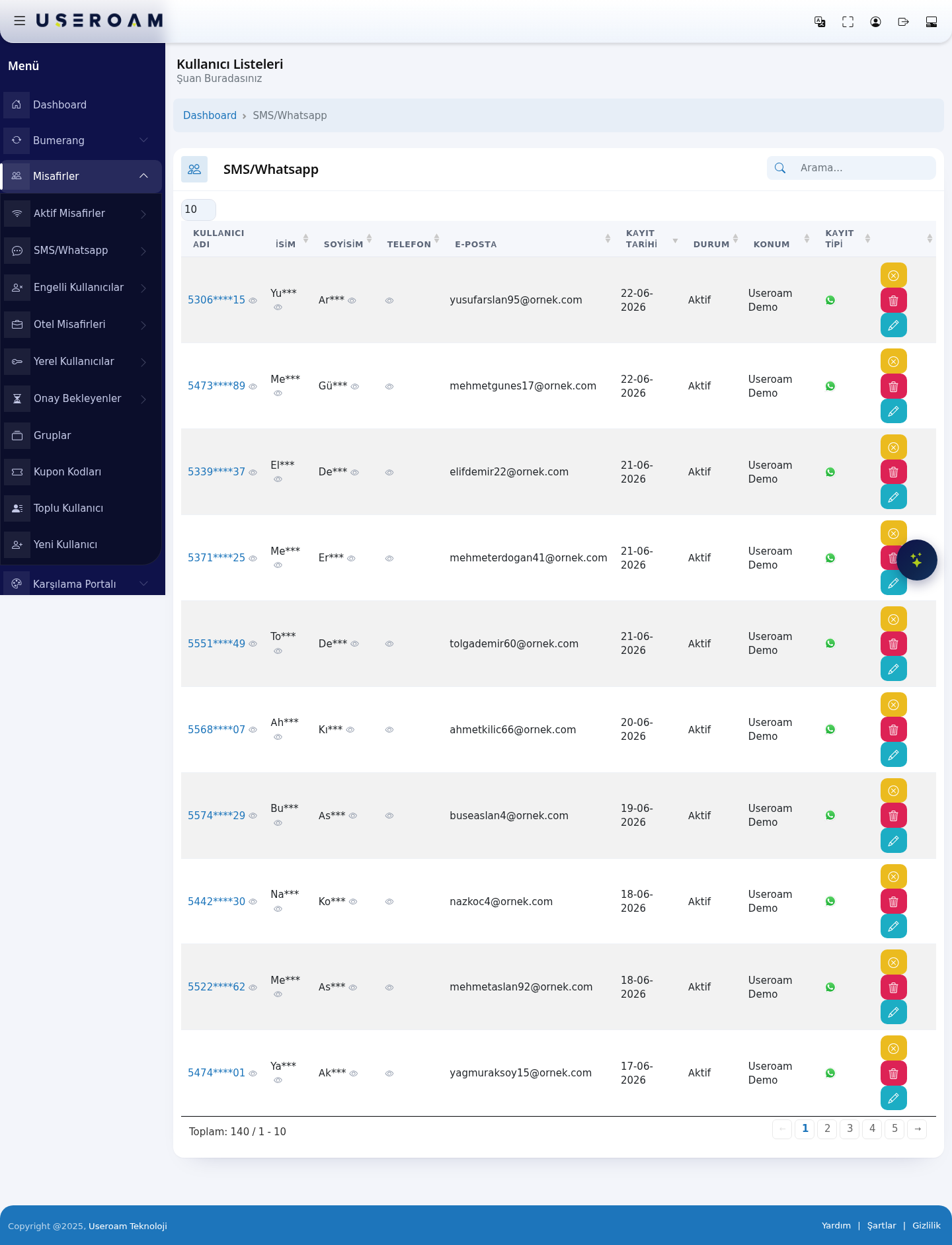
5306****15Yu*** Ar***). If you are allowed to see full values, open them with the eye icon; every reveal is written to the Audit Log.
Step by step
- In the left menu open
maskedGuests and click SMS/Whatsapp.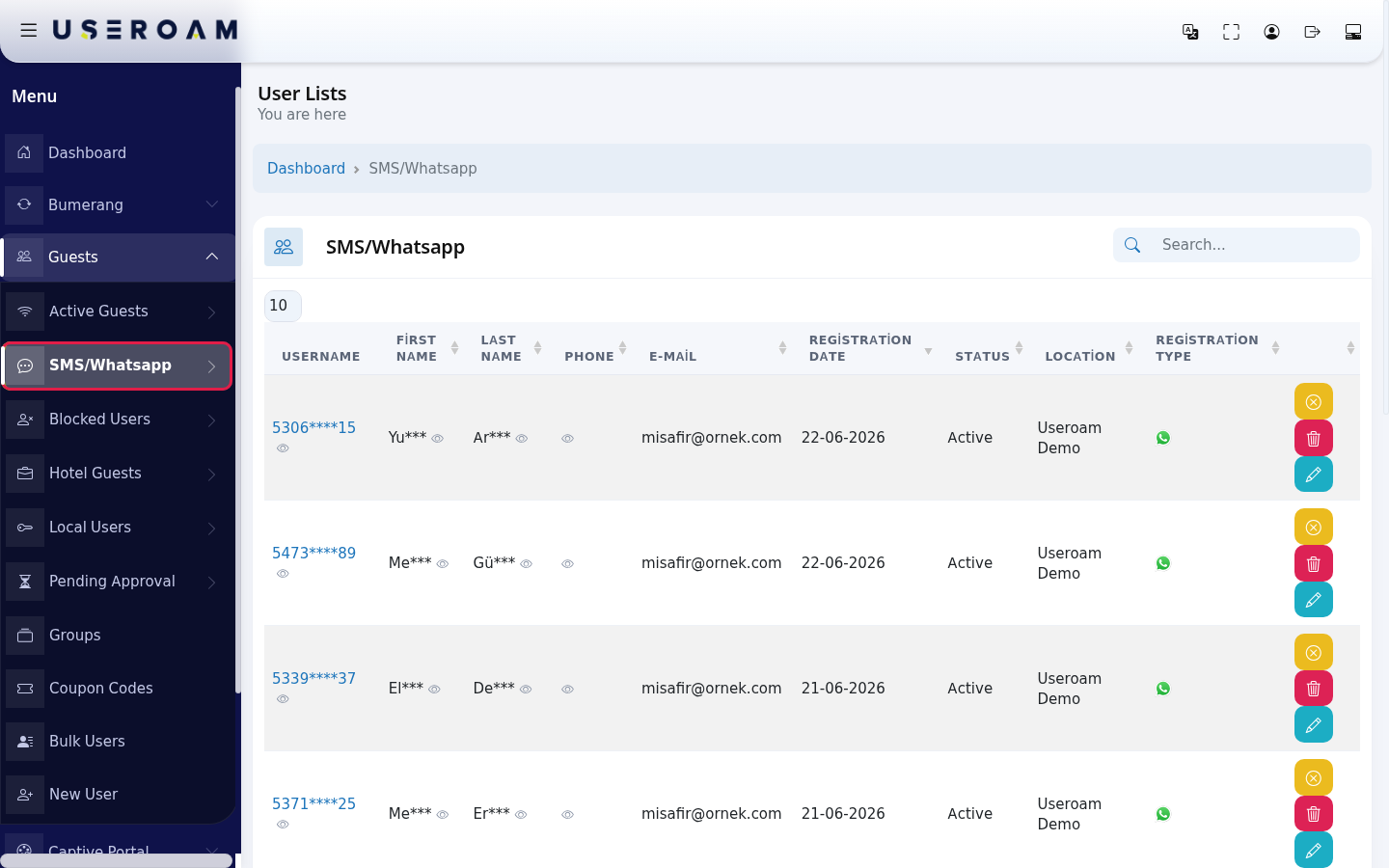
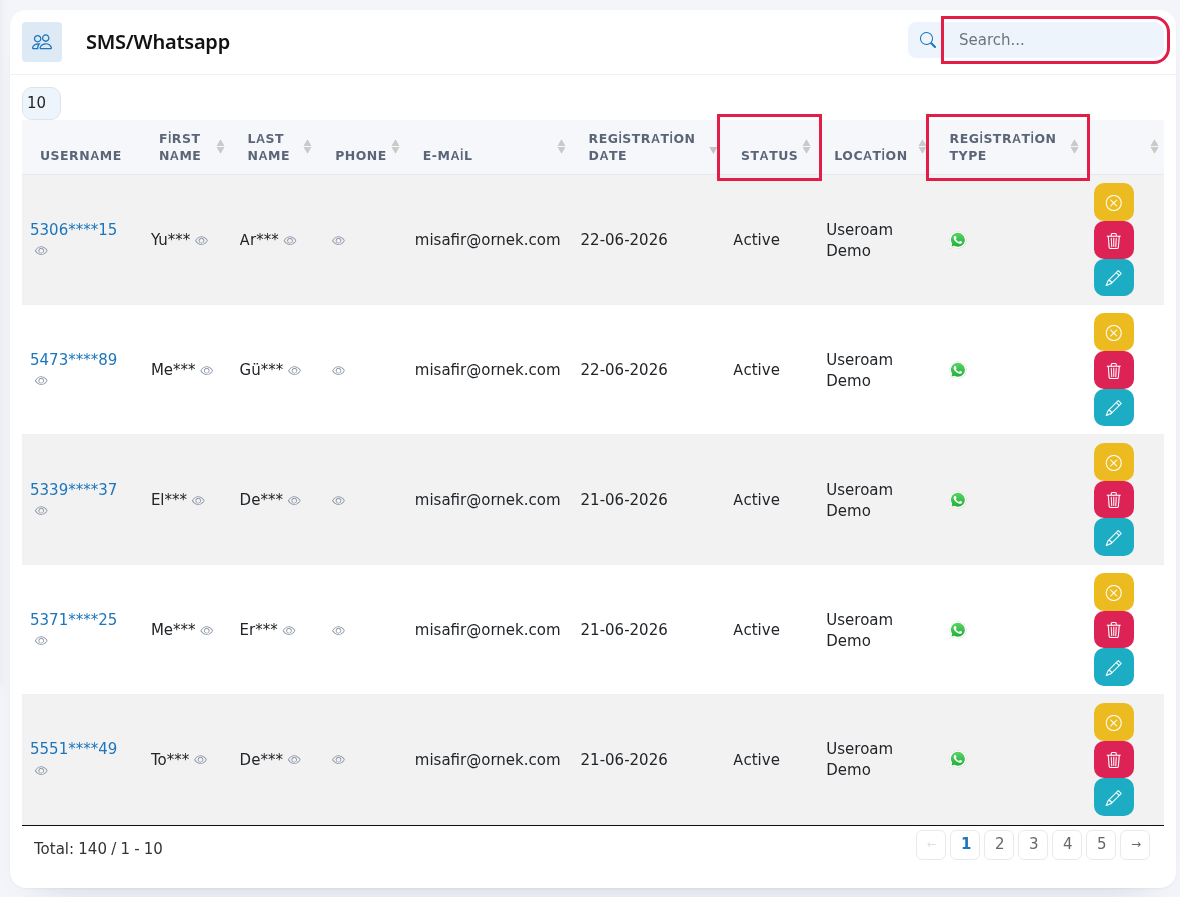
- To find a guest, type in the
list. This is a data-protection measure that keeps personal data from being exposed unnecessarily on the panel screen.
Table columns
USERNAME:the guest's identity in the system (masked phone number)Search..FIRST NAME/LAST NAME:populated (masked) if the name field is enabled on the portal.PHONE:the guest's number.E-MAIL:populated if the email field is enabled on the portal.REGISTRATION DATE:when the guest first registered.STATUS:the account's state (Active/ inactive).Blocked guests are listed on theBlocked Userspage.LOCATION:the device/location where the guest registered — in multi-site businesses this shows which branch.REGISTRATION TYPE:the channel the registration came through (SMS or WhatsApp).
Navigating the list
The Search box at the top filtersright. instantlyThe acrossnewest allsign-up columns;is at the top. The Status column shows whether the guest can sign in; the 10Registration Type column shows whether they signed up by SMS (phone icon) or WhatsApp (WhatsApp icon).
Every field and button on the screen
| Field / | What it does |
|---|---|
| Search... | Searches the list. |
| Number box at the top left | Rows per page: 10, 25, 50, 100, All. |
| Username | The guest's login name, i.e. the phone number (masked). |
| First Name, Last Name, Phone | Details given at sign-up (masked). |
| If the guest gave an e-mail at sign-up. | |
| Registration Date | Day of the first sign-up (day-month-year). |
| Status | Active (can sign in), Passive (blocked) or Waiting for Approval. |
| Location | The device where the sign-up happened. |
| Registration Type | Phone icon means SMS, WhatsApp icon means WhatsApp. |
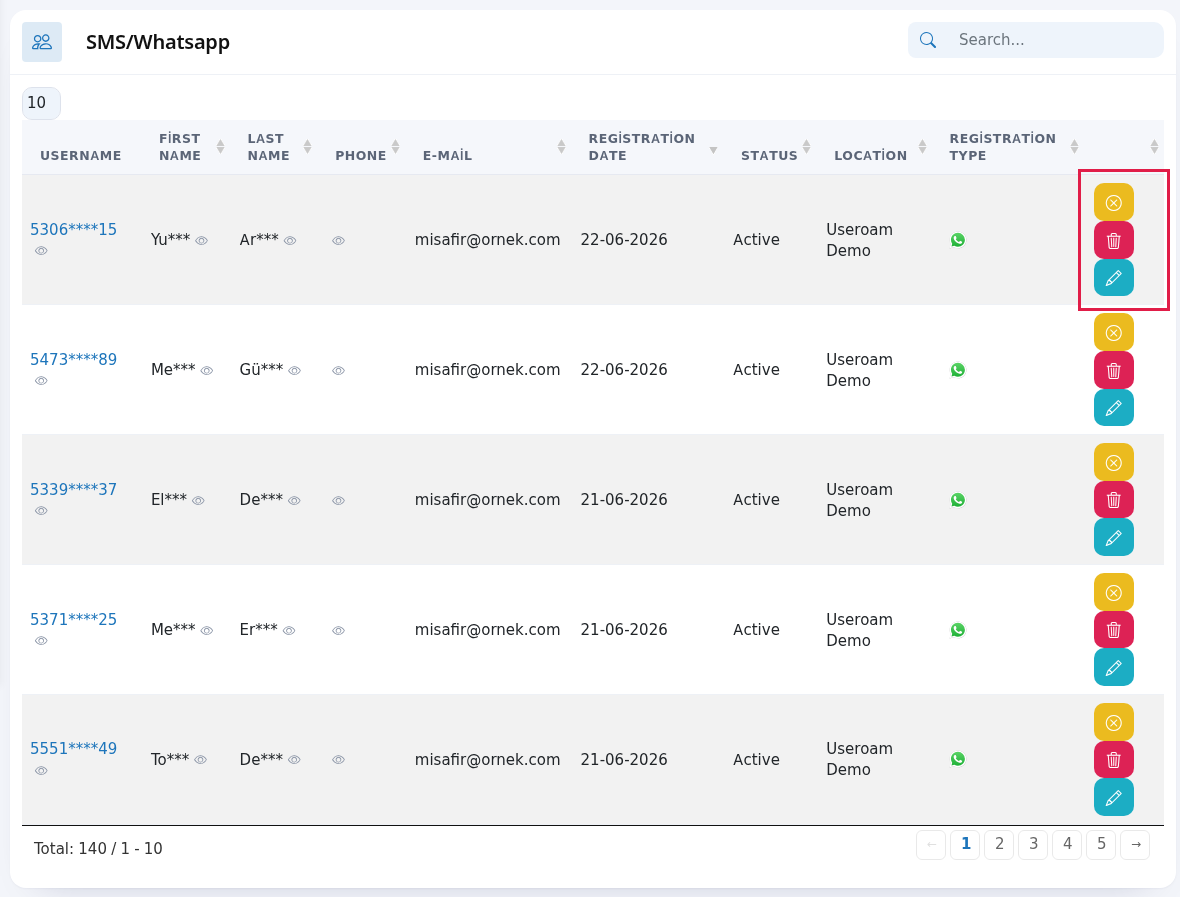
| Confirm | Approves a guest waiting for approval; a login code is sent to the guest. See Pending Approval. |
| Disable User / | Blocks / |
| Delete User | Deletes the guest's record and login without asking. If the guest wants to connect again, they sign up again. |
| Edit User | Opens the edit screen. |
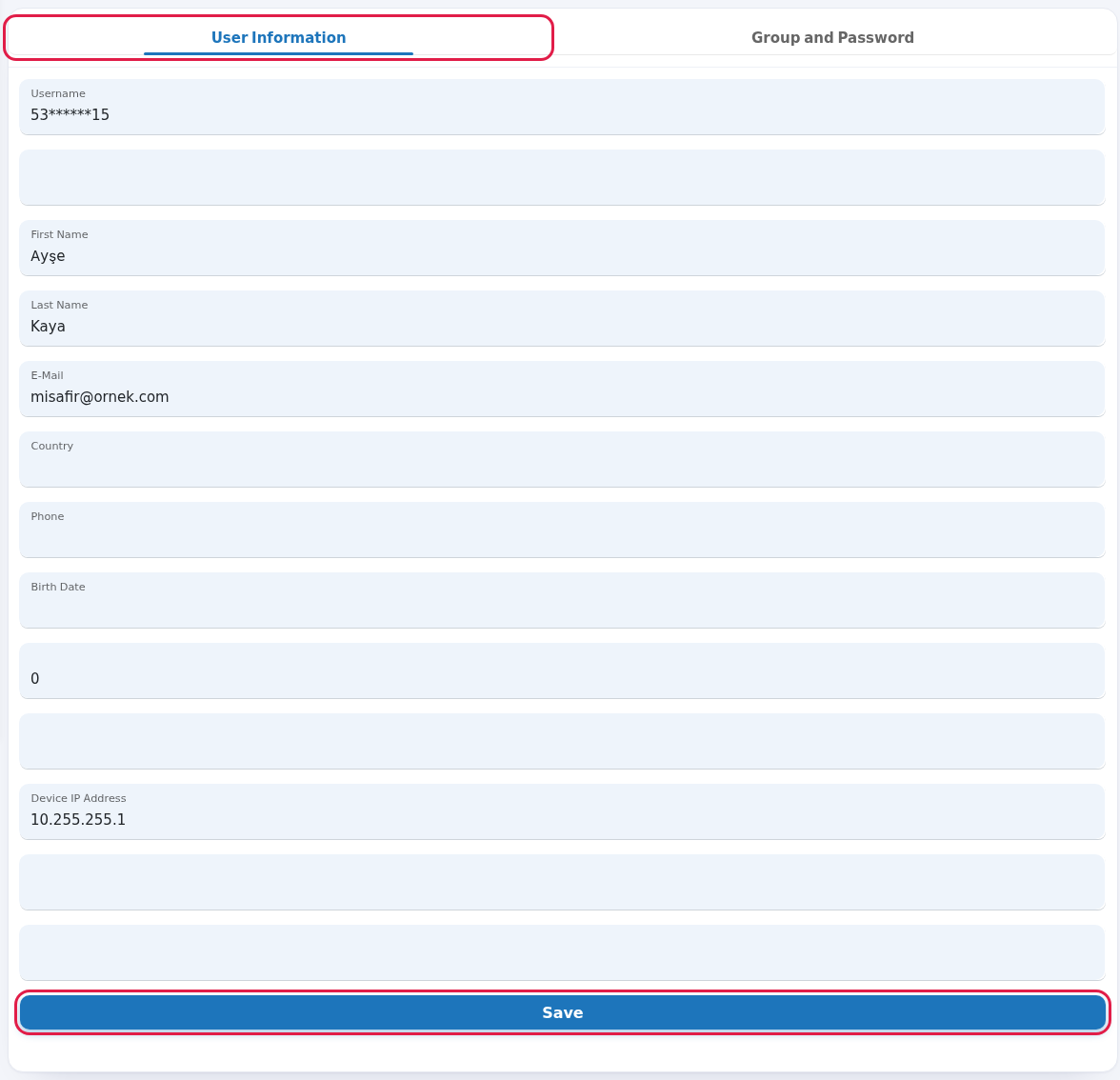
| User Information tab | The guest's sign-up details. Some boxes have no label (internal system fields); do not change them. |
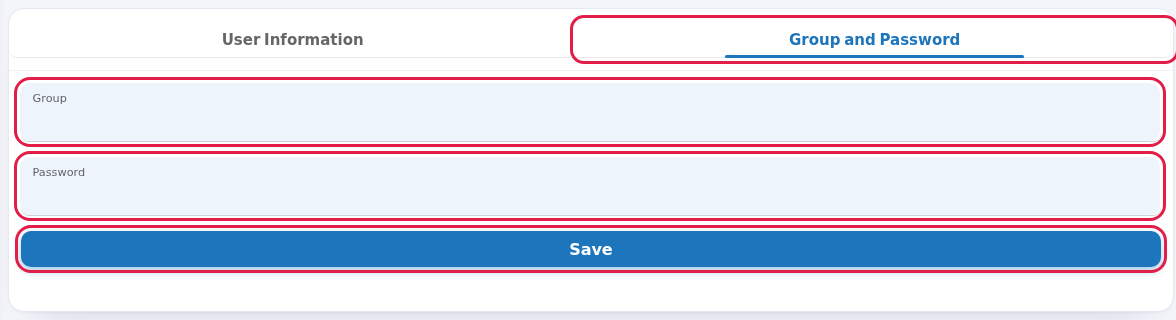
| Group and Password tab | Group (time and speed rules) and a new Password. |
| Save | Saves the changes; "Successful - Successfully updated" appears at the top. |
| Toplam: … / | Total guests and the |
Frequently asked questions
The guest is on the table.list but cannot sign in.
Check the Status column. If it is Passive the guest is blocked; press Enable User. If it is Waiting for Approval, approve them.
RelatedWillpages:a deleted guest come back?
IfAnalyticsthe guest connects andReportsverifies→by SMS/WhatsApp again, they are added as a new record. If you do not want them back, block instead of deleting.Can I send a bulk message to the guests on this list?
Yes, only to guests who gave permission: use the Opted-in Guests and Bulk Send screens under Bumerang.Related pages
- Blocked Users
- Pending Approval
- SMS / WhatsApp Reports
(date-ranged- Groups
report),Bumerang → Guest 360°(guest profile),Bumerang → Opted-in Guests(those with marketing consent).