
SMS / WhatsApp Users
What is it for?
The SMS/Whatsapp list shows the guests who signed up to your Wi-Fi with their phone number (SMS or WhatsApp verification). From here you can approve, block or delete a guest, or change their details, group and password.
When do I use it?
- You want to see whether a guest is registered and when they signed up.
- You want to stop (block) a guest's logins or allow them again.
- You want to move a guest to a longer-lasting group or delete their record.
Before you start
- The list shows the guests of the selected device.
- Numbers, first names and last names are masked under the Turkish data protection law, KVKK (example:
5306****15,Yu***). If you are allowed to see full values, open them with the eye icon; every reveal is written to the Audit Log. - Employees on the Excluded Users list are not shown here.
Step by step
- In the left menu open Guests and click SMS/Whatsapp.
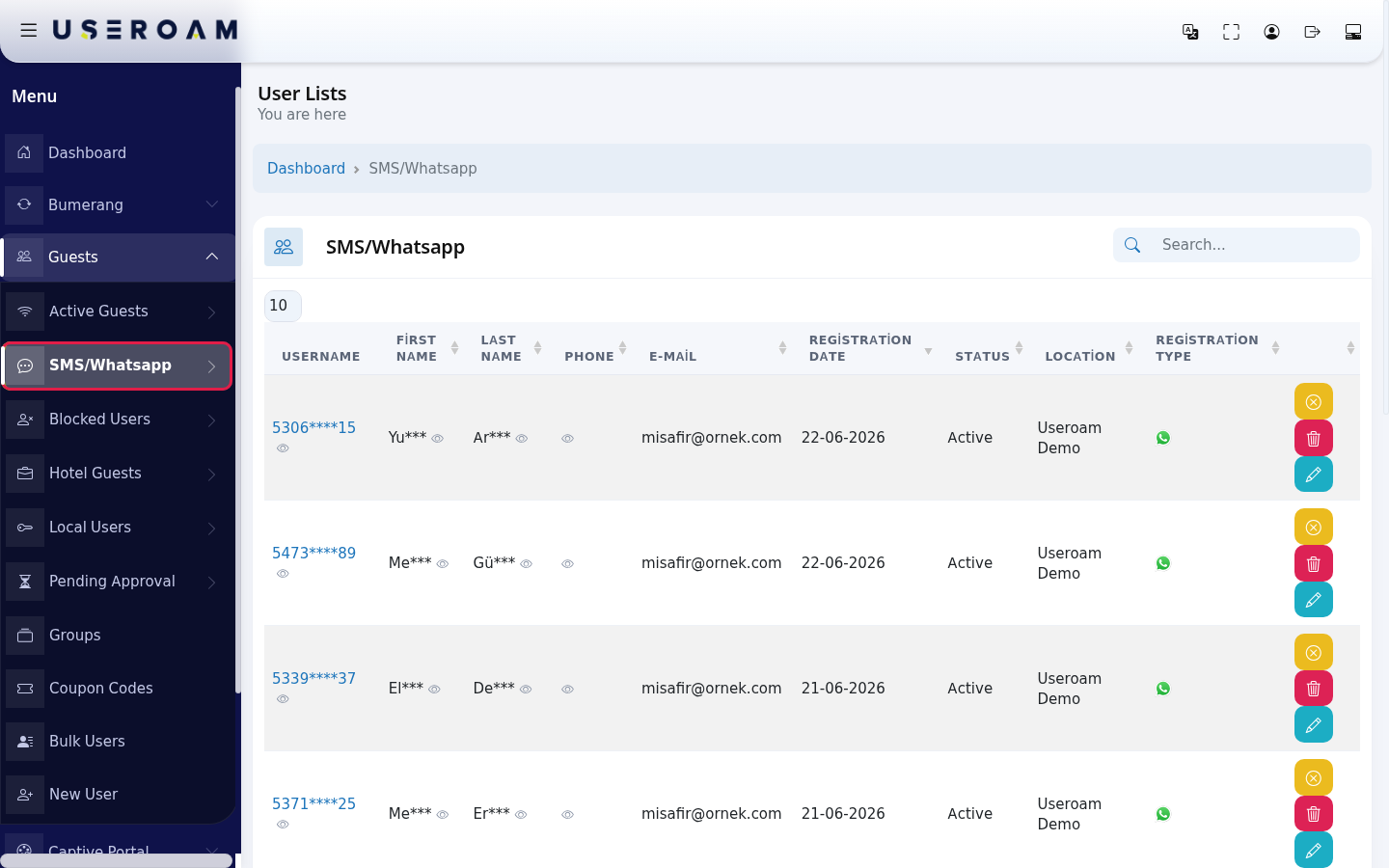
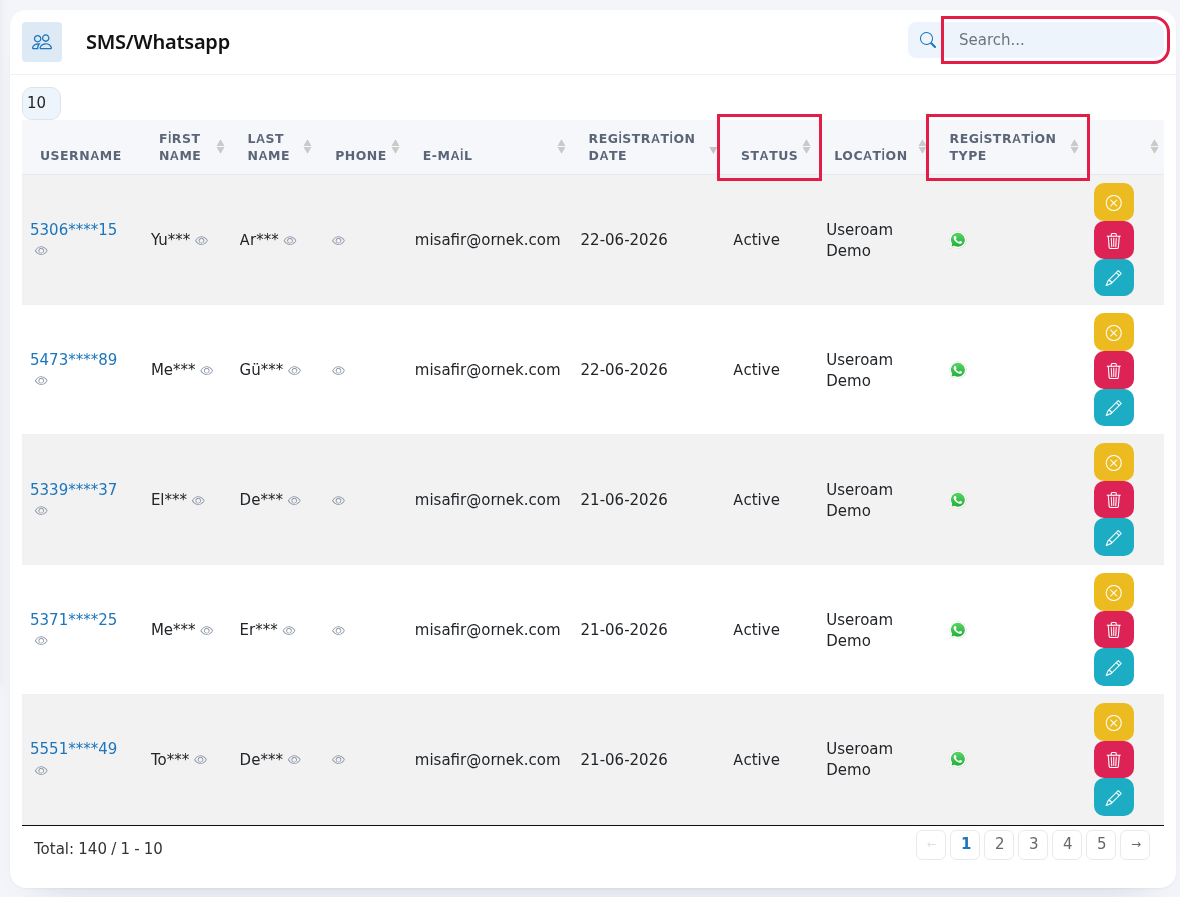
- To find a guest, type in the Search... box at the top right. The newest sign-up is at the top. The Status column shows whether the guest can sign in; the Registration Type column shows whether they signed up by SMS (phone icon) or WhatsApp (WhatsApp icon).
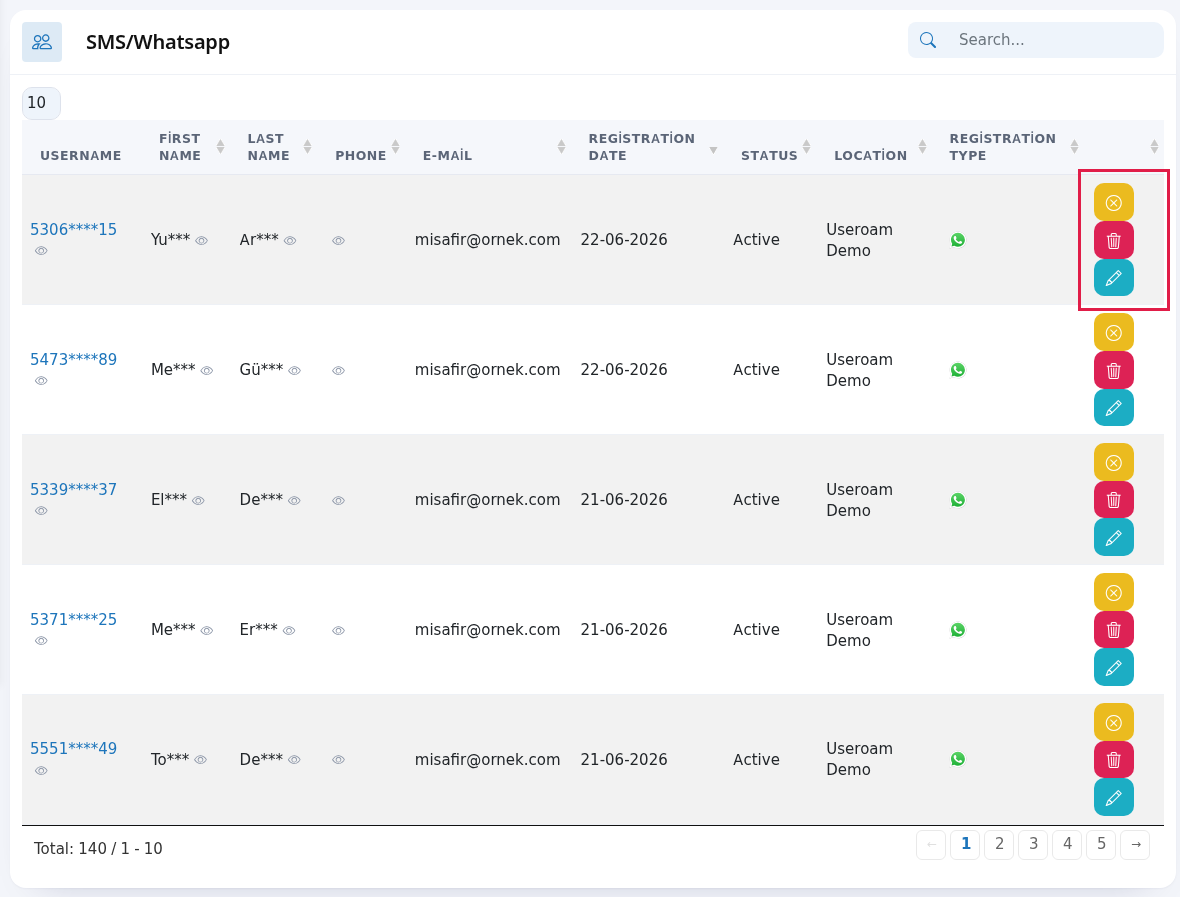
- Use the buttons at the end of the row. Hover over a button to see its name: yellow Disable User (green Enable User if blocked), red Delete User, blue Edit User. If the guest is waiting for approval, a green Confirm button appears first.
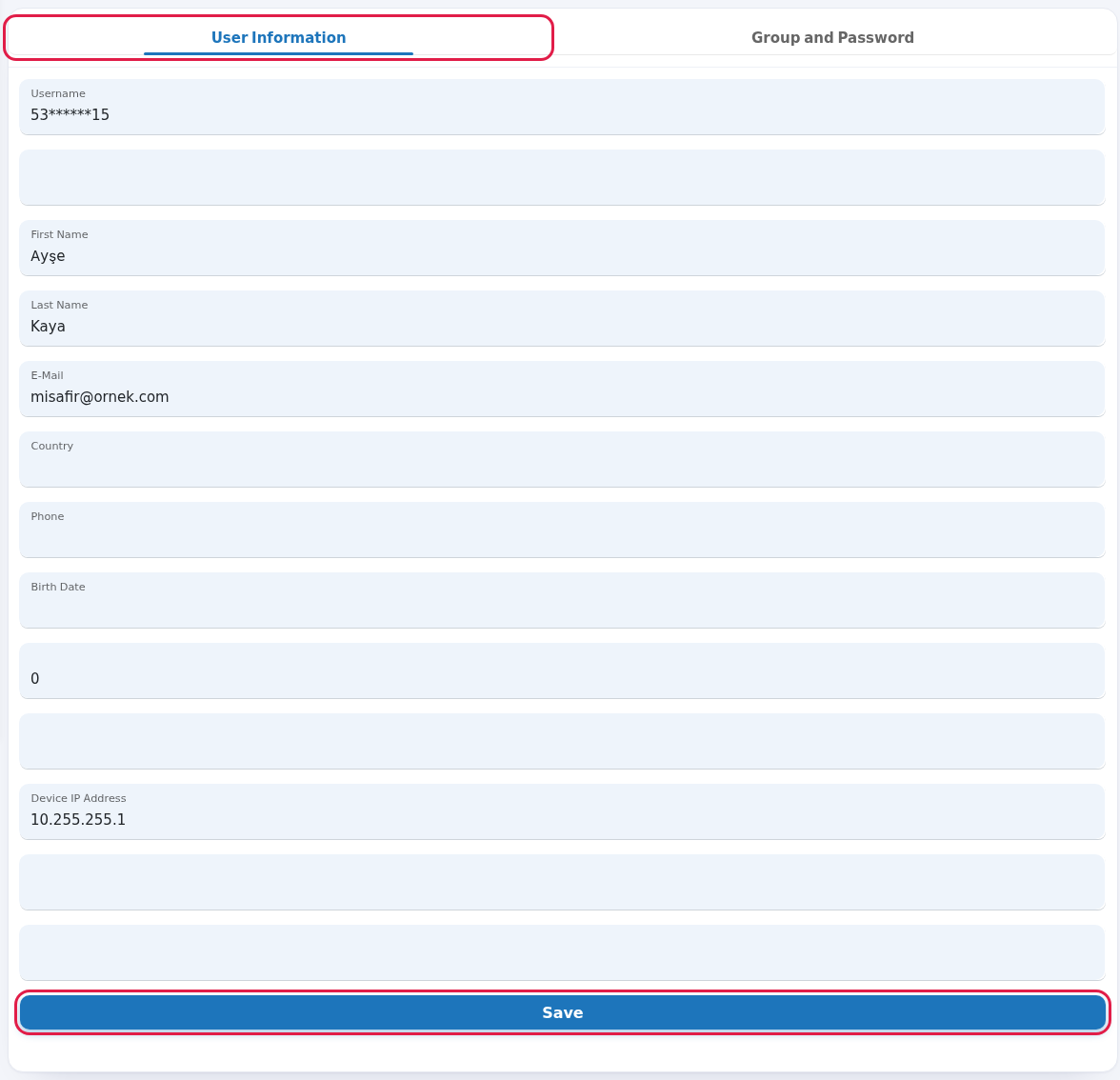
- When you press Edit, the User Information tab opens. Change the guest's details and press Save.
- To change the guest's group or password, go to the Group and Password tab, pick the new group in Group, type a new Password if needed and press Save.
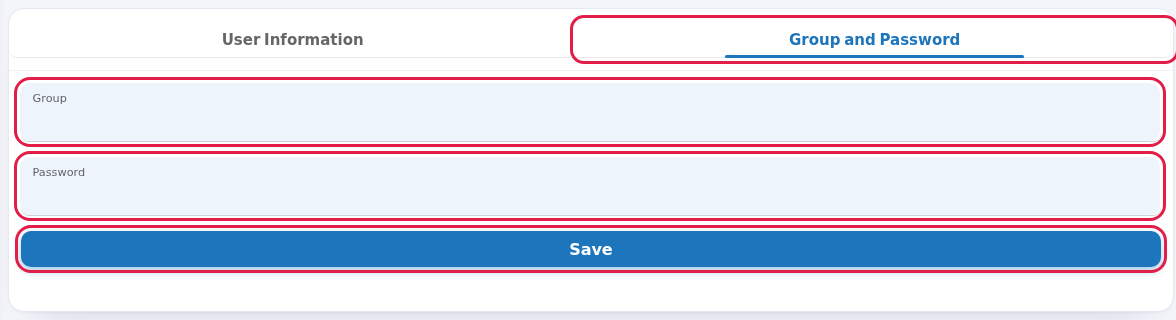
Every field and button on the screen
| Field / Button | What it does |
|---|---|
| Top of the page | The heading User Lists with You are here under it; Dashboard in the path line returns to the home screen. While the table loads it shows Processing..., with no records No Record; All in the number box shows every row. |
| Search... | Searches the list. |
| Number box at the top left | Rows per page: 10, 25, 50, 100, All. |
| Username | The guest's login name, i.e. the phone number (masked). |
| First Name, Last Name, Phone | Details given at sign-up (masked). |
| If the guest gave an e-mail at sign-up. | |
| Registration Date | Day of the first sign-up (day-month-year). |
| Status | Active (can sign in), Passive (blocked) or Waiting for Approval. |
| Location | The device where the sign-up happened. |
| Registration Type | Phone icon means SMS, WhatsApp icon means WhatsApp. |
| Confirm | Approves a guest waiting for approval; a login code is sent to the guest. See Pending Approval. |
| Disable User / Enable User | Blocks / allows the guest's sign-in. A blocked guest appears on Blocked Users. |
| Delete User | Deletes the guest's record and login without asking. If the guest wants to connect again, they sign up again. |
| Edit User | Opens the edit screen. |
| User Information tab | The guest's sign-up details. Some boxes have no label (internal system fields); do not change them. |
| Group and Password tab | Group (time and speed rules) and a new Password. |
| Save | Saves the changes; "Successful - Successfully updated" appears at the top. |
| Toplam: … / … - … | Total guests and the range shown (label still Turkish: "Toplam" = Total). No Record if empty, Processing... while loading. |
Frequently asked questions
The guest is on the list but cannot sign in.
Check the Status column. If it is Passive the guest is blocked; press Enable User. If it is Waiting for Approval, approve them.
Will a deleted guest come back?
If the guest connects and verifies by SMS/WhatsApp again, they are added as a new record. If you do not want them back, block instead of deleting.
Can I send a bulk message to the guests on this list?
Yes, only to guests who gave permission: use the Opted-in Guests and Bulk Send screens under Bumerang.