
Speed Limits and IP Distribution
What is it for?
This page coversdescribes two technicalscreens guest-networkin screens:the console's GUEST NETWORK group:
- Speed Limits
,:which divides up bandwidth, andIP Distribution, which shows how addresses are handed out.Warning:Changes on both screens are applied to the device immediately and cannot be undone.1. Speed LimitsHow do I open it?MikroTik Management → GUEST NETWORK → Speed Limits.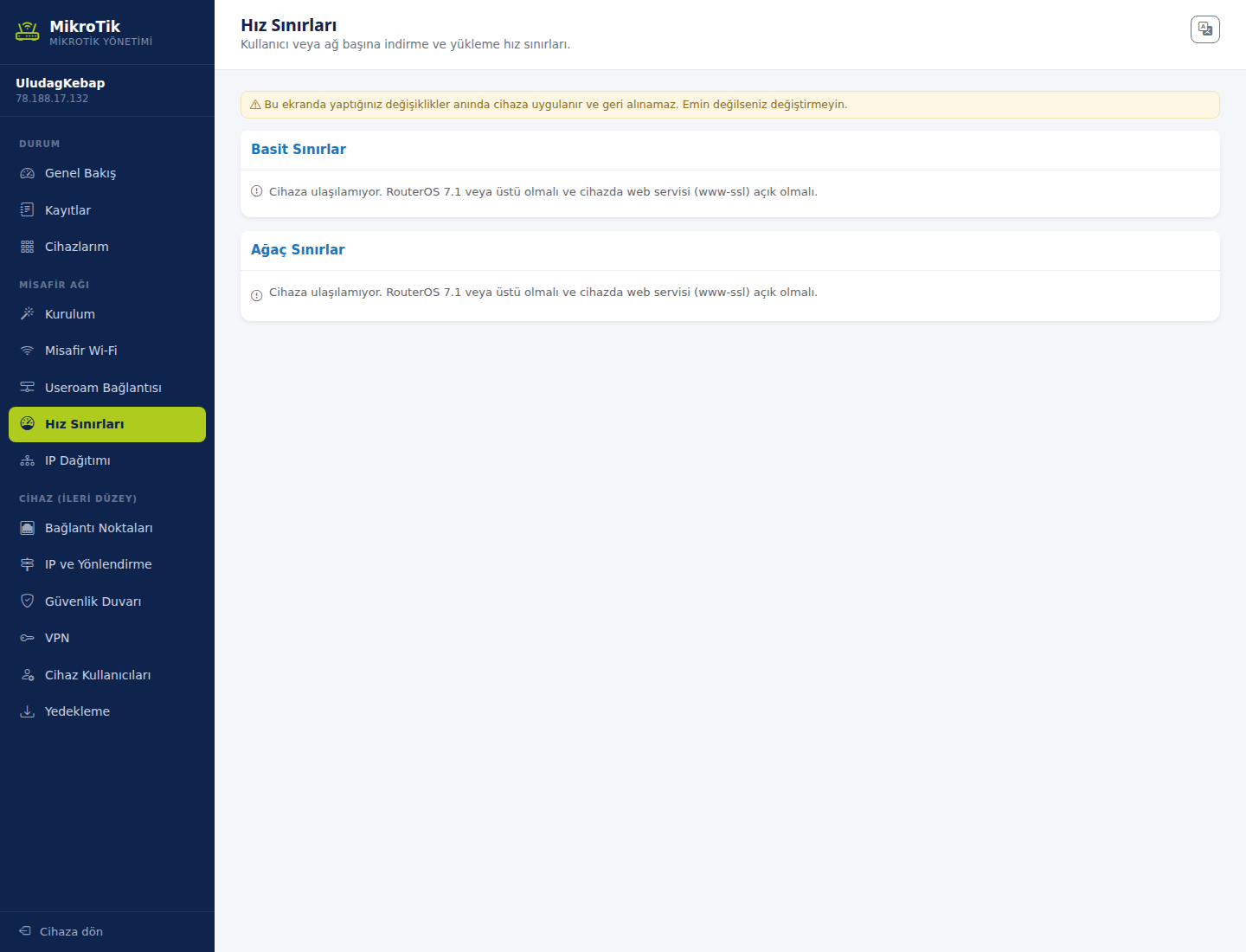
shareHolds downloadDownload and upload limits per user ornetwork,perinnetwork.twoYousections:- your
Simpleinternetlimits:lineAppliedfairlydirectlybetweentoguestsaandsinglethetarget. This covers everyday use.business.Tree limits:Hierarchical limits — used to share total bandwidth between groups.
To put a quick limit on one device or on the whole guest network, you can also use theSet a speed limitbox on theOverviewscreen.2. IP Distribution
:How do I open it?MikroTik Management → GUEST NETWORK →IP Distribution.The device hands out IP addresses automatically to computers and phones on the network. See who received which address here.
When do you use it?
- Guests use the whole internet line and the till and office slow down.
- You want a separate speed limit for one device, such as a meeting room.
- The guest network is running out of IP addresses, or a device cannot get an IP.
- You want to find which IP a device received and give it a fixed IP.
Before you start
- The device must be connected to the panel.
- Speeds are entered as download/upload; M means Mbit and k kbit (
DHCP)e.g. 10M/2M).ThisThescreenlist shows 10 Mbit / 2 Mbit. - Changes are written to the device immediately. You can undo a wrong change with Undo in the strip at the top.
Step by step: Speed Limits
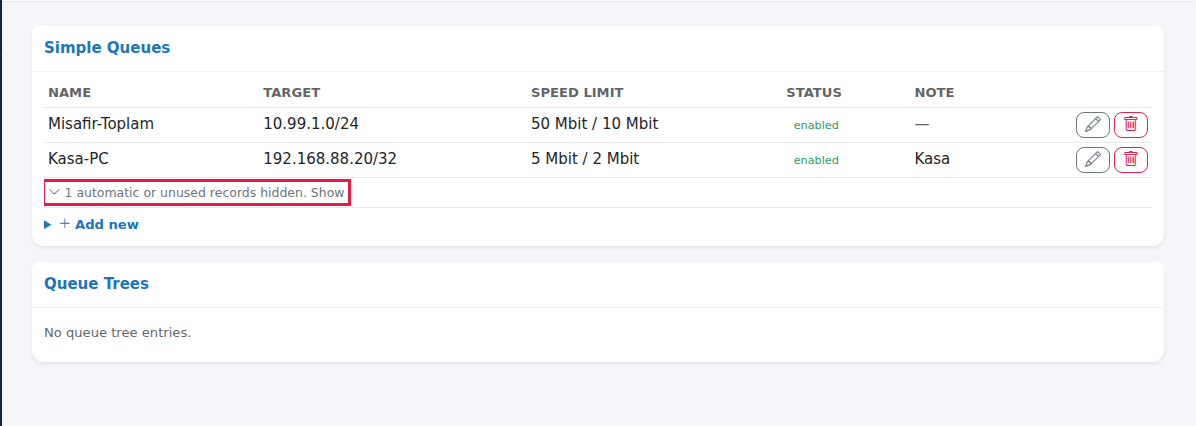
Open the section and check the list. In the left menu press GUEST NETWORK > Speed Limits. The Simple Queues card shows each limit's Name, Target, Speed limit, Status and Note. Limits created by the device itself are hidden below the list; the ... automatic or unused records hidden. Show link opens them, and they are locked with the automatic badge. The Queue Trees card shows advanced queues as they come from the device; with none it reads No queue tree entries.
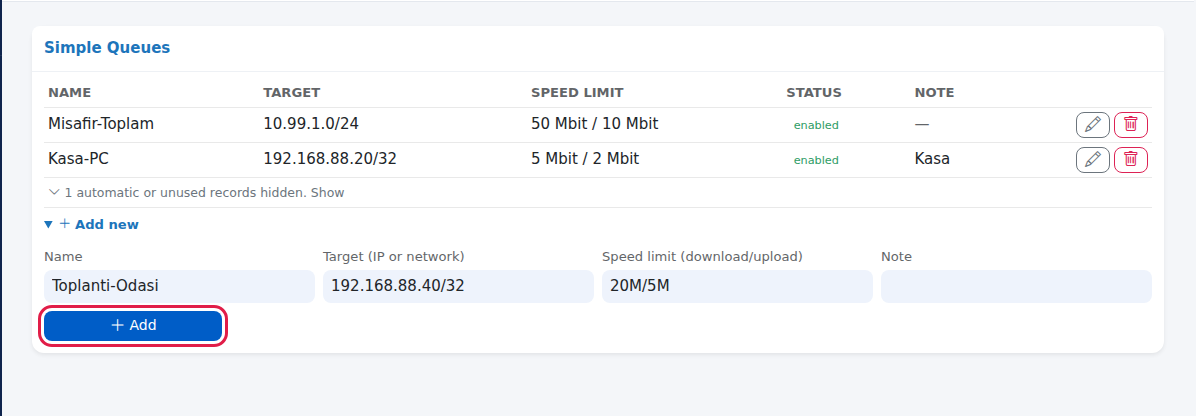
Add a new limit. Press Add new under the Simple Queues card. Enter Name (e.g. Meeting-Room), Target (IP or network) (e.g. 192.168.88.40/32 for one device, 10.99.1.0/24 for the whole guest network), Speed limit (download/upload) (e.g. 20M/5M) and optionally Note, then press Add. You can do the same with the Set a speed limit card on Overview.
Change or disable a limit. Press the pencil on the row and change the values in the form. To switch a limit off without deleting it, set Disabled to yes. Press Save. Press the bin to delete.
Step by step: IP Distribution
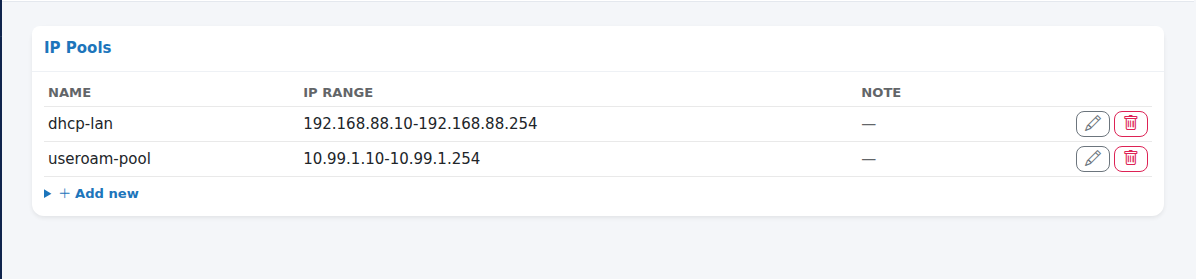
Check the IP pools. In the left menu press GUEST NETWORK > IP Distribution. The IP Pools card shows the address ranges handed out (Name, IP range, Note). The guest pool created by the setup is useroam-pool. For a new pool enter Pool name, IP range (e.g. 10.99.1.10-10.99.1.200) and Note in Add new and press Add. With no pools it reads No IP pool defined.
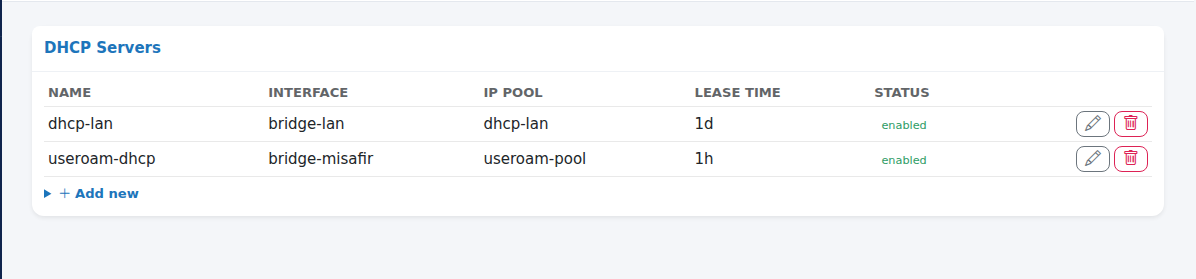
Check the DHCP servers. The DHCP Servers card shows each server's Name, Interface, Pool, Lease time and Status. With the pencil you can change Name, Interface, Pool, Lease time (e.g. 1h) and Disabled. With no servers it reads No IP distribution is configured on this device.
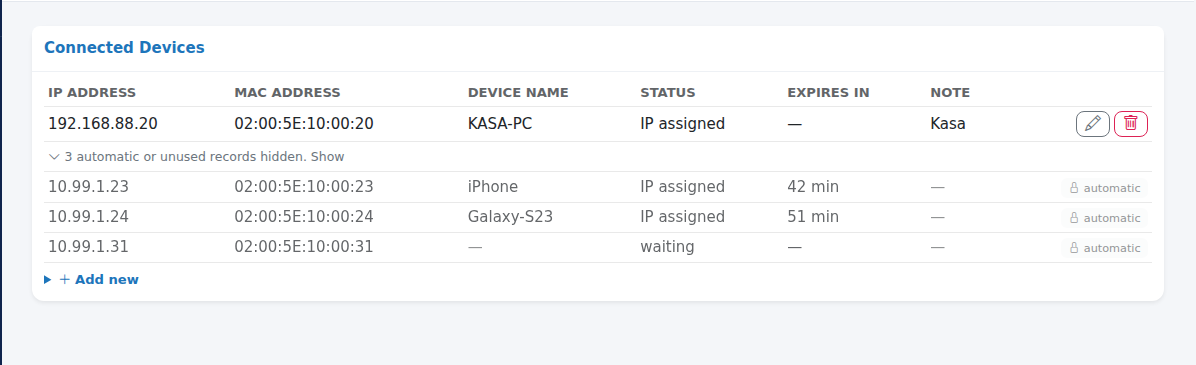
See devices holding an IP. The Connected Devices card shows
Devicewho holds whichIP address,inMACthreeaddress,sections:- name
- Status (IP
pools:assigned, waiting, offered), Expires inTheandaddressNote.rangesAutomaticallytoassignedhandaddressesout.areThehiddensetupandwizardopenderiveswiththis...rangeautomaticfromortheunusedguestrecordsgatewayhidden.addressShow.automatically.Manually DHCPaddedservers:(fixed)Whichaddressespool is servedappear onwhichtop.interface.Connected devices:Devices currently holding an address.
To keep a device on the same address permanently, use the Givegive a device a fixed IP enter IP address, MAC address and Note in Add new and press Add. If no device holds an IP it reads No device currently holds an IP address.
Fields
| Field | What it does | Example |
|---|---|---|
| Name | The record's name. | Guests-Total |
| Target (IP or network) / Target | The device or network the limit applies to. | 10.99.1.0/24 |
| Speed limit (download/upload) / Speed limit | Download and upload maximum. | 50M/10M |
| Pool name, IP range | Name and range of the addresses to hand out. | 10.99.1.10-10.99.1.200 |
| Interface | The port or bridge the DHCP server runs on. | bridge-misafir |
| Pool | The IP pool the server uses. | useroam-pool |
| Lease time | How long a handed-out address stays valid (h hour, d day). | 1h |
| Disabled | With yes | no |
| IP address, MAC address | The device's address and MAC for a fixed IP entry. | 192.168.88.20 |
| Note | Description. | Till |
Frequently asked questions
I want to give all guests 50 Mbit in total.
Enter the guest network as the target (e.g. 10.99.1.0/24) and 50M/10M as the speed limit.
There are limits with the automatic badge that I cannot change.
The device creates and manages these records itself; they cannot be edited manually. Manage guest group settings on the Overviewpanel's Groups screen.
I gave a fixed IP but the device still uses its old address.
The device takes the address at its next renewal. Switch its Wi-Fi off and on, or unplug and replug its cable.
Can I delete the guest pool?
Do not; guests would get no IP. Use the pencil to change the range.
Related pages:pages
- Overview (quick actions)
- MikroTik Management
→(commonOverview,buttons) - Device (Advanced)
.