
Overview
What is it for?
Overview is the console's start screen. Below the title it reads Device health: model, software version, how long it has been running and its current load. It tells you at a glance whether the device is working well, and lets you do the three most common jobs (blocking a guest, giving a fixed IP, setting a speed limit) with a single form, without opening a list.
How do I open this screen? In the MikroTik Management console, from the left menu: STATUS > Overview. The console always opens on this screen.
When do you use it?
- Guests say "the internet is slow" and you want to see the device's load.
- You want to block a disruptive device on the guest network immediately.
- You want a device such as the till computer, cash register or a camera to keep the same address.
- You want to limit the total speed of the guest network or the speed of one device.
Before you start
- The device must be connected to the panel (see the MikroTik Integration Guide).
- You can take the MAC address of a device to block from the Guests Online Now list in Guest Wi-Fi, and the MAC address of a device that needs a fixed IP from IP Distribution > Connected Devices.
Step by step
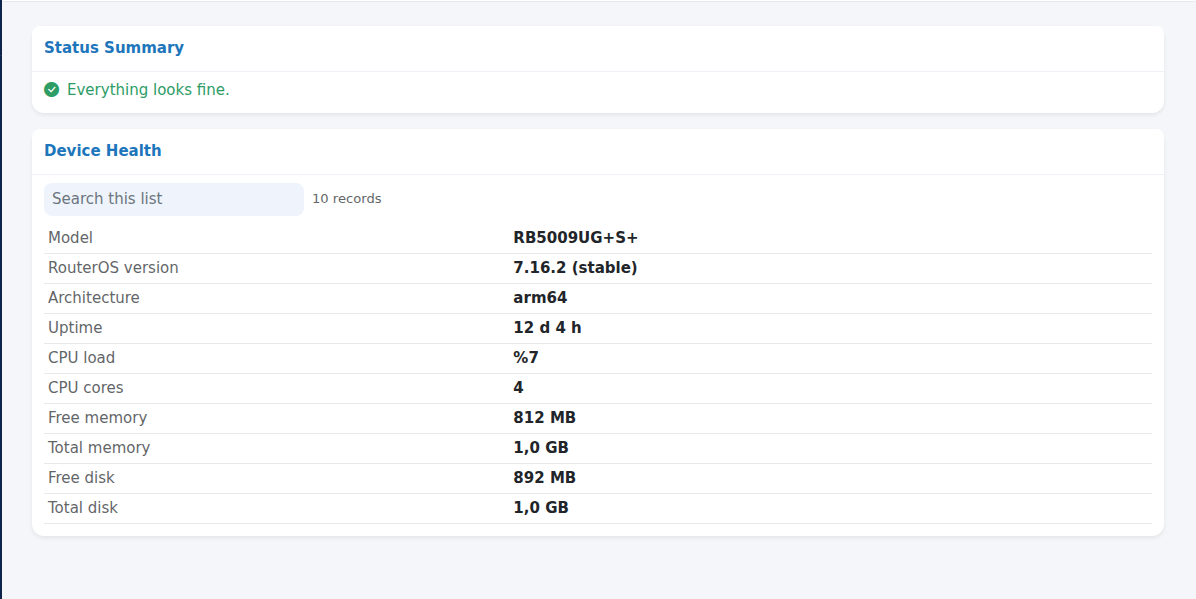
Check the health. The Status Summary card at the top reads Everything looks fine. in green if there is no problem. The Device Health card below shows Model, RouterOS version, Architecture, Uptime, CPU load, CPU cores, Free memory, Total memory, Free disk and Total disk.
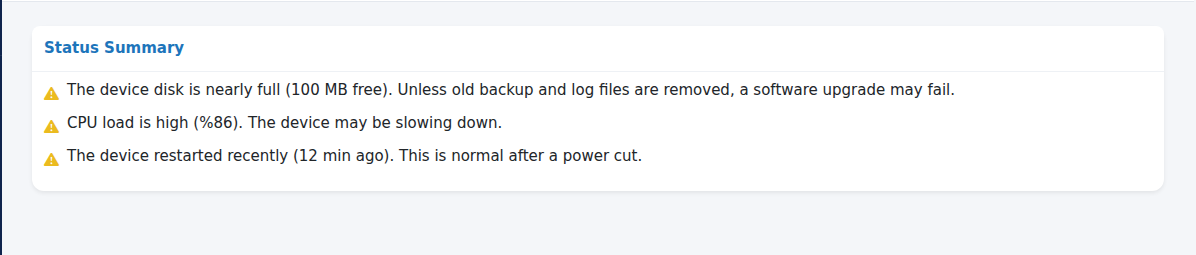
Read any warnings. If a problem is found, the Status Summary card shows yellow warnings instead of the green line (table below). Each warning says what is happening and when it is normal.
Rename the device (optional). In the Device Name card type the new name in Device name and press Save. This is the device's own name (as shown in Winbox); the device name in the panel is changed in Device Settings.

Block a guest. In the Block a guest card enter the device's MAC address in MAC address (e.g. 88:DC:96:50:49:81). Type is fixed to blocked. Write why you block it in Note and press Add. The device can no longer join the guest network. To lift the block, delete the entry from Guest Wi-Fi > IP and MAC Bindings.
The card says: Remove a disruptive device from the network. You can copy the MAC address from the connected-guest list in the Guest Wi-Fi section.

Give a device a fixed IP. In the Give a device a fixed IP card enter the address in IP address (e.g. 192.168.88.20), the device's MAC in MAC address and its name in Note, then press Add. The device gets this address the next time it connects.
The card says: Use this for devices that must always keep the same address, such as a POS computer, cash register or camera.

Set a speed limit. In the Set a speed limit card enter a name in Name, a single device's address or the whole guest network (e.g. 10.99.1.0/24) in Target (IP or network), the limit in Speed limit (download/upload) (e.g. 10M/2M: 10 Mbit download, 2 Mbit upload) and press Add. If the target is the guest network, the limit applies to all guests together. The limits you add are listed in Speed Limits.
The card says: Limit the speed of a single device or of the whole guest network. If you enter the guest network as the target, the limit applies to everyone.

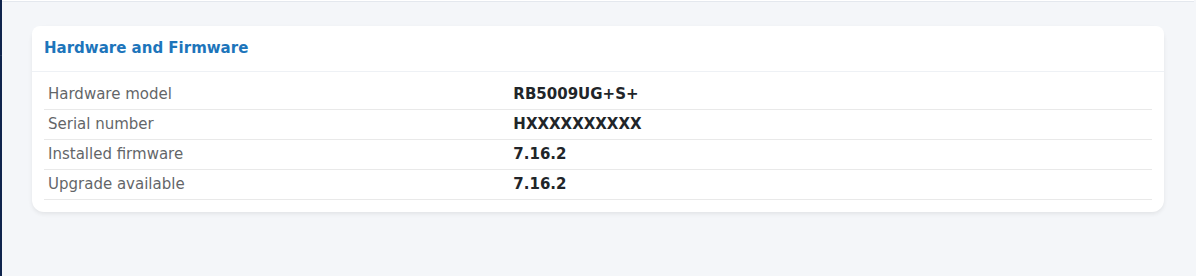
Check the hardware. The Hardware and Firmware card at the bottom shows Hardware model, Serial number, Installed firmware and Upgrade available. If installed and available versions differ, the firmware can be updated. On a virtual device it reads This is not a RouterBOARD device (it may be virtual).
Status Summary warnings
| Warning | When it appears | What to do |
|---|---|---|
| The device disk is nearly full (... free). Unless old backup and log files are removed, a software upgrade may fail. | Free disk drops below 15 percent. | Delete old backup and log files from the device's Files section. |
| CPU load is high (...). The device may be slowing down. | CPU load is 80 percent or more. | Wait if it is short. If it lasts, consider speed limits or contact support. |
| Free memory is low (...). | Free memory drops below 15 percent. | Restart the device at a suitable time; contact support if it continues. |
| The device restarted recently (... ago). This is normal after a power cut. | The device started within the last 30 minutes. | If there was no power cut or planned restart, check the device's power supply. |
Fields and buttons
| Card / field | What it does | Example |
|---|---|---|
| Device name + Save | Changes the device's own name. | Kafe-Merkez |
| MAC address (Block a guest) | The device to block. | 88:DC:96:50:49:81 |
| Type | Always blocked for a block. | blocked |
| Note | Why the entry was added; shown in the list. | Disruptive device |
| IP address (Give a device a fixed IP) | The address the device will always get. Must be from the network the device is on. | 192.168.88.20 |
| Name (Set a speed limit) | The limit's name. | Guests-Total |
| Target (IP or network) | The device or network the limit applies to. | 10.99.1.0/24 |
| Speed limit (download/upload) | Download and upload limit; M = Mbit, k = kbit. | 10M/2M |
| Add | Writes the entry to the device immediately. |
Frequently asked questions
I pressed Add and nothing changed.
Read the message at the top of the screen. If it says Done., the entry was written to the device; you can check it in the related list (IP and MAC Bindings, Connected Devices, Simple Queues). If it shows an error, check the values.
The device I blocked still appears connected.
The block was written to the device; whether the guest's already open session closes immediately has not been verified by Useroam. The list is read from the device again on every reload. If the guest is still shown, close the session from the device's own interface (Winbox, IP > Hotspot > Active).
Why does the CPU load keep changing?
It is the current load; every reload reads the value at that moment.
Related pages
- MikroTik Management (common buttons and error messages)
- Guest Wi-Fi and Useroam Connection
- Speed Limits and IP Distribution