
Device (Advanced)
What is it for?
This page describes the six sections of the console's DEVICE (ADVANCED) group: Ports, IP and Routing, Firewall, VPN, Device Accounts and Backup. These sections touch the device's core network settings. They are not needed for daily operation; use them when troubleshooting, checking a setup or following instructions from technical support.
Careful: a change in these sections can cut the device's internet or the panel's access to the device. If you are unsure, do not change anything; the screen says the same: Changes made on this screen are applied to the device immediately and cannot be undone. If you are unsure, do not change anything.
When do you use it?
- You want to see which port goes to the internet and which to the guest network.
- You will check the device's IP addresses, its route to the internet or its DNS settings.
- You want to confirm the Useroam firewall rules are in place or add a rule.
- You will set up VPN for remote access (separate page: VPN (WireGuard) Setup).
Before you start
- The device must be connected to the panel.
- Note what you do before a change. You can undo the last change with Undo in the strip at the top (MikroTik Management).
- Do not delete records with the Useroam badge; guest login, 5651 logging or panel access will break.
Step by step
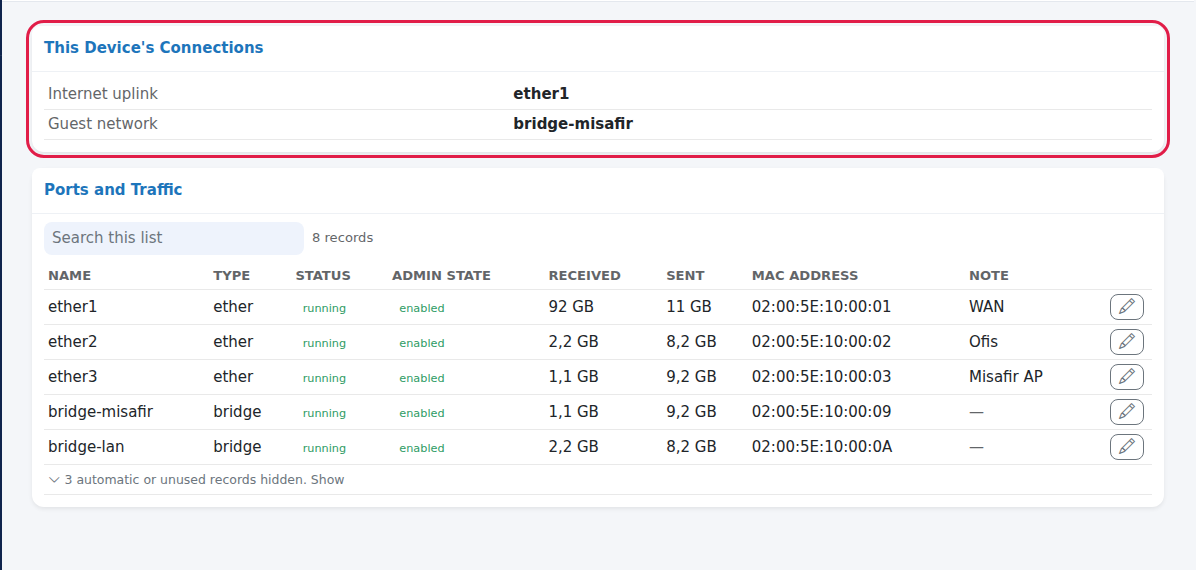
Ports. In the left menu press DEVICE (ADVANCED) > Ports (The ports and wireless interfaces of the device: which are up and how much data passed through.). The This Device's Connections card at the top answers two questions: which port is the Internet uplink and which is the Guest network; if not found it reads could not be determined. The Ports and Traffic card shows each port's Name, Type, Status (running / down), Admin state (enabled / disabled), Received, Sent, MAC address and Note. Ports without a cable are hidden. With the pencil only Disabled and Note can be changed. Do not disable the internet port; the device would lose the panel. With no ports it reads No interfaces found.
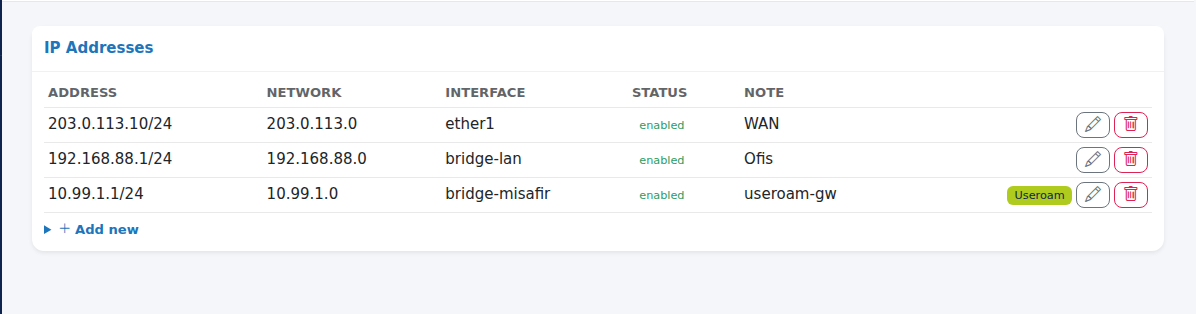
IP and Routing: IP addresses. Press IP and Routing (The IP addresses of the device, its route to the internet and DNS settings.). The IP Addresses card shows Address, Network, Interface, Status and Note. Adding and editing use the Address (e.g. 10.99.1.1/24), Interface, Disabled and Note fields. With no addresses it reads No IP addresses defined.
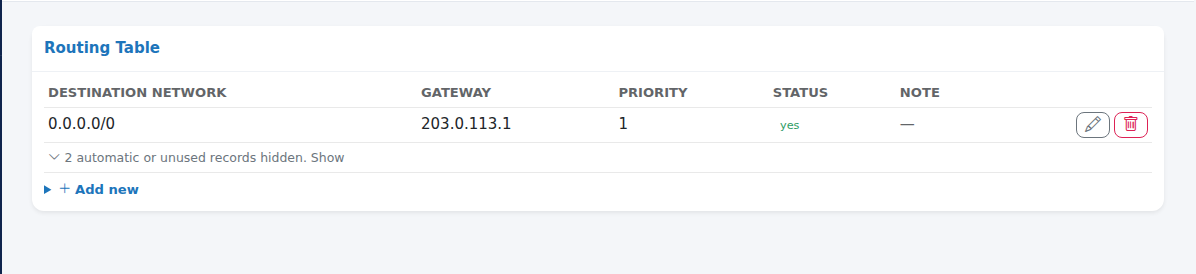
IP and Routing: routing table. The Routing Table card shows Destination network, Gateway, Priority, Status (yes = in use now) and Note. The row with destination 0.0.0.0/0 is the device's route to the internet. Routes the device creates itself are hidden and locked. A new route takes Destination network, Gateway and Note. With no routes it reads No routes.
IP and Routing: DNS. The DNS Settings card has DNS servers (comma separated, e.g. 1.1.1.1,8.8.8.8) and Allow remote requests (yes / no); Save writes them. For the guest network Allow remote requests must be yes; if you turn it off guests cannot open web pages.

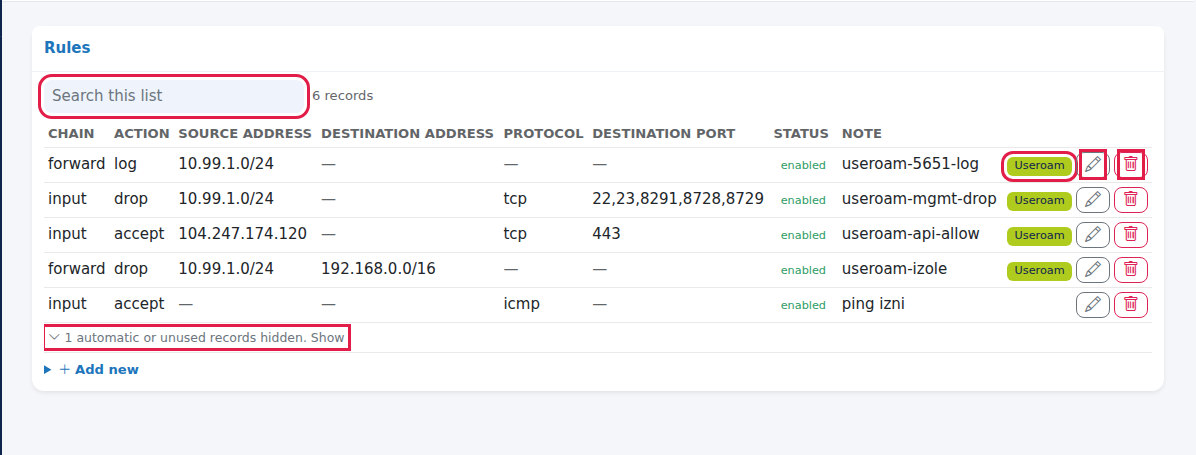
Firewall: rules. Press Firewall (Which rules the device uses to pass or block traffic. Automatic rules cannot be edited; rules labelled Useroam are required for guest Wi-Fi and 5651 logging.). The Rules card shows Chain, Action, Source address, Destination address, Protocol, Destination port, Status and Note. The add form has Chain (forward, input, output), Action (accept, drop, reject, log), Source address, Destination address, Protocol (empty, tcp, udp, icmp), Destination port and Note; editing also has Disabled. New rules are added to the end of the list. With no rules it reads No rules.
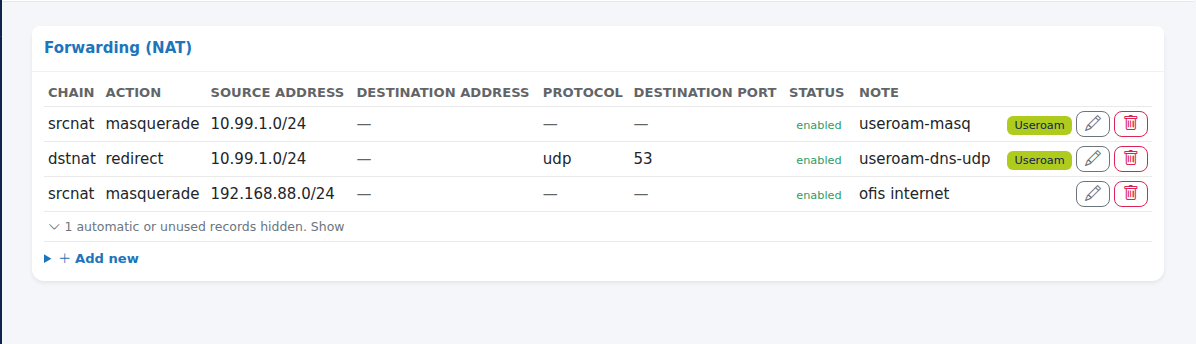
Firewall: forwarding (NAT). The Forwarding (NAT) card shows the same columns. In the add form Chain is srcnat or dstnat, and Action is masquerade, src-nat, dst-nat, redirect or accept. Guests reach the internet through the useroam-masq rule; do not delete it. With no rules it reads No NAT rules.
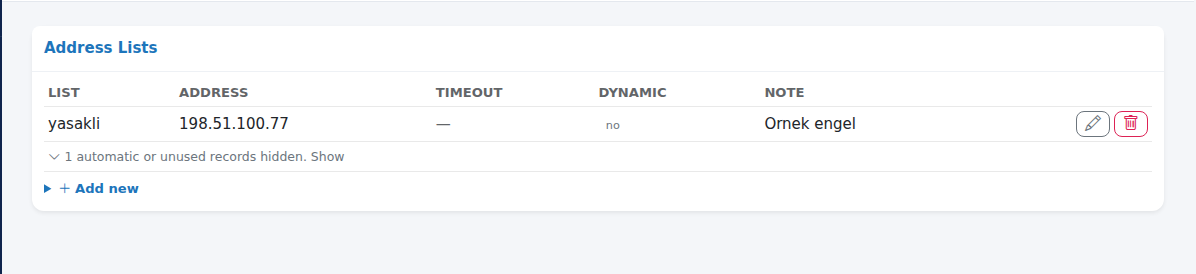
Firewall: address lists. The Address Lists card shows List, Address, Timeout, Dynamic and Note. To add, enter List name, Address and Note. With no lists it reads No address lists.
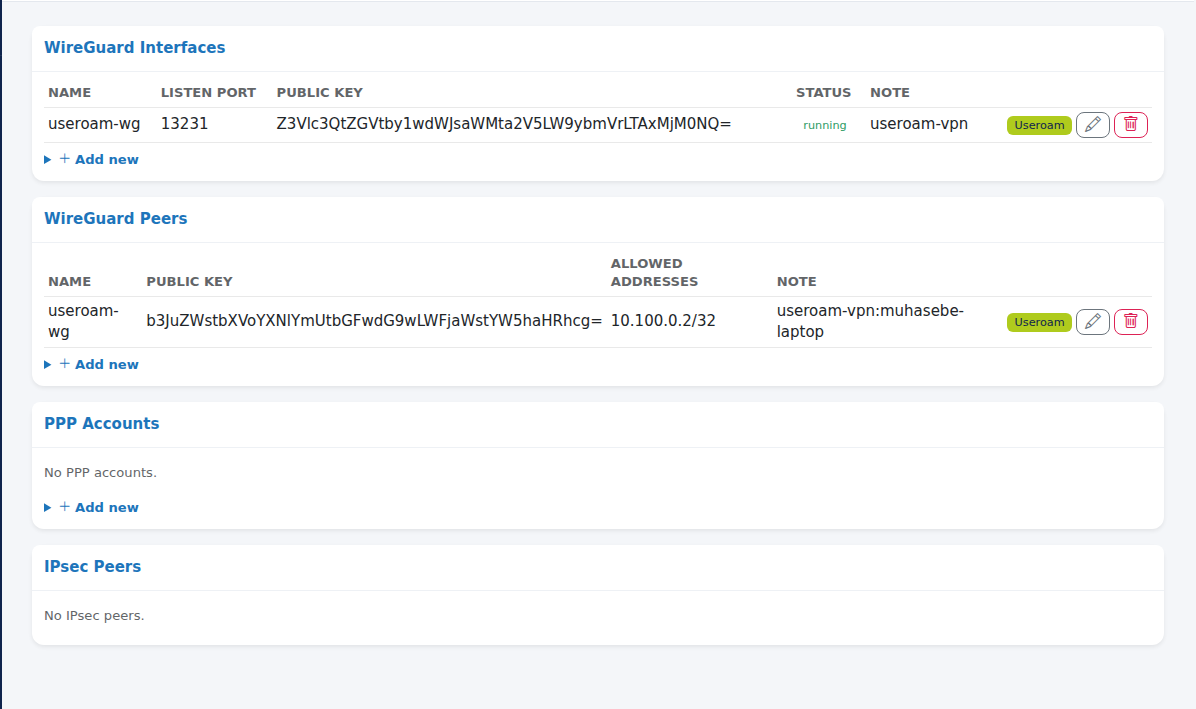
VPN. Press VPN (Secure remote access settings (WireGuard, IPsec, PPP accounts).). The VPN Setup card at the top sets up WireGuard with one button and adds people. Below it are the WireGuard Interfaces, WireGuard Peers, PPP Accounts and IPsec Peers lists. Step by step: VPN (WireGuard) Setup.
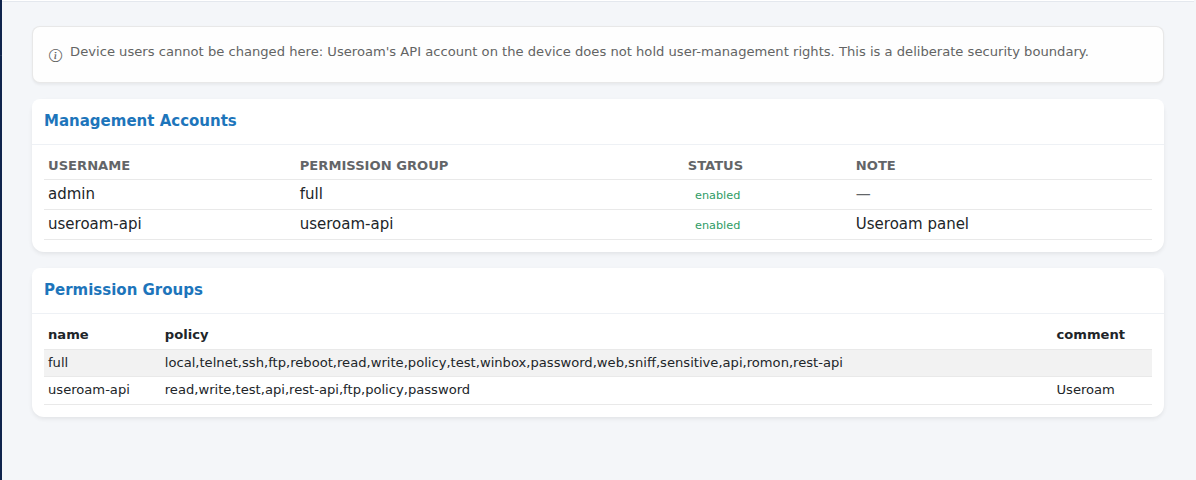
Device Accounts. Press Device Accounts (The management accounts of the device itself. For guest Wi-Fi users see the Guest Wi-Fi section.). At the top it reads Device users cannot be changed here: Useroam's API account on the device does not hold user-management rights. This is a deliberate security boundary. The Management Accounts card shows Username, Permission group, Status and Note; the Permission Groups card shows the groups' rights as they come from the device. You will see the useroam-api account in the list; the panel uses it to connect, do not delete it. If they cannot be read it shows Accounts could not be read. or No groups.
Backup. Press Backup (A backup of the device configuration. Taking one before a change lets you roll back.). The Configuration Backup card reads Downloading the configuration backup from the panel is not possible right now: the Useroam API account on the device does not hold file-creation rights (restricted for security). You can take the backup from the device's own Files section. The Panel download unavailable button cannot be pressed. Take the backup in Winbox under Files, or with
/export file=backupin the terminal. The Setup Wizard also takes its own useroam-oncesi-...rsc backup before every setup.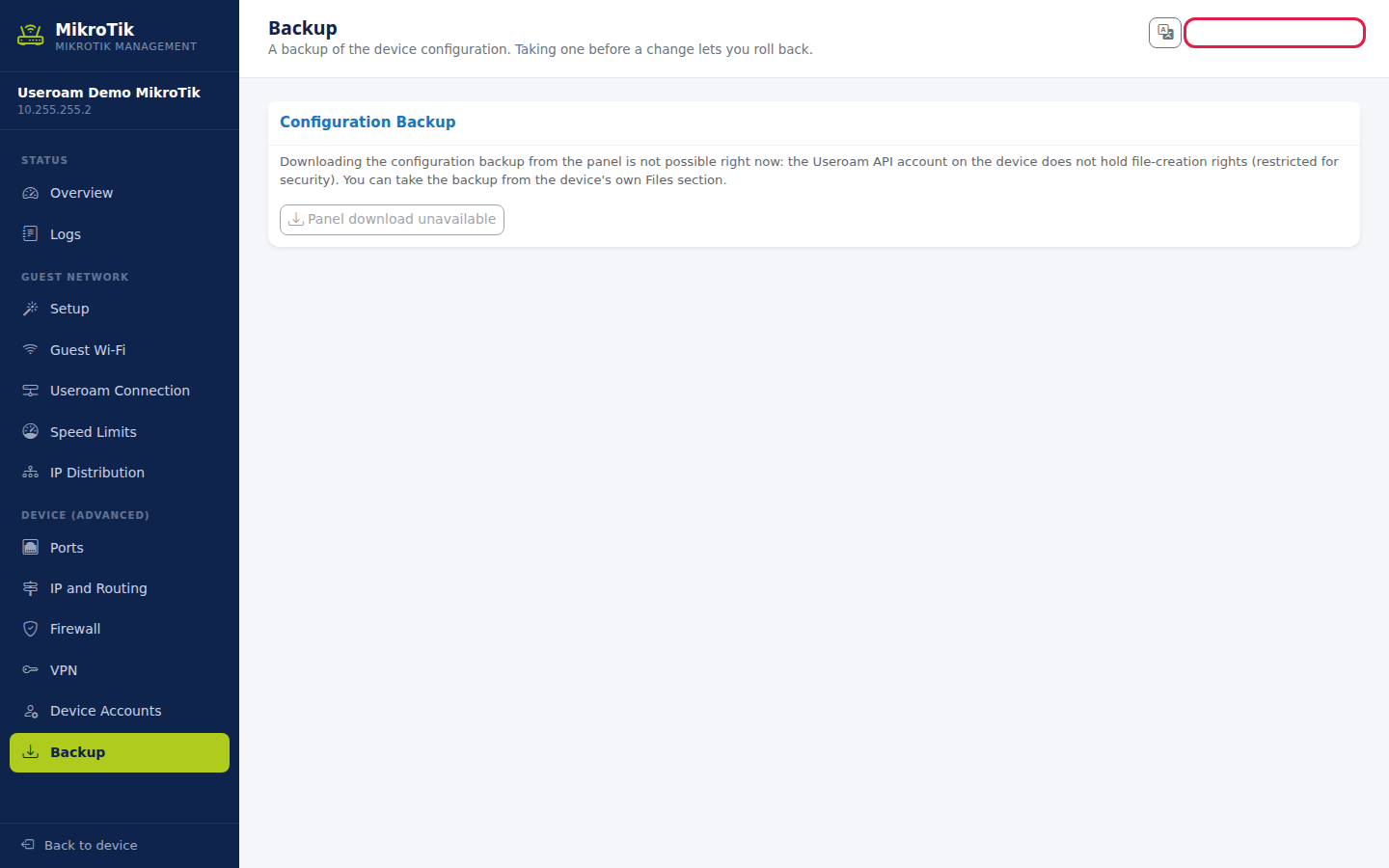
What are the Useroam-badged records for?
| Note (comment) | Where | Purpose |
|---|---|---|
| useroam-api-allow | Firewall, Rules | Lets the panel connect to the device. If deleted the console stops working. |
| useroam-5651-log | Firewall, Rules | Logs every new guest connection for 5651. |
| useroam-mgmt-drop | Firewall, Rules | Blocks guest access to the device's management ports. |
| useroam-izole | Firewall, Rules | Separates guests from internal networks. |
| useroam-dns-wan-drop, useroam-dot-tcp, useroam-dot-udp, useroam-quic | Firewall, Rules | Stops outside use of the DNS service and blocks encrypted DNS and QUIC that bypass logging. |
| useroam-masq, useroam-dns-udp, useroam-dns-tcp | Firewall, Forwarding (NAT) | Guest internet access and redirecting DNS queries to the device. |
| useroam-gw | IP and Routing, IP Addresses | The guest network's gateway address. |
| useroam-vpn, useroam-vpn-port, useroam-vpn:<name> | VPN, IP Addresses, Rules | Interface, address, port permission and users added by VPN Setup. |
Frequently asked questions
I deleted a rule and guests cannot log in.
Press Undo at the top right away. If the undo time has passed, run the Setup Wizard again; it adds the Useroam records back.
My new rule does not work.
New rules are added to the end of the list; a rule above it may catch the traffic first. Rule order cannot be changed on this screen; use the device's own interface.
I want to add a device user.
Not possible here. Use System > Users in Winbox.