
Operations Screen (Calls and Orders)
What is it for?
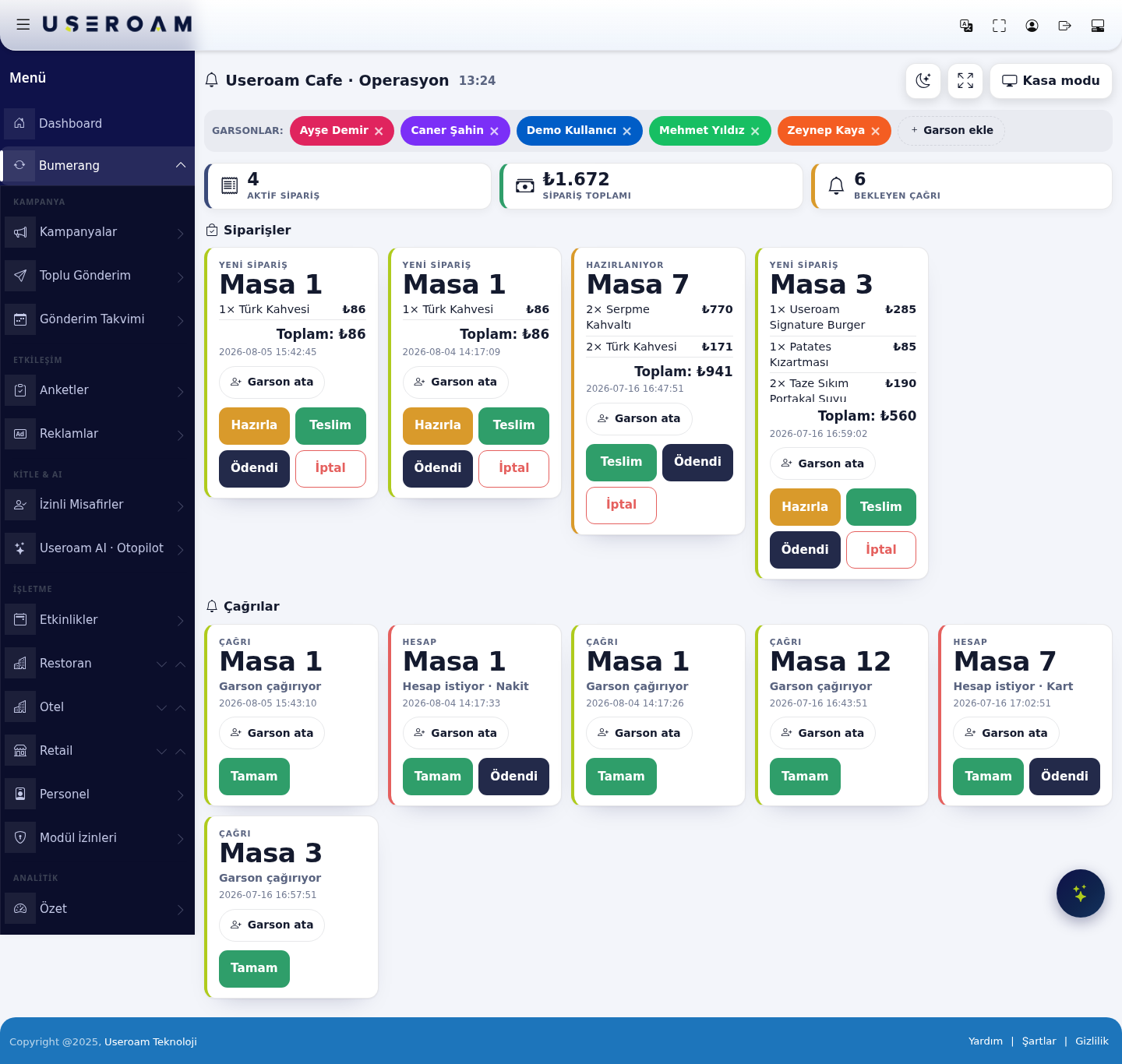
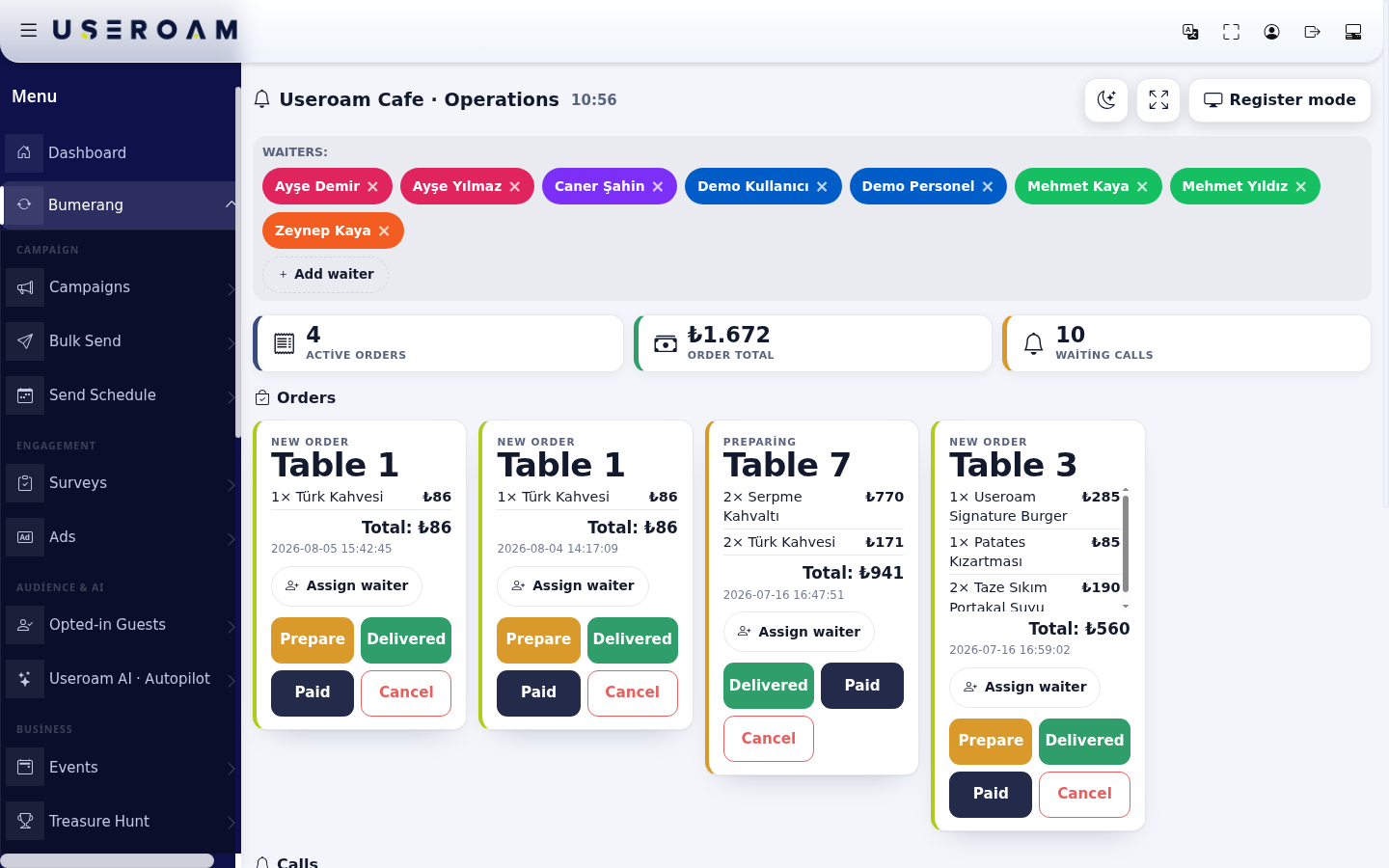
The Operations Screen is where you run thehandle orders and calls coming(Call inWaiter, Request Bill) from the QR menu,menu live. It is built to stay open on a tablet or till screen in the dining room:screen: when a guest scans the table QR at their table and calls a waiter or placesorders, ana order, itcard lands here.here with a sound alert. The header shows the menu name, Operations and the time. The screen refreshes itself every 6 seconds.
How do I open this screen?
PressClick Calls(Çağrılar)inat the topbarof the MenuEditor.EditorThe number in brackets(it is red and shows the countofwhenwaitingcallscalls.are waiting).
When 1.do TopI baruse it?
The
- To
carriesfollow calls and orders from tables during service. - To assign a waiter to a call or order.
- To mark an order as preparing, delivered or paid.
- To run a full-screen order screen at the
businesstillname,or in the kitchen (register mode).
Before you start
- For guests to call, tables need QRs made with
timeTable QR. For orders, Accept orders from the QR must also be on in Menu Settings. Details: Setting up the QR menu from start to finish. - For the sound alert, allow the browser to play sound (you may need to tap the page once).
Page layout
- Top right: moon/sun icon (Light / dark theme), four-corner icon (Full screen) and Register mode.
- WAITERS: strip: each waiter is a coloured tag; the cross removes the waiter ("Remove Ayşe Yılmaz?"). + Add waiter asks for a name ("Waiter name:").
- Three counters: Active Orders, Order Total, Waiting Calls.
- Orders: one card per table order, with the status at the top (New order or Preparing), table, items and prices, Total and time.
- Calls: a
TillCallmodecard (KasaCallingmodu)a waiter) or a red-edged Billswitch.cardTill mode simplifies(Requests thescreenbillfor·whoeverCardis taking payments.WaitersStaff on shift are listed here (e.g.orAyşe·DemirCash),CanerwithŞahin,Mehmet Yıldız,Zeynep Kaya). Use×to remove someonetable andAddtime. - With
(Garsonnothingekle)waitingtoitaddsaysone."NoThiswaitinglistcallsfeedsortheorders".
Step by step: answer a call
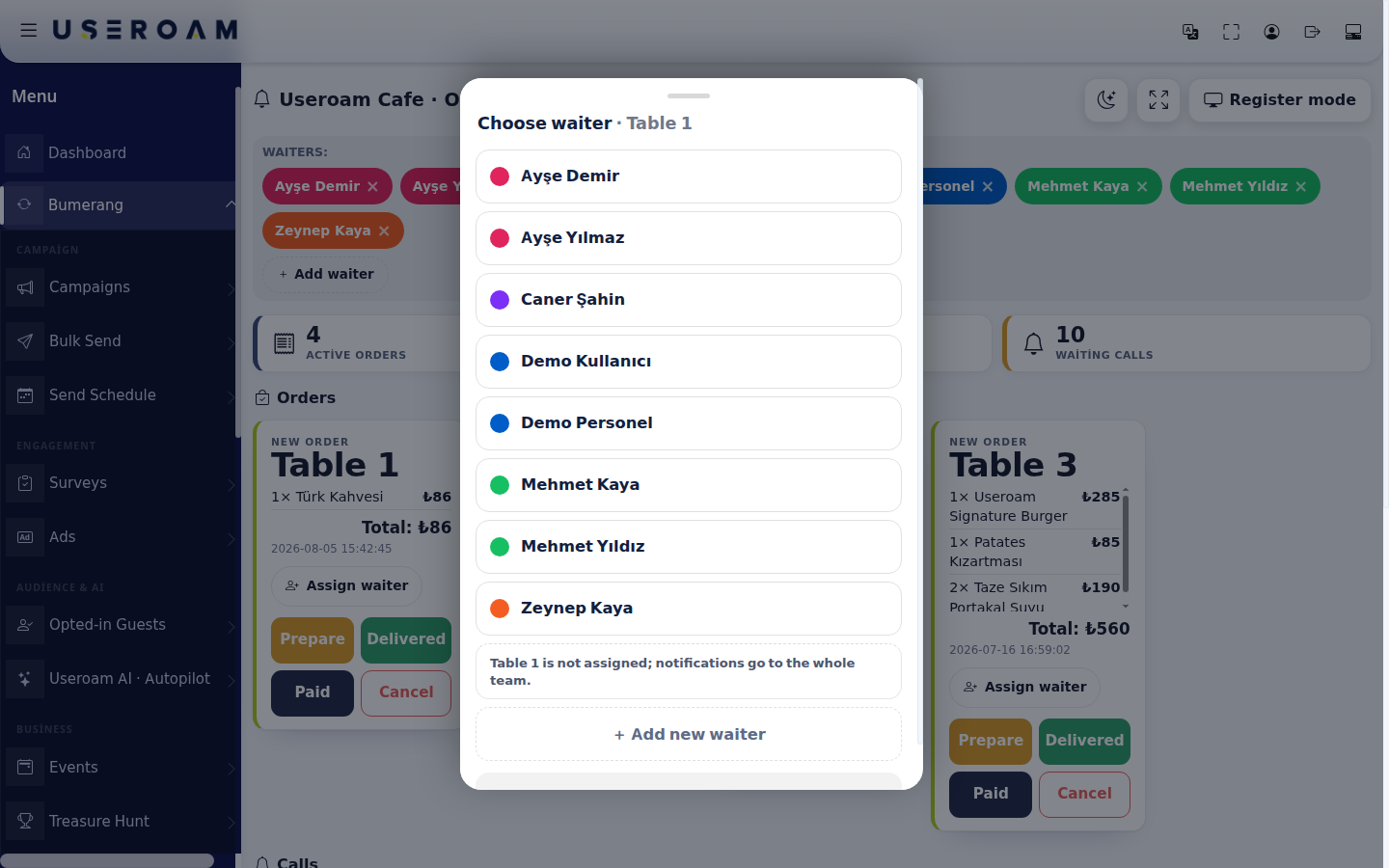
- Click Assign waiter
optionononthe call card. In the Choose waiter · Table 1 window pick the waiter. At the bottom you see the table's assigned waiter ("Table 1 is not assigned; notifications go to the whole team." or "Table 1 is assigned to Ayşe; new ordersandarecalls.notified
onlyCounters- to
- them."
ActiveAssignorders:this server to Table 1Orderssends thataretable'sstillnewopen.orders - to that waiter only,
OrderRemovetotal:table assignmentCombinedsendsvaluethemoftoopentheorders.whole Waitingteamcalls:Calls nobody has answered yet.- When the
timewaiterithaswasgoneplaced.
2. Orders
Each order is a card showing itsagain. statusRemove labelassignment, table,Add itemsnew and quantities, line prices, totalwaiter and Close are here too.
Step by step: run an order
- On a new order card
moveclick Prepare; the card top changes to Preparing. Assign a waiter with Assign waiter if needed. When the orderforward:reaches the table click Delivered, and when payment is taken click Paid (Paid closes all of the table's open orders of today and any waiting bill call). To cancel an order click Cancel.
Register mode
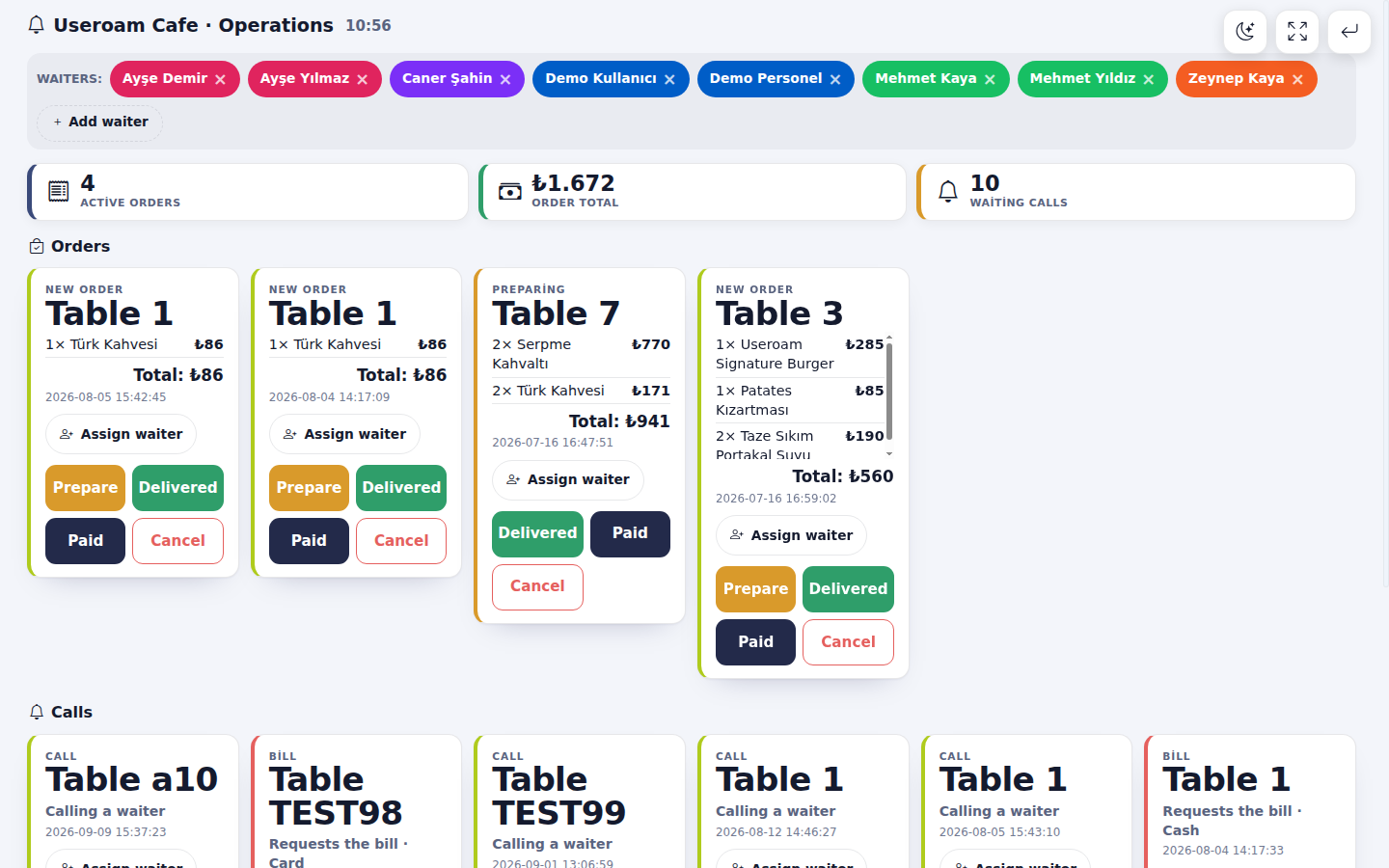
- Click Register mode at the top right. The screen opens full-page without the side menu and top bar, suited to a touch tablet or till screen. To go back click the return arrow at the top right (Back to panel). The light/dark choice is remembered on this device.
Every field and button
| Field / Button | What it does |
|---|---|
| Light / dark theme, Full screen | Appearance; the choice is kept on this device. |
| Register mode / Back to panel | Enters / leaves full-page mode. |
| + Add waiter, cross on a waiter tag | Adds / removes a name. These waiters are names used for assignment on this screen only. |
| Assign waiter | Chooses a waiter for a call or order. |
| Prepare / Delivered / Paid / Cancel | Changes the order status. |
| Done | Closes the call. |
| Assign this server to Table ... / Remove table assignment | Sends the table's new order notifications to one waiter / undoes it. |
Frequently asked questions
A guest called a waiter but nothing showed up.
The guest must scan the table QR, not the general QR; the general QR has no table and shows no call buttons. The screen refreshes every 6 seconds.
Do waiters get notified on their phones?
Yes, staff using the Useroam Go app get new call and order notifications; if the table is assigned to a waiter, new orders go only to them. Staff see calls on the app's Calls tab.
Are orders sent to my till (GarsonPOS)?
No. LinksThe Operations Screen passes the order to a waiter on shift.
The status labels read New order and Preparing.receipts.
Related 3. Callspages
The right-hand column collects guest calls. There are two kinds:
CALLSetting—upcallingtheaQRwaiter:menuThefromgueststarthastoaskedfinishfor·serviceMenuat their table.EditorBILLUseroam—Go:askingCallsfor·theUseroambill:Go:The guest wants to pay, with their preference shown (cashorcard).Orders
Every call shows the table number and the time. Assign waiter sets who handles it and Done (Tamam) closes it. Bill calls carry an extra Paid button.
Where does the table number come from?From thetable QR codethe guest scanned. If table QR codes have not been created, calls arrive without a table.
Related pages:Restaurant Solution → Menu Editor(table QR codes),Menu Report,Requests.