
Operations Screen (Calls and Orders)
What is it for?
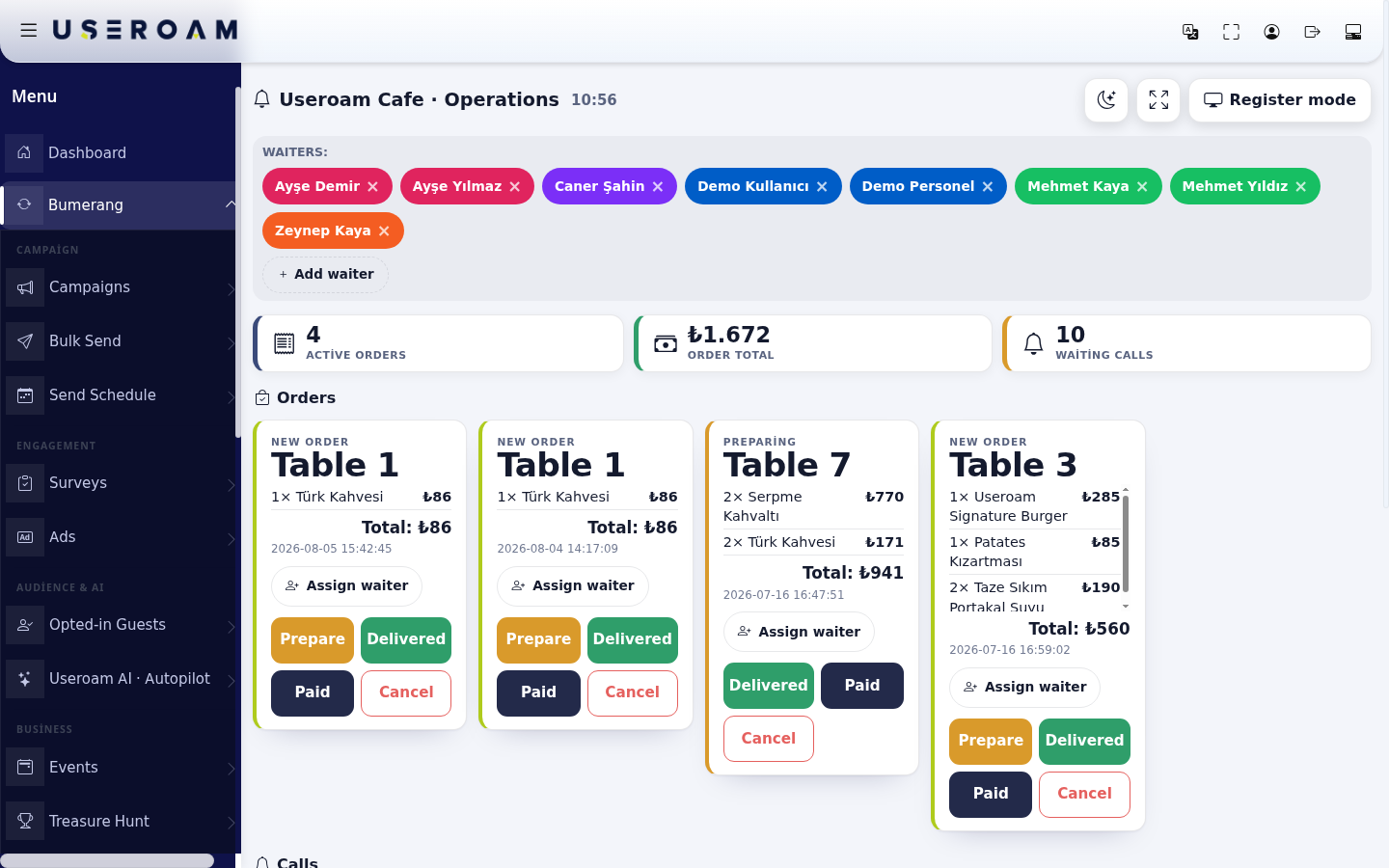
The Operations Screen is where you handle orders and calls (Call Waiter, Request Bill) from the QR menu live. It is built to stay open on a tablet or till screen: when a guest scans the table QR and calls a waiter or orders, a card lands here with a sound alert. The header shows the menu name, Operations and the time. The screen refreshes itself every 6 seconds.
How do I open this screen? Click Calls at the top of the Menu Editor (it is red and shows the count when calls are waiting).
When do I use it?
- To follow calls and orders from tables during service.
- To assign a waiter to a call or order.
- To mark an order as preparing, delivered or paid.
- To run a full-screen order screen at the till or in the kitchen (register mode).
Before you start
- For guests to call, tables need QRs made with Table QR. For orders, Accept orders from the QR must also be on in Menu Settings. Details: Setting up the QR menu from start to finish.
- For the sound alert, allow the browser to play sound (you may need to tap the page once).
Page layout
- Top right: moon/sun icon (Light / dark theme), four-corner icon (Full screen) and Register mode.
- WAITERS: strip: each waiter is a coloured tag; the cross removes the waiter ("Remove Ayşe Yılmaz?"). + Add waiter asks for a name ("Waiter name:").
- Three counters: Active Orders, Order Total, Waiting Calls.
- Orders: one card per table order, with the status at the top (New order or Preparing), table, items and prices, Total and time.
- Calls: a Call card (Calling a waiter) or a red-edged Bill card (Requests the bill · Card or · Cash), with table and time.
- With nothing waiting it says "No waiting calls or orders".
Step by step: answer a call
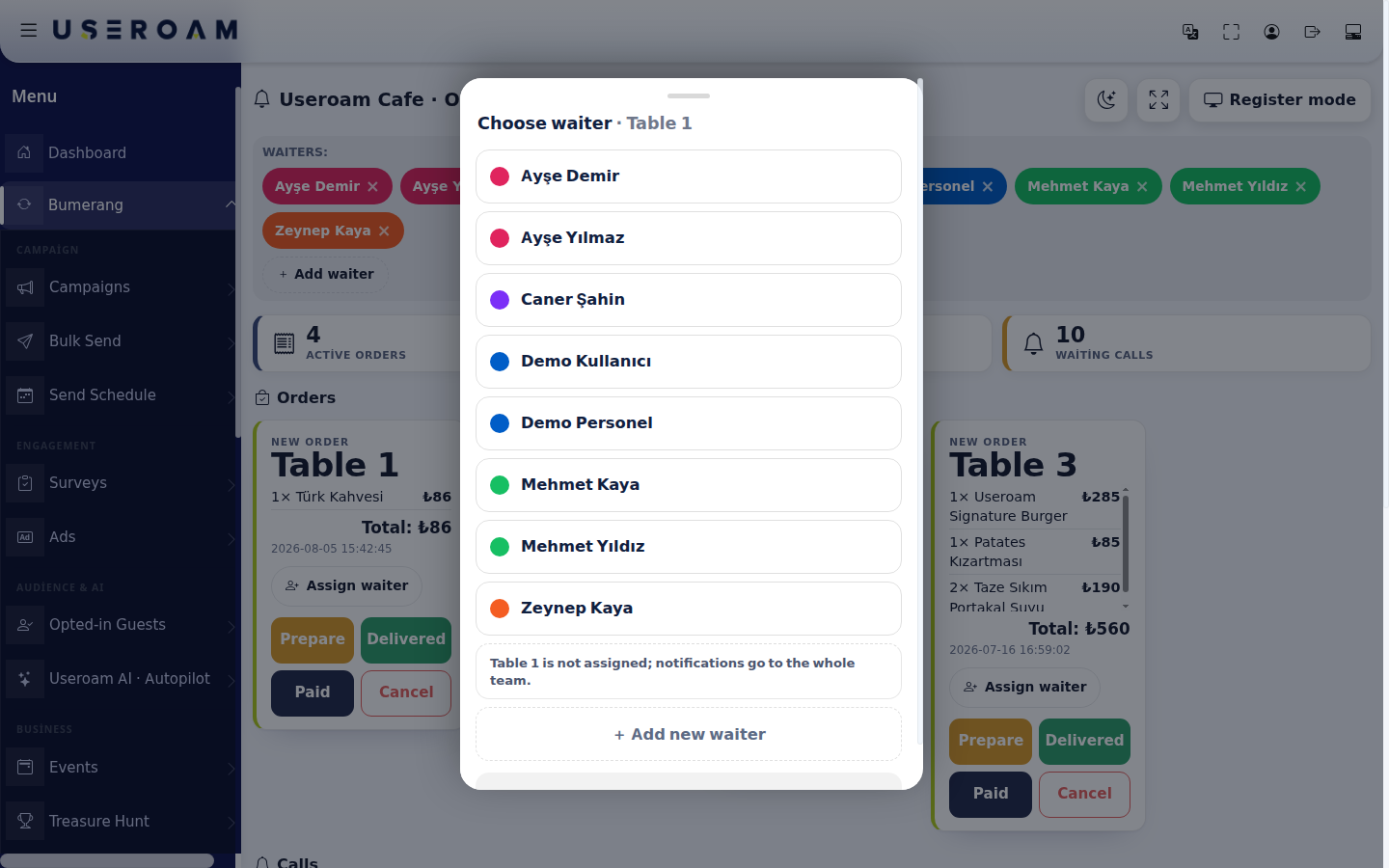
- Click Assign waiter on the call card. In the Choose waiter · Table 1 window pick the waiter. At the bottom you see the table's assigned waiter ("Table 1 is not assigned; notifications go to the whole team." or "Table 1 is assigned to Ayşe; new orders are notified only to them."); Assign this server to Table 1 sends that table's new orders to that waiter only, Remove table assignment sends them to the whole team again. Remove assignment, Add new waiter and Close are here too.
- When the waiter has gone to the table, click Done on the card; the call leaves the list. On a bill card, Paid also marks that table's open orders of today as paid and closes the cards.
Step by step: run an order
- On a new order card click Prepare; the card top changes to Preparing. Assign a waiter with Assign waiter if needed. When the order reaches the table click Delivered, and when payment is taken click Paid (Paid closes all of the table's open orders of today and any waiting bill call). To cancel an order click Cancel.
Register mode
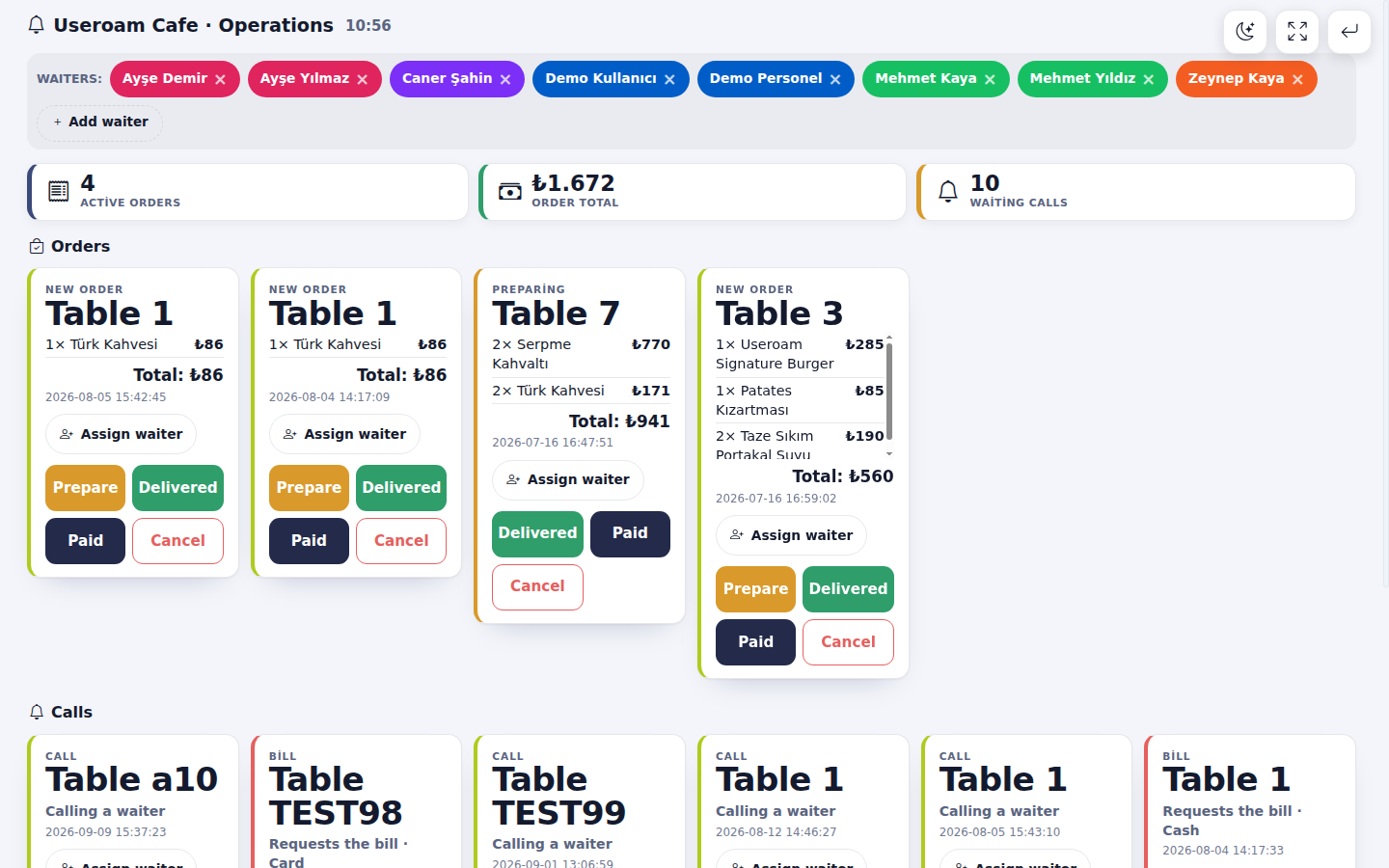
- Click Register mode at the top right. The screen opens full-page without the side menu and top bar, suited to a touch tablet or till screen. To go back click the return arrow at the top right (Back to panel). The light/dark choice is remembered on this device.
Every field and button
| Field / Button | What it does |
|---|---|
| Light / dark theme, Full screen | Appearance; the choice is kept on this device. |
| Register mode / Back to panel | Enters / leaves full-page mode. |
| + Add waiter, cross on a waiter tag | Adds / removes a name. These waiters are names used for assignment on this screen only. |
| Assign waiter | Chooses a waiter for a call or order. |
| Prepare / Delivered / Paid / Cancel | Changes the order status. |
| Done | Closes the call. |
| Assign this server to Table ... / Remove table assignment | Sends the table's new order notifications to one waiter / undoes it. |
Frequently asked questions
A guest called a waiter but nothing showed up.
The guest must scan the table QR, not the general QR; the general QR has no table and shows no call buttons. The screen refreshes every 6 seconds.
Do waiters get notified on their phones?
Yes, staff using the Useroam Go app get new call and order notifications; if the table is assigned to a waiter, new orders go only to them. Staff see calls on the app's Calls tab.
Are orders sent to my till (POS)?
No. The Operations Screen passes the order to the kitchen and floor; use your own till for payment and receipts.