
Menu Editor
What is it for?
How do I open this screen? On Restaurant → Menus, click Edit or the menu name on the menu card.
When do I use it?
- To add sections and products, or change a price or description.
- To mark a product out of stock or hide it from the menu.
- To print the menu QR or the table QRs.
- To import the menu from Excel, PDF or a photo, and translate it into other languages.
- To turn features such as table ordering, the welcome page or the welcome coupon on or off.
Top of the screen
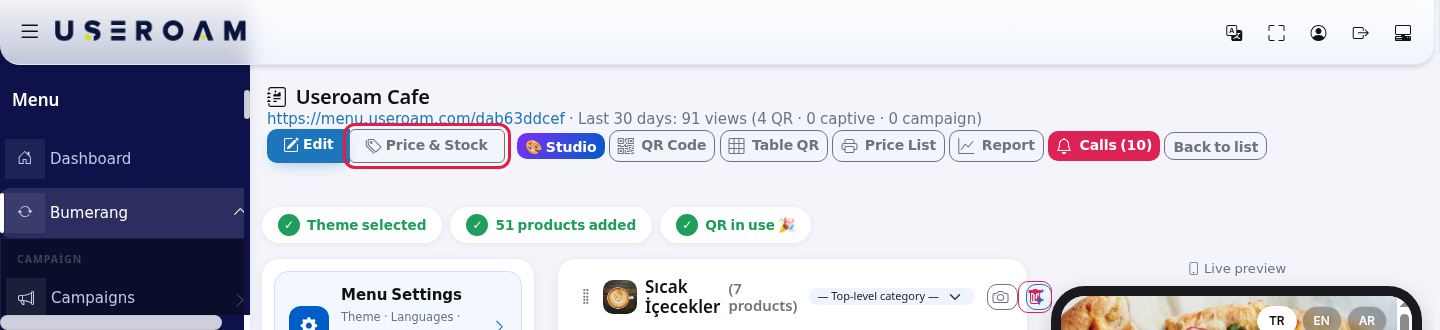
| Button | What it does |
|---|---|
| Edit | This full editing view. |
| Price & Stock | One table for all product prices and stock status (below). |
| 🎨 Studio | Opens Menu Studio. |
| QR Code | The menu's single QR (entrance, window). |
| Table QR | A separate QR per table (for calls and orders from the table). |
| Price List | Printable price list (regulation: a written list if the customer requests it). |
| Report | Menu Report. |
| Calls (10) | Operations Screen; the number of waiting calls in brackets, red when calls are waiting. |
| Back to list | Back to Online Menu. |
If a published product has price 0, a yellow warning appears: "Some products are missing a price. By the Price Tag Regulation, all published products must show a price. Products with a price of 0: ... Please enter a price or hide the product."
Step by step: add a section (category)
- In the green Add New Section card on the left, type a name (
e.g. Desserts), optionally an Order number and a Parent category (Top-level category means top level), upload a Category photo (recommended) and click Add. Without a photo, free image suggestions open after adding. The top says "Section added."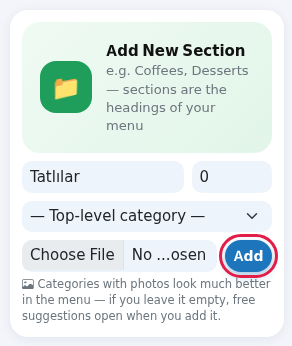
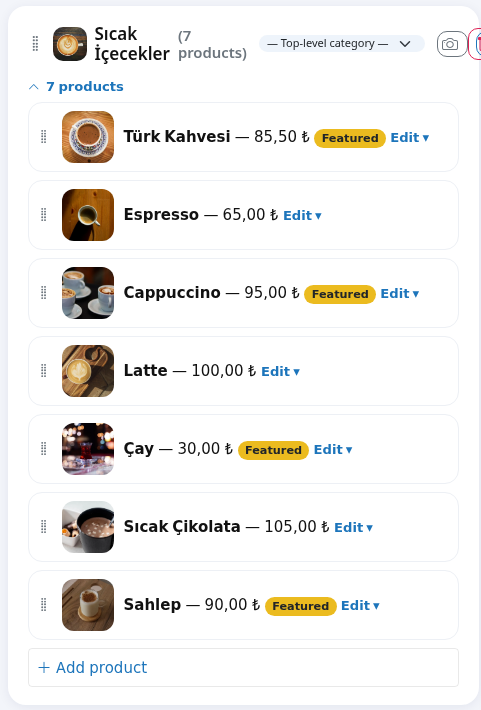
A section card has a drag handle (reorder), photo, name and product count, a Parent category box, a camera (Upload category photo), a sparkle (Suggest a free image) and a bin. The bin asks "This section and all products in it will be deleted. Are you sure?" A section with sub-sections is not deleted: "This category has sub-categories. Move or delete them first."
Step by step: add a product
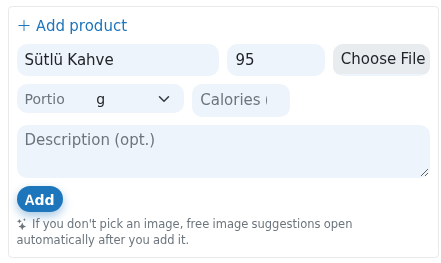
- On the section card, click the line such as 7 products to open the products, then click + Add product at the bottom. Type the Product name, price and Description (opt.), pick an image if you like and click Add. Without an image, free suggestions open automatically after adding. The top says "Product added."
Step by step: edit a product
- Click Edit ▾ on the product row. Change the form and click 💾 Save ("Product updated."). Delete asks for confirmation ("Are you sure? Click again").
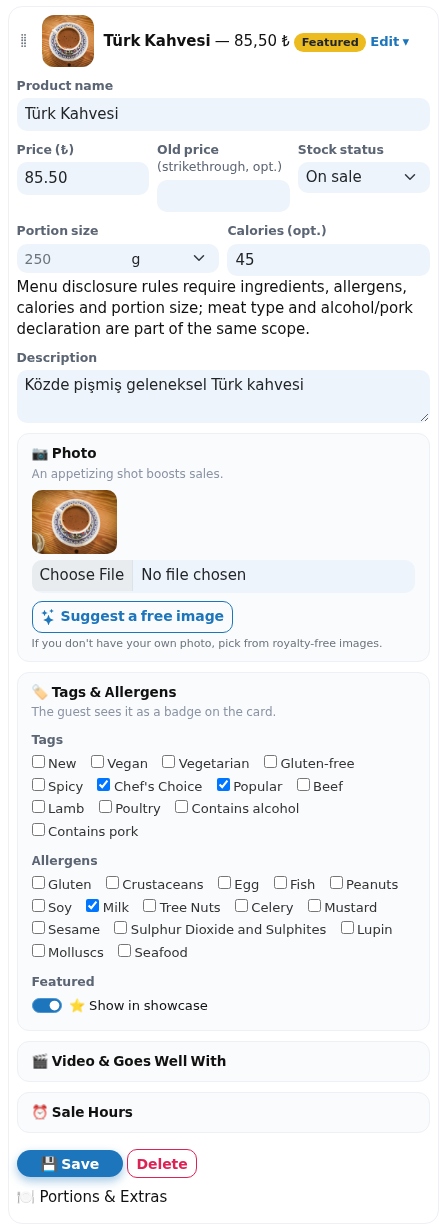
| Field | What it does | Example |
|---|---|---|
| Product name | Name shown in the menu. | Turkish Coffee |
| Price (₺) | Selling price. Dot or comma for decimals. | 85.50 |
| Old price (strikethrough, opt.) | A struck-through old price to show a discount. | 95 |
| Stock status | On sale, Out of stock (shown, cannot be ordered), Hide in menu. The list shows an Out of stock / Hidden badge. | On sale |
| Portion size | Amount and unit. | 250 g |
| Calories (opt.) | Calorie value. | 45 |
| Regulation note | "Menu disclosure rules require ingredients, allergens, calories and portion size; meat type and alcohol/pork declaration are part of the same rules." | - |
| Description + Write description with AI | Product description; the button writes one from the product name (the name is needed first). | - |
| 📷 Photo | Upload a file or choose a royalty-free image with Suggest a free image. | - |
| 🏷️ Tags & Allergens | Tags: New, Vegan, Vegetarian, Gluten-free, Spicy, Chef's Choice, Popular, Beef, Lamb, Poultry, Contains alcohol, Contains pork. Allergens: 14 allergens. Featured: ⭐ Show in showcase (a Featured badge in the list). | Milk |
| 🎬 Video & Goes Well With | Video link (YouTube/mp4, opt.) and Goes well with suggestion (No suggestions or another product). | - |
| ⏰ Sale Hours | Days (Mon-Sun) and Start / End time. Leave empty to sell always. | Mon-Fri 07:00-11:00 |
| 🍽️ Portions & Extras | + Portion: portion name and price (120 g / 180 g). + Option: group (Extras), name and extra price (extra cheddar +₺35). | - |
Clicking a product thumbnail opens the free image suggestions window: Upload my own photo (JPG, PNG or WebP) or click a suggestion ("Downloading and linking to your menu…"). Images come from Openverse and are CC0 / public domain. Skip for now: continue without a photo closes the window.
Menu Settings

| Field | What it does |
|---|---|
| Name, Design, Currency | Menu name, ready design, currency symbol. |
| Languages | TR, EN, AR, RU, DE, FA. TR cannot be turned off. |
| Logo (portal logo is used if empty), Background (opt.), Suggest a cover image | Logo and cover picture. |
Phone, Instagram (@business), Address, Working hours | Contact details shown on the cover and at the bottom of the menu. If Instagram is empty the account from portal settings is used. |
| Email the weekly performance summary | A weekly menu report summary by e-mail. |
| Show guest ratings in the menu (from the survey) | Shows rating survey results on product cards. |
| Rating on menu (let guests give stars) | Product cards show 5 stars; a rating survey is created automatically if none exists. The average shows after at least 3 ratings. |
| Sign-up form on menu (for guests not on Wi-Fi) + fields to ask (Name, Last name, Birthday, E-mail) | A sign-up form at the bottom of the menu. The mobile number is required and verified by SMS code. No automatic campaign goes to people who sign up; the list builds up and you send from bulk messaging. |
| Welcome page: Feedback & suggestion box | When on, the QR opens a welcome page first (Wi-Fi + Menu + Feedback box); feedback lands in the Menu Report. When off, the QR goes straight to the menu. |
Welcome Coupon + Coupon code (WELCOME), % discount / Amount, Value | Applied automatically when a guest arrives via View Menu from the welcome page. |
| Show a Menu button on the Wi-Fi login page | Adds a menu button to the guest Wi-Fi login page. |
| Accept orders from the QR | Table ordering. The table QR must carry the table; orders go to the Operations Screen. When off, guests cannot order and only call waiter and request bill remain. On-screen note: in Turkey table ordering requires cash register/POS integration. |
| Menu published | When off, guests cannot see the menu. |
| Save / Delete | Saves settings / deletes the menu (confirmation "Are you sure? Click again"). |
Tools and translation
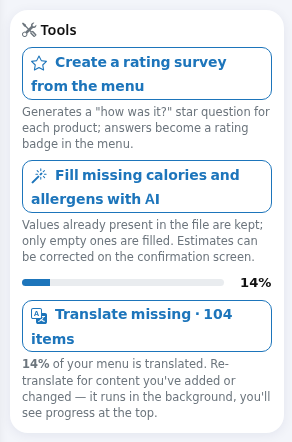
- Create a rating survey from the menu: creates a survey draft with a "how was it?" star question per product. Message: "Rating survey draft created (51 questions): edit and publish from Bumerang > Surveys." With no products: "Rating survey could not be created: this menu has no items."
- Fill missing calories and allergens with AI: asks first ("Missing calorie and allergen data in the menu will be filled with AI estimates. Continue?") and fills only empty values. Result: "Calorie/allergen filled for 12 products." or "No product is missing calorie or allergen data." Check the estimates.
- Translation bar: "In target languages 14% translation rate". Translate missing · 104 items translates new and changed content; Re-translate all content starts over. Translation runs in the background: "Translating your menu…", then "✅ Translation complete: your menu is ready in all languages". With no extra language: "There are no additional languages to translate in this menu".
Importing the menu
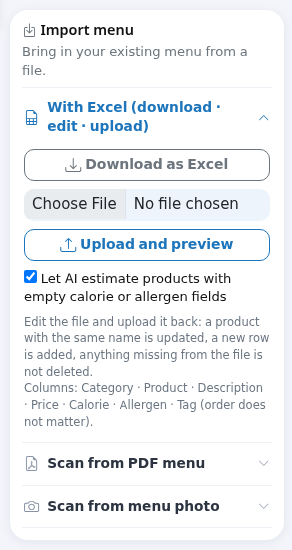
- With Excel (download · edit · upload): click Download as Excel, edit the file (columns: Category · Product · Description · Price · Calorie · Allergen · Tag, order does not matter), then click Upload and preview. Optionally tick Let AI estimate products with empty calorie or allergen fields. A product with the same name in the same category is updated, new rows are added, and nothing missing from the file is deleted. Check the Excel preview and confirmation screen and click Add and update. Result: "3 products added, 12 products updated, 1 new categories created."
- Scan from PDF menu: choose your PDF and click Scan. A waiting window appears while AI reads it ("Your menu is being prepared"). The PDF Preview opens with a result such as "8 categories, 60 products found"; untick what you do not want and click Approve and add to menu.
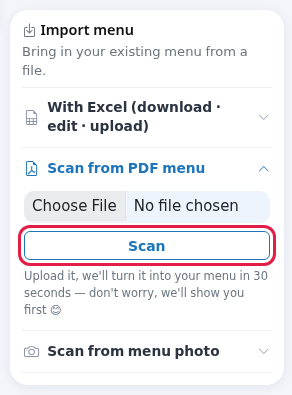
- Scan from menu photo: upload a clear photo of your menu and click Scan; the same preview opens.
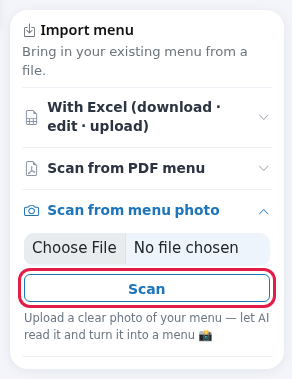
Result: "Imported: 8 categories, 60 products. You can add photos to the products." If it cannot be read: "Couldn't extract a menu line from the PDF." or "Couldn't extract a menu from the image."; Cancel deletes the draft ("Draft deleted.").
QR Code and Table QR
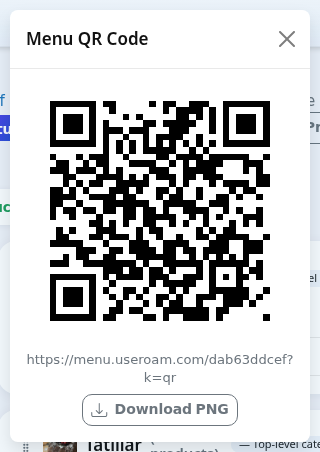
- Click QR Code: the Menu QR Code window shows the menu's QR; save it with Download PNG and print.
- Click Table QR: type a number in Number of tables: or table names separated by commas in or names: (
e.g. a10, b2, c5, terrace1), click Create, then Print the cards. Each table's QR opens the menu with that table number; guests can call a waiter, ask for the bill and order if enabled; the report shows a per-table breakdown. With an invalid name you see "No valid table name found (use letters, numbers and -)."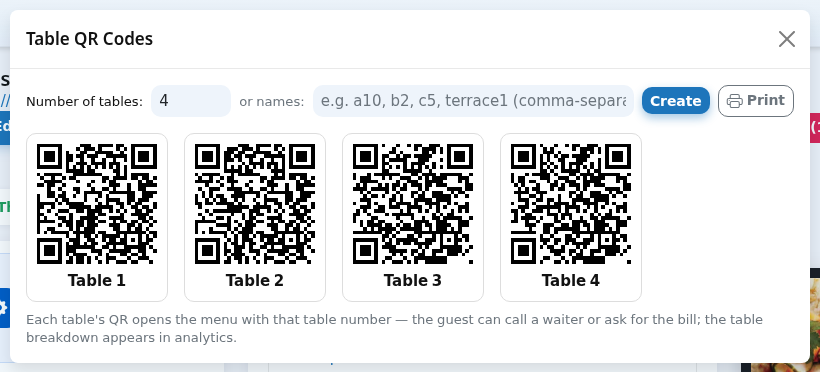
Price & Stock view
- Click Price & Stock at the top. In the Price and stock update table (Product, Category, Price, Stock) type prices and choose On sale / Out of stock / Hide in menu, then click Save changes at the bottom. Only rows you changed are saved. Message: "5 products updated."
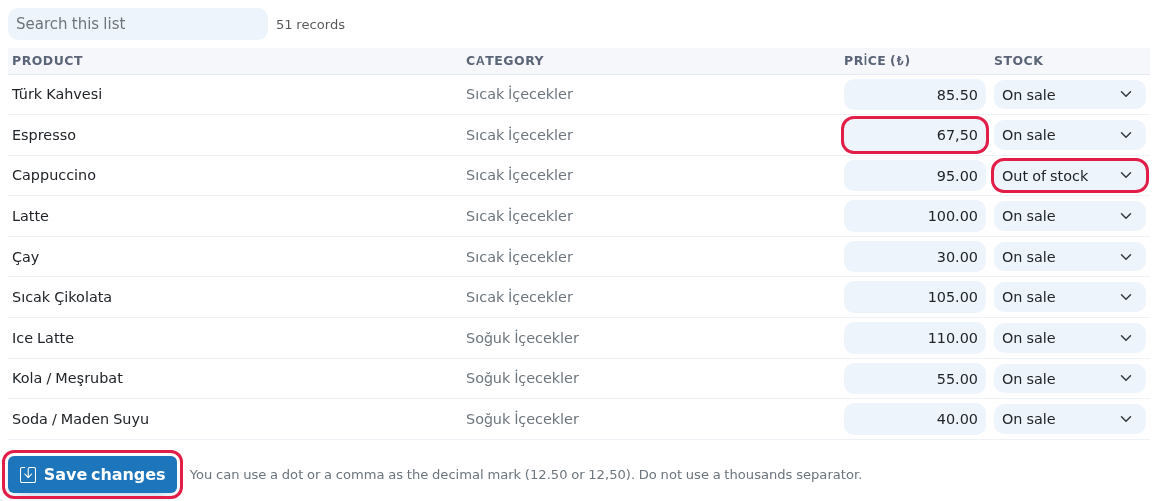
- Use a dot or a comma for decimals (
12.50or12,50); do not use a thousands separator. - The price must be between 0 and 9,999,999; other rows are not saved: "2 rows were not saved because the price is invalid (must be between 0 and 9,999,999)."
- Search this list filters the table.
Large menus and branch menus
Other messages you may see
| Message | Meaning and what to do |
|---|---|
| Saved. / Product updated. / Product deleted. / Category deleted. / Category photo updated. | Done. |
| Portion added. / Portion deleted. / Option group added. / Option group deleted. | Portion and extras actions done. |
| Invalid parent category selection. | Choose another parent category. |
| Enter the product name first. / Product name is empty. | Type the product name before AI description or image suggestion. |
| AI couldn't respond right now, please try again. / Hourly AI limit reached: try again shortly. / AI descriptions are being tested on the demo device right now. | Try again later or write the description yourself. |
| Suggestions aren't available right now: you can upload your own photo. / Hourly search limit reached... / Couldn't download the image: try another suggestion. / No selection found: refresh the search. | Pick another suggestion or upload your own photo. |
| 6 jobs added to the translation queue: translation started right away... | Translation started; it appears in the menu within seconds. |
| 2 rows skipped because they do not belong to this menu. | The price table contained another menu's product; refresh the page. |
| Saving… / Error / Connection error | While saving the branch table; try again on error. |
Other on-screen texts
The hints, counters, waiting and status texts below appear on screen as written (numbers and names are examples; "..." is replaced with your data).
- Hourly search limit reached: try again shortly.
- ... categories, ... products found: review and approve in the preview below.
- Draft not found.
- Imported: ... categories, ... products. You can add photos to the products.
- Rating survey draft created (... questions): edit and publish from Bumerang > Surveys. Answers will appear as stars in the menu.
- Calorie/allergen filled for ... products.
- ... products added, ... products updated, ... new categories created.
- Printable price list (regulation: written list if the customer requests it)
- Change the price and stock status of all products from a single table. Only the rows you change are saved. Use the Edit view for product name, photo and other fields.
- You can use a dot or a comma as the decimal mark (12.50 or 12,50). Do not use a thousands separator.
- ... records
- No records match your search.
- This branch uses the main menu's products. You can enter a price specific to this branch, mark a product out of stock, or hide it in this branch. Products left empty come exactly from the main menu.
- Social accounts are taken automatically from portal settings: what you type here applies to Instagram.
- Neighborhood, Street No, District
- Every day 09:00 – 23:00
- When enabled, item cards show 5 stars and guests rate with a single tap. A rating survey is created automatically if none exists. The average appears on the card after at least 3 ratings.
- A 'Sign up for campaigns' form appears at the bottom of the menu. Mobile number is required and verified by SMS code. No automatic campaign is sent to these sign-ups; the list builds up and you send from bulk messaging. The consent text comes from the same source as the captive portal.
- Fields to ask in the form (mobile number is always required):
- Welcome Coupon: a menu discount for the connecting guest (incentive reward)
- Coupon code (e.g. WELCOME)
- Generates a "how was it?" star question for each product; answers become a rating badge in the menu.
- Values already present in the file are kept; only empty ones are filled. Estimates can be corrected on the confirmation screen.
- ...% of your menu is translated. Re-translate for content you've added or changed: it runs in the background, you'll see progress at the top.
- Automatically translated into the selected languages with AI; it runs in the background, you'll see progress at the top.
- Starting translation…
- Bring in your existing menu from a file.
- Edit the file and upload it back: a product with the same name is updated, a new row is added, anything missing from the file is not deleted.
- Upload it, we'll turn it into your menu in 30 seconds: don't worry, we'll show you first 😊
- Your menu goes into the oven 👨🍳
- AI is reading your menu: it may take a few seconds, please don't leave the page.
- Categories are being plated 🍽️
- Prices are being read one by one 🧾
- AI is stirring the soup 🤖
- Flavors are being sorted 🥗
- Garnishes are being added 🌿
- Almost there, final touches ✨
- e.g. Coffees, Desserts: sections are the headings of your menu
- Categories with photos look much better in the menu: if you leave it empty, free suggestions open when you add it.
- PDF Preview: edit and uncheck anything you don't want to include
- If a product with the same name exists in the same category it is updated, otherwise it is added. Products missing from the file are not deleted.
- Calorie/allergen on this row is an AI estimate, please review.
- This menu is large, so only the products of the selected category are shown to keep the page fast. Use the link under each category title to open the others. If you only want to change prices and stock:
- Let's add your first section: open a section like "Coffees" from the green card on the left,or upload your PDF menu and we'll handle the rest 👇
- Open products
- An appetizing shot boosts sales.
- If you don't have your own photo, pick from royalty-free images.
- The guest sees it as a badge on the card.
- A video plays in the product detail; a suggestion card boosts sales.
- On which days and hours is this product sold? Leave empty = always.
- Tue
- Wed
- Sat
- Portions like "120 g / 180 g" and options like "extra cheddar +₺35".
- If you don't pick an image, free image suggestions open automatically after you add it.
- Table QR Codes
- or pick one of the free images below
- Click to select
- Didn't work: try another suggestion.
- Connection problem: please try again.
- Writing…
- Couldn't get an AI description.
- Connection error, please try again.
- Categories and products
- Your whole menu is here. Drag to reorder, tap a card to edit.
- Theme, languages, cover image, Wi-Fi and business info are inside this card: tap to open.
- The menu the guest sees on their phone. It refreshes automatically on every save.
- Your print-ready QR code: post it on tables and at the entrance.
- If you want to use the phone directly as an editor, switch to Studio mode.
Frequently asked questions
My change does not show in the menu.
Make sure you saved and refresh the guest page. The product may be set to Hide in menu or be outside its sale hours.
How do I turn on table ordering?
Why does a product with price 0 give a warning?
The regulation requires a price for published products. Enter a price or hide the product.