
Segments
What is it for?
Segments splits the customers who signed up on your store page into six groups by how often and how recently they came: Champions, Loyal, New, At risk, Dormant, Lost. You can send an SMS to a group with one click. SMS only goes to customers who gave commercial message consent (ETK).
When to use it
- When you want to bring back customers who have not come for a while (At risk, Dormant, Lost).
- When you want to thank your most valuable customers (Champions).
- When you want to see how your customer base is spread.
Before you start
- Segments build automatically from customers who leave a phone number on the store form. Each new sign-up with the same number counts as a visit.
- You need an SMS package to send. Messages are queued immediately and go out within minutes.
- Segment SMS cannot be recalled. Read the message carefully before sending.
Step by step
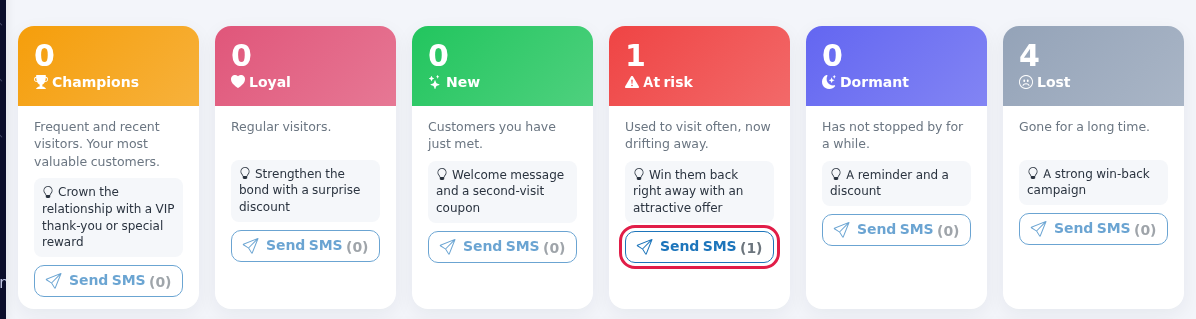
- Open Retail > Segments in the left menu. Six segment cards are at the top. The big number is the number of customers in the segment; below it are the segment's description and a suggestion with a light bulb. The number in brackets on Send SMS is the number of consenting (ETK) customers; if there are none, the button is faded and cannot be pressed.
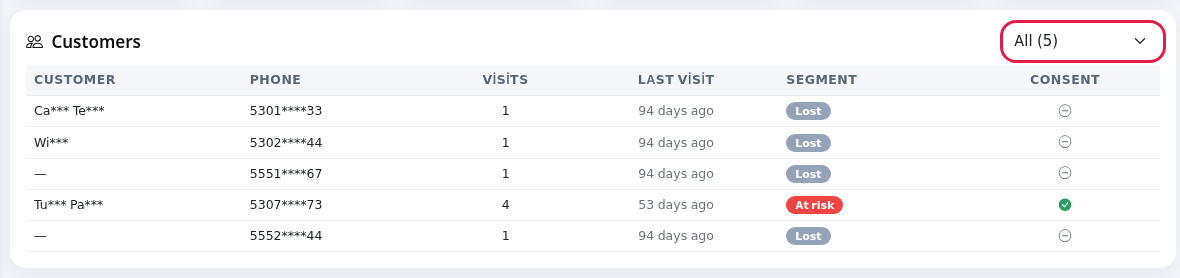
- The Customers table below shows each customer's segment. Use the box at the top right to show one segment only (All shows everyone).
- Press a segment's Send SMS. The window says "Will be sent to X opted-in people." Write the text in Message;
|ad|is replaced by the customer's name,|magaza|by the store name. Press Send, or Cancel to leave.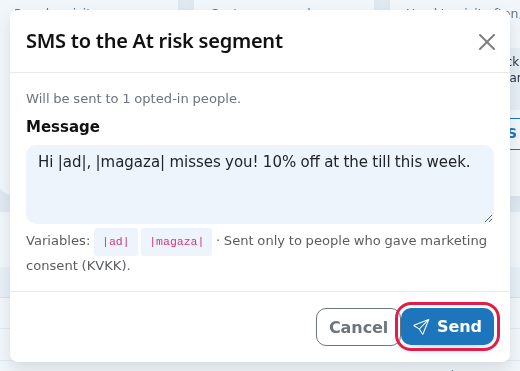
- After sending, a message such as "'At risk' segment: X SMS queued" appears. People without consent or a valid number are skipped and "X people skipped (no consent / bad number)" is added.
How segments are decided
| Segment | Rule (visits and days since last visit) | Suggestion on screen |
|---|---|---|
| Champions | At least 5 visits and visited within the last 15 days. | Crown the relationship with a VIP thank-you or special reward |
| New | One visit, within the last 21 days. | Welcome message and a second-visit coupon |
| Loyal | At least 2 visits, within the last 30 days. | Strengthen the bond with a surprise discount |
| At risk | At least 2 visits but away for 31-75 days. | Win them back right away with an attractive offer |
| Dormant | Away for 31-90 days (single-visit customers, or 76-90 days). | A reminder and a discount |
| Lost | Away for more than 90 days. | A strong win-back campaign |
Single-visit customers away for 22-30 days currently count as Loyal.
Table columns
| Column | Shows |
|---|---|
| Customer | Name, masked for KVKK (example: Ay*** Yı***). A short dash if there is no name. |
| Phone | Masked number (example: 5321****67). |
| Visits | Number of sign-ups. |
| Last visit | "X days ago". |
| Segment | Segment badge. |
| Consent | Green tick: has commercial message consent. Grey: no. |
Messages you may see
| Message | Meaning / what to do |
|---|---|
| 'X' segment: N SMS queued | The messages are in the sending queue. |
| · N people skipped (no consent / bad number) | These people have no consent or no valid number. |
| Segment and message are required. | Fill in the message. |
| Sending engine could not be loaded. | System error; contact our support team. |
| No loyalty members yet. Segments will build automatically as customers sign up from the store QR. | No sign-ups with a phone number yet. |
Frequently asked questions
Can the same customer get two messages?
Yes. Segment SMS has no frequency limit; if you send to the same segment twice, the customer gets two messages. For automatic, limited sending use an Automation rule.
Where can I see whether the SMS went out?
Segment sends also appear in Recent activity on Automation. For carrier delivery see SMS / WhatsApp Reports.
Why are my Wi-Fi guests not in the segments?
This screen only counts people who signed up with the store QR form. For Wi-Fi guests see Guest 360.