
Portal Texts
What is it for?
YouIt canlets edityou whatchange the texts staff readsee on the setup portal.page The(welcome textssentence, buttons, error messages, Android and Windows steps) to suit your organisation. Texts are stored per language and per device: you editchange the texts of whicheverthe language row you opened.opened, for the selected device.
When
Wheredo you use it?
- You want to add your organisation's name or a contact number to the welcome sentence.
- You want error messages to say something like "Call IT: extension 123".
- The Android steps do not match the menu names on your staff's phone brand.
Before you start
section.
- An administrator account is needed. Restricted users do not see this
section?The right device must be selected in the top menu. If you open a language row that belongs to another device, the section is not shown. Step by step
The badgegrey number next to the headingtitle showsis how many texts arehave customisedbeen changed for this device in that language.language; Nono badgenumber means every text uses its ready-made version.

1. Text groups
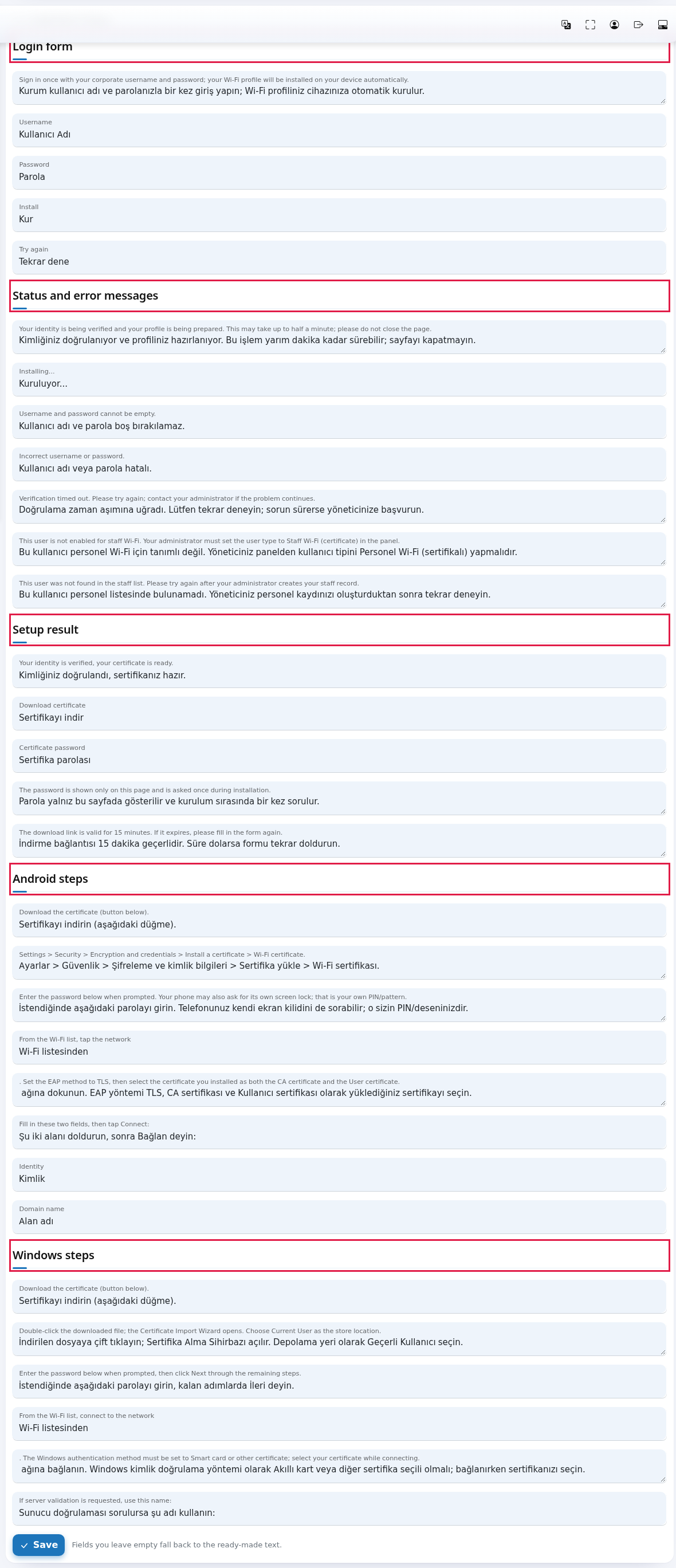
Group Texts in it (English ready-made text) Login form Welcome —sentencethe("Signwelcomeintext,once with your corporate username andpasswordpassword;labels,your Wi-Fi profile will be installed on your device automatically."), Username, Password, thesign-inInstallandbutton,backthebuttons.Try- again
link.Status and error messages Waiting —note,“please wait”Installing...,“installing”"Username and password cannot be empty.",empty"Incorrect username orwrongpassword.",username,time-out,timeout, user type"noteligible,enablednofor staffrecord.Wi-Fi",- "not found in the staff list". When they appear: Inviting Staff.
Setup result "Your —identity is verified, your certificate is ready.", Download certificate, Certificate password, "The password is shown only on this page and is asked once during installation.", "The download link is valid for 15 minutes. If it expires, please fill in thescreenformafteragain."Android steps Six parts: download, certificate install path, password, "From the fileWi-Fiislist,produced:tapdownloadthebutton,network"certificate+passwordnetwork name + the rest, "Fill in these two fields, then tap Connect:", and thetimefieldnote.labelsAndroid stepsIdentity— six steps plus theIdentityand Domainfieldname.labels.Windows steps Six —parts:sixdownload,steps.Certificate Import
Wizard,
to the network" + network name + the rest, "If server validation is requested, use this name:".2.password,What"FromleavingtheaWi-Fifieldlist,emptyconnectmeans- Download the certificate (button below).
- Settings > Security > Encryption and credentials > Install a certificate > Wi-Fi certificate.
- Enter the password below when prompted. Your phone may also ask for its own screen lock; that is your own PIN/pattern.
- From the Wi-Fi list, tap the network
- . Set the EAP method to TLS, then select the certificate you installed as both the CA certificate and the User certificate.
- Fill in these two fields, then tap Connect:
- Download the certificate (button below).
- Double-click the downloaded file; the Certificate Import Wizard opens. Choose Current User as the store location.
- Enter the password below when prompted, then click Next through the remaining steps.
- From the Wi-Fi list, connect to the network
- . The Windows authentication method must be set to Smart card or other certificate; select your certificate while connecting.
- If server validation is requested, use this name:
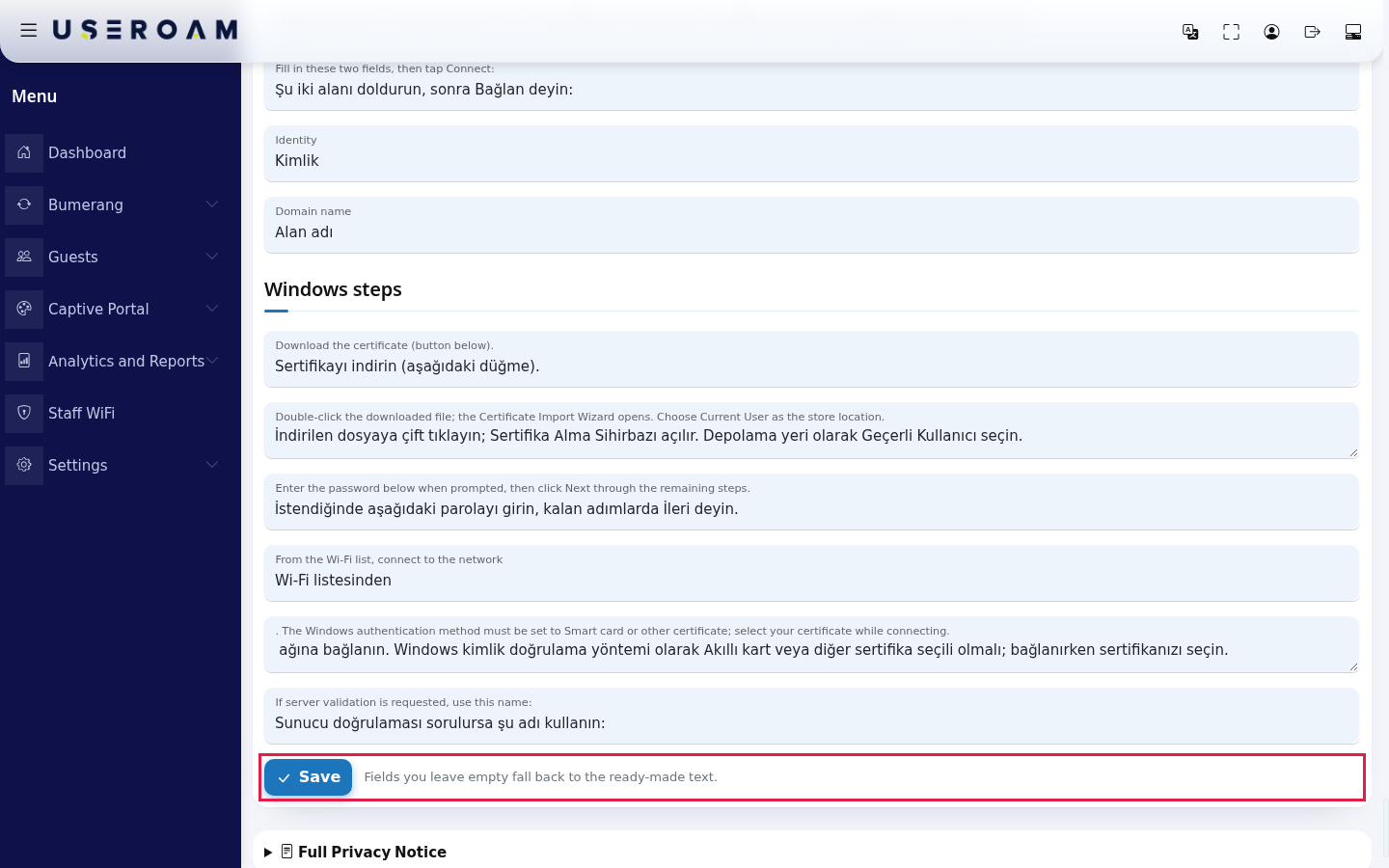
- If you save a ready-made text without changing it, nothing is stored; that box keeps using the ready-made
texttext,forand if Useroam improves it your page is updated too. - If you empty a box completely and save, that
language.textLeavegoesthe field empty and staff see that text. You do not have to fill in everything — write only what you want to say differently. Clear a field later and it returnsback to the ready-madetext.version. - Each
labelsboxaretakesshownupintothe1000panel'scharacters. - The
section has its ownSavebutton,of this section is separate from thecaptiveguest portalform.form:Savingsaving staff texts does nottouchaffect thecaptiveguestsettings,portal, and the other way round. - If
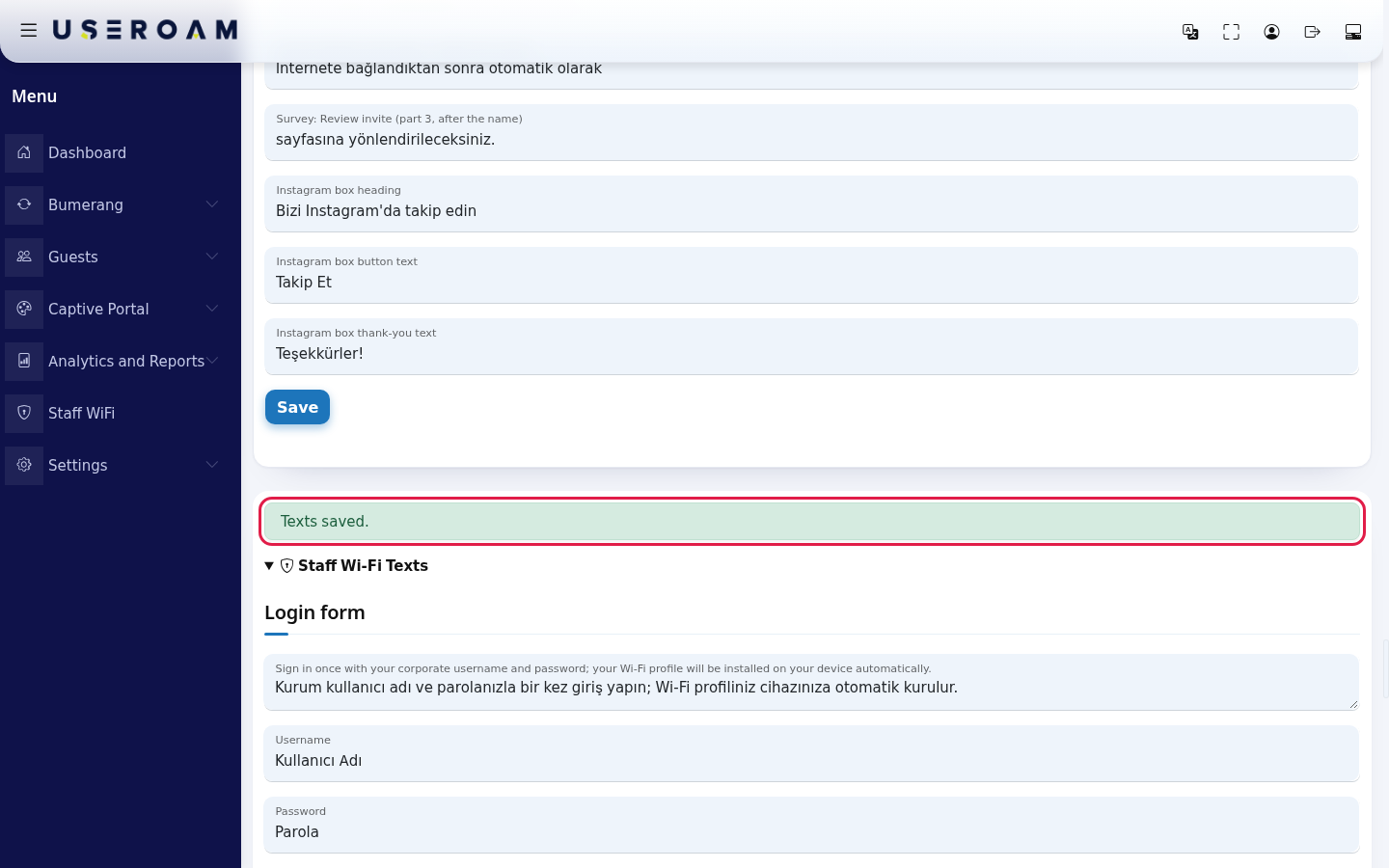
gettheTextspagesaved.haswhenbeenitopensucceeds.for
showEachafieldveryholdslonguptime,tosaving1000maycharacters.
a red "Session validation failed, please try again." Reload the page and save again. - Do not
hard-codetype a server name. Theportalsetupalreadypageproducescreates and shows the Identity and Domain name valuesand shows them on screen;itself; a value typed into the textby handmay be wrong. KeepAndroid CA certificate sentence: thestepready-madenumberingAndroidintact.text may say to select "the certificate you installed as both the CA certificate and the User certificate". The correct choice for CA certificate is Use system certificates (see Androidandsetup).WindowsIfstepsyourarestaffreadget confused, you can correct the box after the network name inorder.Android steps like this: ". Set the EAP method to TLS. For CA certificate choose Use system certificates; for User certificate select the certificate you installed."Follow your organisation's language.row for whicheverlanguagemost ofyour staff usefirst;first.theOtherrestlanguages keeprunning onusing the ready-made texts.- Editing Portal Texts (incl. KVKK): the guest portal texts on the same page
- Inviting Staff
The greytwo hintboxes insidearound eachthe fieldnetwork name are separate; your staff network name is inserted between them in bold automatically. Spaces at the start and end of these boxes matter; do not remove them.
Ready-made texts in the Android boxes:
Ready-made texts in the Windows boxes:
Saving rules
Field
3. Saving
4. Things to watch
Frequently asked questions
IfI cannot see the sectionStaff Wi-Fi Texts section.
Either your account is not there,an either you do not have administrator rights, or the feature is not enabled on your device,administrator, or the language row you opened belongs to a differentdevice device.that is not selected in the top menu.
I changed it but the setup page shows the old text.
Staff see the text of the language they opened the page in. Check that you edited that language's row and chose it with the flag on the setup page.
Related pages
Related pages:Staff Wi-Fi Administration → Inviting Staff;Captive Portal → Portal Language Settings.