
Editing Portal Texts (incl. KVKK)
What is it for?
This screen lets you change every text a guest sees on the login screen in one language: the welcome text, button labels, error messages, the KVKK privacy notice, terms of use, commercial message consent, the WhatsApp waiting text, and the texts of the speed package and survey windows. At the bottom of the same screen you also edit the Full Privacy Notice opened by the link in the KVKK box.
How do I open this screen? Go to Captive Portal → Portal Language Settings and press Edit on the row of the language you want to change. The screen title is Portal Language Settings; the path line shows Language List and the language name (e.g. Turkey).
When do I use it?
- You want to write your own welcome text on the login screen.
- Your lawyer or data protection adviser prepared a privacy notice for you.
- A button or error message is unclear to your guests.
- You want to change the texts of the speed package or survey window.
Before you start
- Each language has its own texts. Changing the Turkish text does not change English; open Edit for each language.
- Texts contain placeholders such as |company_name|, |company_email|, |company_phone|, |company_address|, |company_kep| and |full_notice_url|. Guests see your business name, e-mail, phone, address, registered e-mail (KEP) address and the link to the full notice in their place. This data comes from the company details on My Profile; do not delete the placeholders.
- The Staff Wi-Fi Texts and Full Privacy Notice sections at the bottom are only visible to administrator accounts.
Step by step
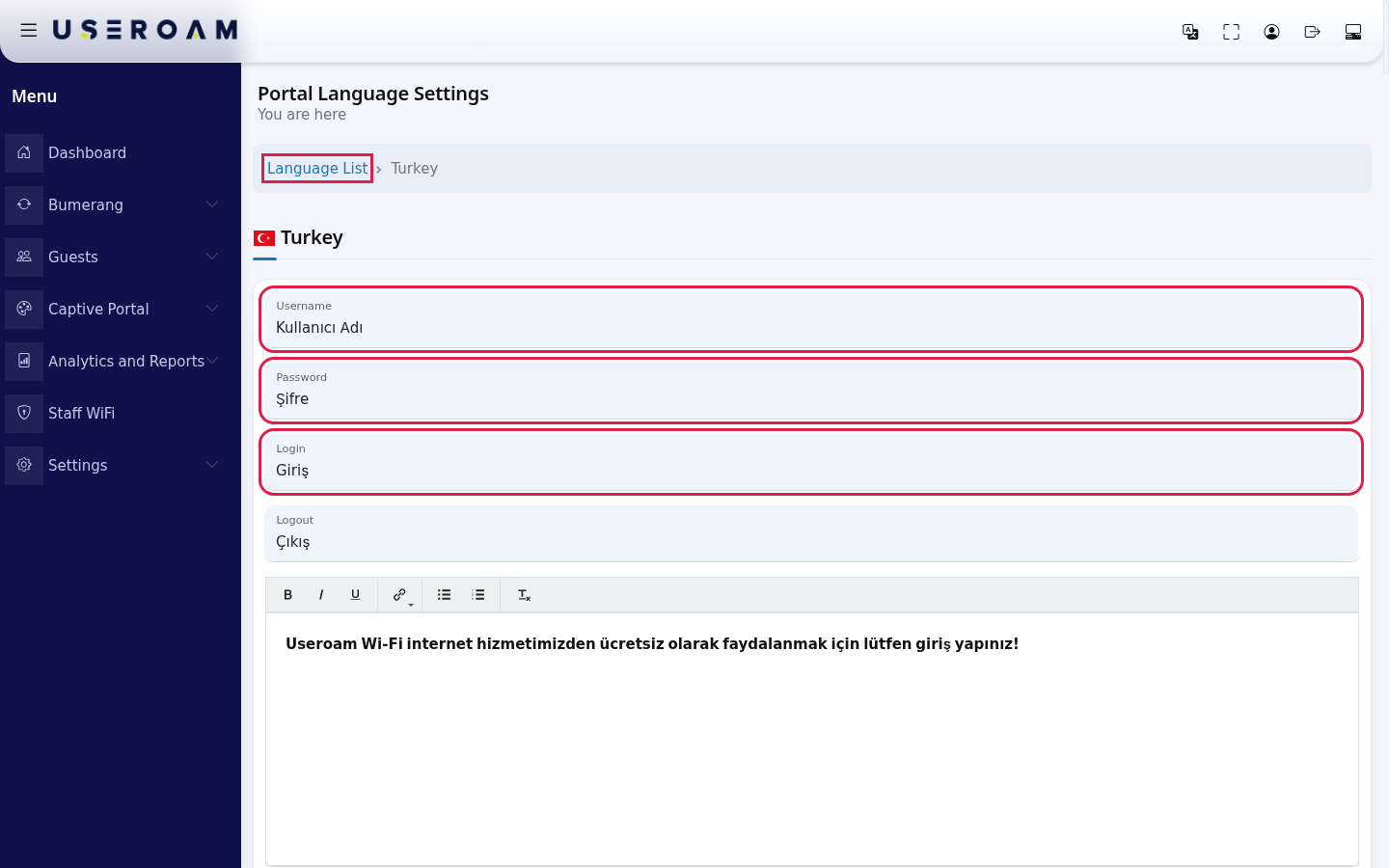
On Portal Language Settings, press Edit on the language row. The flag and name of the language appear at the top, followed by its texts box by box. The small label above each box tells you what it is (e.g. Username, Password, Login). The boxes contain the texts of that language (in the image, Turkish). To go back, click Language List in the path line.
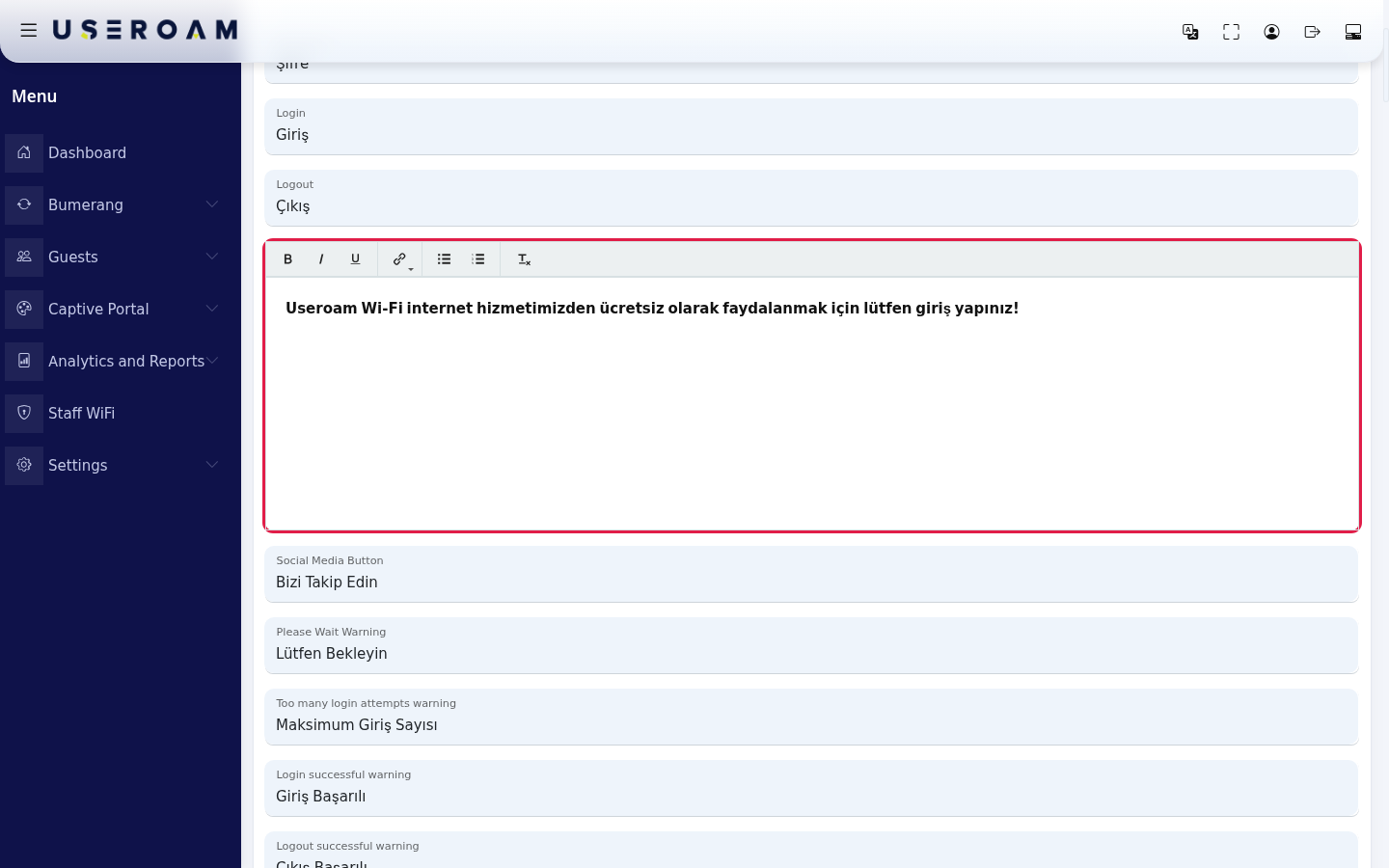
Find the box you want and change the text. Long texts (e.g. Login Text) come with a small editor: bold, italic, underline, link, bulleted and numbered list and clear formatting buttons.
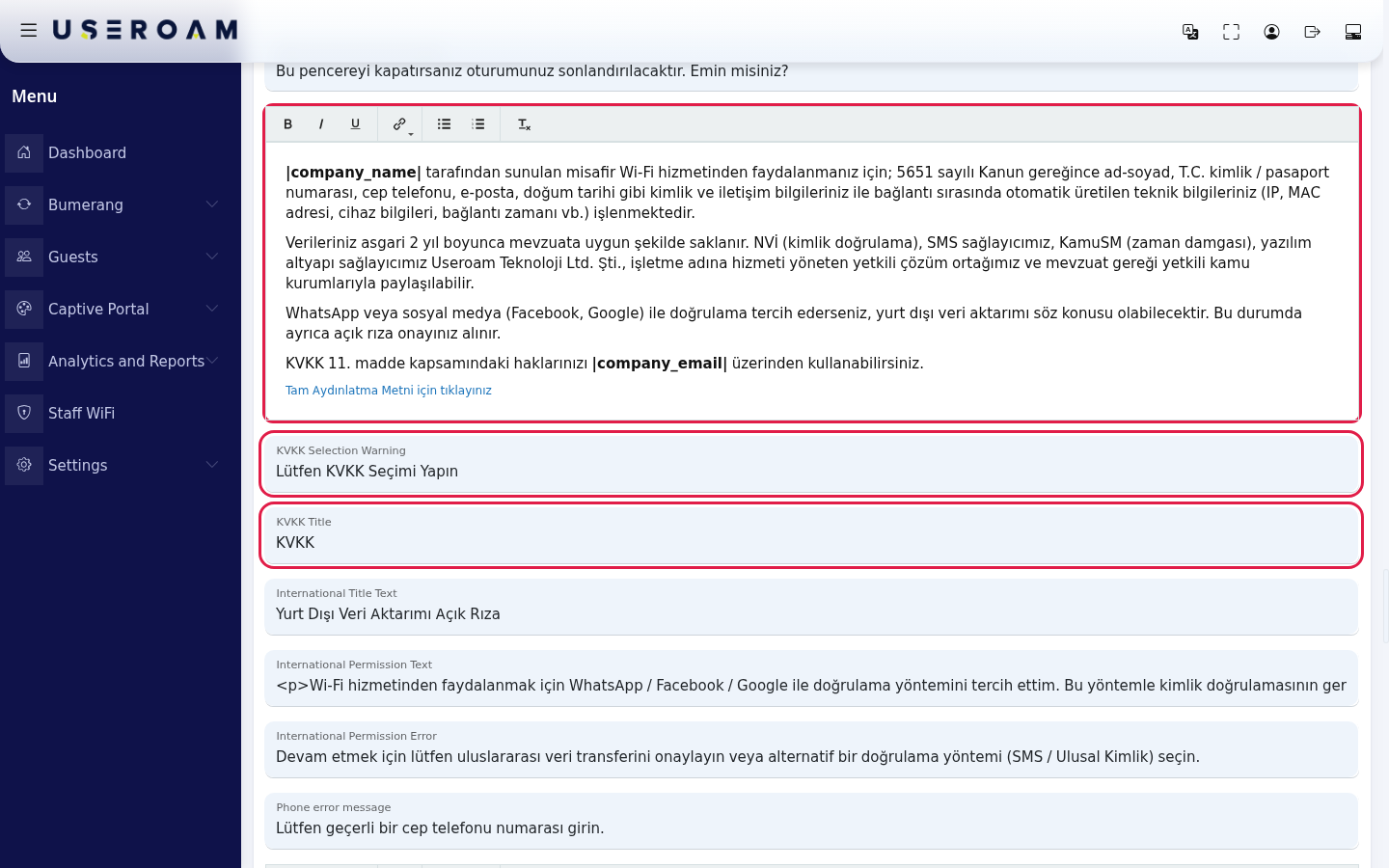
To change the privacy text, go to the KVKK Content editor. This is the short notice guests read in the KVKK box. Right below, KVKK Selection Warning is shown when a guest continues without accepting KVKK, and KVKK Title is the title of the KVKK window. Do not delete the click for the full privacy notice link at the end of the text: it takes guests to the full notice.
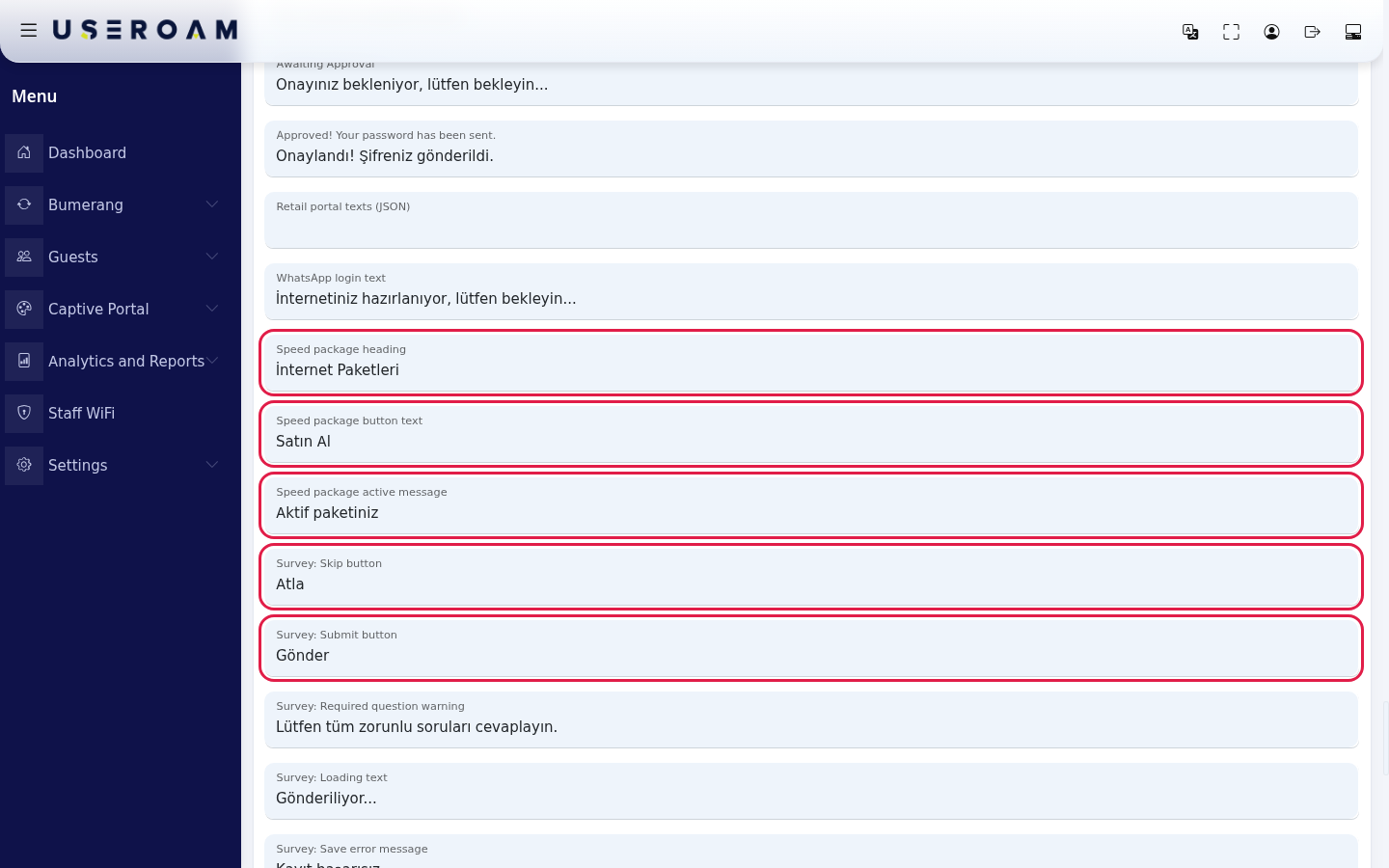
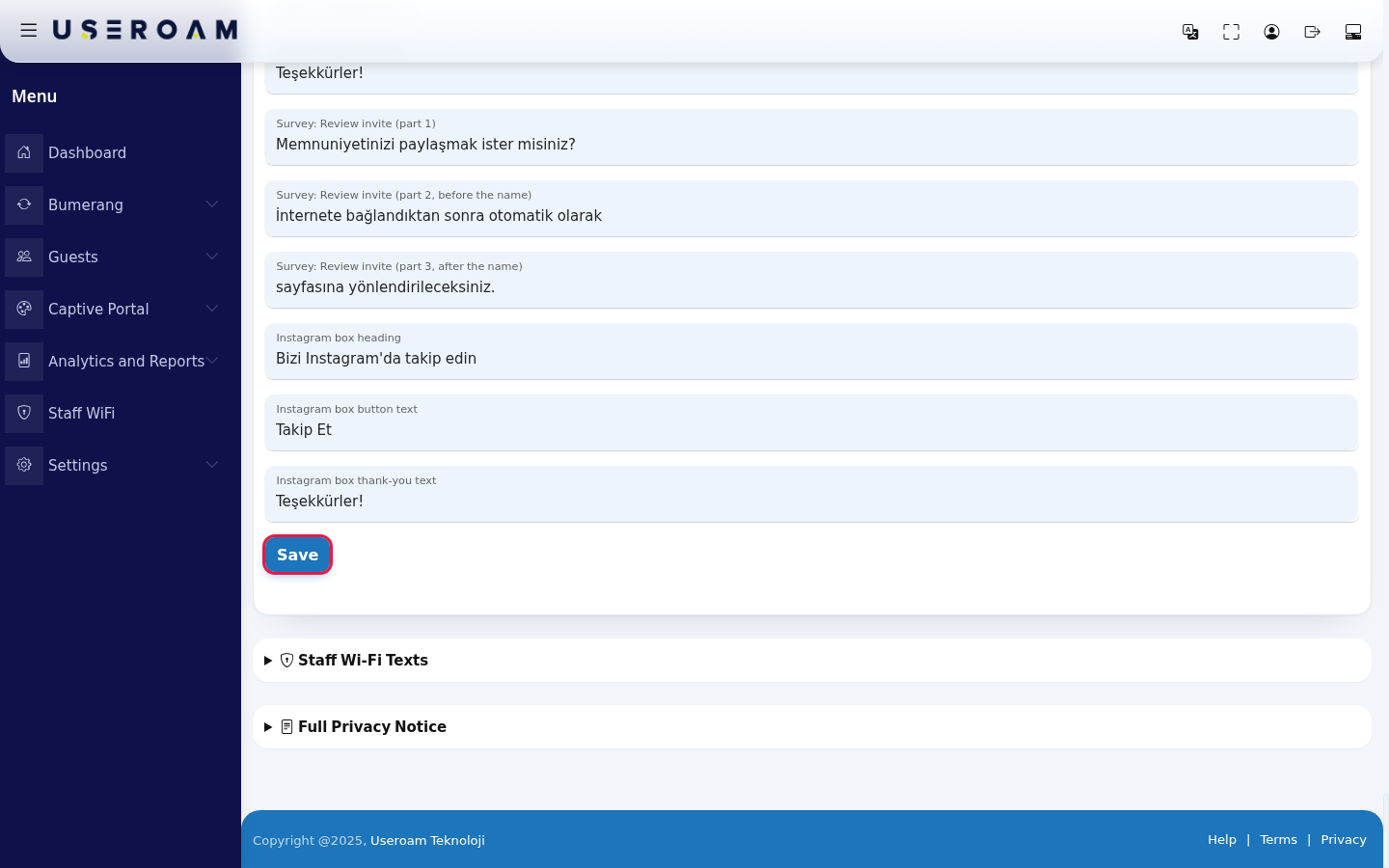
The speed package and survey window texts are near the end of the list: Speed package heading, Speed package button text, Speed package active message, Survey: Skip button, Survey: Submit button and the other survey texts. The full list is in the tables below.
Press Save at the very bottom of the list. This button saves all portal texts on the screen together. The page reloads after saving.
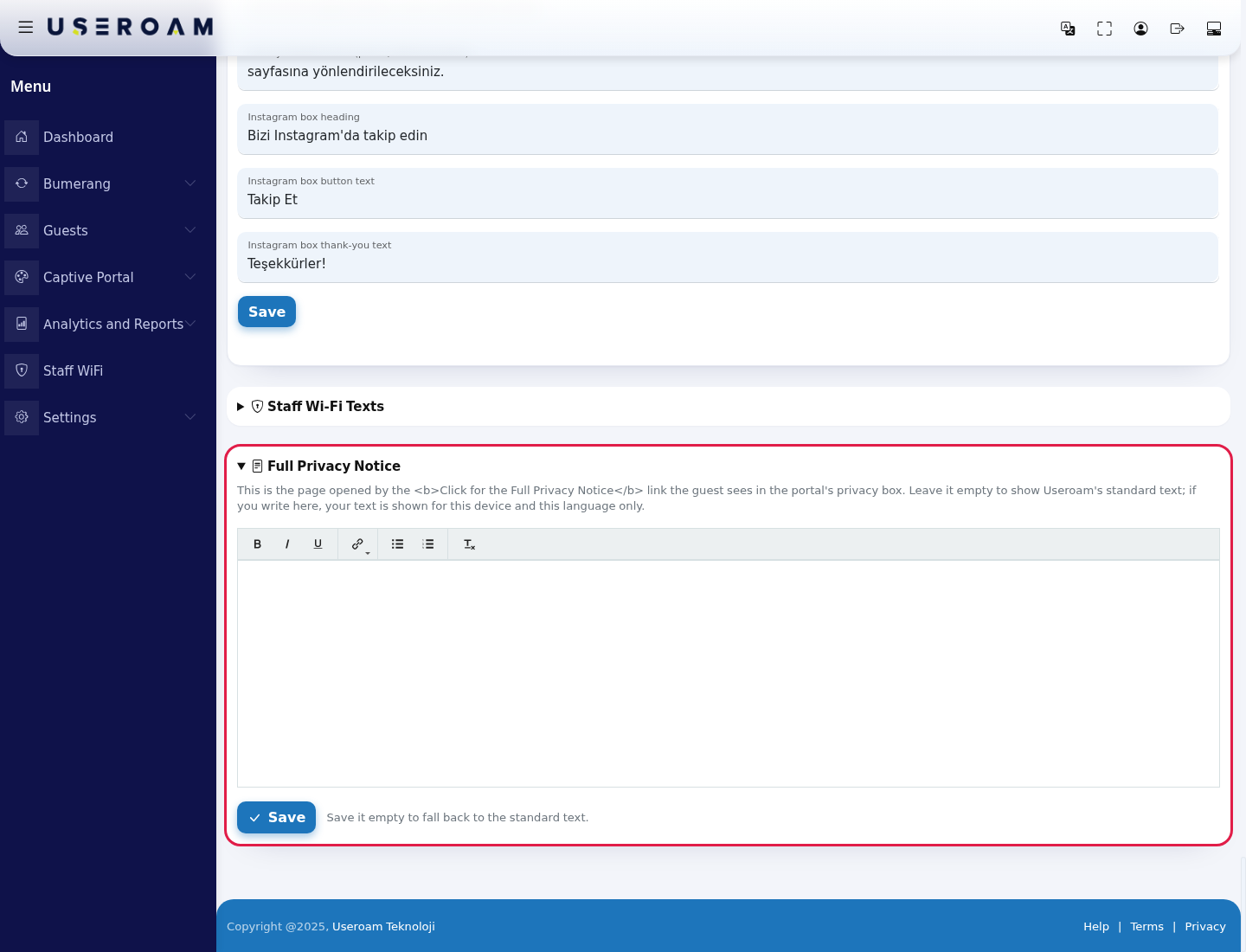
To replace the full privacy notice with your own, click the Full Privacy Notice section at the bottom to open it. The description explains it: this is the page opened by the full notice link in the privacy box on the portal; if you leave it empty Useroam's standard text is shown, if you write here your text is shown for this device and this language only. Write the text and press the section's own Save. After saving you see Full privacy notice saved. and a Custom text badge appears next to the section title. To go back to the standard text, empty the box and save (Save it empty to fall back to the standard text.).
Sections of the screen
| Section | What it does |
|---|---|
| Portal texts (the large form at the top) and Save | All fields in the tables below. One Save stores them all. |
| Staff Wi-Fi Texts (collapsible) | Texts of the Staff Wi-Fi setup portal. The number next to the title shows how many texts were changed in this language. Details: Staff Wi-Fi Portal Texts. |
| Full Privacy Notice (collapsible) | The full KVKK notice. Has its own Save. The Custom text badge shows your own text is used instead of the standard one. |
Every field
On the screen the fields are listed in the order they are stored, not in the order of the tables below; find a box by its label. The third column is Useroam's standard English text.
Login screen and general messages
| Field | What it is for | Default text (English) |
|---|---|---|
| Username | Label of the username box. | Username |
| Password | Label of the password box. | Password |
| Login | Text of the login button. | Login |
| Logout | Text of the logout button. | Logout |
| Login Text | Welcome text at the top of the login screen (formatted text). | Please log in to use our Useroam Wi-Fi internet service for free! |
| Portal Login Button | Text of the button that opens the username and password boxes. | Click to log in with user account |
| Or | The "or" text between options. | or |
| Social Media Button | Heading of the social media buttons. | Follow Us |
| Please Wait Warning | Please-wait text shown while something is loading. | Please Wait |
| Go Back | Text of the back button. | Go Back |
| Register | Text of the Register button. | Register |
| Send Button | Text of the Send button. | Send |
| Refresh | Button that refreshes the security code. | Refresh |
| An unexpected error occurred | Message shown when an unexpected error occurs. | An unexpected error occurred, please try again. |
| Page closure warning message | Warning shown when the guest tries to close the window while "end session when page is closed" is on. | If you close this window, your session will be terminated. Are you... |
| Too many login attempts warning | Warning after too many login attempts. | Maximum Login Count |
| Login successful warning | Short notice when login succeeds. | Login Successful |
| Logout successful warning | Short notice when logout succeeds. | Logout Successful |
| Username or password incorrect warning | Warning when the username or password is wrong. | Username or Password Incorrect |
| Username empty warning | Warning when the username is left empty. | Please enter a username. |
| Password empty warning | Warning when the password is left empty. | Please enter a password |
| Login Successful Message | Welcome message after login. | Welcome |
| Start Surfing | The Start Surfing button on the exit page. | Start Browsing |
| Post-Login Text | Text shown on the exit page after login (formatted text). | WelcomeUseroam You can use our Wi-Fi internet service for free. |
| Legal Content | Short legal note at the bottom of the login screen. | By logging in, you are deemed to have accepted the Terms of Use... |
Legal texts and consents
| Field | What it is for | Default text (English) |
|---|---|---|
| Terms of Use | Text of the terms of use checkbox. | I accept the terms of use. |
| Terms Content | Full terms of use (formatted text). | 1. Parties and Scope These Terms of Use govern the terms between... |
| Terms Warning | Warning when the guest continues without accepting the terms. | Please accept the terms of use |
| KVKK Content | The privacy notice the guest reads in the KVKK box (formatted text). Its full notice link opens the Full Privacy Notice section below. | In order for you to benefit from the guest Wi-Fi service provided... |
| KVKK Selection Warning | Warning when the guest continues without accepting KVKK. | Please make the KVKK selection |
| KVKK Title | Title of the KVKK window. | KVKK |
| International Title Text | Title of the overseas data transfer consent (WhatsApp login). | Explicit Consent for Data Transfer Abroad |
| International Permission Text | Overseas data transfer consent text. | I have chosen the verification method via WhatsApp / Facebook /... |
| International Permission Error | Warning when the guest continues without the overseas consent. | To proceed, please approve international data transfer or select... |
| E-mail delivery permission | Text of the commercial message consent checkbox. | I want to hear about campaigns, discounts and offers (commercial... |
| E-mail delivery permission content | Full text of the commercial message consent (formatted text). | I give my explicit consent to receive commercial electronic... |
SMS and WhatsApp sign-up form
| Field | What it is for | Default text (English) |
|---|---|---|
| Mobile Phone | Label of the mobile phone box. | Mobile Phone |
| Phone error message | Invalid phone number warning. | Please enter a valid mobile phone number. |
| Mobile Phone is Empty | Warning when the phone is left empty. | Please enter a mobile phone number |
| Security Code | Label of the security code box. | Security Code |
| Security Code Incorrect | Warning when the security code is wrong. | Security Code Incorrect |
| Security code is Empty | Warning when the security code is empty. | Please enter the security code |
| SMS Sent | SMS sent message. | SMS sent. You are being redirected to the login screen. |
| SMS Could Not Be Sent | SMS could not be sent message. | SMS could not be sent. Please try again. |
| Click to register with SMS | Text of the register with SMS link. | Click to register via SMS |
| User already registered warning | Warning when the number is already registered. | Username or mobile phone is already registered. |
| SMS Password | Label of the box for the password received by SMS. | SMS Password |
| Whatsapp Login Text | Text of the register with WhatsApp button. | Register with WhatsApp |
| Whatsapp Password | Label of the box for the password received on WhatsApp. | WhatsApp Password |
| WhatsApp login text | Waiting text shown while WhatsApp verification runs. | Your internet is being prepared, please wait... |
| First Name | First name box. | First Name |
| Last Name | Last name box. | Last Name |
| E-mail box. | ||
| Full Name is Empty | Warning when the name is empty. | Please enter first and last name |
| E-mail is Empty | Warning when the e-mail is empty. | Please enter an e-mail |
| Province Selection | First line of the province list. | Select Province |
| District Selection | First line of the district list. | Select Province First |
| Province Selection Warning | Warning when no province or district is selected. | Please select Province/District |
| Neighborhood | Neighbourhood box. | District |
| Neighborhood warning | Warning when the neighbourhood is empty. | Please enter your district |
| Your Coupon Code | Label of the coupon code box. | Your Coupon Code |
| Coupon Description | Explanation above the coupon box (formatted text). | Please enter the coupon code provided to you. |
| Coupon Code Incorrect | Warning when the coupon code is wrong. | Coupon code is incorrect, please try again. |
| Coupon is Empty | Warning when the coupon is empty. | Please enter a coupon code |
| Click to register with T.C. Identity number | Text of the register with Turkish ID number link (for devices that use this method). | Click to register with the Turkish ID number (T.C.) |
| Message for disabled users | Message shown when a blocked number tries to log in. | This number has been blocked. |
| Awaiting Approval | Message the guest sees while the sign-up waits for approval. | Waiting for approval, please wait... |
| Approved! Your password has been sent. | Message shown when the sign-up is approved and the password is sent. | Approved! Your password has been sent. |
Speed package, survey and Instagram
| Field | What it is for | Default text (English) |
|---|---|---|
| Speed package heading | Heading of the speed packages section on the exit page. | Internet Packages |
| Speed package button text | Buy button of a speed package. | Buy |
| Speed package active message | Text shown when the guest already has an active package. | Your active package |
| Survey: Skip button | Skip button in the survey window. | Skip |
| Survey: Submit button | Submit button in the survey window. | Submit |
| Survey: Required question warning | Warning when a required question is empty. | Please answer all required questions. |
| Survey: Loading text | Text shown while the survey is being sent. | Submitting... |
| Survey: Save error message | Message when the survey cannot be saved. | Submission failed. |
| Survey: Connection error message | Message on a connection error. | Connection error |
| Survey: Continue button | Continue button after the survey. | Continue |
| Survey: Not now button | Button for guests who do not want to fill in the survey now. | No, thanks |
| Survey: Thank-you title | Thank-you title after the survey. | Thank you! |
| Survey: Review invite (part 1) | Part 1 of the text inviting a happy guest to write a review. | Would you like to share your experience? |
| Survey: Review invite (part 2, before the name) | Part 2 of the review invite (before the business name). | After connecting to the internet you will be redirected to the page of |
| Survey: Review invite (part 3, after the name) | Part 3 of the review invite (after the business name). | automatically. |
| Instagram box heading | Heading of the Instagram card. | Follow us on Instagram |
| Instagram box button text | Button of the Instagram card. | Follow |
| Instagram box thank-you text | Thank-you text on the Instagram card after tapping. | Thank you! |
Unused fields and fields managed elsewhere
| Field | What it is for | Default text (English) |
|---|---|---|
| Send e-mail on first login | No feature uses this text at the moment; you do not need to change it. | Send e-mail on login |
| Send e-mail on checkout | No feature uses this text at the moment; you do not need to change it. | Send e-mail after logout |
| First login e-mail title | No feature uses this text at the moment; you do not need to change it. | First login e-mail subject |
| Post-checkout e-mail title | No feature uses this text at the moment; you do not need to change it. | Logout e-mail subject |
| Facebook page like content after login | No feature uses this text at the moment; you do not need to change it. | WelcomeUseroam To continue using our free Wi-Fi internet... |
| Retail portal texts (JSON) | Texts of the Retail portal. Do not edit this box by hand; the language screen in the Retail Solution manages it. | - |
Messages
| Message | When it appears | What to do |
|---|---|---|
| Full privacy notice saved. | After saving the Full Privacy Notice. | Nothing. |
| Session validation failed, please try again. | The page stayed open too long before saving the Full Privacy Notice or Staff Wi-Fi Texts. | Refresh the page, write the text again and save. |
Frequently asked questions
I changed my KVKK text but guests still see the old one.
Check which language you changed: each language is separate. If a guest's phone opens in another language, change it on that language's Edit screen too. Make sure you pressed Save.
The text contains odd words like |company_name|. Can I delete them?
Do not delete them. They are placeholders; guests see your business name and contact details in their place. If the details look wrong, check the company details on My Profile.
I wrote my own full notice. How do I go back to the standard text?
Empty the Full Privacy Notice box completely and press that section's Save. The KVKK Content box above has no reset button; keep a copy of the old text while you work.
Can I change the Retail texts here?
No, do not edit the Retail portal texts (JSON) box by hand. Change Retail portal texts on the language screen in the Retail Solution.