
Setting Up the Guest Wi-Fi Login Screen for the First Time
What is it for?
This page gives the order to follow when you set up the login screen (captive portal) guests see on your Wi-Fi for the first time, from start to finish: look, login methods (SMS, WhatsApp, username or room number), languages, KVKK privacy text, the exit page after login and, if you want, speed packages and a survey. Each step links to the detailed page of the screen.
When do I use it?
- You added a new device and guests will connect for the first time.
- The login screen was never edited and still shows the default Useroam look.
- You are changing login methods (e.g. adding WhatsApp next to SMS).
Before you start
- Your device must be added to the panel and set up according to its installation guide (Adding a New Device, Installation Guides).
- The right device must be selected in the panel: all portal settings apply to the selected device.
- Prepare your logo as PNG or JPG, with no special characters or spaces in the name (e.g. cafe-logo.png).
- Total time: about 15-20 minutes.
Step by step
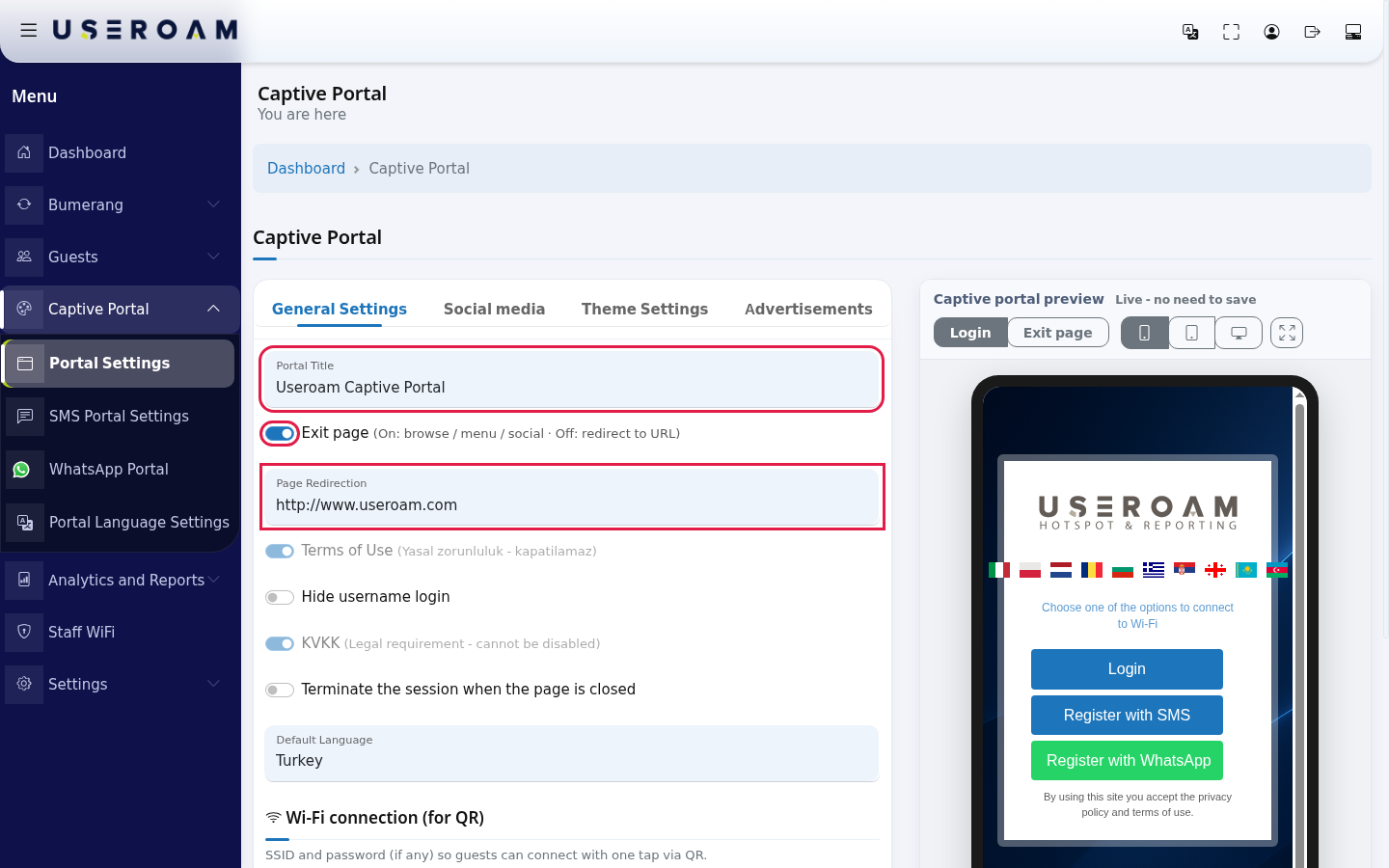
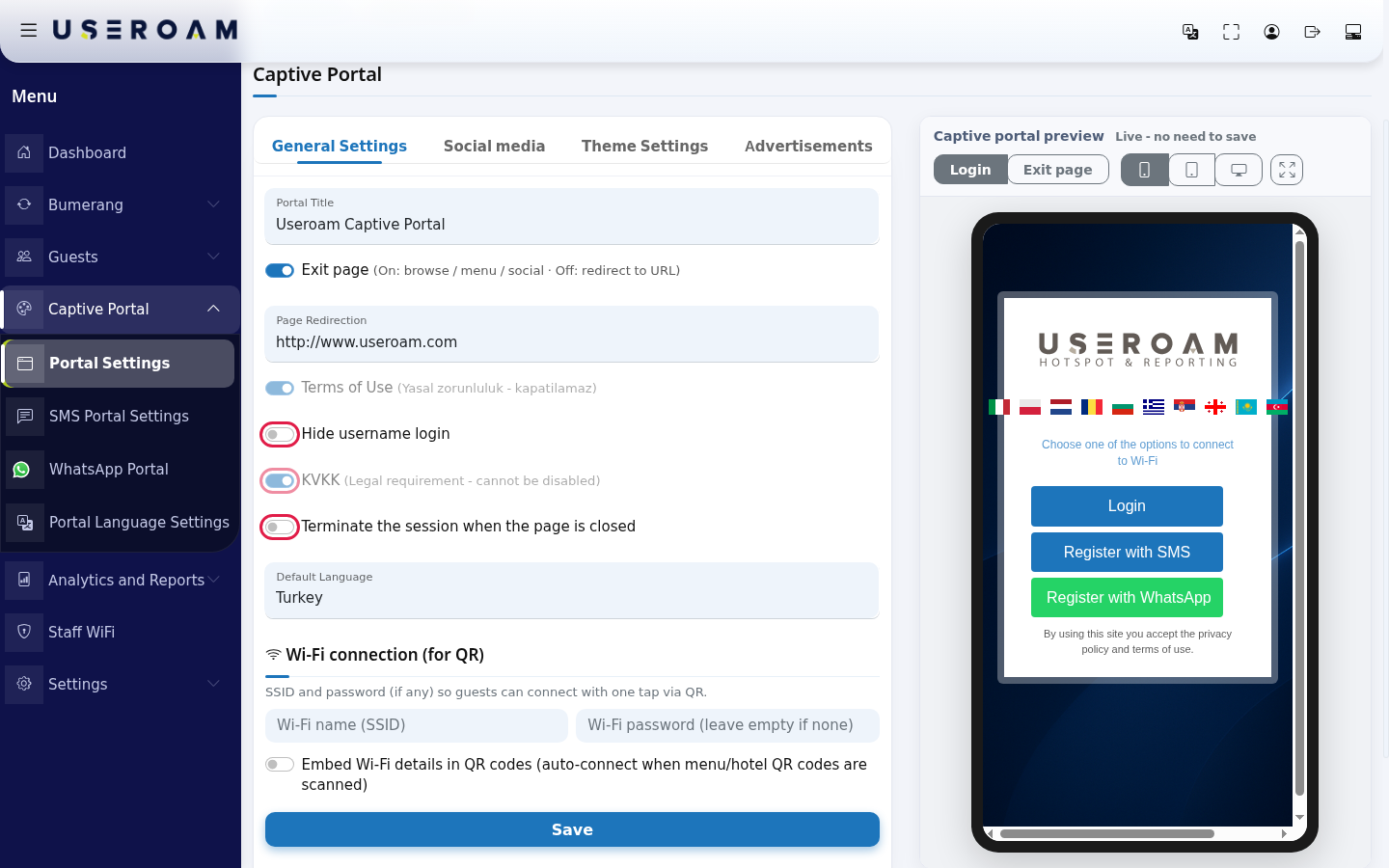
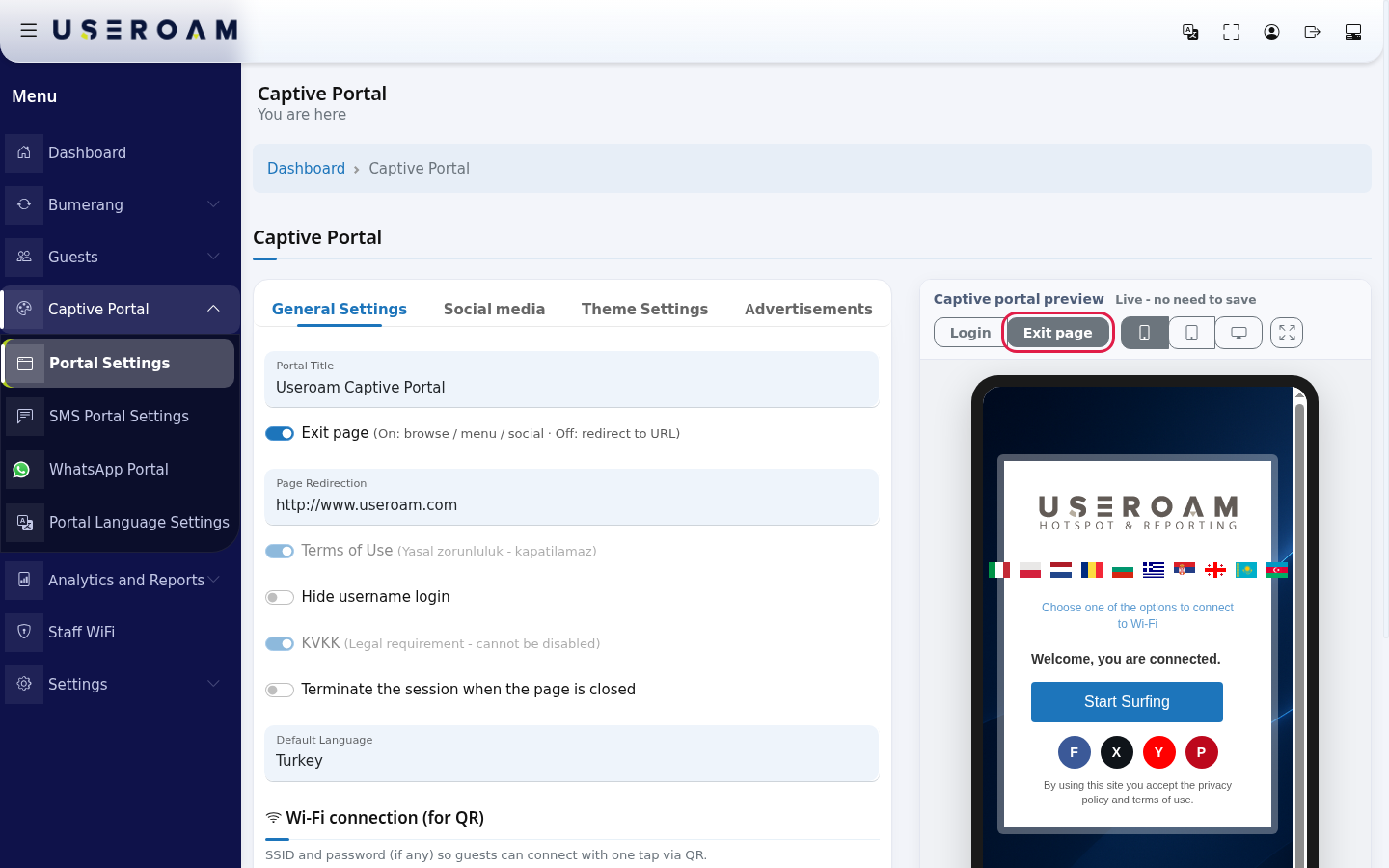
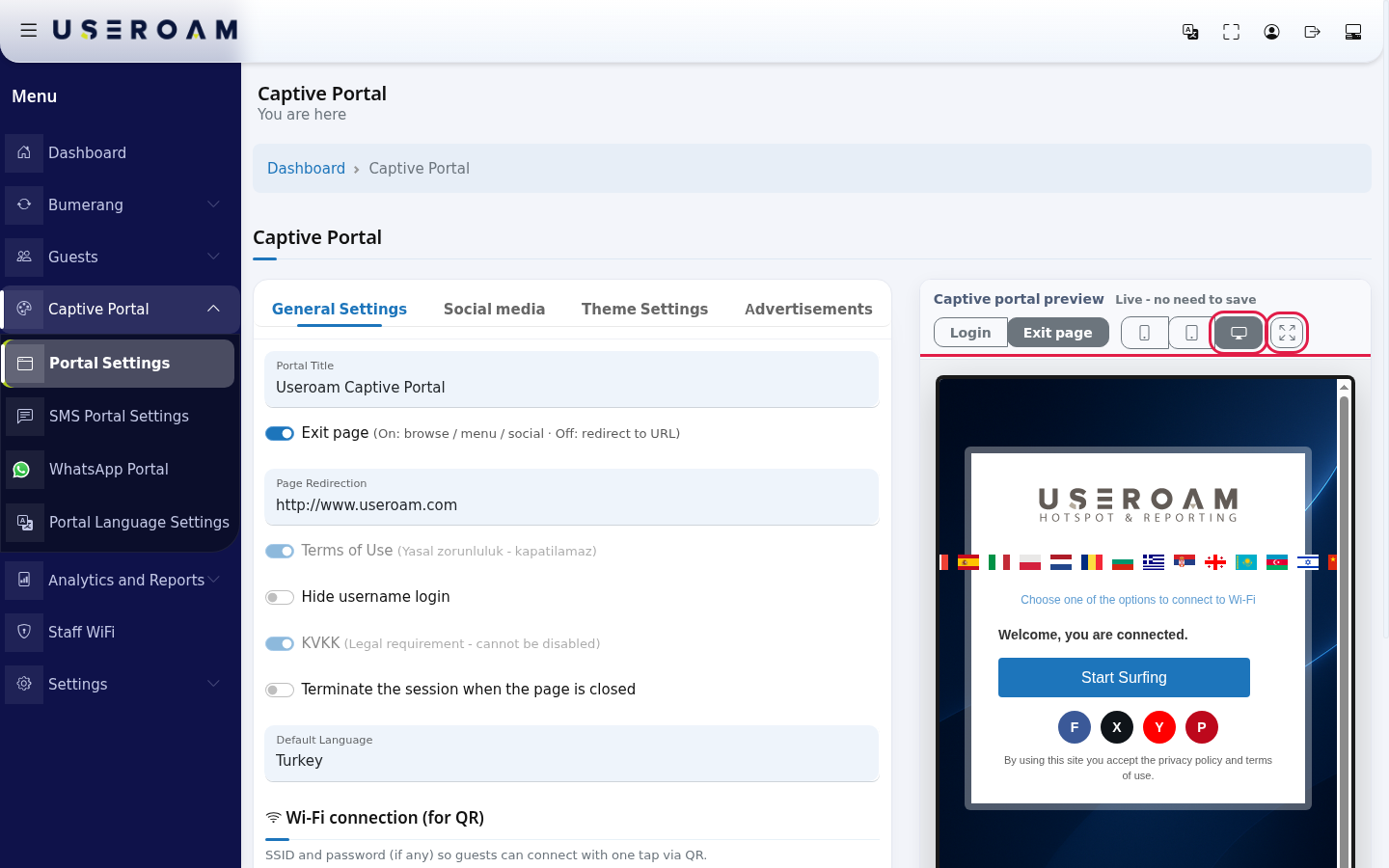
Title and what happens after login. In Captive Portal → Portal Settings → General Settings, type the Portal Title, turn on Exit page (required if you will use speed packages or a survey after login) and type your website into Page Redirection. Press Save. Details: Portal Settings.
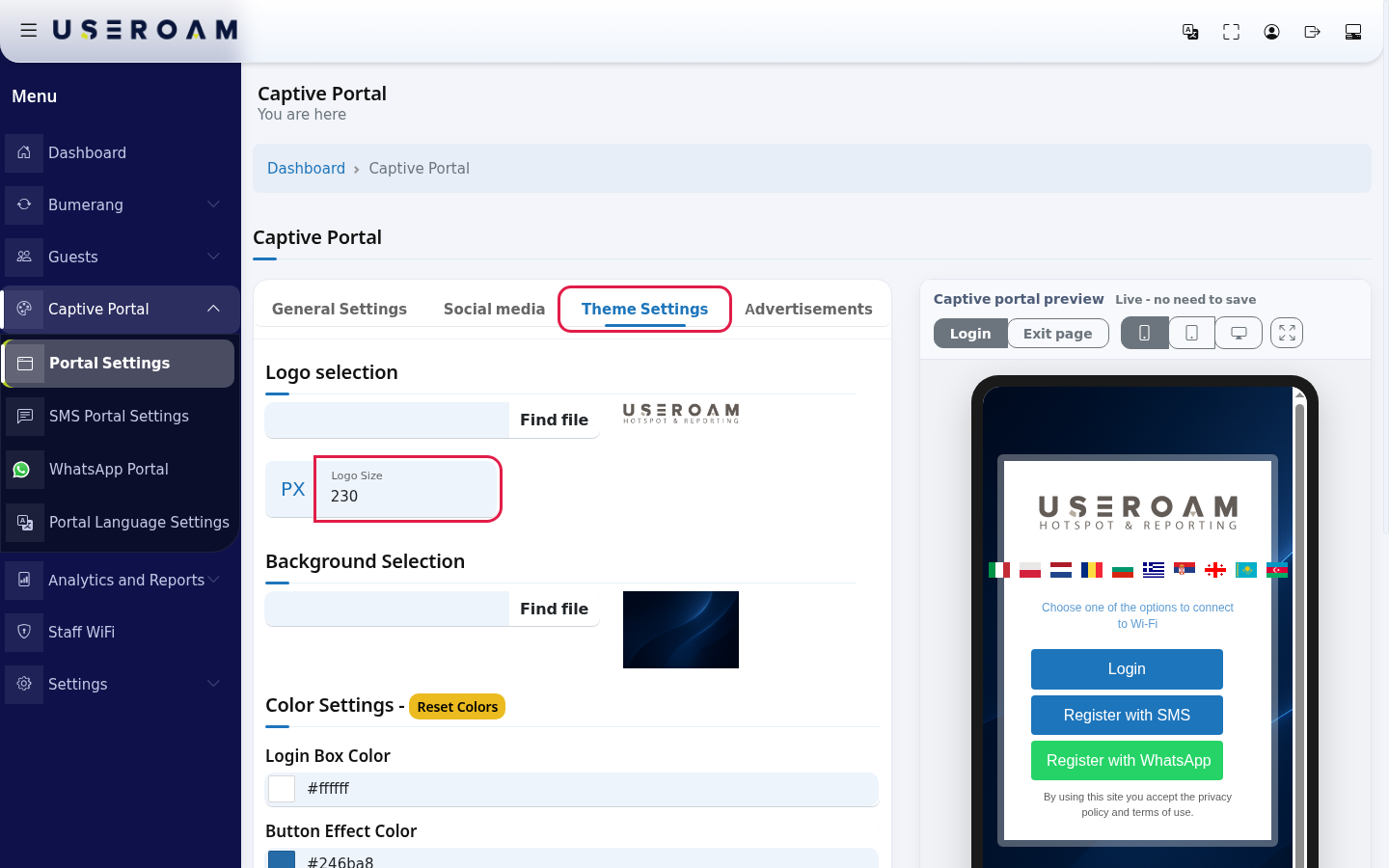
Logo and colours. On the Theme Settings tab of the same screen, upload your logo and background, pick colours and press the tab's Save. The preview on the right shows the result right away.
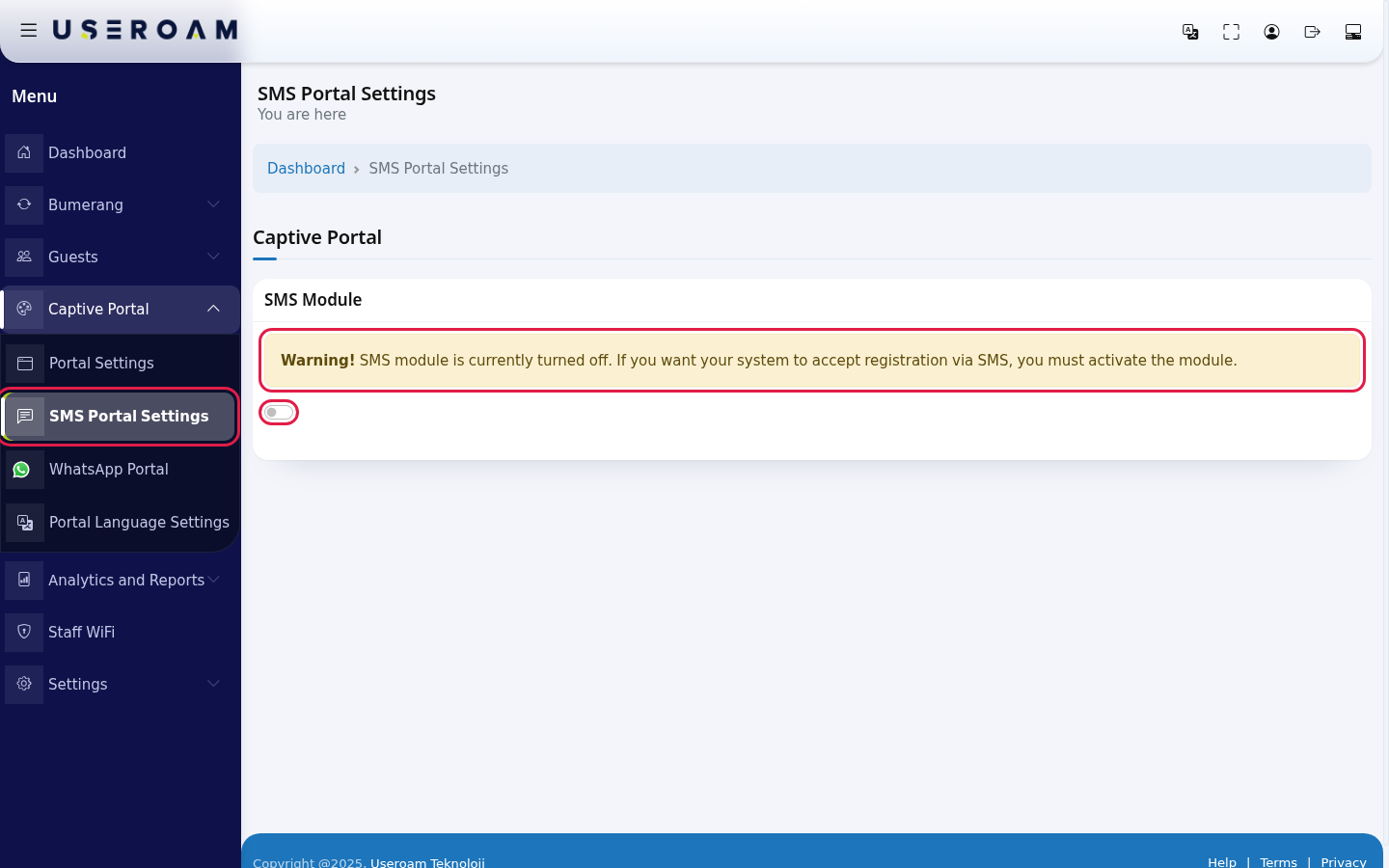
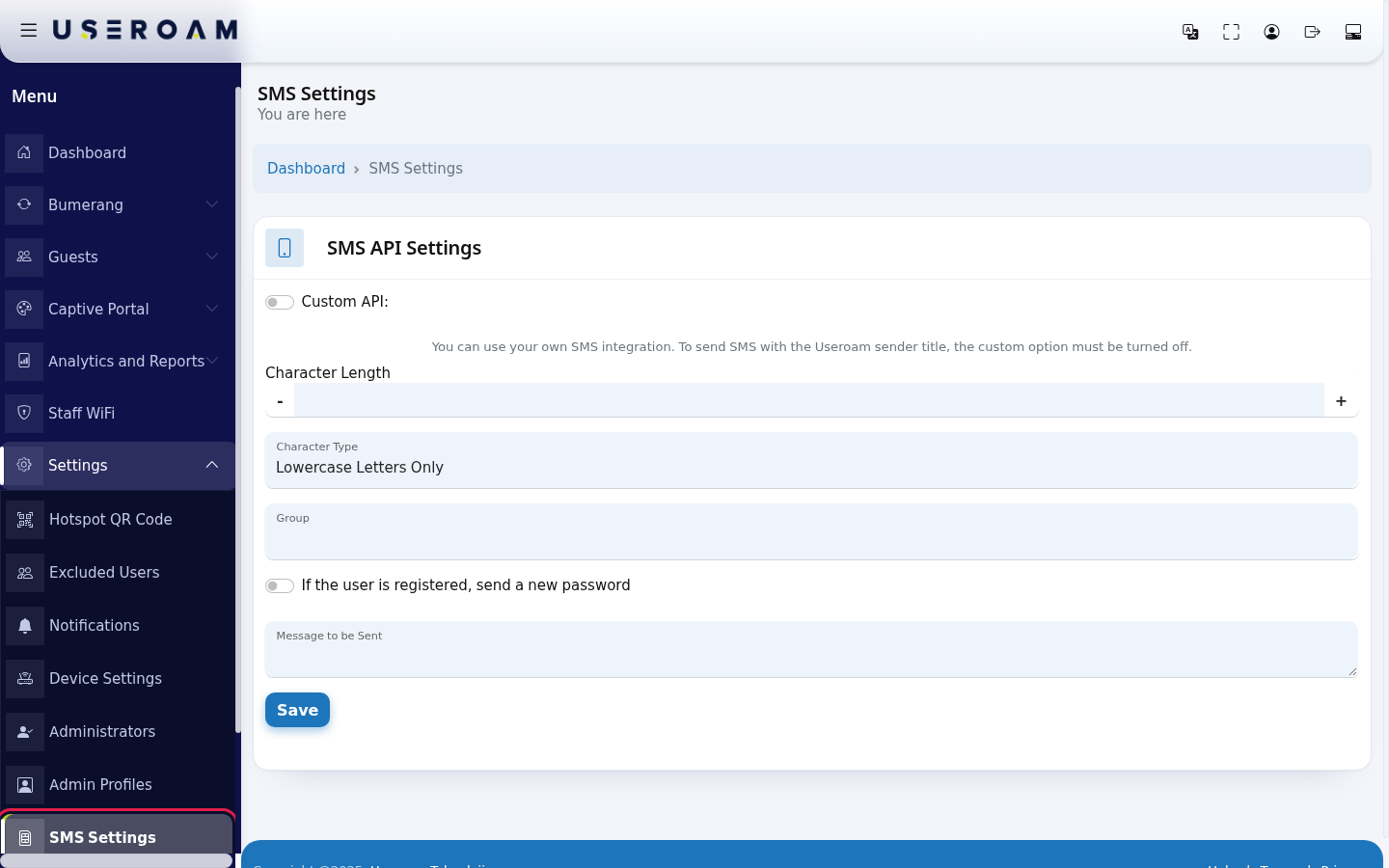
SMS login. In Captive Portal → SMS Portal Settings, turn on the SMS Module switch, choose what the sign-up form asks for and press Save (SMS Portal Settings). Then set the password format, SMS text and group in Settings → SMS Settings (SMS Settings). Both are needed.
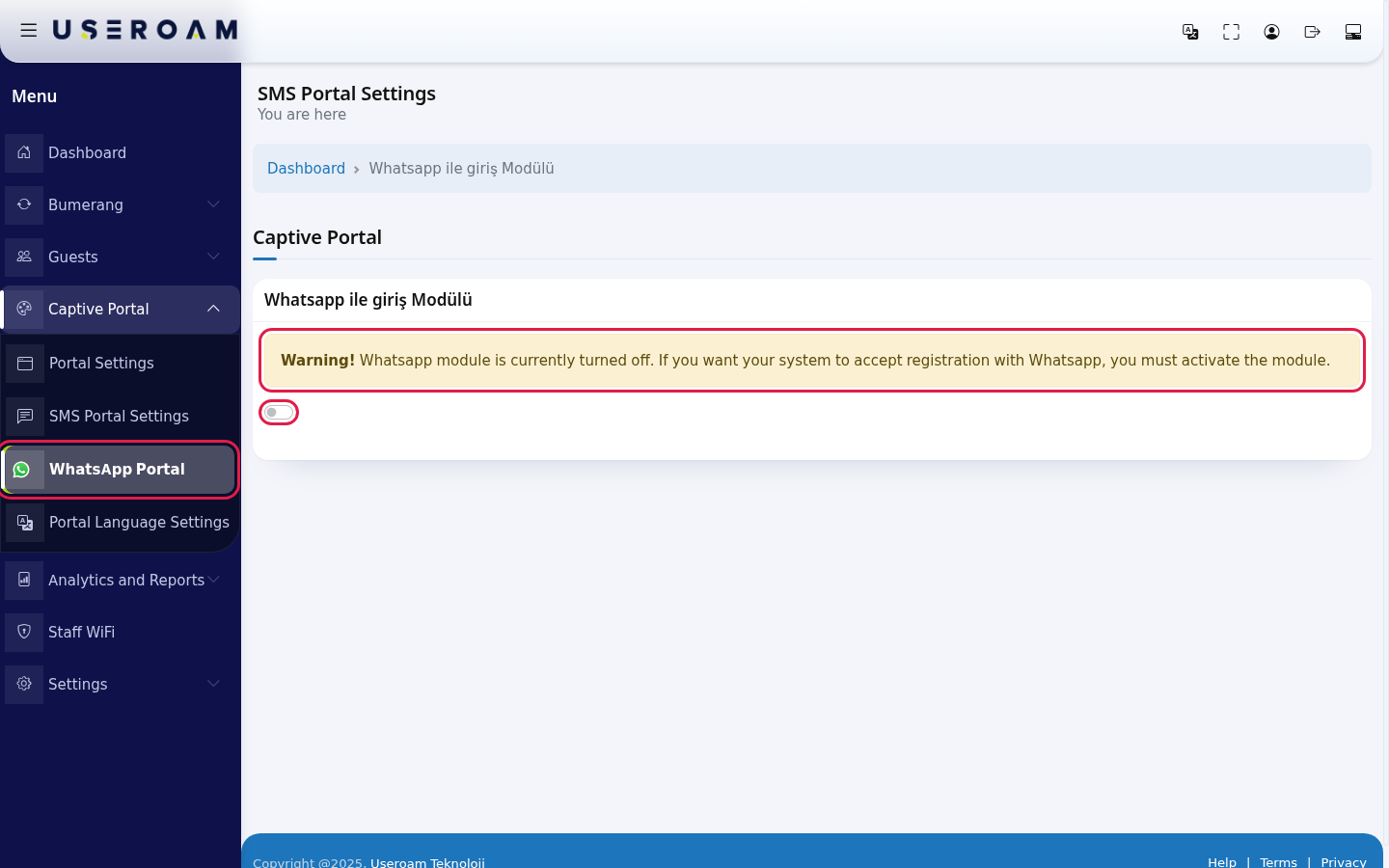
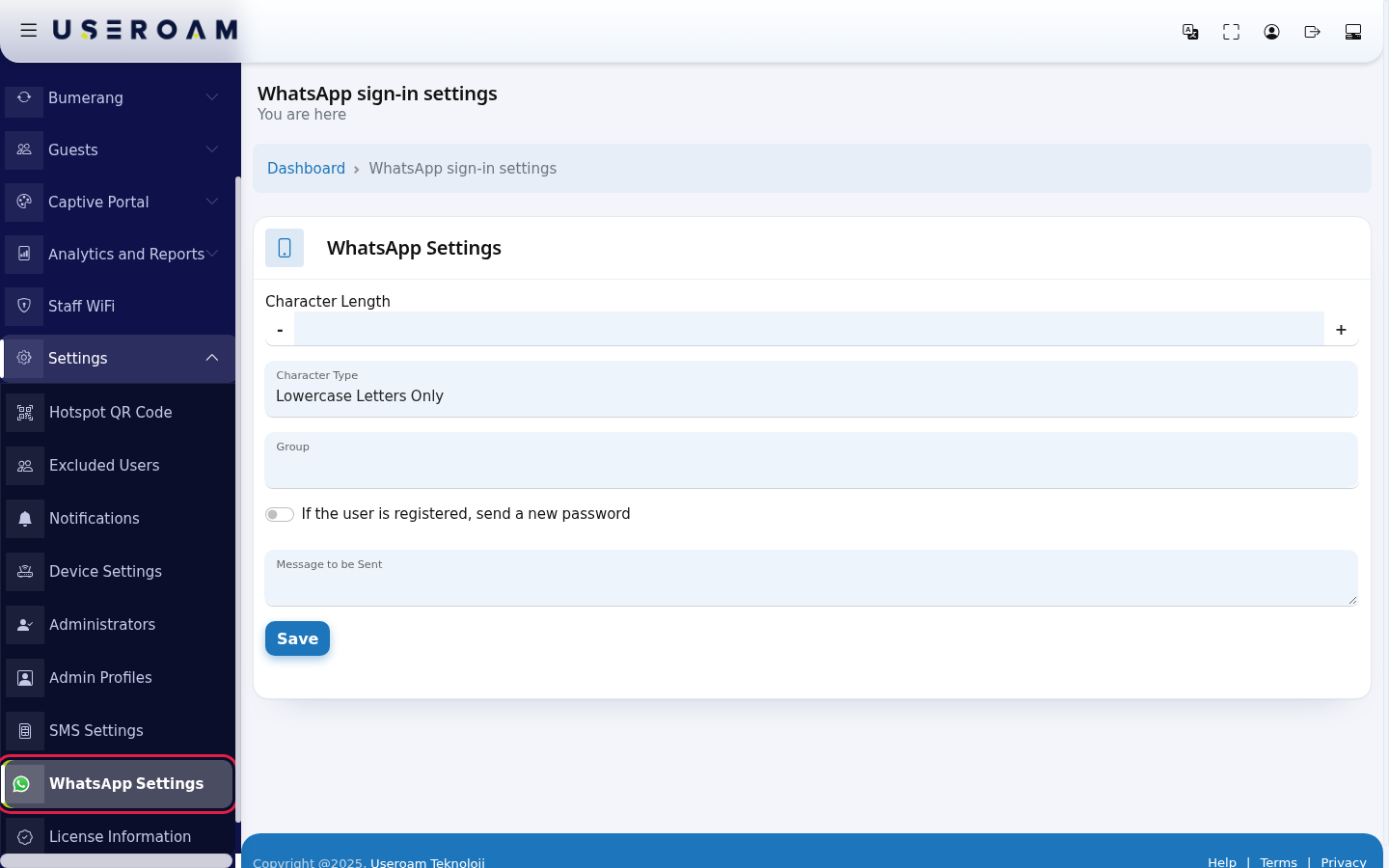
WhatsApp login (optional). In Captive Portal → WhatsApp Portal, turn on the module switch, set up the form and press Save (WhatsApp Portal Settings). Select the group in Settings → WhatsApp Settings (WhatsApp Settings). The allowed addresses for WhatsApp must be set on your firewall.
Login with username or room number. If guests log in with a username you give them, or with their room number at a hotel, leave Hide username login on Portal Settings off: the login screen then shows the Login button with username and password boxes. These accounts come from Local Users or, if your hotel system (PMS) is connected, from the Hotel Guests list. If you only use SMS and WhatsApp, turn the switch on and save.
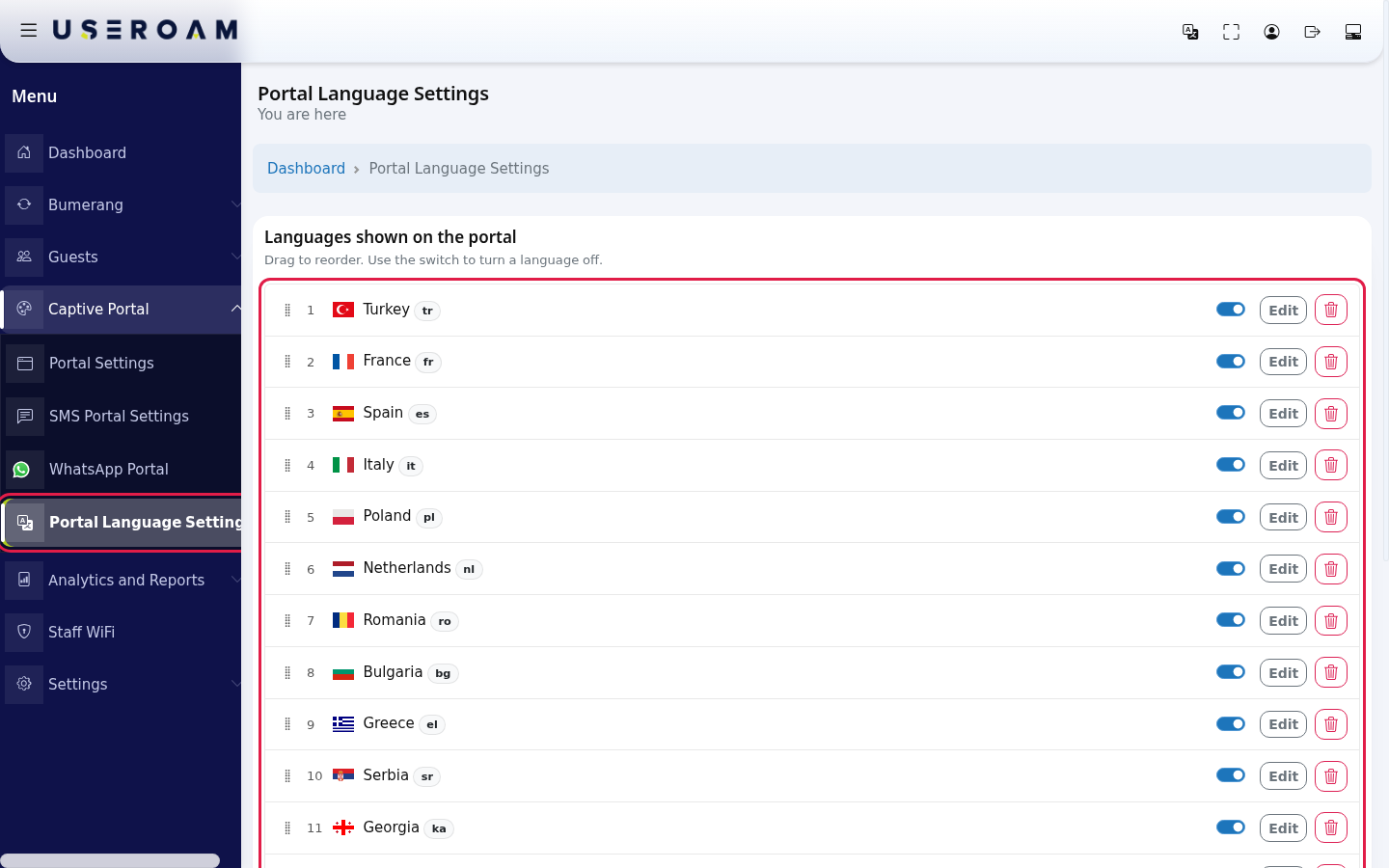
Languages. In Captive Portal → Portal Language Settings, turn off Show on portal for languages you do not need and drag the most used language to the top (Portal Language Settings). Choose the opening language in Portal Settings → Default Language.
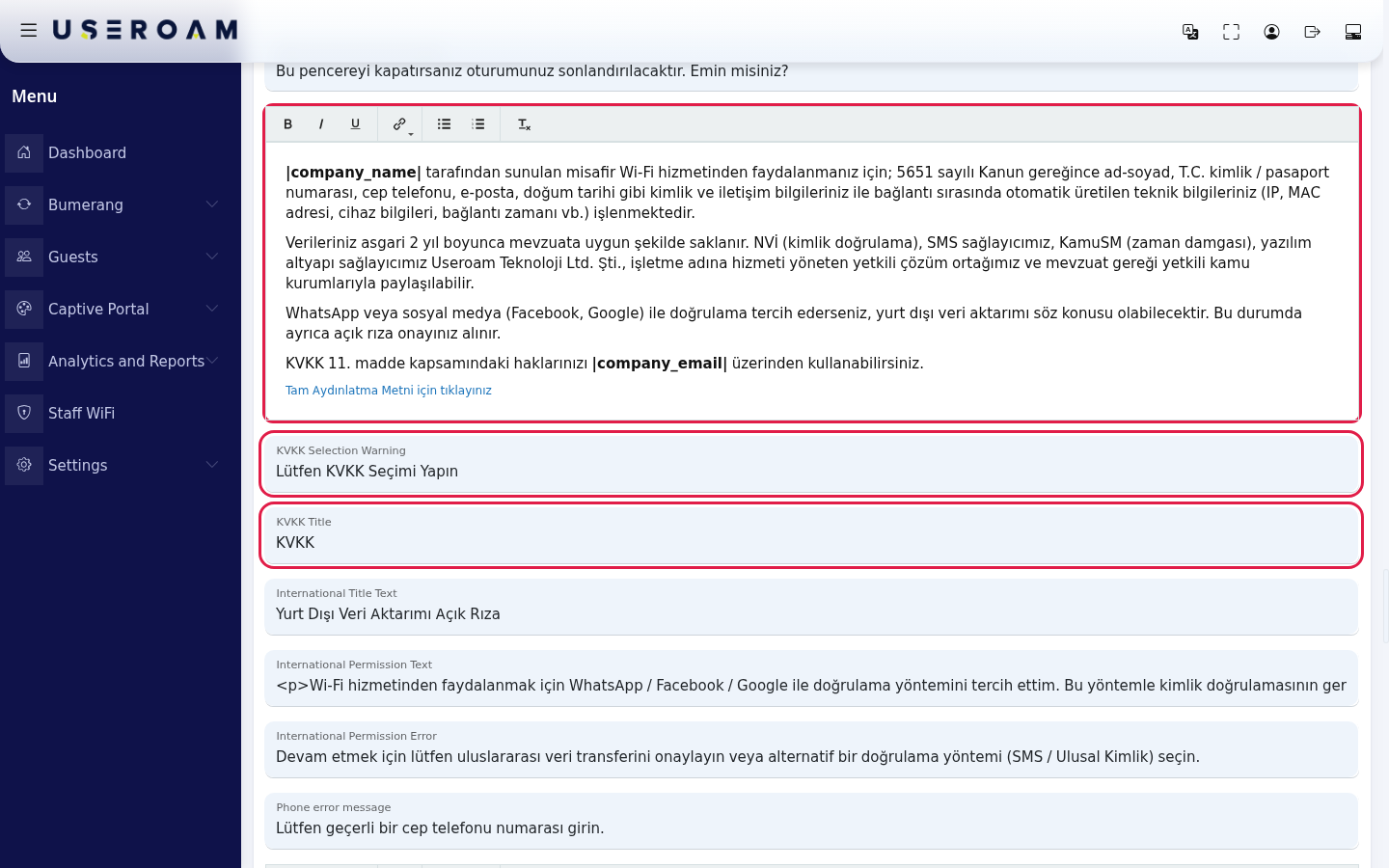
KVKK text and other texts. For each language that is on, open Edit and check the welcome text and the KVKK Content text; if needed, write your own text in Full Privacy Notice at the bottom. Company name, e-mail and address are filled in automatically from My Profile. Details: Editing Portal Texts.
Exit page and social media. Type your accounts in Portal Settings → Social media; turn on the Instagram card if you want. In the preview, press Exit page to check the screen guests see after login.
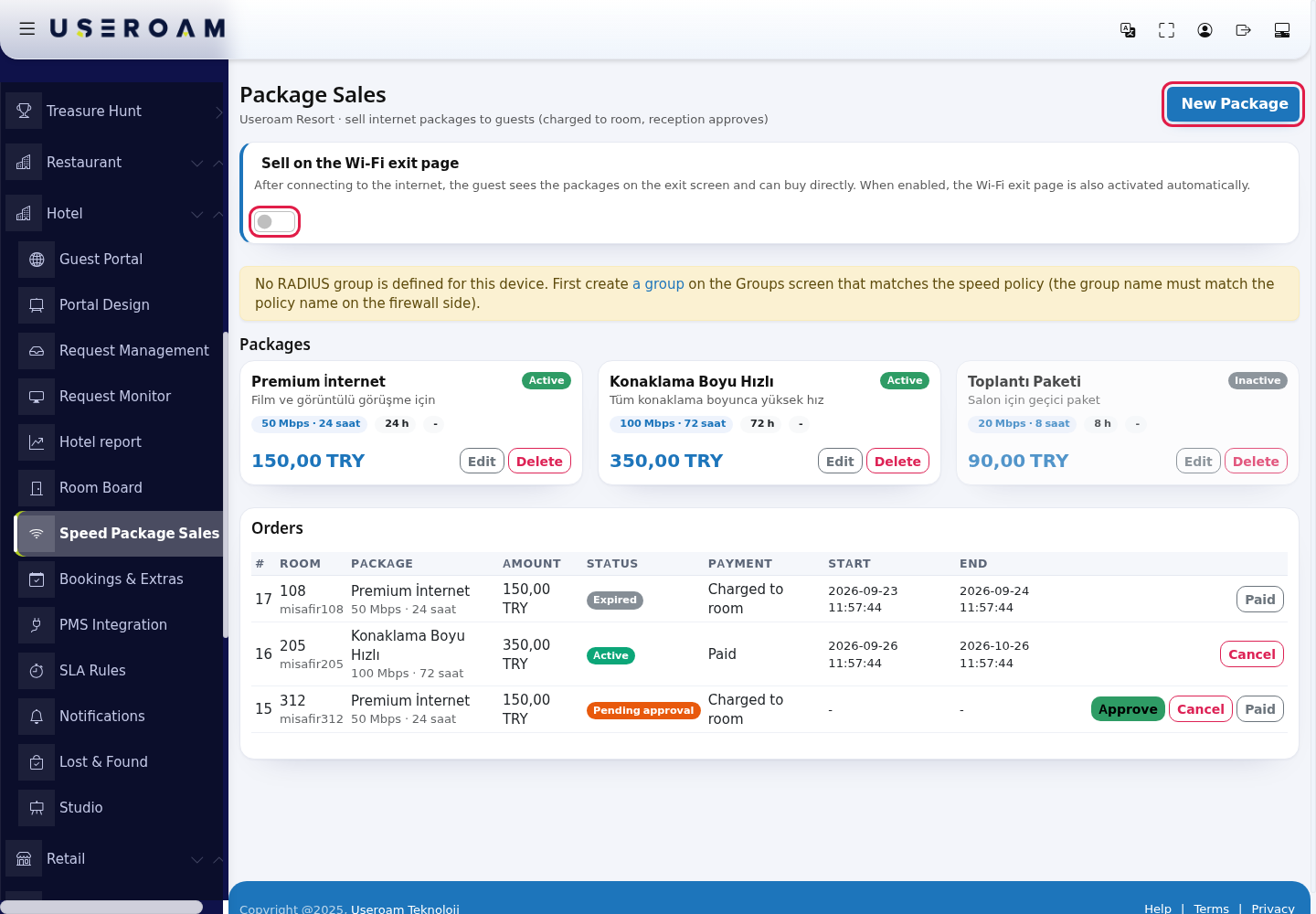
Speed package (optional, hotels). To sell faster paid internet to guests, create the packages on the Speed Package Sales screen under Bumerang → BUSINESS and turn on showing them on the login screen (Speed Package Sales). Packages appear on the exit page, so Exit page from step 1 must be on. Change the heading and button text in the Speed package heading and Speed package button text boxes on the language screen.
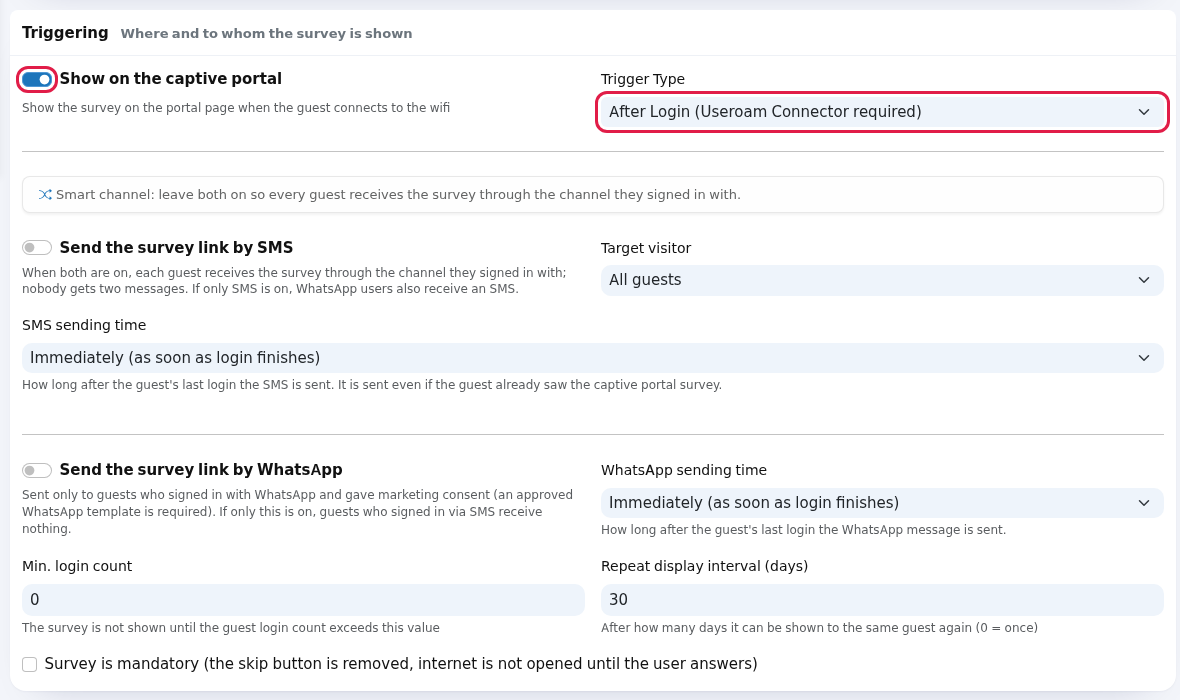
Survey window (optional). To show a short survey on the login screen, turn on Show on the captive portal when creating the survey and choose the Trigger Type (Creating a survey). A survey shown after login also needs Exit page on. Window labels such as Skip and Submit are in the boxes starting with Survey: on the language screen.
Check. Look at the phone, tablet and desktop views in the Portal Settings preview. Then join the guest network with a real phone: the login screen should open, the buttons you chose should be visible, and you should be able to register once with SMS or WhatsApp and get online. Your login appears in SMS / WhatsApp Users.
Checklist
| What | Where | Required? |
|---|---|---|
| Portal title, exit page, redirect address | Portal Settings → General Settings | Yes |
| Logo, background, colours | Portal Settings → Theme Settings | Recommended |
| SMS module + SMS text and group | SMS Portal Settings + Settings → SMS Settings | At least one login method is required |
| WhatsApp module + group + allowed addresses | WhatsApp Portal + Settings → WhatsApp Settings | Optional |
| Username / room number login | Portal Settings → Hide username login (off) | Optional |
| Languages and opening language | Portal Language Settings + Portal Settings → Default Language | Recommended |
| KVKK text, full privacy notice | Portal Language Settings → Edit | Standard text is provided; check it |
| Speed package | Speed Package Sales | Optional |
| Login screen survey | Surveys | Optional |
Frequently asked questions
I joined with a phone but the login screen never opens.
This comes from the device setup, not the portal settings. Check your device's installation guide and Device Settings.
The login screen opens but there is no login button.
No login method is on. Turn on the SMS or WhatsApp module, or turn off Hide username login.
Speed packages or the survey after login do not appear.
Check that Portal Settings → Exit page is on. When it is off the guest goes straight to the redirect address and does not see these sections.
A guest's phone shows another language.
Guests can switch language with the flags. You set the opening language with Default Language; turn off languages you do not need.