
Excluded Users
What is it for?
Excluded Users is the list where you keep your own employees' phone numbers. Numbers on this list are not counted as guests: they are left out of guest counts, reports and bulk message lists. This way employees who connect to the Wi-Fi every day do not look like "loyal guests" and do not inflate your numbers.
This screen is different from the business staff who sign in to the Useroam Go app (Bumerang > Staff). This list is only for excluding people from reports; it gives nobody an app login.
When do I use it?
- Your employees also connect to the guest Wi-Fi with their phone number and your guest counts look higher than they really are.
- You send bulk SMS / WhatsApp messages and do not want them to reach your employees.
- A new employee starts (add them) or an employee leaves (mark them as Mark as left).
- You want to see your employees' Wi-Fi usage separately (User report tab).
Before you start
- The screen is in the left menu under Settings. If you do not see it, your account has no permission for this module; an administrator can turn on the Kurum Personeli (liste) (staff list) permission on the Module Permissions screen.
- The list is per device. If you have several locations, each device has its own list. The top of the page shows which device you are looking at (example: Useroam Demo).
- If no device is selected, the screen shows "No active device selected. Pick a device from the device selector above." Select your device on the Device Selection screen first.
Step by step: adding employees to the list
- In the left menu open Settings and click Excluded Users. The screen opens on the List tab.
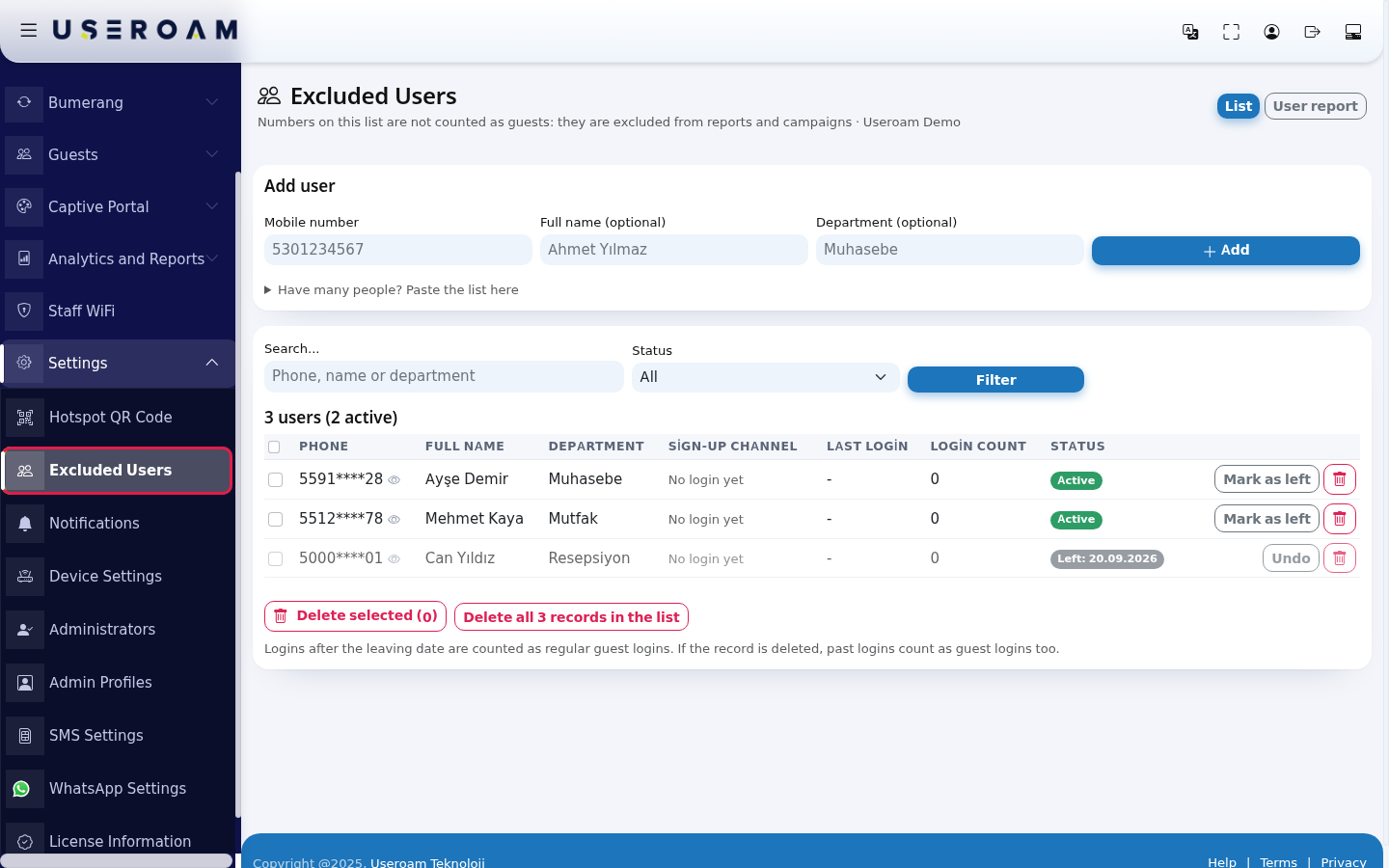
- In the Add user card, type the employee's number in Mobile number (example:
5301234567). A leading 0 or 90 is fine, spaces are removed. If you like, also fill in Full name (optional) and Department (optional) (example:Ahmet Yılmaz,Accounting). Press Add.
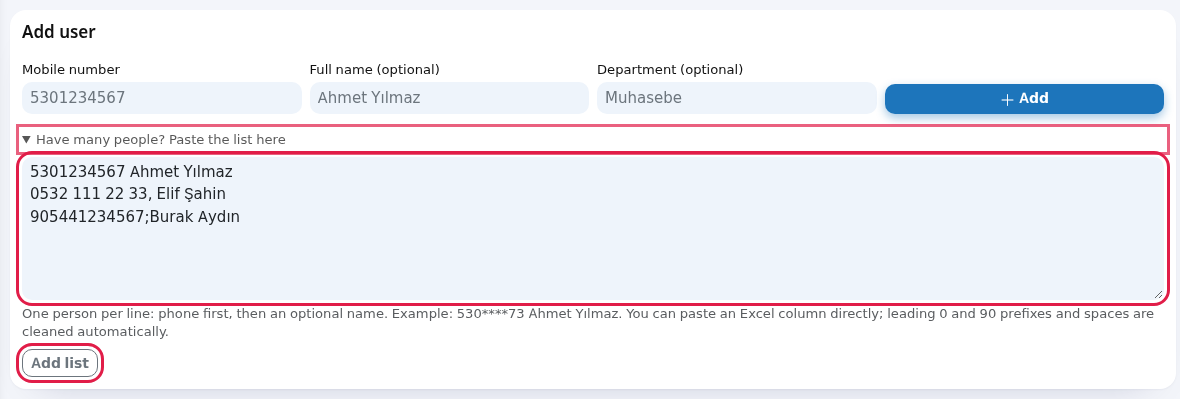
- If you have many employees, do not add them one by one: click Have many people? Paste the list here. Paste your list into the box that opens; one person per line, phone first, then an optional name. You can paste a column straight from Excel. Press Add list. At most 2000 lines are processed at a time.
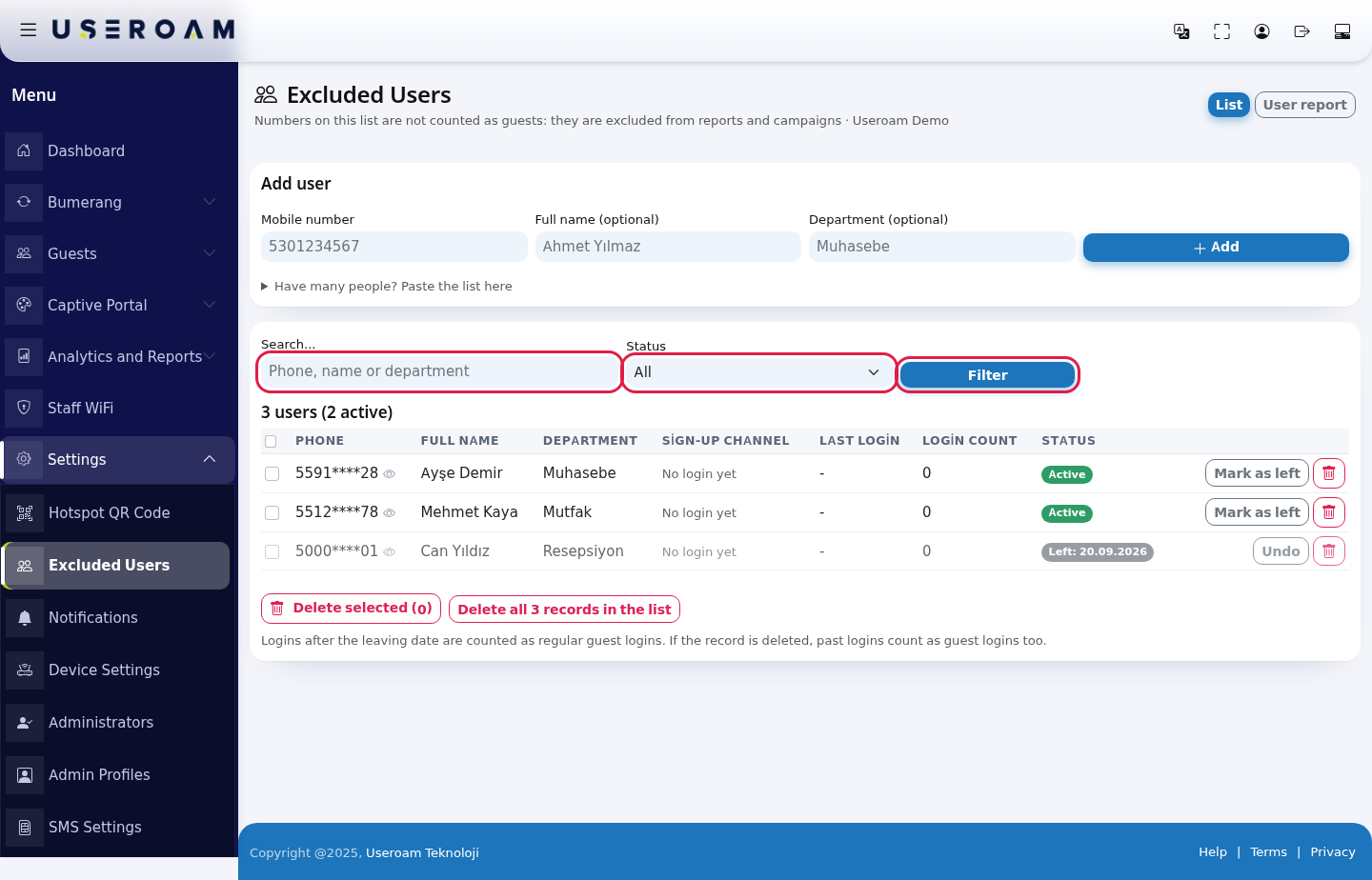
- The people you added appear in the table below. The heading shows the total and the active count (example: 3 users (2 active)). To find someone, type a phone, name or department in Search..., pick All, Active or Left in Status and press Filter. Clear filter brings back the full list.
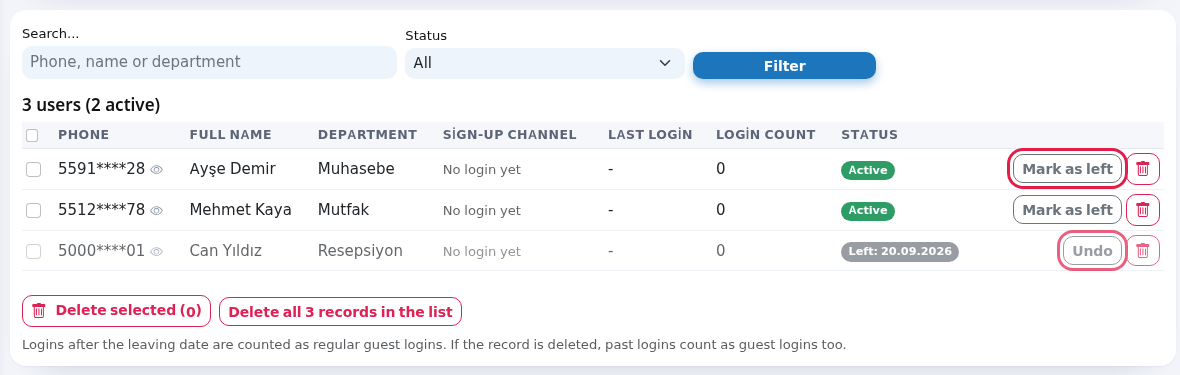
- When an employee leaves, press Mark as left on their row. The status column shows that day's date, such as Left: 26.09.2026. The leaving day still counts as staff; from the next day on, their logins count as normal guest logins. If you pressed it by mistake, fix it with Undo in the same place.
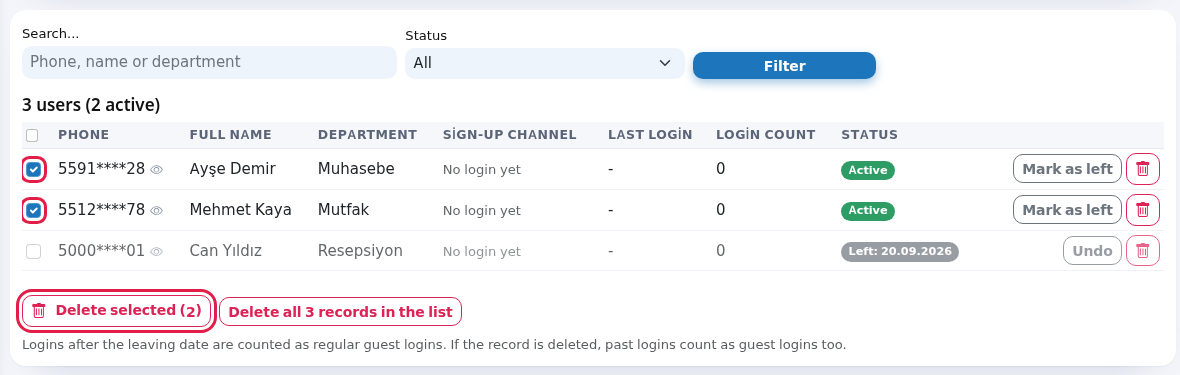
- To delete a record completely, press the trash button on the row and confirm "Do you want to delete this record completely?". To delete several people, tick the boxes at the start of the rows (the top box is Select all on this page) and press Delete selected; the number on the button is how many you selected.
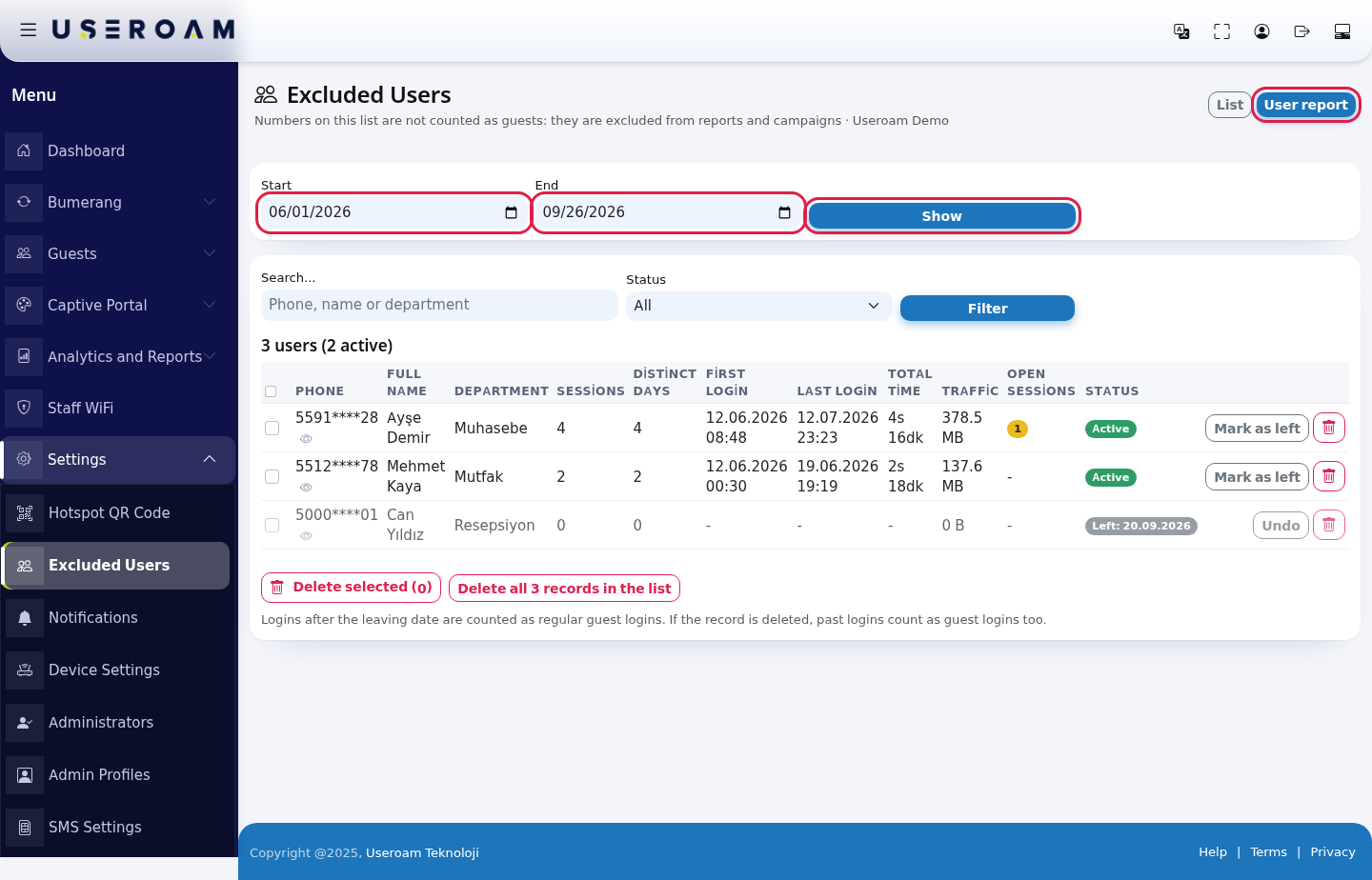
- To see your employees' Wi-Fi usage, switch to the User report tab at the top right. Pick the Start and End dates and press Show (the last 30 days are selected when the tab opens). The same search, status filter and row buttons are available here too.
Every field and button on the screen
| Field / Button | What it does |
|---|---|
| List / User report | Two tabs. List manages the people, the report shows their Wi-Fi usage. The selected tab is blue. |
| Mobile number | The employee's mobile number. The only required field. Example: 5301234567. |
| Full name (optional) | To see who is who in the list. Example: Ahmet Yılmaz. |
| Department (optional) | Unit name. Also used by search. Example: Accounting. |
| Add | Adds one person to the list. |
| Have many people? Paste the list here | Opens the bulk box. Lines can be one under another, or separated by commas, semicolons or tabs; leading 0 and 90 and spaces are removed automatically. |
| Add list | Processes the pasted list. At most 2000 lines. |
| Search... | Searches phone, name or department. |
| Status | All, Active (currently employed) or Left. |
| Filter / Clear filter | Applies / removes the search. |
| … users (… active) | Total and active people on the list. Page 1 / 1 is shown next to it; 50 people per page, page numbers appear below. |
| Phone | The number is masked (example: 5591****28). If you are allowed to see full numbers, open it with the eye icon next to it; every reveal is written to the audit log. |
| Full name, Department | What you typed when adding. |
| Sign-up channel | How the person signed up to the Wi-Fi: an SMS or WhatsApp badge. If they never connected: "No login yet". |
| Last login, Login count | When they last logged in to the Wi-Fi and how many times in total. |
| Status (table) | A green Active or grey Left: date badge. |
| Mark as left / Undo | Marks the person as left with today's date / undoes it. |
| Trash | Deletes the record completely after asking. |
| Delete selected (0) | Deletes the ticked people after asking. |
| Delete all … records in the list | Always visible while the list has records. If you applied a search or status filter, it deletes every record matching the filter; with no filter it deletes the whole list without selecting page by page. Use with care. |
| Start, End, Show | Date range on the User report tab. The last 30 days by default. |
| Sessions, Distinct days | Report: number of connections in the range and on how many different days. |
| First login, Last login | Report: first and last connection in the range. |
| Total time, Traffic | Report: total connected time and data used. Durations use Turkish short units on the screen (s = hour, dk = minute). |
| Open sessions | Report: number of connections open right now (yellow badge). - if none. |
Messages you may see
| Message | Meaning / what to do |
|---|---|
| Staff member added. | The person was added. |
| This number is already on the list. | The same number already exists on this device. No need to add it again. |
| Enter a valid mobile number. Example: 5301234567 | The number does not look like a mobile number. Type the 10-digit number starting with 5. |
| An error occurred while saving. | The record could not be saved. Try again shortly; if it keeps happening, contact support. |
| … staff added, … numbers were already on the list. | Summary of a bulk add. |
| … lines were skipped as invalid: … | No phone number was found on these lines. The message lists the first five; fix them and paste only those again. |
| The list was too long, only the first 2000 lines were processed. | Paste the remaining lines in a second go. |
| … records deleted. | Deletion finished. |
| No records selected. | Tick at least one box before pressing Delete selected. |
| Record updated. | Mark as left or Undo was saved. |
| No staff added yet. Use the form above to add one. | The list is empty. Add the first person in the Add user card. |
| No records match this filter. | Nobody matches your search. Press Clear filter. |
Frequently asked questions
On which screens are listed employees left out?
Guest numbers on the Dashboard, Active Guests, the SMS / WhatsApp Users list and report, Visit Analytics, Bumerang Reports, Guest 360°, Live Radar and the Bulk Send recipient list do not count these people.
Are the employee's 5651 records deleted too?
No. Legal access records (5651 Logs) are kept in full for everyone. This list only affects guest reports.
An employee left. Should I delete them or mark them as left?
Use Mark as left. Logins from the time they worked stay as staff, logins after they left count as guest logins. If you delete the record, their past logins start counting as guest logins too.
The number is on the list but still counted as a guest.
Check the status column: if it says Left, logins after the leaving date count as guest logins; press Undo. Also make sure you added it to the right device's list.
Will my employees sign in to the panel or the Useroam Go app with this list?
No. For app logins use the Bumerang > Staff screen.