
Module Permissions
What is it for?
The Module permissions screen does two jobs:
- Business Modules: decides which modules are on for the selected venue (device). A disabled module is inactive both in the app and on the customer (public) side.
- User permissions: restricts which modules your sub-users can see. For example, you can give housekeeping staff the Hotel Portal only.
How do I open it? In the left menu, click Module Permissions under the venue modules (Restaurant, Hotel, Staff, Operations, Automation). Only users with the Admin badge can open this screen; other users are sent back to the home screen.
When do I use it?
- You want to turn off a module you do not use (e.g. Event) or turn a disabled one back on.
- You want to set up the restaurant or hotel module with the setup wizard.
- A new employee should see only the modules related to their job in the panel.
Before you start
- Create the user you want to restrict on Administrators first. The subtitle reads Manage which Bumerang modules your sub-users can reach, to create a user, go to Operators; the Operators link also goes there.
- The Business Modules card is for the selected device. To change another venue's modules, switch to that device on Device Selection; if no device is selected, the card says Select a device (venue) at the top first.
Step by step
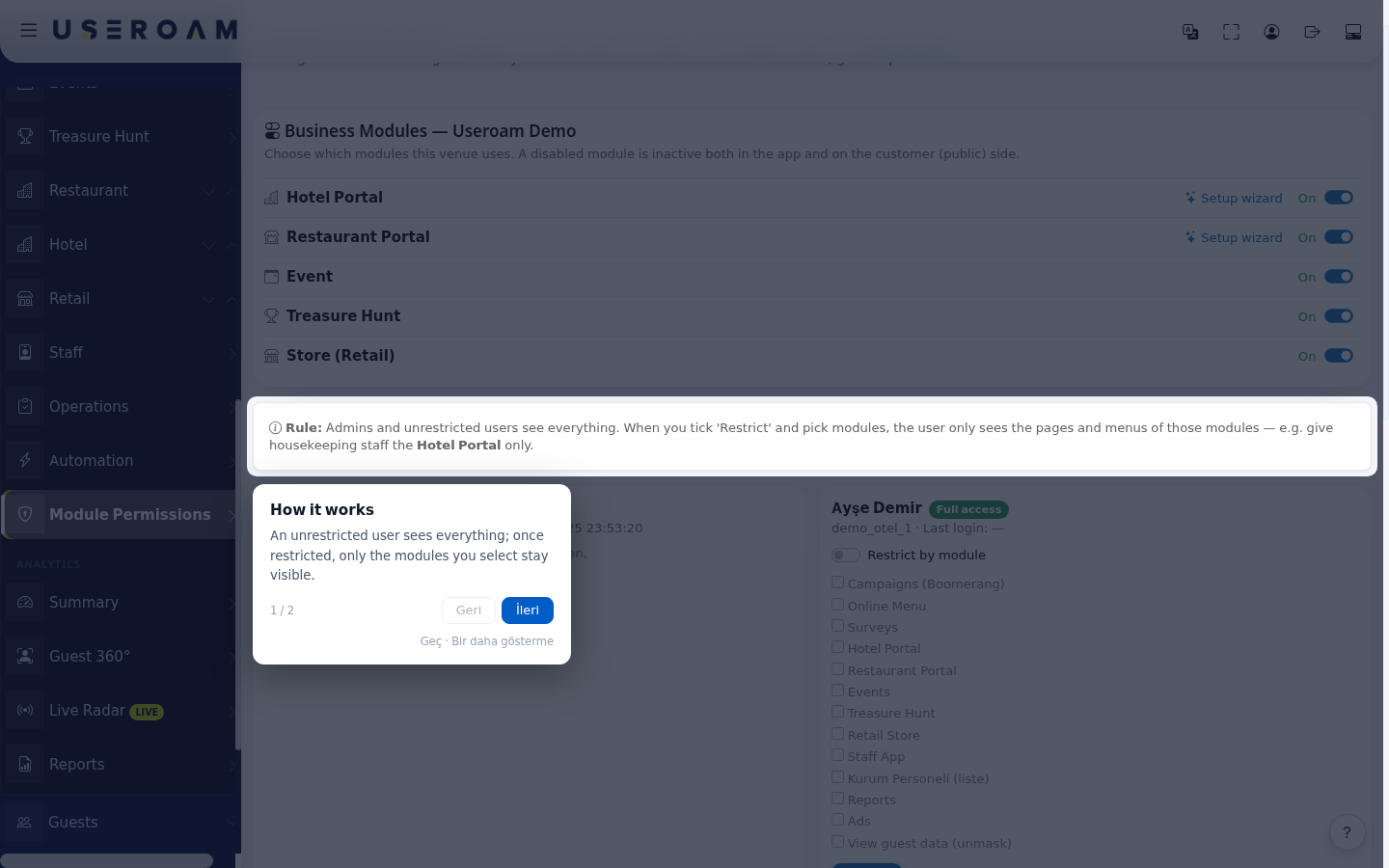
The first time you open the screen, a short tour appears: How it works (An unrestricted user sees everything; once restricted, only the modules you select stay visible.) and Restrict (Turn on the switch, select the modules and save: menus and pages apply immediately.). Move with İleri (next) and Geri (back), close with Bitir (finish). Geç (skip) closes it this time, Bir daha gösterme (do not show again) stops it from opening again. The question mark button at the bottom right restarts the tour any time. These tour buttons are shown in Turkish in the English interface too.
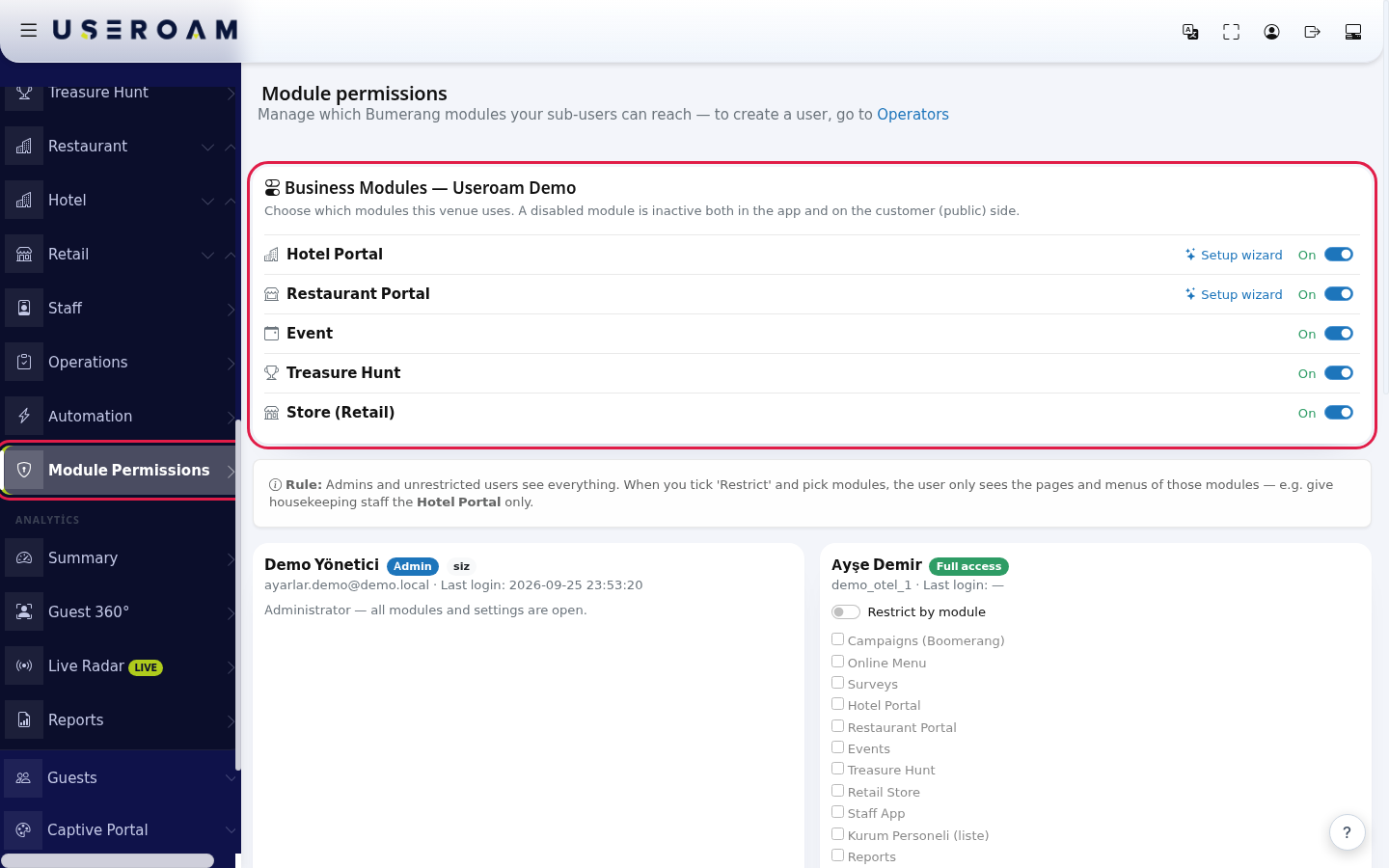
The Business Modules card says: Choose which modules this venue uses. A disabled module is inactive both in the app and on the customer (public) side. Each module shows its state: On or Off. The change is saved the moment you click the switch and the screen refreshes. A module that is not installed shows Not set up and a Set up link that takes you to that module's management screen. The Setup wizard link on the Hotel and Restaurant rows opens the step-by-step setup wizard.
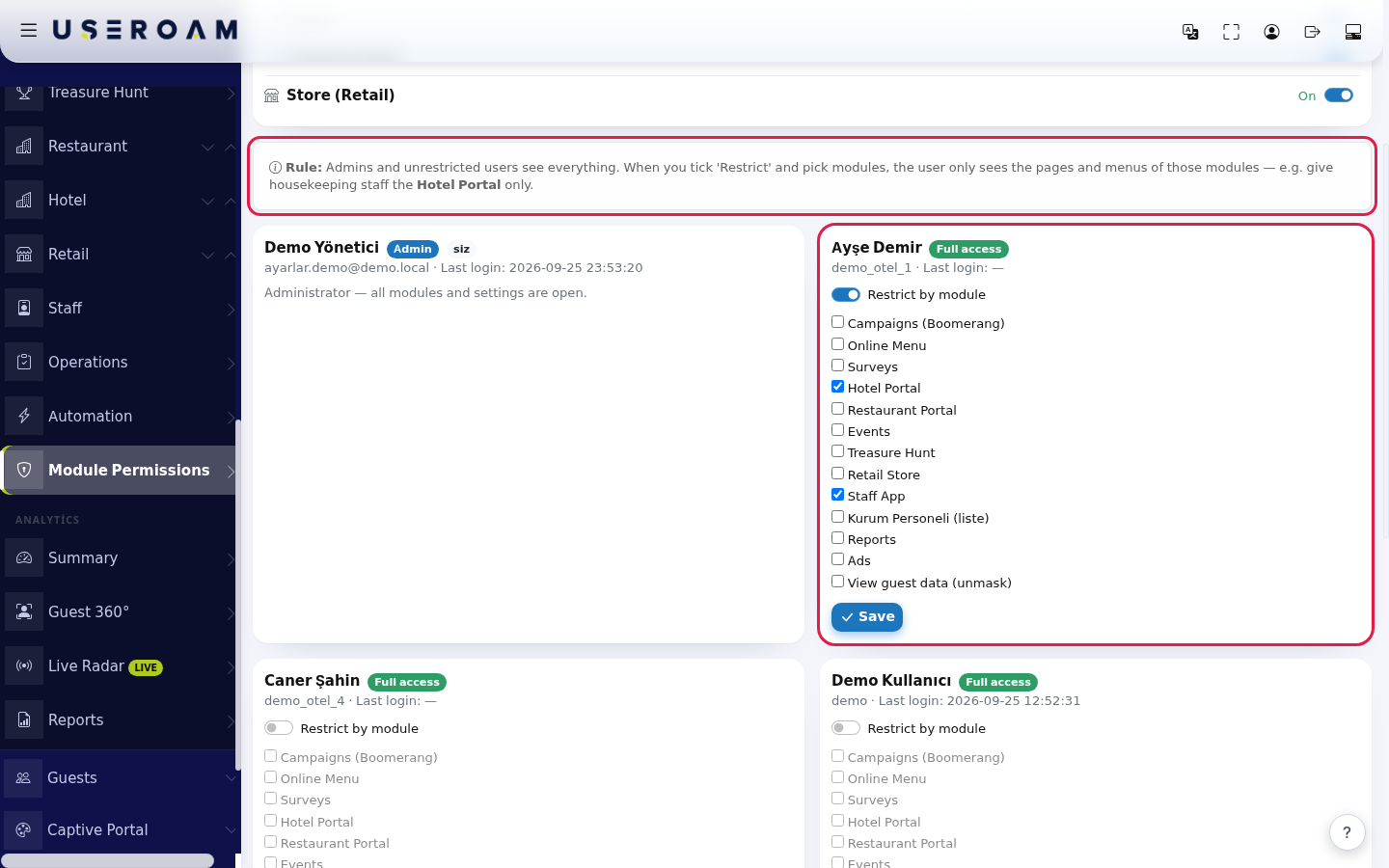
To restrict a user, find their card and turn on Restrict by module. The module list becomes active; tick the modules the user should see (e.g. Hotel Portal and Staff App). Click Save at the bottom of the card.
After saving, a green message appears at the top and the user's badge becomes Restricted. The restriction applies to menus and pages immediately.
To remove the restriction, turn the switch off and click Save; the user becomes Full access again.
Every field and button on the screen
Business Modules card
| Item | What it does |
|---|---|
| Hotel Portal, Restaurant Portal, Event, Treasure Hunt, Store (Retail) | The venue's modules. |
| Switch and On / Off | Turns the module on or off. Saved as soon as you click. |
| Not set up · Set up | The module was never installed at this venue; Set up opens its setup screen. |
| Setup wizard | Opens the step-by-step setup wizard for Hotel and Restaurant. |
User cards
The Rule: box above the cards sums up the logic: Admins and unrestricted users see everything. When you tick 'Restrict' and pick modules, the user only sees the pages and menus of those modules.
| Item | What it does |
|---|---|
| Name and username, Last login | The user's name, sign-in name and last sign-in (a dash if never). |
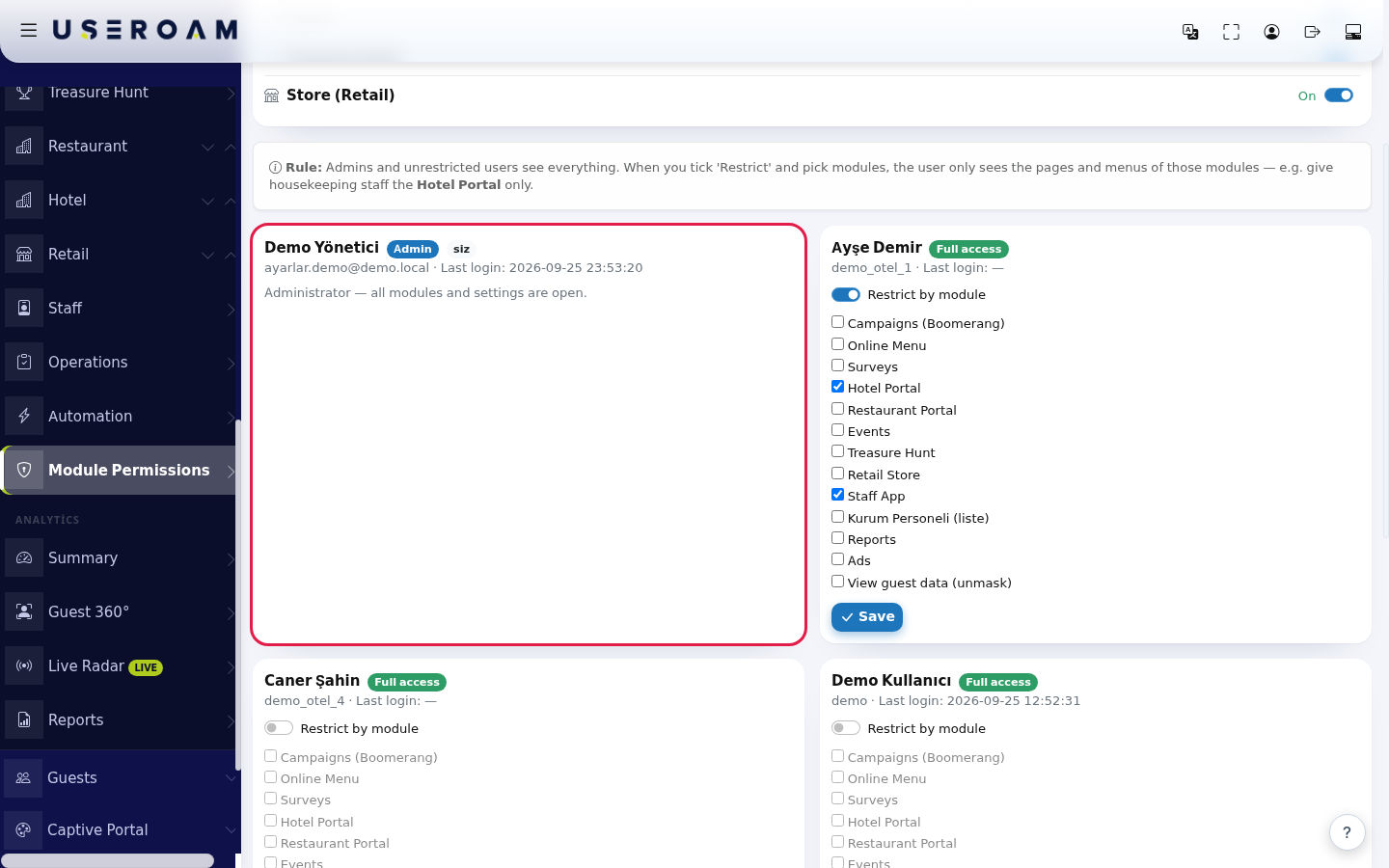
| Badge Admin | Administrator users always have full permissions; their card says Administrator: all modules and settings are open. and they cannot be restricted. |
| Badge Full access | The user is not restricted and sees everything. |
| Badge Restricted | The user sees only the selected modules. |
| Badge siz (you) | This card is you, the user currently signed in. |
| Restrict by module | When on, the module list becomes active. |
| Module list | Campaigns (Boomerang), Online Menu, Surveys, Hotel Portal, Restaurant Portal, Events, Treasure Hunt, Retail Store, Staff App, Kurum Personeli (liste) (company staff list), Reports, Ads, View guest data (unmask). The last option lets a restricted user reveal masked guest phone numbers and names. |
| Save | Saves that user's restriction. |
Messages after saving
| Message | Meaning |
|---|---|
| Saved, the user sees only the selected modules. | The restriction is applied. |
| Saved, no module was selected, the user CANNOT see Bumerang modules. | The switch is on but no module is ticked. Give the user at least one module or turn the switch off. |
| Saved, restriction removed (full access). | The user sees everything again. |
| Administrator users always have full permissions. | An administrator cannot be restricted. |
| User not found. | The user may have been deleted; refresh the page. |
Frequently asked questions
I turned a module off. Can guests still see it?
No. A disabled module is inactive both in the app and on the customer side (e.g. the hotel portal, the QR menu page).
I cannot open Module Permissions; it goes back to the home screen.
Only users with the Admin badge can open this screen. Ask your account's administrator for help.
Can a restricted user see the Guests and Settings screens?
No. A restricted user sees only the screens of the selected modules; hotspot screens such as Guests and Settings are not available. If they need these screens, remove the restriction.
How do I set up the restaurant or hotel?
Use the Setup wizard or Set up link on the related row of the Business Modules card.