
The Store Page Your Customers See
What is it for?
This page shows, in order, the screens a customer sees on their phone after scanning a QR in your store: the sign-up form, privacy notice, wheel, coupon, thank-you screen, the fitting room/aisle call screen and the coupon receipt that can be printed at the till. Use it to answer customer questions or to train your staff.
When to use it
- When trying the page with your own phone after setup.
- When a customer asks "where is my code" or "why can I not sign up".
- To find which setting a text on the screen comes from.
Before you start
- The page address looks like
menu.useroam.com/r/<store code>; when opened from a QR point, the point's code is added at the end. Copy the address from Store & QR Registration; do not type it by hand. - The look comes from Retail Studio, texts from Store Texts, and the privacy notice from your guest Wi-Fi portal texts.
- The wheel, coupon, thank-you and "staff called" images on this page were recreated on the demo store's own screen so that no real sign-up was created; customers see exactly the same.
Step by step: what a signing-up customer sees
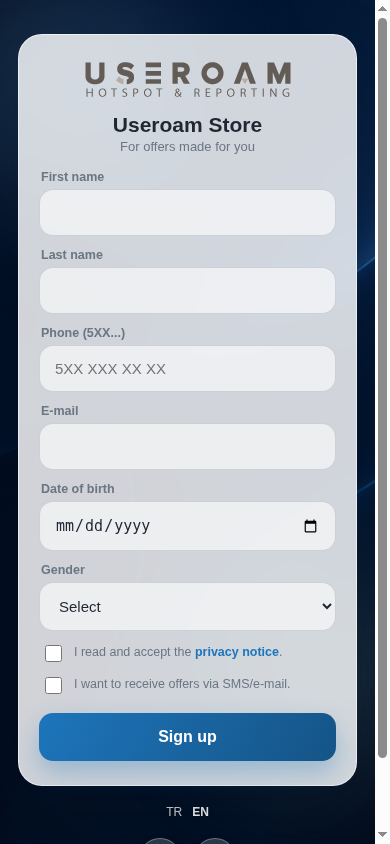
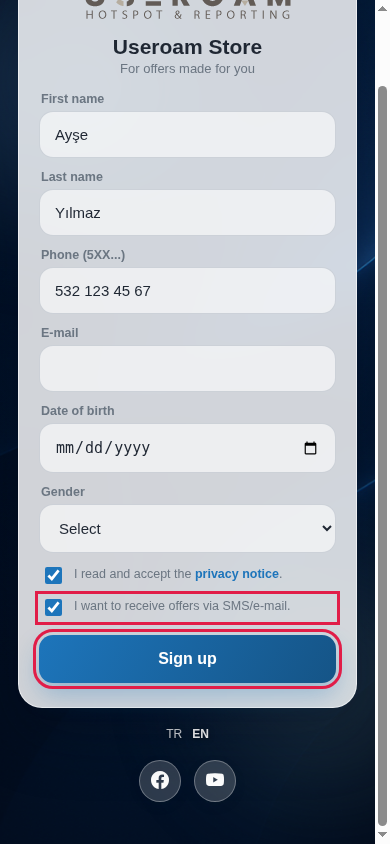
- A customer who scans a storefront, entrance, checkout or general QR sees the sign-up form: the logo, welcome heading and subtext at the top, then the fields you chose (first name, last name, phone, e-mail, date of birth, gender), the privacy notice checkbox and, if enabled, the commercial message consent checkbox. With more than one language, language codes (TR, EN) appear at the bottom.
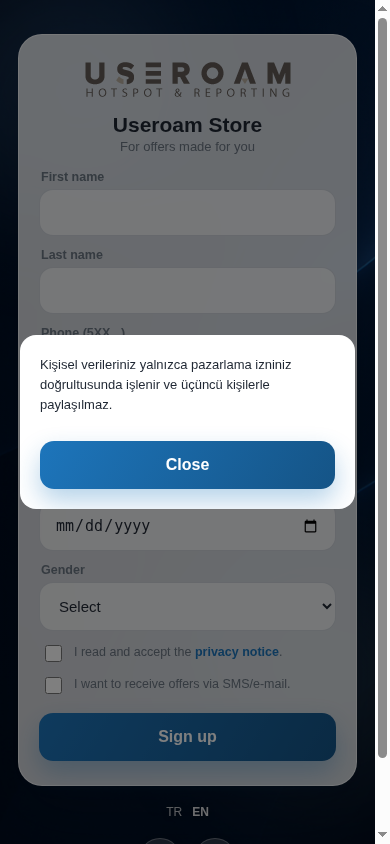
- Tapping the link in "I read and accept the privacy notice." opens the notice in a window; Close returns to the form.
- If the phone or e-mail is wrong, the box gets a red border and the form is not sent. The phone must be typed as 10 digits starting with 5, without a leading 0 (
532 123 45 67). With a leading 0 or 90 the box turns red. If the privacy notice box is not ticked, "Please accept the privacy notice." appears.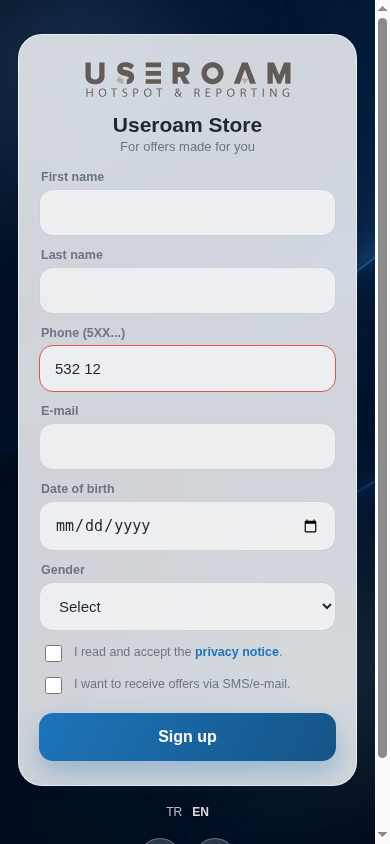
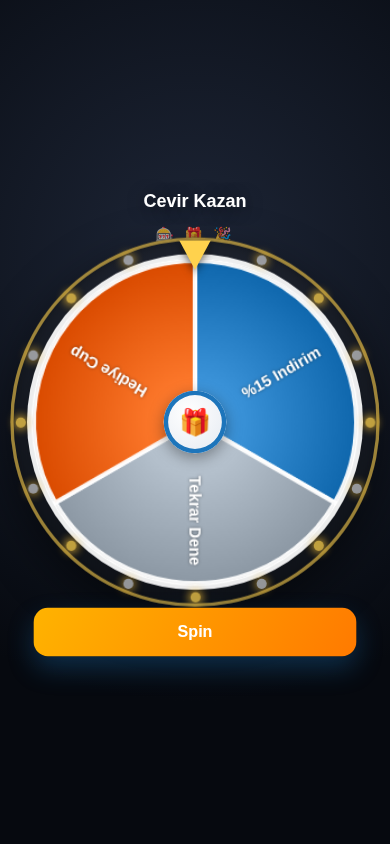
- After Sign up, if the wheel is on, a full-screen wheel appears. The customer presses Spin and the wheel turns.
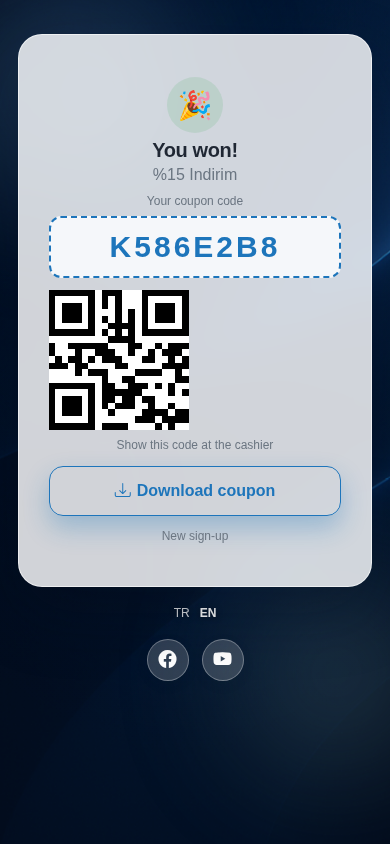
- On a prize slice the "You won!" screen opens: the coupon name, Your coupon code, the code's QR, "Show this code at the cashier" and Download coupon (saves the QR as an image on the phone). The coupon is kept on the phone; if the customer closes and reopens the page, the same coupon appears. The "New sign-up" link at the bottom removes the coupon from the screen and opens the form again.
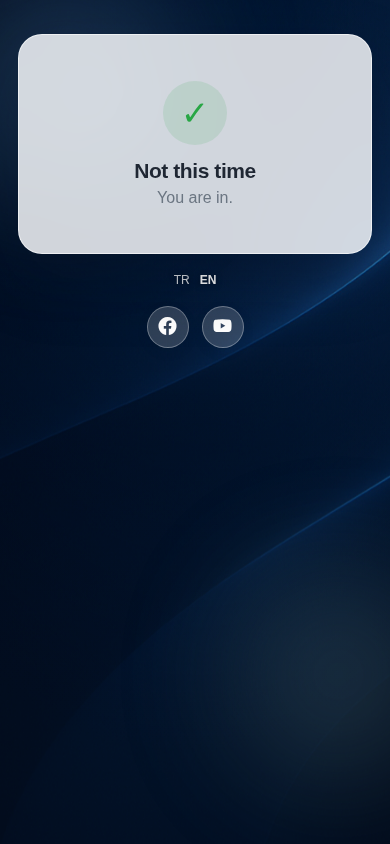
- On a slice without a prize, the "Not this time" screen appears.
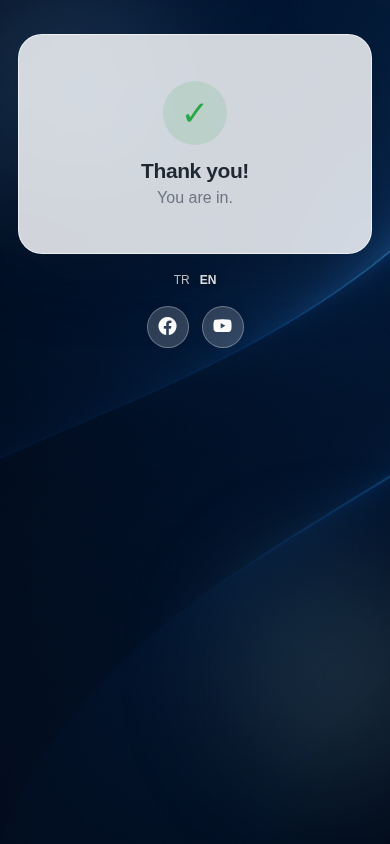
- If the wheel is off and there is an After-the-form coupon, the customer goes straight to the coupon screen. If there is neither, the "Thank you!" screen appears.
Step by step: a customer who gives offers consent (verification code)
If the customer ticks I want to receive offers via SMS/e-mail., the consent is only recorded once the phone number is verified with a code. This stops anyone giving consent with someone else's number. Nothing changes for customers who leave the box unticked.
- The customer fills in the form, ticks the privacy notice and offers consent boxes and presses Sign up. The sign-up is not sent yet; a 6-digit code goes to their number.
- A code box opens below the form. Above it: Code sent via WhatsApp. Verify your number for offers: enter the 6-digit code we sent.; the button becomes Verify and sign up. The code is sent by WhatsApp first; if WhatsApp cannot be reached it goes by SMS automatically and the message reads Code sent via SMS. The SMS reads <store name> verification code: <code>.
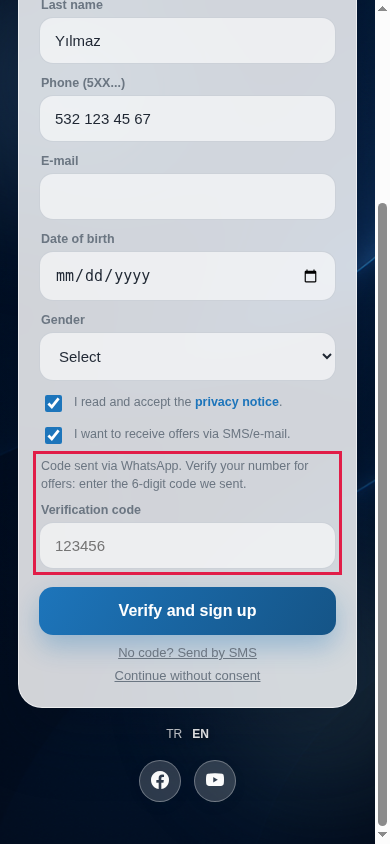
- The customer types the code into Verification code and presses Verify and sign up. If the code is right, the sign-up and the offers consent are saved together and the customer moves on to the wheel or coupon. In the panel this consent is marked Verified (Retail Reports).
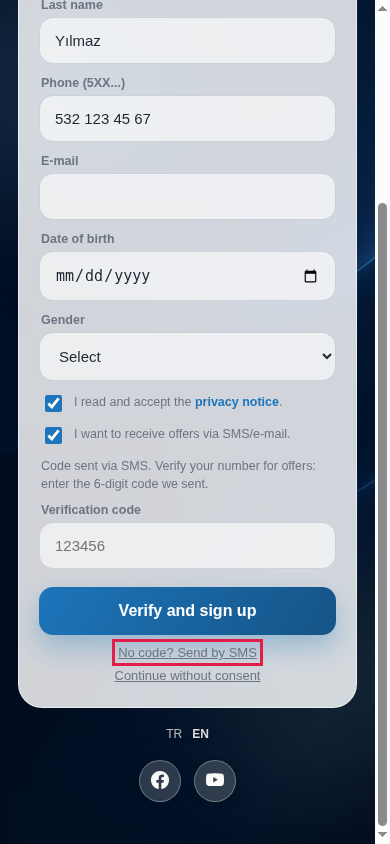
- If no code arrives, the customer presses No code? Send by SMS; a new code comes by SMS and Code sent via SMS. appears above.
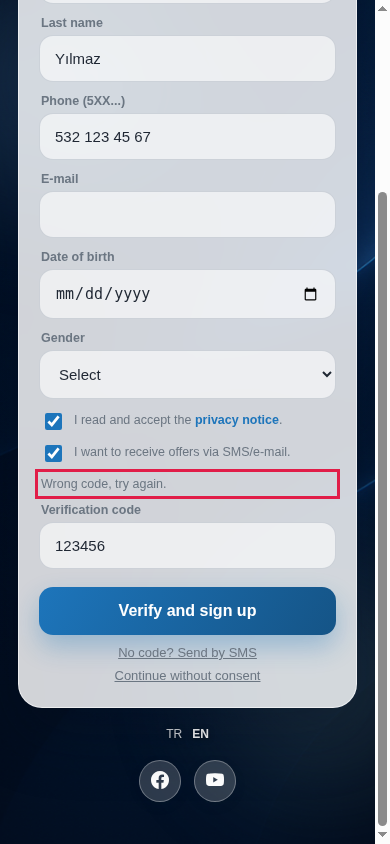
- If the code is wrong, Wrong code, try again. appears above the box; the customer corrects it and presses again.
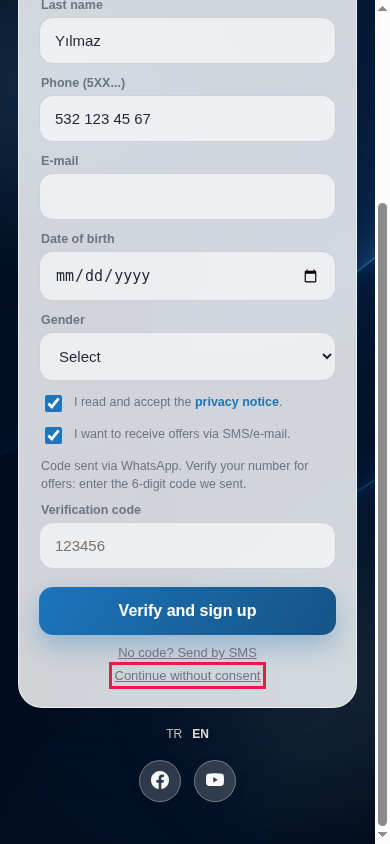
- If the customer changes their mind about consent, they press Continue without consent: the consent box is cleared and the sign-up completes without consent. If they leave the code box empty and press Verify and sign up, the sign-up is also saved but no consent is recorded.
| Limit | Value | When exceeded |
|---|---|---|
| Code validity | 10 minutes | Code expired, request a new one. The customer asks for a new code with No code? Send by SMS. |
| Attempts per code | 5 wrong attempts | Too many wrong attempts. Request a new code or continue without consent. |
| Codes per number | At most 3 in 10 minutes (shared across all your stores) | Too many codes requested. Try later or continue without consent. |
| Codes from the same internet connection | At most 30 per hour | The same message. Customers on the store Wi-Fi share one connection; at very busy times this limit can be reached. |
These images were staged on the demo store page so that no real code was sent; the texts are the page's own.
Step by step: fitting room or aisle QR
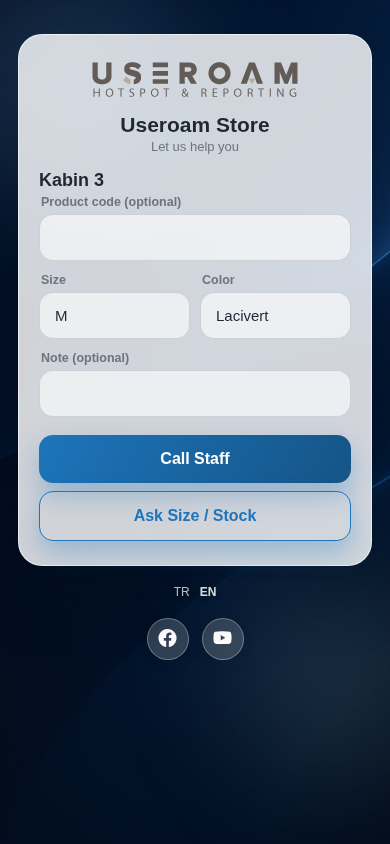
- A Fitting Room or Aisle / Shelf QR does not open the sign-up form. The customer sees the point name (example: Kabin 3) and the boxes Product code (optional), Size, Color, Note (optional), and presses Call Staff or Ask Size / Stock. The request arrives on the Request Monitor in the panel.
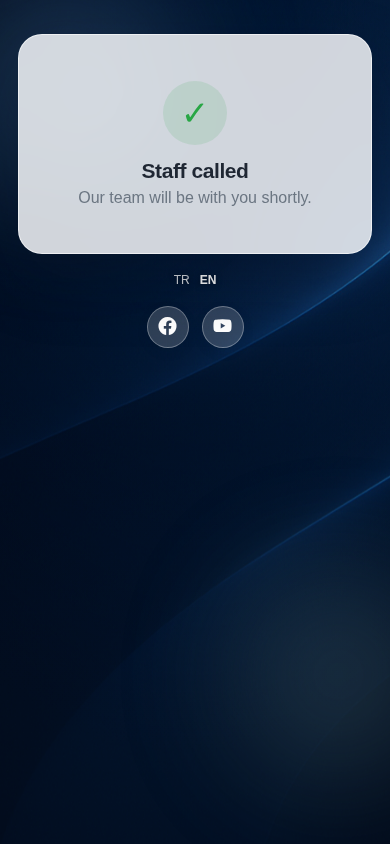
- The customer sees the "Staff called" screen.
Coupon receipt (thermal printer)
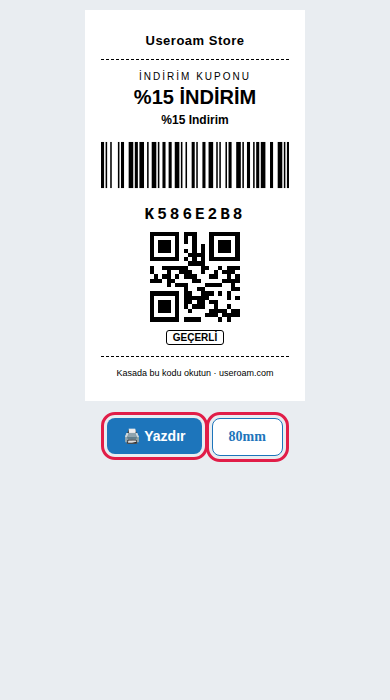
There is a receipt page for 58 mm or 80 mm thermal printers: menu.useroam.com/k/<CODE> (example: menu.useroam.com/k/K586E2B8). It shows the store name, discount, coupon name, barcode, code, QR and status (GEÇERLİ valid, KULLANILMIŞ used or İPTAL cancelled). Yazdır (Print) opens the print window; the button next to it switches between 58 mm and 80 mm. There is no link to this page in the panel or on the customer screen; you open the address with the code yourself. The receipt is in Turkish only.
Every text and warning the customer can see
| Text (EN / TR) | Where | Changed from |
|---|---|---|
| For offers made for you / Sana özel fırsatlar için | Under the form heading | Store Texts |
| First name, Last name, Phone (5XX...), E-mail, Date of birth, Gender | Form labels | Store Texts |
| Select / Female / Male / Prefer not to say | Gender box | Fixed |
| I read and accept the privacy notice. | Consent checkbox | Fixed |
| I want to receive offers via SMS/e-mail. | Consent checkbox (if on) | Store Texts |
| Sign up / Kaydol | Send button | Store Texts |
| Code sent via WhatsApp. / Kod WhatsApp ile gönderildi. · Code sent via SMS. / Kod SMS ile gönderildi. | After offers consent, above the code box | Fixed |
| Verify your number for offers: enter the 6-digit code we sent. / Kampanya izni için numaranı doğrula: gelen 6 haneli kodu yaz. | Above the code box | Fixed |
| Verification code / Doğrulama kodu (grey example 123456) | Code box | Fixed |
| Verify and sign up / Doğrula ve kaydol | Send button while the code box is open | Fixed |
| No code? Send by SMS / Kod gelmedi mi? SMS ile gönder | Below the button | Fixed |
| Continue without consent / İzin vermeden devam et | Below the button | Fixed |
| Wrong code, try again. / Kod hatalı, tekrar dene. | Wrong code | Fixed |
| Code expired, request a new one. / Kodun süresi doldu, yeni kod iste. | Code older than 10 minutes | Fixed |
| Too many wrong attempts. Request a new code or continue without consent. | 5 wrong attempts | Fixed |
| Too many codes requested. Try later or continue without consent. | Code request limit reached | Fixed |
| <store name> verification code: <code> / <mağaza adı> doğrulama kodunuz: <kod> | SMS text when the code goes by SMS | Store name from the store settings |
| Please accept the privacy notice. | Consent box not ticked | Fixed |
| Enter a valid phone. | Phone rejected by the server | Fixed |
| Enter a valid e-mail. | E-mail rejected by the server | Fixed |
| Something went wrong. | Connection or system error | Fixed |
| Bugünlük hakkın doldu. (Your spins for today are used up.) | Daily spin limit reached for the same sign-up (Turkish in every language) | Fixed; number of spins on Coupons & Wheel |
| Spin, You won!, Your coupon code, Show this code at the cashier, Download coupon, Not this time | Wheel and coupon screens | Store Texts |
| New sign-up / Yeni kayit | Bottom of the coupon screen | Fixed |
| Thank you! / You are in. | Thank-you screen | Store Texts (if empty for that language, the Thank-you message in store settings) |
| Let us help you, Call Staff, Ask Size / Stock, Staff called, Our team will be with you shortly. | Fitting room/aisle screens | Store Texts |
| Product code (optional), Size, Color, Note (optional) | Fitting room/aisle form | Fixed |
| Close | Privacy notice window | Fixed |
| Bulunamadı (Not found) | Wrong address, store off or no marketing licence | See FAQ |
Frequently asked questions
A customer asks "why am I getting a code?"
Because they ticked the offers consent box. The code confirms that the consent really comes from the owner of that number. If they do not want a code, they can press Continue without consent and finish signing up without consent.
The customer signed up but the consent was not recorded.
They continued without entering the code (leaving it empty or with Continue without consent); the sign-up is saved, the consent is not. If they want, they can sign up again on the same page and enter the code this time. Without a phone field in the form, consent can never be recorded.
The code does not arrive.
Ask the customer to press No code? Send by SMS. The number must be 10 digits starting with 5, without a leading 0. If it says Too many codes requested, wait a few minutes; if many customers on the store Wi-Fi request codes at once, the hourly limit may have been reached.
The page says "Bulunamadı" (Not found).
The store may be off in Module Permissions, your account's Bumerang (marketing) licence may have ended, or the address was copied incompletely.
A customer lost their coupon.
The coupon reappears when the same page is opened on the same phone. It does not show on another phone, and the panel has no search by code.
Something like |company_email| appears in the privacy notice.
The store page only fills in the business name placeholder. If your portal text has an e-mail placeholder, replace it with your real e-mail address on Editing Portal Texts.
The welcome heading is Turkish on the English page too.
No separate welcome heading was written for English in Store Texts, so the store setting heading shows in every language. Type the English heading in the English tab and save.
Can the same person spin again on the same day?
Each sign-up counts separately. The daily limit is per sign-up; if the same person signs up again, they can spin again.