
Portal Language Settings
What is it for?
The Portal Language Settings screen sets which languages appear as flags on the guest login screen and in which order. The Edit button on each row opens the screen where you change every text guests see in that language, including the KVKK privacy text.
How do I open this screen? In the left menu, click Captive Portal → Portal Language Settings. You are here appears under the title; Dashboard in the path line takes you to the home screen.
When do I use it?
- Most of your guests speak a certain language and you want it at the top of the list.
- You want to remove unused languages from the login screen to reduce the number of flags.
- You want to change the texts in a language (welcome text, KVKK text, button labels).
Before you start
- Every action on this screen (switch, drag, add, delete) is saved immediately; there is no separate Save button.
- The opening language of the portal is chosen in Portal Settings → Default Language, not here.
Step by step
In the left menu, click Captive Portal → Portal Language Settings. The Languages shown on the portal card lists the languages that are on, in order. Each row has an order number, a flag, the language name and its short code (e.g. Turkey tr).
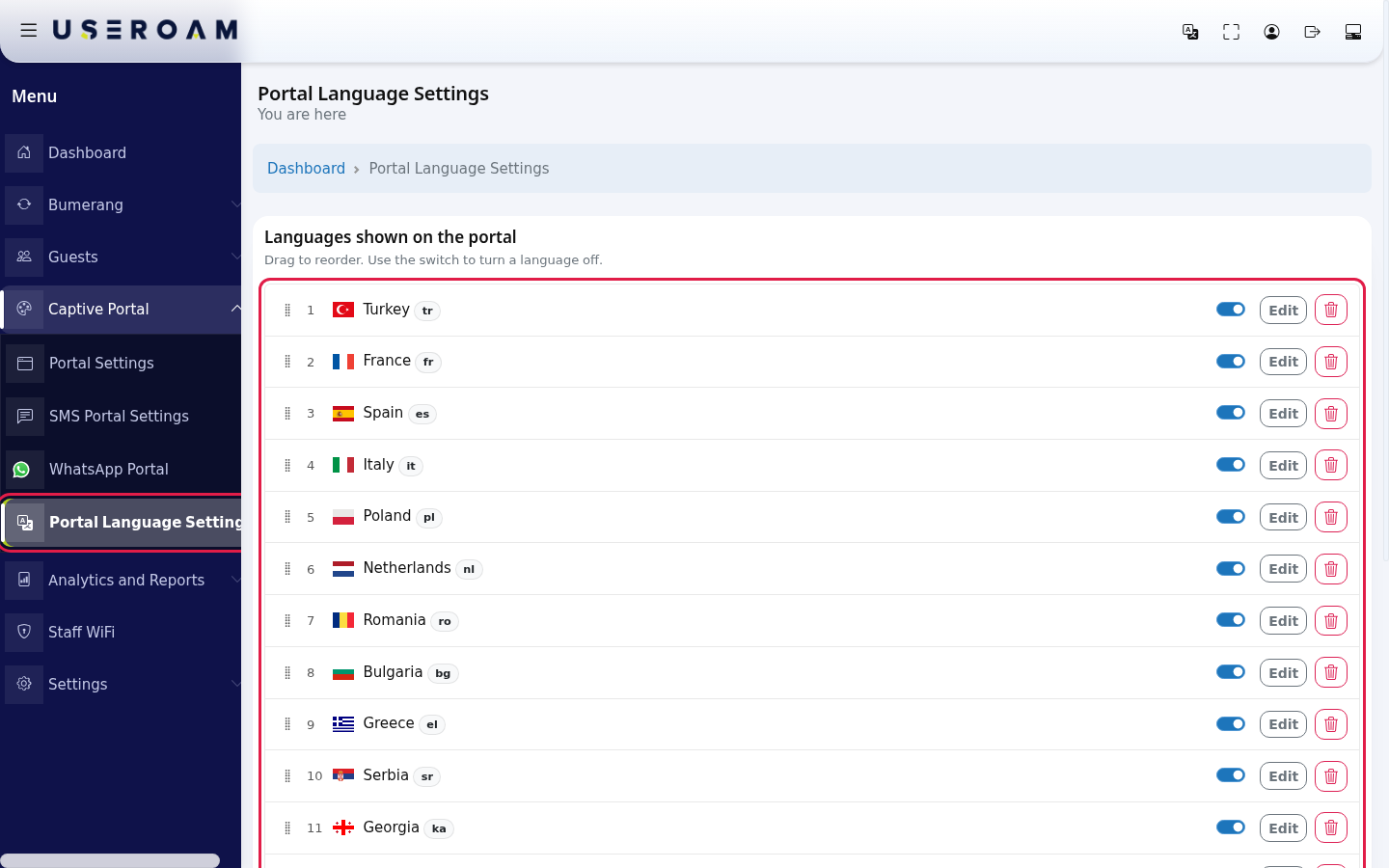
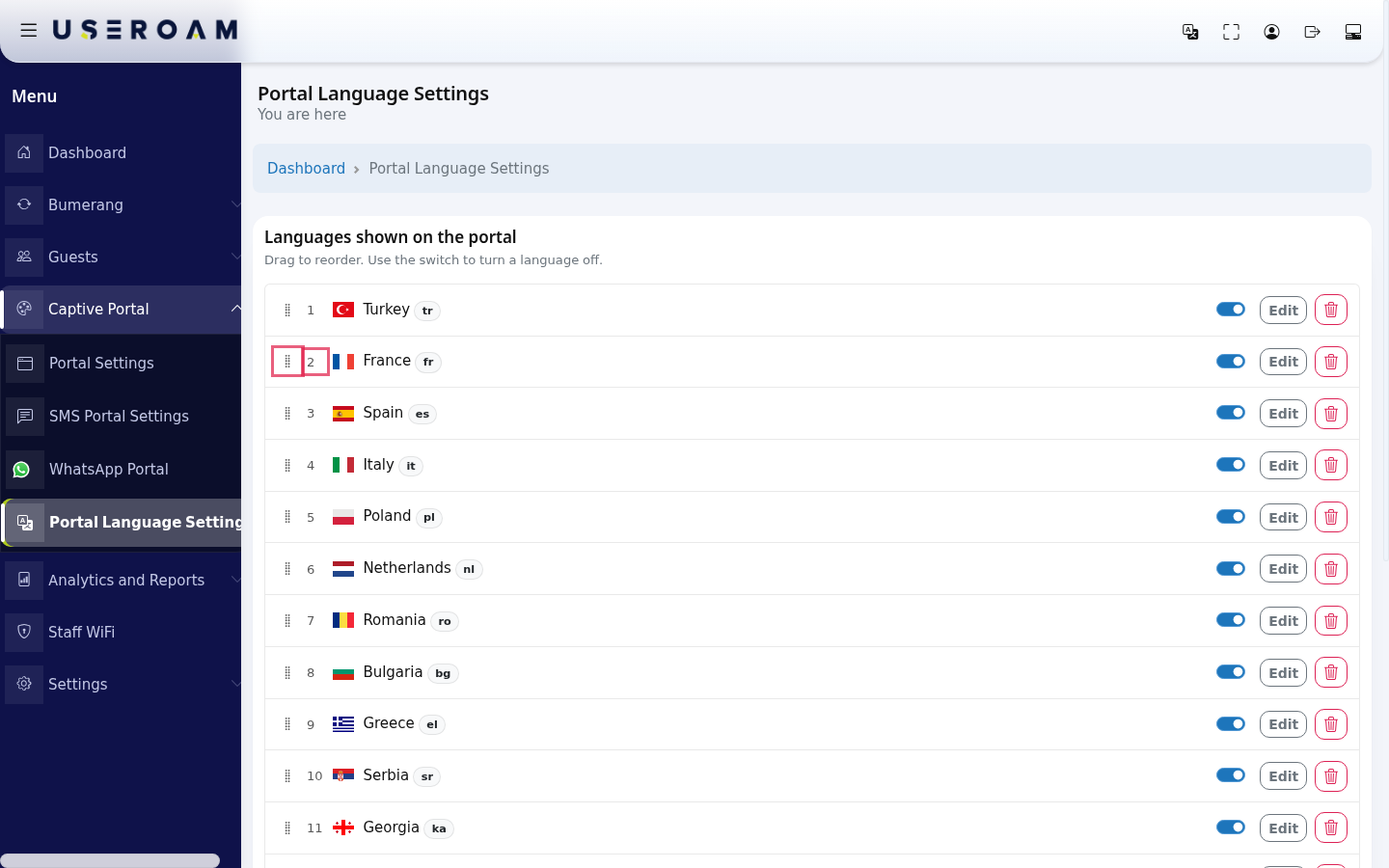
To change the order, hold the dotted handle on the left of a row and drag it up or down. When you drop it, the order numbers update and a green Saved shows briefly at the top right of the card. The flags on the login screen follow this order.
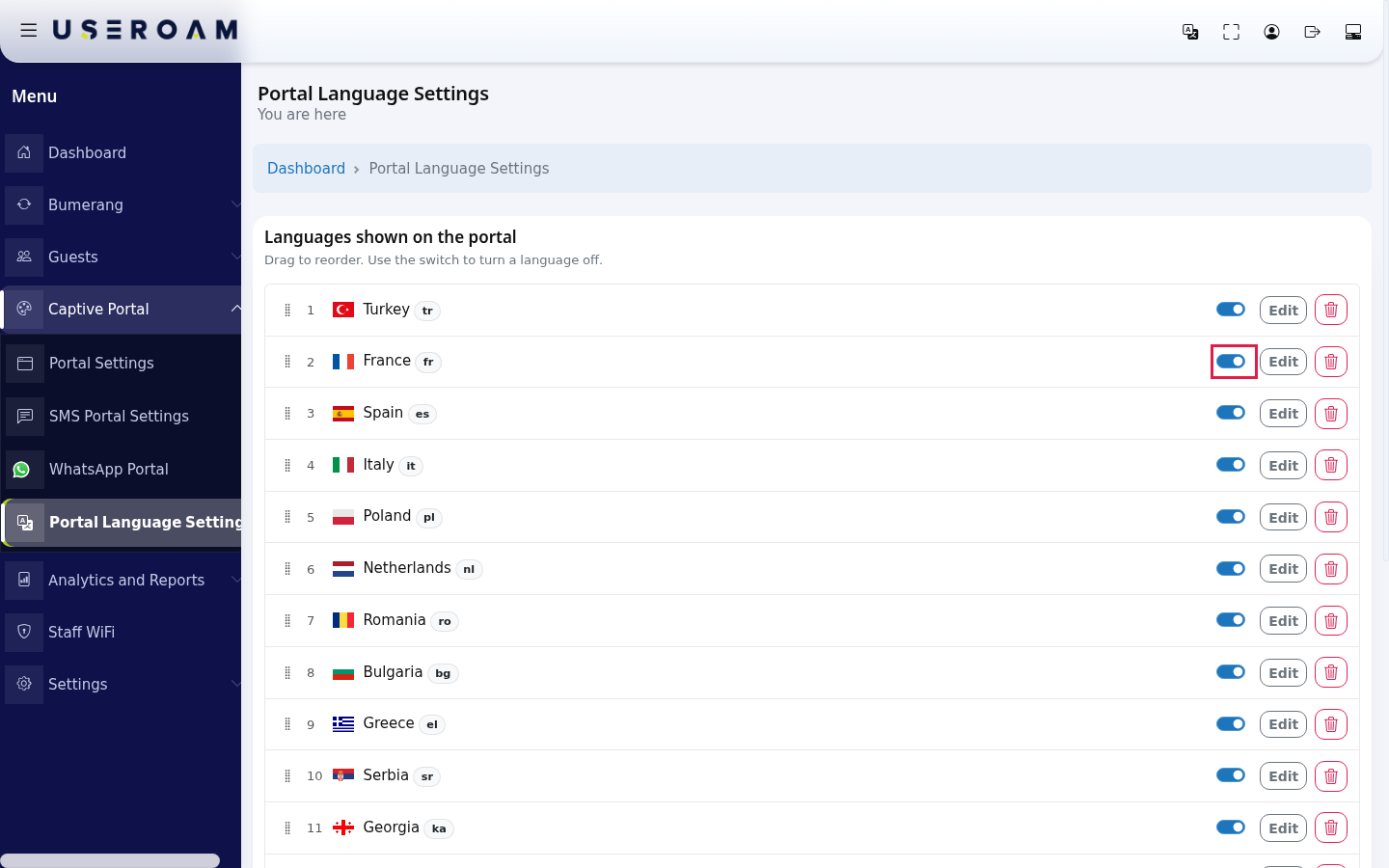
To remove a language from the login screen, turn off its Show on portal switch. The language is not deleted: it moves to the Add language card below and its texts are kept. At least one language must stay on; if you try to turn off the last one you see At least one language must stay on.
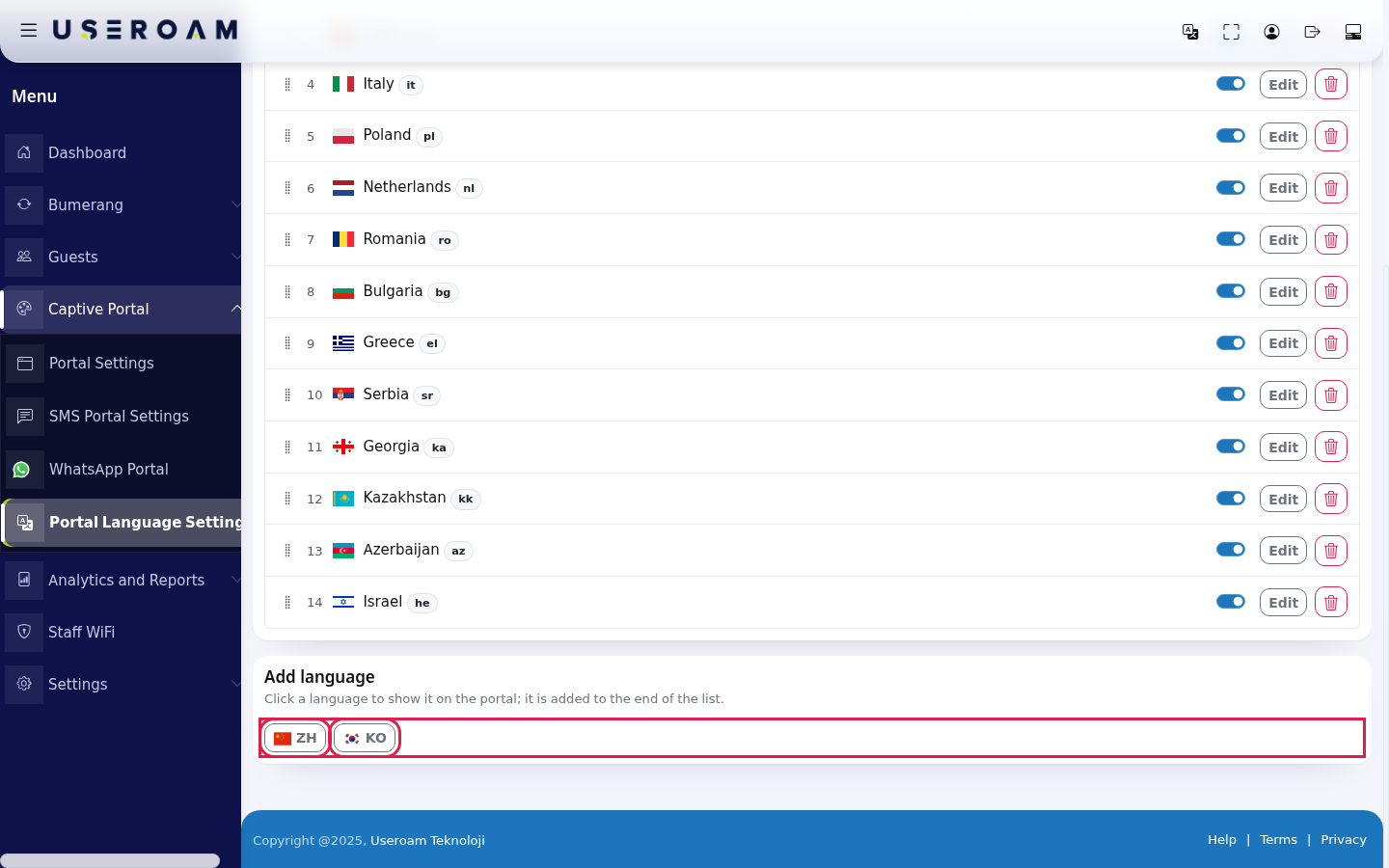
To turn a language back on, click its flag button (e.g. ZH) on the Add language card at the bottom. It is added to the end of the list. With no languages off, the card reads All languages are on.
The two languages that are off in the image were turned off briefly on the demo account to show this card and then restored to their places.
To change the texts in a language, press Edit on its row. The text screen of that language opens; details are on Editing Portal Texts (incl. KVKK).
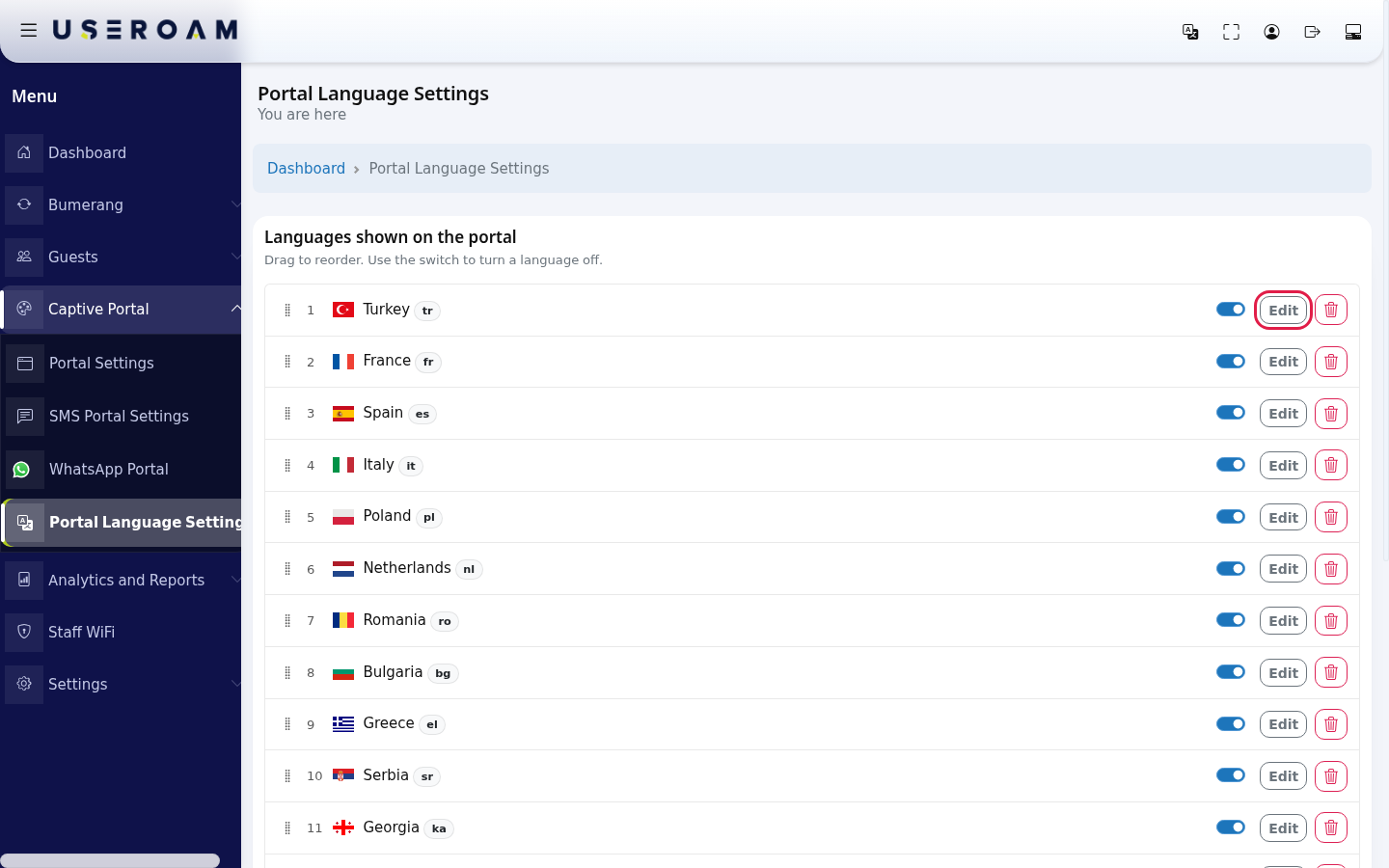
To remove a language completely, press the red bin button at the far right of the row. The question Delete this language and all its translations? appears. Yes, delete removes the language and all your texts in it permanently; Cancel does nothing.
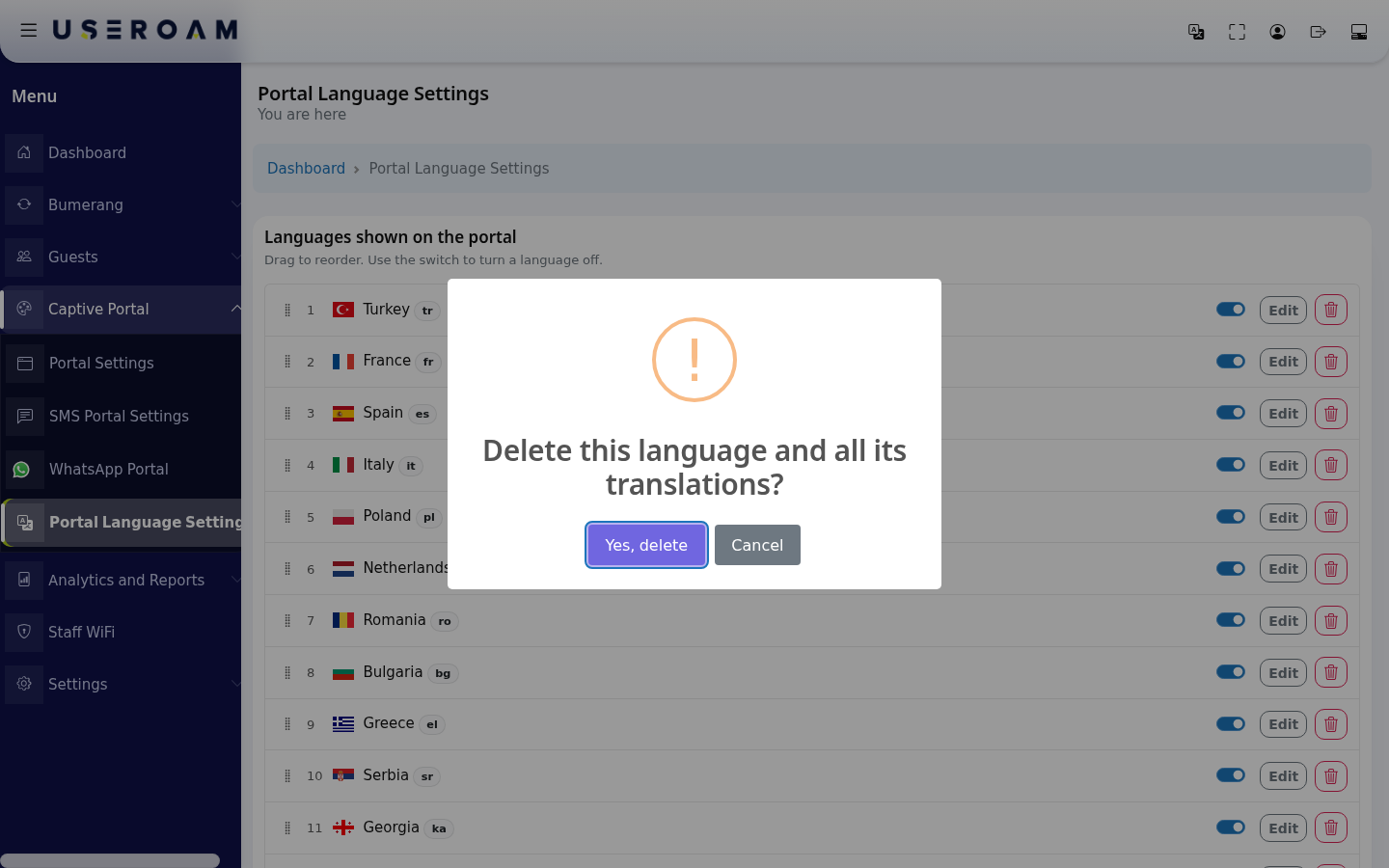
A deleted language does not come back to the Add language card and cannot be added again from this screen. If you only want to hide a language for a while, turn off its switch instead of deleting it.
Every field and button on the screen
| Field / Button | What it does | Example |
|---|---|---|
| Languages shown on the portal | Languages on the login screen, in display order. Subtitle: Drag to reorder. Use the switch to turn a language off. | 1 Turkey tr, 2 France fr |
| Drag handle (Drag to reorder) | Moves the row and saves the order. | - |
| Order number | Position of the language on the login screen. | 1 |
| Short code badge | Language code. | tr, en, de |
| Show on portal switch | Hides or shows the language on the login screen. Texts are kept. | On |
| Edit | Opens the text screen of the language. | - |
| Delete (bin) | Deletes the language and all its translations permanently (asks first). | - |
| Add language | Flag buttons of languages that are off. Subtitle: Click a language to show it on the portal; it is added to the end of the list. | ZH, KO |
Warnings and status messages
| Message | When it appears | What to do |
|---|---|---|
| Saved (green) | After ordering, turning on/off or deleting, at the top right of the card. | Nothing. |
| Could not be saved. Refresh the page and try again. (red) | The action did not reach the server. | Refresh the page and try again. |
| Session verification failed. Refresh the page and try again. | The page stayed open for a long time. | Refresh the page. |
| At least one language must stay on. | Trying to turn off or delete the last language that is on. | Turn another language on first. |
| All languages are on. | No language is off on the Add language card. | Information only. |
Frequently asked questions
The language I want is not in the list.
The Add language card only shows languages defined for your device that you turned off. You cannot add a language that was never defined or that you deleted; contact Useroam support for that.
The portal always opens in Turkish; I want English.
Change the opening language in Portal Settings → Default Language. The order here only sets the order of the flags.
If I turn a language off, do I lose my translations?
No. Turning it off keeps the texts. Only Yes, delete loses them.